To turn a voice memo to notes, do three things in order: record it cleanly with the phone close to the speakers, get a transcript (iPhone Voice Memos, Pixel Recorder or an AI transcription tool), then summarize that transcript into decisions, action items and open questions. The transcript is raw material. The notes are the short page someone reads in two minutes.
Guides & How-tos 11 min read
Voice Memo to Notes: Turn a Recording Into Meeting Notes
How to turn a phone voice memo into meeting notes: record it cleanly, get a transcript on iPhone or Pixel, then summarize it with a prompt and a template.
By Sarma BKP, Founder & CEO, Acta · Updated
This guide is for anyone who records a meeting on their phone, such as a site visit, a coffee with a client, a team huddle in a meeting room or a voice note to yourself after a call, and then wants something better than a wall of text. If you only need the transcript of an iPhone memo, our shorter guide to transcribing voice memos on iPhone covers that. This one goes further: from audio to notes you can send.
Key takeaways
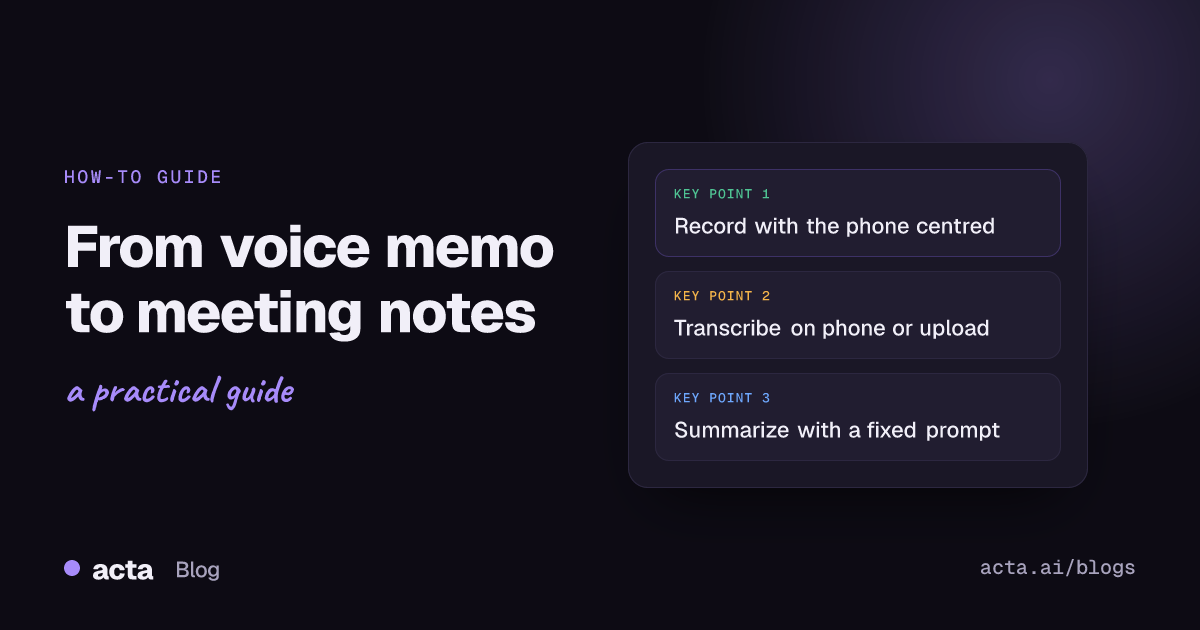
- Put the phone on the table between speakers, within about an arm's length, on a soft surface. Placement fixes more errors than any app setting.
- On iPhone, Voice Memos shows a transcript under More Actions on iPhone 12 or later, in supported languages and regions, as of November 2026.
- On Pixel 8 and later, Recorder can summarize speech recordings between five minutes and one hour in supported languages.
- Summarize with a fixed prompt that asks for decisions, actions with owners and dates, open questions and quotes to check.
- Read the summary against the transcript once before you send it. Names, numbers and dates are where AI notes go wrong.
Table of contents
- Voice memo to notes takes three steps
- A clean recording matters more than the app
- iPhone can transcribe and summarize on the phone
- Pixel Recorder transcribes and summarizes on newer Pixels
- A summary prompt turns the transcript into notes
- A notes template and a filled-in example
- Most bad notes come from a few avoidable mistakes
- Where Acta fits
- Frequently asked questions
- Make voice memo to notes a habit
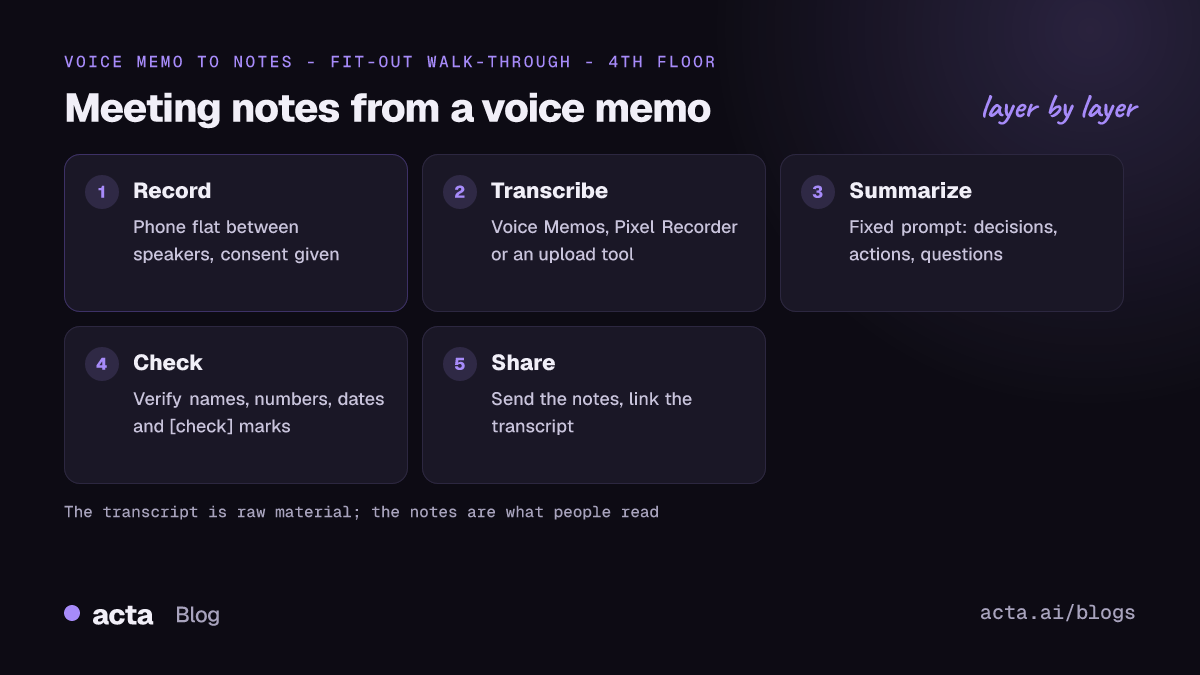
Voice memo to notes takes three steps
A voice memo is an audio file your phone saves when you press record. On an iPhone it's an M4A file in the Voice Memos app; on Android it depends on the phone maker's recorder app. Meeting notes are something else: a structured page with what was decided, who does what by when, and what's still open. Getting from one to the other is a short pipeline.
- Record. Capture the conversation with the phone placed well, and tell people you're recording.
- Transcribe. Turn speech into text, on the phone or by sending the M4A file to a transcription tool.
- Summarize. Turn the transcript into notes with a fixed structure, then check it and share it.
Each step has one common failure. Bad audio produces a transcript full of guesses. A transcript without speaker labels makes it hard to say who promised what. And a vague summary prompt produces a vague paragraph that nobody acts on. The rest of this guide is about avoiding those three.
A quick decision rule for which tools to use: if the memo is under an hour, in one of your phone's supported languages and only for you, the phone's own tools are fine. If it involves several speakers, needs speaker names, or will be shared with a client or team, use a meeting notes tool that handles uploads and labels speakers.
A clean recording matters more than the app
Speech-to-text has improved a lot, but it still can't recover words the microphone never caught clearly. Most of the errors I see in transcripts of in-person meetings trace back to where the phone was, not which app ran the transcription.
- Place it in the middle. Put the phone flat on the table between the people talking, microphone end facing the group. In a room of six, two phones at each end beat one at your seat.
- Use a soft surface. A folded napkin or notebook under the phone cuts the thud of cups and laptops.
- Kill background noise you control. Close the window, pause the music, and avoid recording under a loud air vent.
- Say names early. A quick round of "Priya, Marco, Dana" at the start helps you, and any tool, match voices later.
- Keep the phone on Do Not Disturb. Calls and notifications can interrupt some recorders.
For more on microphones, see our guide to the best microphone for meetings, and for accents and crosstalk, how to improve transcription accuracy.
Tell people before you hit record. In many places recording a conversation without consent is restricted, and even where it's legal, a hidden recording damages trust. This isn't legal advice, but our guide on whether it's legal to record meetings with AI explains consent rules and what to say. If the conversation is a call on your laptop rather than in a room, a phone memo is the wrong tool: a desktop recorder captures the call sound and your microphone directly, which gives a much cleaner transcript.
iPhone can transcribe and summarize on the phone
Apple added transcripts to Voice Memos. As of November 2026, Apple's guide to viewing a Voice Memos transcription says to open the recording, tap More Actions, then View Transcript; from there you can select and copy text, or copy the whole transcript. You can also watch the transcription while recording by swiping up on the waveform. Apple says this works on iPhone 12 or later, in some languages, and not in every country or region, so check Apple's page for your phone.
The Notes app goes a step further. You can record audio inside a note, see the transcript, and on iPhones that support Apple Intelligence, generate a summary of the transcript. Apple's guide to using Apple Intelligence in Notes lists the supported models and languages, and notes that some languages that support summaries aren't available for transcription. If you take a lot of in-person meeting notes on an iPhone, recording in Notes rather than Voice Memos keeps the audio, transcript and summary in one place.
To send a memo to another tool, use Share. Apple's guide to sharing a Voice Memos recording explains that choosing Rendered under Options produces a single M4A file with any edits mixed in. Save it to Files, email it to yourself, or upload it straight to your transcription tool.
What the phone won't do well: label speakers by name, handle a two-hour workshop gracefully, or produce notes in your team's format. Use it for quick memos, and use a dedicated tool for meetings that matter.
Pixel Recorder transcribes and summarizes on newer Pixels
On Google Pixel phones, the Recorder app shows a transcript alongside the audio. According to Google's help page on creating and managing transcriptions, after you save a recording a Summarize option appears in the transcript, as of November 2026 on Pixel 8 and later. Summaries cover speech recordings from five minutes up to one hour, in a listed set of languages that includes English and Hindi. Google labels the summary as AI-generated.
Two more details from Google's help pages are worth knowing. Speaker labels (Speaker 1, Speaker 2) are available on Pixel 6 and later, but only in US English. And if you choose to transcribe a recording again, Google says the audio may be processed on its servers, which matters for a confidential conversation. You can share a transcript as a text file or copy it to Google Docs.
Other Android phones have their own recorder apps with different features. Check your phone maker's help pages rather than assuming Pixel features apply. If your recorder has no transcription at all, export the audio file and upload it to a transcription tool. Our guide on how to record a conversation covers phone options in more detail.
A summary prompt turns the transcript into notes
This is the step most people rush. They paste a transcript into a chatbot, type "summarize this", and get a tidy paragraph that skips the one deadline that mattered. A fixed prompt fixes that. It tells the model what structure to use and what to flag when it isn't sure.
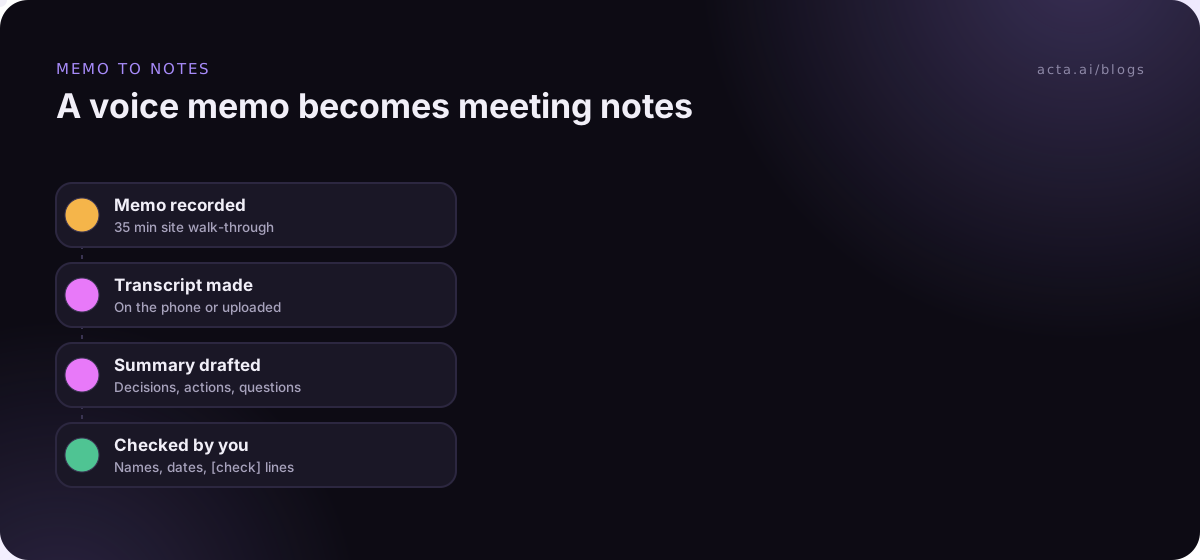
Copy this prompt and paste the transcript under it:
You are writing meeting notes from the transcript below. The meeting was [what it was, for example "a site visit with the client"] on [date], with [names and roles].
Write: 1) Purpose, one sentence. 2) Decisions, each with who made it. 3) Action items as "Owner - task - due date"; if no date was said, write "no date". 4) Open questions. 5) Up to three direct quotes worth keeping, with the speaker.
Rules: only use what is in the transcript. If a name, number or date is unclear, write [check]. Keep it under 300 words. No introduction or conclusion.
The [check] marker is the important part. It turns hidden errors into visible ones, so you know exactly which lines to verify by listening back. For more prompt variations by meeting type, see our new guide to summarizing a meeting transcript with AI.
A word on privacy: pasting a client conversation into a consumer chatbot may break your company's policy or the client's expectations. Check what your organisation allows, and prefer a tool your company has approved for meeting data.
A notes template and a filled-in example
Whether you write the notes yourself from the transcript or let AI draft them, use the same shape every time. People learn where to look.
[Date] [Meeting] - [Place or call]
People: [names] | Source: voice memo, [length]
Purpose: [one sentence]
Decisions: [decision - who decided]
Actions: [owner] - [task] - [due date]
Open questions: [question - who answers]
Worth quoting: "[quote]" - [speaker]
Here's an illustrative example, from a 35-minute memo recorded on a phone during a walk-through of an office fit-out:
18 Nov 2026 Fit-out walk-through - 4th floor, client office
People: Dana (client facilities), Marco (site lead), Priya (designer) | Source: voice memo, 35 min
Purpose: Agree the snag list before handover.
Decisions: Meeting room glass stays frosted, not clear (Dana). Kitchen handover moves to the second phase (Marco and Dana).
Actions: Marco - fix the two doors that don't close - 22 Nov. Priya - send revised lighting plan for reception - 25 Nov. Dana - confirm the date for furniture delivery - no date [check].
Open questions: Does the server room need a second cooling unit? Marco to ask the engineer.
Worth quoting: "If reception isn't done, we don't take the keys." - Dana
Notice the [check] on Dana's action. The transcript had "by the... next week maybe", so the summary flagged it rather than inventing a date. That's exactly what you want.
Most bad notes come from a few avoidable mistakes
These come up again and again when people turn recordings into notes:
- Sending the transcript instead of notes. A transcript of a 40-minute meeting can run to several thousand words. Send the notes; link the transcript for anyone who wants detail.
- Skipping the check. Read the summary against the transcript once. Names, numbers and dates deserve a second look, especially for people with similar-sounding names.
- Recording in your pocket. A phone in a jacket pocket records fabric noise and your own voice. Put it on the table.
- Waiting a week. Notes written the same day are better, because you still remember who meant what. The first ten minutes after a meeting matter most; see what to do after a meeting.
Troubleshooting:
- No transcript option on iPhone. Check your model (iPhone 12 or later) and your language and region settings against Apple's page.
- No Summarize button on Pixel. Summaries need a Pixel 8 or later, a supported language and a recording between five minutes and an hour.
- The upload fails or sounds garbled. Share the memo as Rendered to get one M4A file, and check the tool accepts M4A.
- Everyone is "Speaker 1". Phone recorders struggle with similar voices in one room. Rename speakers by hand, or use a tool that lets you assign names.
Where Acta fits
Acta's mobile apps record in-person meetings, and you can also upload an audio recording such as an M4A voice memo. Either way, Acta writes a transcript with speaker names, a summary, decisions and action items with owners, and a follow-up email draft. If you only need a quick personal memo summarized, your phone's own tools may be enough.
Frequently asked questions
How do I transcribe a voice memo on iPhone?
Open the recording in Voice Memos, tap More Actions, then View Transcript. You can select and copy parts or copy the whole transcript. As of November 2026, Apple says this works on iPhone 12 or later in supported languages and regions. If your phone doesn't show the option, share the memo as an M4A file and upload it to a transcription tool.
Can AI summarize a voice recording into meeting notes?
Yes. Pixel Recorder and iPhone Notes can summarize on supported devices, and any AI tool can summarize a transcript you paste in. To summarize a voice recording well, ask for a fixed structure: decisions, action items with owners and dates, and open questions. Tell it to mark anything unclear, then check those lines against the audio.
What is the difference between a voice memos transcript and meeting notes?
A voice memos transcript is every word spoken, in order, often without speaker names. Meeting notes are the short, structured version: purpose, decisions, action items and open questions. You need the transcript to write accurate notes, but the notes are what you share. Keep the transcript linked for anyone who wants to check a detail.
Is it legal to record a meeting on my phone?
It depends on where you are and who's in the room. Some places require everyone's consent, others only one person's. Tell people you're recording and get their agreement before you start; that's good practice even where the law doesn't require it. This is general information, not legal advice, so check the rules where you work.
How long can a voice memo be for transcription?
It depends on the tool. Pixel Recorder summaries work on recordings from five minutes to one hour, according to Google's help page. For longer meetings, a meeting notes tool that accepts uploads is usually the safer route. Check the limits of whichever tool you use before recording a three-hour workshop on your phone.
Make voice memo to notes a habit
The process only pays off if you do it every time, the same way. Set it up once:
- Fix the placement: phone flat, middle of the table, Do Not Disturb on.
- Say it out loud: tell people you're recording and name everyone at the start.
- Pick one transcription route: the phone's own transcript for quick memos, an upload tool for meetings you'll share.
- Save the prompt and template: keep both in a note so the summary always has the same shape.
- Check before sending: verify every [check], name, number and date against the audio.
If you'd like to try it on your next in-person meeting, Acta's mobile app and uploads are included in the 15-day free trial on the pricing page.
Found this useful? Share it with your team.