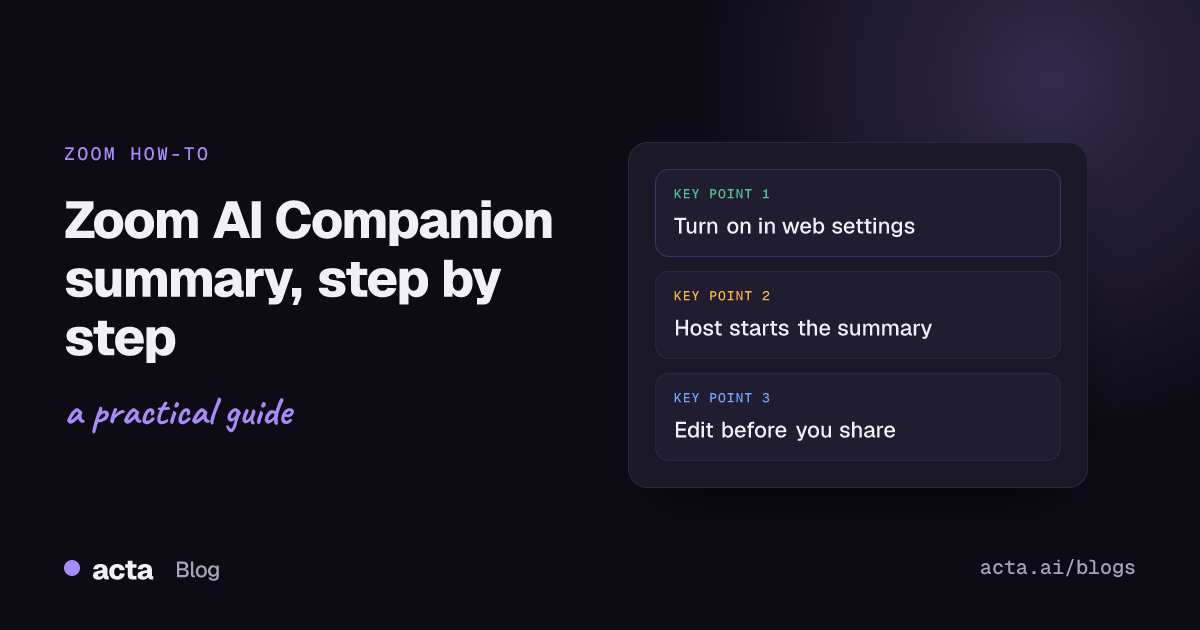
To get a Zoom AI Companion summary, turn on "Meeting summary with AI" in the Zoom web portal settings (an admin may need to do it for the account), then click the AI icon in the meeting toolbar and choose Start summary. After the call, Zoom emails the host a summary with next steps, which the host can edit and share. It needs an eligible paid Zoom Workplace plan, and breakout rooms aren't covered.
Guides & How-tos 11 min read
Zoom AI Companion Summary: How to Turn It On and Get Good Recaps
How to turn on Zoom's AI meeting summary, choose who receives it, review it with a copy-ready checklist, fix the usual problems and cover non-Zoom meetings.
By Sarma BKP, Founder & CEO, Acta · Updated
This guide walks through the setup step by step, shows what a summary looks like, gives you a review checklist to copy and covers the problems people hit most. One naming note first: Zoom's developer changelog says the AI Companion brand was retired in July 2026, and its features now sit under plain names like "meeting summary" inside Zoom Workplace. Most people still search for "AI Companion," so I use both names here. If your meetings mostly happen outside Zoom, the alternatives section near the end will be more useful than the setup steps.
Key takeaways
- As of November 2026, Zoom's help article calls the setting "Meeting summary with AI," under the Zoom AI tab of the web portal; admins can enable it for the account, a group or let users choose.
- Only the host or a co-host can start or stop the summary in the meeting, and Zoom doesn't summarize breakout rooms.
- Set "Automatically share summary with" to the host only, edit the summary, then share it; edit first, because a summary already emailed won't update in people's inboxes.
- Pre-built summary templates (stand-up, one-on-one, brainstorm, project update) give better structure than the default for recurring meetings.
- Zoom's own summaries cover Zoom meetings; for Teams and Meet, Zoom now offers a Zoom AI participant that joins those meetings, or you can use a separate notetaker.
Table of contents
- A Zoom AI Companion summary gives you a recap, next steps and topics
- Three things must be true before the summary works
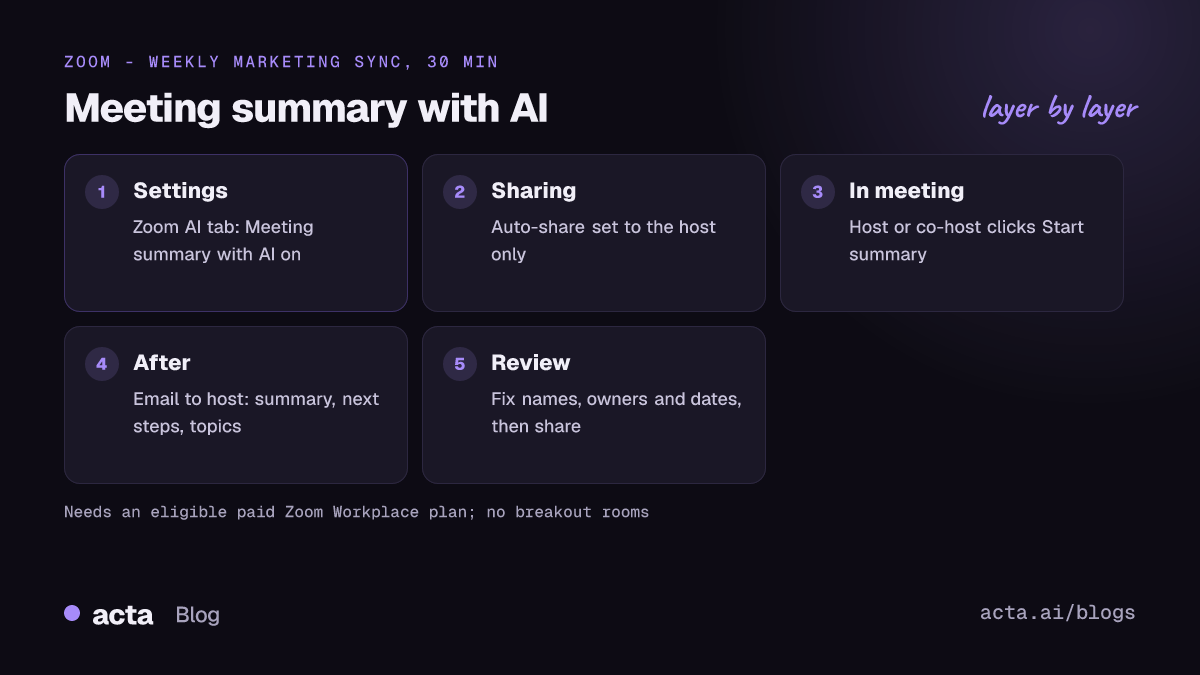
- Turning on Zoom AI Companion summary takes five steps
- A review checklist keeps summaries accurate
- A filled-in example shows the summary after review
- Most summary problems come from settings, not the AI
- Alternatives cover meetings Zoom can't summarize
- Frequently asked questions
- Set up summaries that people actually read
A Zoom AI Companion summary gives you a recap, next steps and topics
A meeting summary is Zoom's AI write-up of a call. Zoom described it at launch as presenting a summary of the meeting and identifying the action items; in practice you get a short overview, a list of next steps and a breakdown by topic. It isn't a recording and it isn't a full transcript. You can summarize a meeting without recording it at all, which makes it a lighter option for calls where nobody wants a video file sitting in the cloud.
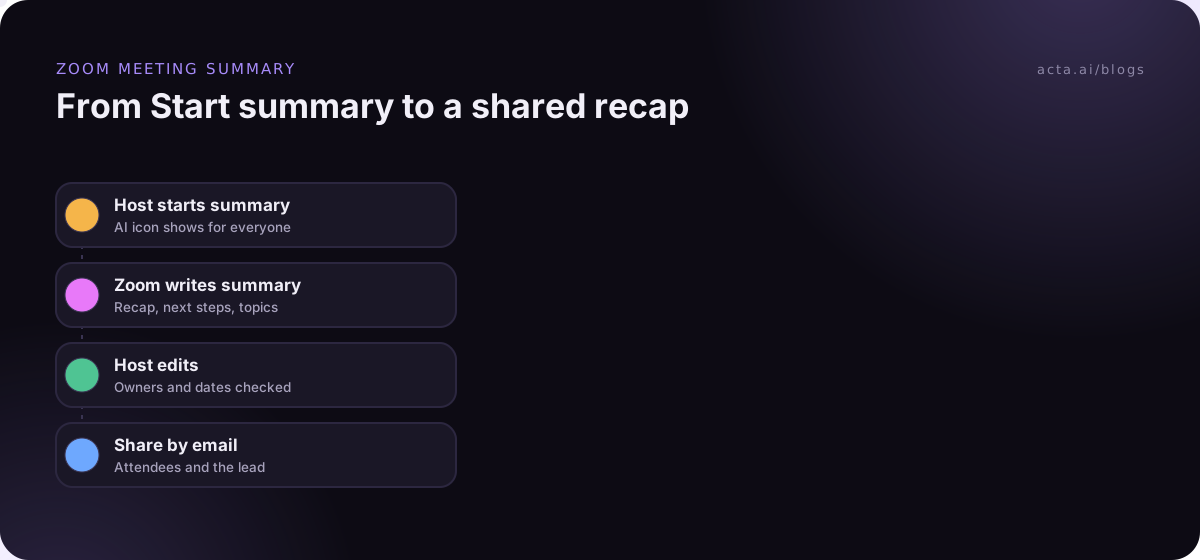
When the meeting ends, Zoom emails the host once the summary is ready. The host can open it on Zoom's web portal, change the text, then share it by email with chosen people or let the sharing setting send it automatically. If the account allows templates, the host can also pick a structure suited to the meeting, such as a stand-up or a one-on-one, and the summary follows those sections.
What it's good at: turning a 45-minute status call into five readable lines and a list of next steps. What it's weaker at: telling you who promised what with certainty, catching decisions that were implied rather than stated, and anything that happened in a breakout room.
Three things must be true before the summary works
Most "I can't find the button" problems come down to one of these. Check them before you go hunting through menus.
- You're on an eligible paid plan. Zoom's help article on enabling or disabling meeting summary with AI lists the eligible paid Zoom Workplace plans. Free Basic users don't get it. Plan names and what they include change, so check the vendor's page for your plan as of today.
- The setting is on for you. Account owners and admins can enable the feature for the whole account, for a group, or leave it to each user. If the toggle is greyed out, an admin has locked it.
- You're the host or a co-host. Only hosts and co-hosts can start or stop a summary from the meeting controls. Participants can't start one in someone else's meeting.
If you're an admin, decide the defaults before switching it on for everyone. Two settings matter most: whether summaries start automatically, and who receives them. Some universities that rolled this out recommend against auto-starting summaries in every meeting, and suggest sending summaries to the host only so they can be reviewed first. That's sensible advice for any company.
Turning on Zoom AI Companion summary takes five steps
Here are the steps as of November 2026. Menu labels have changed with the rebrand, so if you see "AI Companion" where I write "Zoom AI," it's the same place.
- Open settings. Sign in to the Zoom web portal and go to Settings. Admins go to Admin Center, then Settings, to change it for the account.
- Find the AI tab. Open the Zoom AI tab (labelled AI Companion on older accounts) and, under Meeting, switch on Meeting summary with AI. Confirm if Zoom asks.
- Set sharing. In the same section, set Automatically share summary with to the host only. You can share wider later, after you've read it.
- Start it in the meeting. As host or co-host, click the AI icon in the meeting toolbar and choose Start summary. An AI icon appears in the corner of the window so everyone knows it's on.
- Review and share. After the meeting, open the email or the summaries list on the web portal, edit the text and next steps, then click Share and add email addresses.
If your admin has enabled summary templates, you'll also see a template choice. Zoom's article on meeting summary templates explains that admins build and publish templates and choose which groups can use them. For a weekly stand-up, a stand-up template that lists yesterday, today and blockers per person beats the default every time.
Recording is a separate decision. If you want the video too, our guide on how to record a Zoom meeting covers local and cloud recording. Either way, tell people what's being captured and why. Whether you need their consent depends on where they are; our guide to recording meetings with AI and what to tell participants is general information, not legal advice.
A review checklist keeps summaries accurate
An unreviewed AI summary is a draft, and it gets forwarded as if it were minutes. University IT teams that support Zoom warn that AI-generated content can be incomplete, inaccurate or misleading. A two-minute review fixes most of that. Copy this checklist into your notes app and run through it before you share any Zoom AI Companion summary:
Before sharing a meeting summary
1. Names: is every person named correctly, including people who joined by phone?
2. Decisions: does the summary state each decision we actually made, in one line, and nothing we only discussed?
3. Next steps: does each one have a named owner and a date? Delete any that nobody agreed to.
4. Numbers: are figures, prices and dates exactly as said? Check anything that will be acted on.
5. Sensitive points: is there anything (pay, health, a personnel issue, a client's confidential plan) that shouldn't go to everyone on the list?
6. Recipients: who needs this, and who was in the meeting but doesn't need the full summary?
Point 3 is where most of the value is. Suggested next steps are guesses about who will do what. "We should look at the pricing page" is not a task until someone's name is next to it. Our guide on ending a meeting with owners and deadlines helps you get cleaner input in the first place, which gives the AI less to guess.
A filled-in example shows the summary after review
An illustrative example. Dana hosts a 30-minute weekly marketing sync on Zoom with Priya and Marco. Summaries are on, sharing is set to the host only, and the account offers a project update template. Here's the summary after Dana's two-minute review (made up, not real Zoom output):
Weekly marketing sync, 30 minutes
Summary: The team reviewed the webinar sign-ups and agreed to move the launch email by one week so the landing page can be finished. Priya raised that the paid social budget is nearly used for the month.
Decisions: Launch email moves to next Tuesday. No new paid social spend until the monthly review.
Next steps: Marco to finish the landing page by Friday. Priya to send the spend report before the monthly review. Dana to update the campaign calendar today.
Dana changed three things from the raw summary. She deleted a next step ("Team to explore a podcast") that was an idea, not a commitment. She added a date to Marco's task that was said in the meeting but missing from the summary. And she turned "the team discussed paid social" into a clear decision. Then she shared it with the two attendees and the marketing lead.
Most summary problems come from settings, not the AI
When a Zoom AI Companion summary goes missing, start with the settings. Here are the common problems and fixes.
- No Start summary option: you're probably not host or co-host, your plan isn't eligible, or the setting is off. Check the web portal settings first.
- Toggle is greyed out: an admin has locked it at the account or group level. Ask them to enable it for your group.
- Summary is missing after a breakout session: Zoom's help article says meeting summary isn't available in breakout rooms. Summarize the main room, or have each room's lead take notes.
- The wrong people got the summary: the automatic sharing setting was too wide. Change it to the host only for future meetings.
- Old summaries disappeared: your admin may have turned on auto-deletion of meeting summaries, which Zoom offers as a separate setting. Copy decisions you need to keep into a document or system your team owns.
- The summary is vague: short, unstructured meetings produce thin summaries. Use a template that matches the meeting, and say decisions and owners out loud before you end.
Alternatives cover meetings Zoom can't summarize
Zoom's built-in summaries are a sensible default if you host most of your meetings on Zoom and you're on an eligible plan. The gaps are meetings you don't host, meetings on other platforms and questions that span many meetings.
Zoom has started closing the platform gap. Its help article on letting Zoom AI join third-party meetings says admins can allow licensed users to invite Zoom AI into Microsoft Teams and Google Meet meetings, where it joins as a participant, writes a transcript and produces a summary. That's a bot, so it's visible in the participant list and the other platform's host settings can stop it.
A separate notetaker is the other route. It's tied to your account, works across Zoom, Teams and Meet, and usually keeps every meeting in one searchable place. If bots aren't welcome, a desktop recorder such as Acta's desktop app captures the Zoom desktop app from your own computer with no participant added, and the Chrome extension covers the Zoom web client. Our guides on recording Zoom on a Mac without a bot and comparing a meeting bot, desktop app and Chrome extension go into the trade-offs. For a side-by-side list, see our round-up of the best AI note takers for Zoom.
Where Acta fits
Acta records Zoom, Microsoft Teams and Google Meet with a meeting bot or without one, and writes transcripts with speaker names, summaries, decisions and action items with owners. It has 40 report templates for meeting types such as sales calls and interviews, and OneChat answers questions across all your meetings with sources. It makes most sense when Zoom isn't your only meeting platform.
Frequently asked questions
Is Zoom AI Companion summary free?
Zoom includes meeting summaries with eligible paid Zoom Workplace plans at no extra charge, according to Zoom's announcements. Free Basic users don't get it. As of November 2026, Zoom has retired the AI Companion brand and changed some add-ons, so check the vendor's page for what your plan includes before you count on it.
How do I get a Zoom meeting summary if I'm not the host?
You can't start one yourself; only the host or a co-host can. Ask the host to start the summary and share it, or ask to be made co-host. If you need your own notes from meetings other people host, a notetaker that records from your device is the usual workaround.
Can I edit a Zoom AI summary before sharing it?
Yes. The host can edit the summary text and next steps on the web portal before sharing. Edit first: a summary that has already gone out by email won't update in people's inboxes. Set automatic sharing to the host only so you always get the chance to review.
Does Zoom AI Companion summary work in breakout rooms?
No. Zoom's help article says meeting summary isn't available in breakout rooms. The summary covers the main session only. If breakout discussions matter, ask a lead in each room to note decisions, then add them to the main summary before you share it.
What is the difference between a Zoom summary and a transcript?
A summary is a short AI write-up: overview, next steps and topics. A transcript is the full text of what was said, usually tied to a recording. Summaries are quicker to read; transcripts let you check exactly what someone said. For decisions that might be questioned, keep both.
Set up summaries that people actually read
Turning the feature on takes a minute. Getting summaries people trust takes a few defaults and a habit.
- Send to the host first: set automatic sharing to the host only, then share after review.
- Use templates: pick a stand-up or project update template for recurring meetings.
- Review in two minutes: run the checklist above on names, decisions, owners and numbers.
- Keep decisions elsewhere: copy the decisions into a document or tracker that won't be auto-deleted.
- Cover other platforms: decide how you'll capture Teams and Meet calls, by bot or from your own device.
If your meetings span Zoom, Teams and Meet, try Acta's desktop app on your next call, with a 15-day free trial.
Found this useful? Share it with your team.