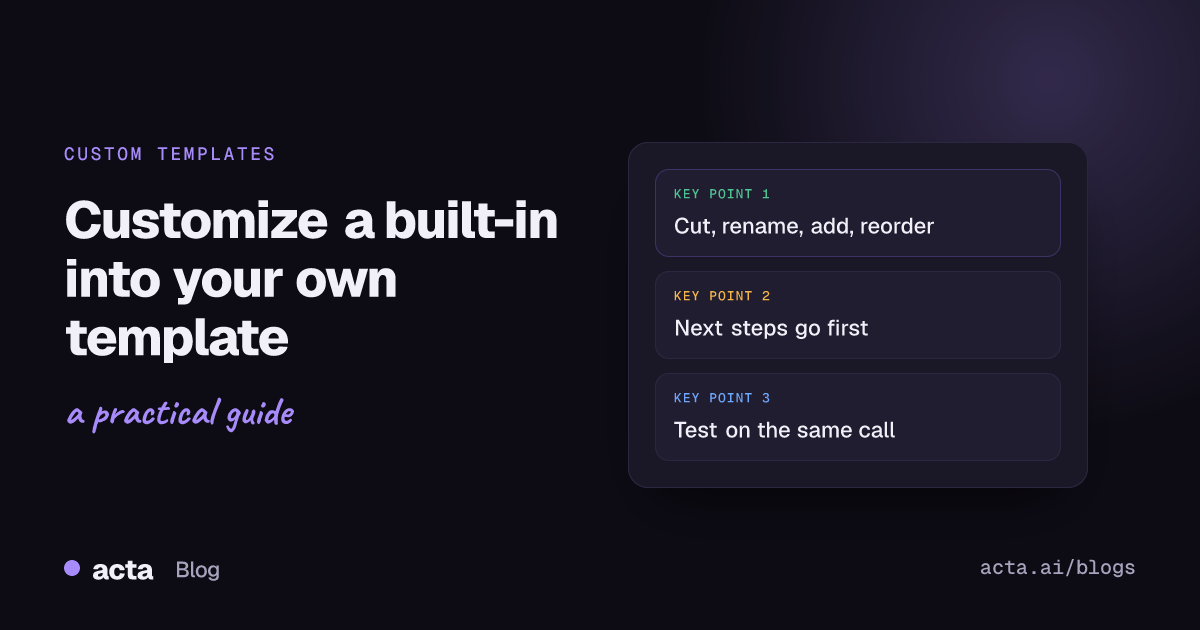
To customize a meeting template, start from the built-in template closest to your meeting, make a copy, then change four things: rename sections to your team's words, cut what you never read, add what's missing, and reorder so the most important answer comes first. In Acta, the "Customize" button on any built-in card opens a copy in the builder and leaves the original untouched.
Guides & How-tos 11 min read
Customize a Meeting Template From a Built-In: MEDDPICC Example
How to adapt a built-in report template with Customize: the four changes that matter, a full MEDDPICC-to-deal-review example, and the mistakes to avoid.
By Sarma BKP, Founder & CEO, Acta · Updated
This guide shows the full process using MEDDPICC as the worked example, because it's the built-in sales teams most often want to bend to their own deal review. The same steps apply to SPICED, PRD draft, Project status and the rest. If none of the built-ins is anywhere near your meeting, skip this and build from scratch instead; adapting a poor fit takes longer than starting blank.
Key takeaways
- Run the built-in as-is on three or four real meetings first. You can't tell what to change until you've read its output.
- Change the fewest sections that fix the problem. Most good customizations touch two to four sections, not all of them.
- Rename sections to the words your team already says in pipeline reviews; the report is read by people, not by the framework.
- Put the section your manager reads first at the top. For deal reviews that's usually next steps or the biggest gap.
- Test the copy on the same past meeting you used for the original, so you can compare like with like.
Table of contents
- Starting from a built-in is faster than starting blank
- Customize makes a copy and leaves the original alone
- Every customization comes down to four changes
- MEDDPICC gives you eight elements to work from
- Customize meeting template sections: MEDDPICC into your own deal review
- The same moves work on SPICED, PRD draft and Project status
- Over-customizing is the most common mistake
- Frequently asked questions
- Decide what your copy needs to change
Starting from a built-in is faster than starting blank
A built-in template already has the hard part done: someone has decided what the framework's sections are, written instructions the AI follows well, and picked sensible formats. What it doesn't know is how your team talks. Your pipeline review might call the economic buyer "the signer". You might care about procurement steps far more than the framework's default emphasis. You might never read the competition section because you sell into a market with one rival.
Those are small differences, and small differences are exactly what a copy handles well. Starting blank means re-creating eight sections to change three. Starting from a built-in means changing three and keeping five that already work.
Acta has 40 built-in report templates grouped by role, from Sales (MEDDPICC deal report, SPICED, SPIN, BANT qualification, Product demo review) to Product & Engineering (PRD draft, Ticket suggestions, Project status, CTO brief) and Investors (Dealflow memo, Portfolio check-in). The report templates guide explains how they work. Each card has an on/off switch, a "Preview" button that shows its sections, and "Customize".
Customize makes a copy and leaves the original alone
Clicking "Customize" on a built-in card opens the template builder with a copy of all its sections, named "Copy of" followed by the original name. The built-in stays exactly as it was. You can keep both switched on while you compare them, then switch the original off once your copy is right.
The copy is a normal custom template from that point on. You can rename it, edit every section, change its description, decide when it runs and share it with your team. Custom templates, including customized copies, are a paid-plan feature in Acta; on the 15-day free trial you can use the built-ins but the builder shows an upgrade prompt. Each person can have up to 10 custom templates, with up to 12 sections each. The custom templates help article covers the limits and every screen.
You can reach the same place another way: "+ Create template", then "Built-in" under "Start from", then pick the template to copy. Both routes end in the same builder.
Every customization comes down to four changes
When I look at the edits teams actually make to built-in templates, nearly all of them fall into four kinds. When you customize meeting template sections, do them in this order; each one makes the next easier.
- Cut. Remove sections nobody reads. If a section has been ignored on three real reports, it goes. Fewer sections means each remaining one gets more attention.
- Rename. Change section titles to your team's vocabulary. "Economic buyer" becomes "Who signs"; "Paper process" becomes "Procurement and legal steps". Change the instruction wording to match.
- Add. Add the one or two things your team always asks about that the framework doesn't name, such as "Implementation concerns" or "Mutual plan dates".
- Reorder. Move the section your reader cares about most to the top. Every report already opens with an "In short" summary, so the first section after it is prime space.
Formats are a fifth lever, used less often. If a built-in section comes out as bullets but you always end up comparing rows (stakeholders, competitors, deliverables), switch it to a Table and name the columns. If it lists tasks, make it a Checklist so owner and due date are always asked for.
MEDDPICC gives you eight elements to work from
MEDDPICC is a B2B sales qualification framework. HubSpot's guide to the MEDDPICC methodology and Outreach's beginner's guide both describe the same eight elements: Metrics, Economic buyer, Decision criteria, Decision process, Paper process, Identify pain, Champion and Competition. It grew out of the older MEDDIC framework, adding paper process and competition.
The framework is about deciding whether a deal deserves your time, which is why a MEDDPICC template works so well as a report: each element either has evidence from the calls or it doesn't. If you want the full approach to running MEDDPICC on calls, our posts on the MEDDPICC deal report and MEDDPICC questions that don't slow the call cover it in depth.
Before you change anything, click "Preview" on the MEDDPICC deal report card and read its sections. Then turn it on and let it run on a few real calls. What you're looking for is friction: sections you skip, names your managers don't use, and questions they keep asking that the report doesn't answer.
Customize meeting template sections: MEDDPICC into your own deal review
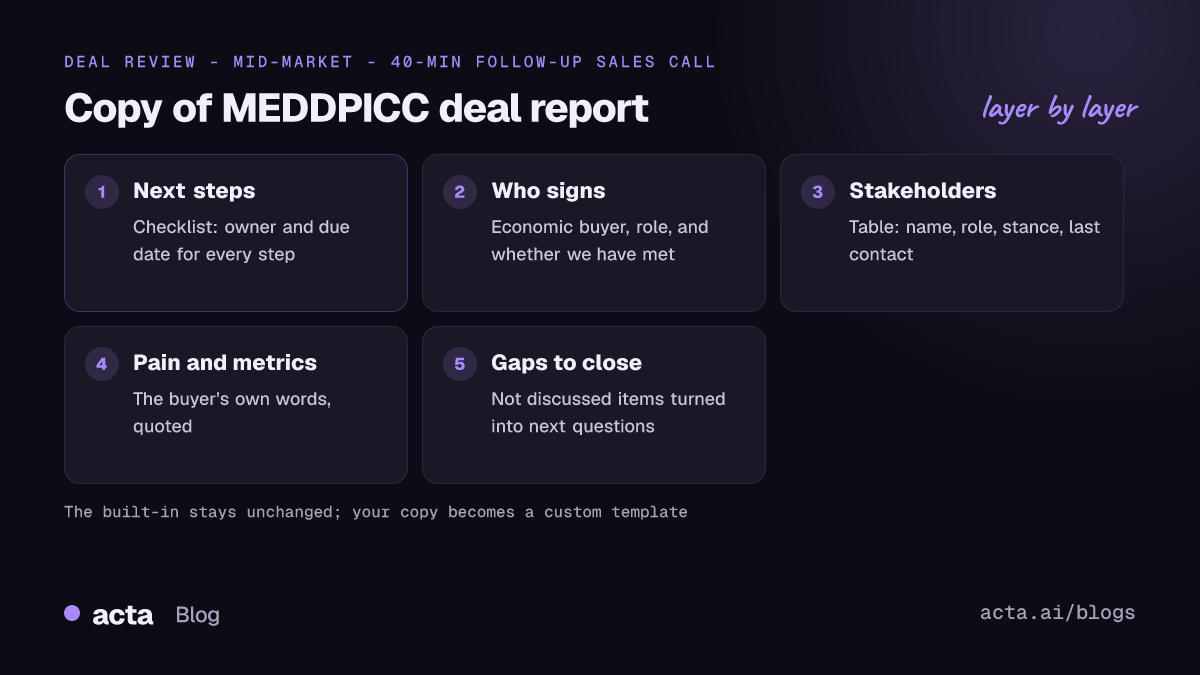
Here's a worked example for an invented mid-market software team. Their pipeline review asks three questions about every deal: what's the next step and when, who signs and how do we get to them, and what's still unknown. The built-in report answered all of that, but spread across the framework's order, so managers scrolled. They decided to customize meeting template sections rather than rebuild the whole thing.
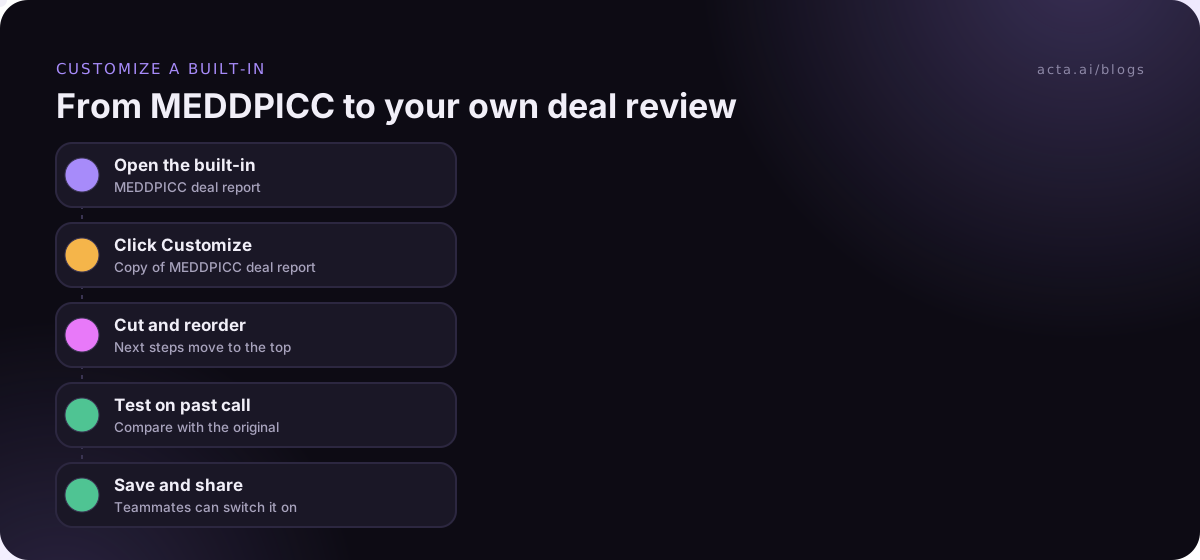
- In the Acta dashboard, open Templates in the sidebar and find "MEDDPICC deal report".
- Click "Customize". The builder opens with "Copy of MEDDPICC deal report". Rename it in "Template name" to "Deal review - mid-market".
- Update "What should this report do?" to describe your calls: "For discovery and follow-up sales calls with mid-market prospects: capture next steps with dates, who signs and how we reach them, the pain in the buyer's words, how they'll decide, procurement steps, and what we still don't know."
- Edit the sections into the layout below. Use the up and down arrows to reorder, remove what you don't need and add new ones.
- Under extra instructions, add "Use the buyer's own words for pain and metrics. Use first names."
- Under "When should Acta use it?", choose "Only matching meetings" so internal calls don't get a deal review.
- In the Preview panel, click "Test on a past meeting", pick the same call you used to read the original, and click "Run on this meeting". Compare the two.
- Tick "Share with my team" and click Save. Switch the original built-in off once the team has moved over.
The final layout they settled on, ready to copy:
1. Next steps (Checklist): Every next step agreed, with owner and due date. Include the date of the next meeting if one was set.
2. Who signs (Paragraph): The economic buyer if named, their role, and whether we've spoken to them. If not named, say so.
3. Stakeholders (Table: Name, Role, Stance, Last contact): Everyone mentioned who influences the decision, including our champion.
4. Pain and metrics (Bullets): The problems the buyer described and any numbers they gave, quoted.
5. Decision criteria and process (Bullets): How they will choose and the steps to a decision, as stated.
6. Procurement and legal steps (Bullets): Security review, legal, purchasing, and any dates mentioned.
7. Gaps to close (Bullets): Which of the above were not covered on this call, as questions to ask next time.
Notice what changed. Next steps moved from the back to the front. "Economic buyer" and "Champion" folded into "Who signs" and a stakeholder table, because the managers wanted to see everyone in one place. Competition was dropped as its own section; when a rival comes up, it appears in decision criteria. And "Gaps to close" was added, turning the report's "Not discussed" entries into a call plan.
Here's an illustrative report from the customized template after a 40-minute follow-up call (names invented):
In short: Strong pain around manual reporting; finance director named as signer but not yet met. Security review is the likely delay.
Next steps: Send security questionnaire answers - Dana - Wednesday. Book demo for finance director - Tom - Unassigned date. Next call booked for 12 June.
Who signs: Ruth Ellis, finance director, signs anything over the team's budget. We haven't spoken to her yet.
Stakeholders: Sam Patel | Ops manager | Champion, pushing for Q3 | This call. Ruth Ellis | Finance director | Unknown | Never.
Pain and metrics: "We spend the first three days of every month building the same report by hand."
Procurement and legal steps: Security questionnaire, then legal review of the contract. Timeline not discussed.
Gaps to close: What criteria will Ruth use? Who else is being evaluated? How long does legal review usually take?
From the meeting's Templates tab, the report can be copied, downloaded or sent with Push to CRM; the CRM integration guide explains how sending reports to Salesforce, HubSpot or Zoho works.
The same moves work on SPICED, PRD draft and Project status
MEDDPICC is the most common starting point, but the cut, rename, add, reorder pattern applies to every built-in. A few quick examples of changes teams make:
SPICED
Customer success teams often keep Situation, Pain and Impact but swap the sales-oriented sections for "Renewal risks" and "Expansion signals". See our post on SPICED deal reports for what the framework covers.
PRD draft
Product teams frequently add "Out of scope" and "Open questions for engineering", and turn requirements into a Table with columns for requirement, priority and who asked. If you're still deciding on the PRD layout itself, the PRD template examples post has eight to choose from.
Project status
The usual change is renaming the status labels to your team's own (on track, at risk, blocked) and adding a "Decisions needed from leadership" section at the top.
Over-customizing is the most common mistake
The biggest risk when you customize meeting template copies is changing them so much that they stop being reliable. A few patterns to watch for:
- Rewriting every instruction. The built-in instructions already work. Change wording only where the section's meaning changes.
- Adding judgement sections. "Deal score out of 10" asks the AI to judge rather than report. Acta writes only from what was said, so ask for evidence ("Risks the buyer mentioned, quoted") instead.
- Keeping both versions on forever. Two deal reports for every call means two places to look. Compare for a week, then switch the original off.
- Forgetting the description. If you copy a sales template for customer success and don't rewrite "What should this report do?", it will keep matching sales calls.
- Customizing alone. Ask the two or three people who read the report what they skip and what they look for. Their answer is your change list.
The general principles of section design, such as five to seven sections and a checklist for tasks, are covered in the guide to building a custom meeting notes template.
Frequently asked questions
Does customizing a built-in template change the original?
No. In Acta, "Customize" opens the builder with a copy named "Copy of" plus the original's name. The built-in template stays unchanged, and you can keep it switched on, switch it off, or go back to it at any time. Your edits only affect the copy, which becomes one of your custom templates.
Can I customize meeting template sections on the free trial?
You can't yet. Custom templates, including customized copies of built-ins, are part of Acta's paid plans. During the 15-day free trial you can switch the 40 built-in templates on and off and preview their sections; the custom builder shows an upgrade prompt until you're on a paid plan.
Can I add sections to a built-in template?
Yes, once you've made a copy with "Customize". You can add, remove and reorder sections up to the limit of 12 per template, change each section's title and instruction, and set its format to Paragraph, Bullets, Checklist or a Table with up to six named columns.
What is the difference between MEDDIC and MEDDPICC?
MEDDPICC adds two elements to MEDDIC: Paper process (the procurement, legal and purchasing steps to a signed contract) and Competition (who else the buyer is evaluating). The other six, Metrics, Economic buyer, Decision criteria, Decision process, Identify pain and Champion, are shared by both frameworks.
Can my whole sales team use my customized template?
Yes. Tick "Share with my team" before saving. Teammates see it under the "Team" filter and can turn it on for their own calls, but only you can edit it. That keeps one version of the deal review rather than a slightly different copy per rep.
Decide what your copy needs to change
Before you click Customize, write down what's wrong with the original in one or two sentences. If you can't, keep using the built-in.
- Run the original first: Read at least three real reports from the built-in before changing anything.
- List the friction: Note sections you skip, names nobody uses and questions the report never answers.
- Make the four changes: Cut, rename, add, reorder, in that order, and touch as few sections as you can.
- Test on the same meeting: Run your copy on the call you used to judge the original and compare.
- Retire the original: Share the copy, then switch the built-in off so there's one report per call.
To get sales calls into Acta without a bot, use the Chrome extension for calls in the browser or the desktop app for the Zoom and Teams apps, and let buyers know the call is being recorded; our recording consent guide covers what to say.
Found this useful? Share it with your team.