A custom meeting notes template is a fixed list of sections, each with a short instruction and a format, that tells your AI notetaker exactly what to pull out of a meeting. To build one, pick the meeting type, write five to seven sections in the order you'd read them, choose Paragraph, Bullets, Checklist or Table for each, test it on a past meeting, then switch it on for future ones.
Guides & How-tos 12 min read
Custom Meeting Notes Template: How to Build One Step by Step
How to build your own meeting notes template in Acta: choose 5-7 sections and formats, set when it runs, test it on a past meeting, and copy a worked example.
By Sarma BKP, Founder & CEO, Acta · Updated
This guide walks through the whole build in Acta, from the first description to the saved template, and ends with a filled-in example you can copy. It's for team leads, project managers, consultants and anyone who runs the same kind of meeting every week and is tired of rewriting a generic summary. If your meetings are all one-off conversations with no repeating shape, a generic summary is fine and a custom template won't add much.
Key takeaways
- Build one template per recurring meeting type, not one template for everything. A weekly client call and a hiring debrief need different sections.
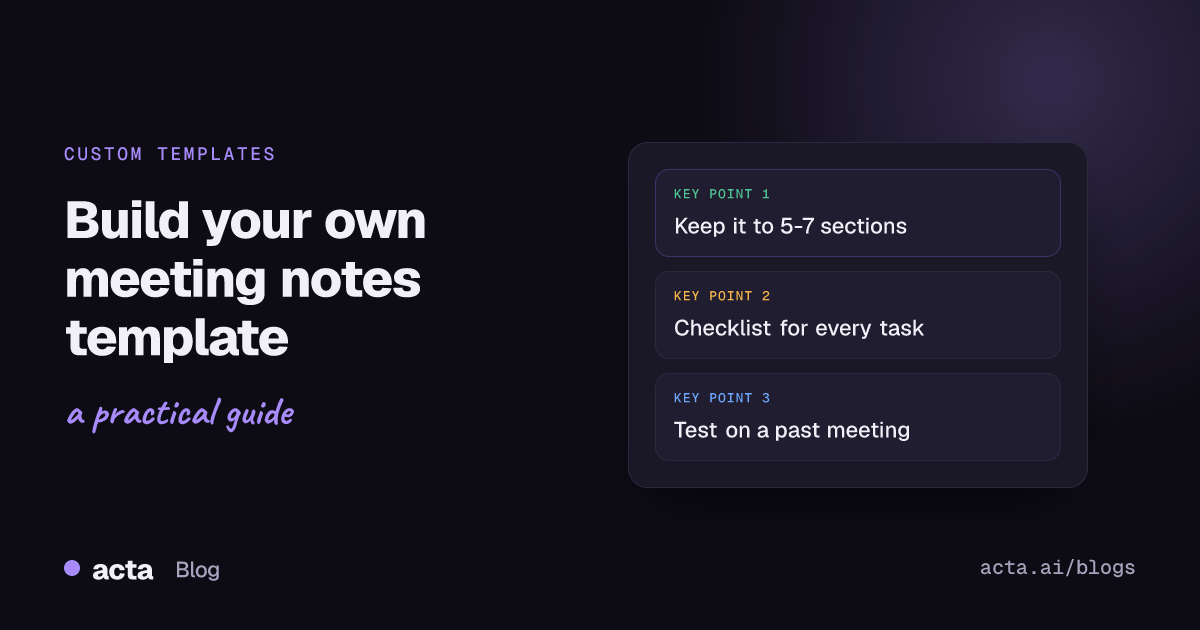
- Keep it to 5-7 sections. Acta allows up to 12, but every extra section is another place the reader has to look.
- Use Checklist for anything with an owner and a date, Table for anything you compare across rows, Bullets for lists, Paragraph only for context.
- Write the "What should this report do?" box carefully: Acta uses it both to write the report and to decide which meetings it fits.
- Always click "Test on a past meeting" before saving. Nothing is saved or sent during a preview, so it costs you nothing.
Table of contents
- A custom template beats a generic summary when the meeting has a job
- Good meeting notes answer the same five questions
- Pick each section's format by how people will use it
- Build a custom meeting notes template in Acta in nine steps
- A filled-in example: the weekly client status call
- Most weak templates fail in one of five ways
- Three variants worth building next
- Frequently asked questions
- Decide which meeting gets a template first
A custom template beats a generic summary when the meeting has a job
A generic AI summary answers the question "what happened?" That's useful for a meeting you missed once. It's much less useful for the meeting you run every Tuesday, because you already know roughly what happens. What you need from the Tuesday call is specific: did the client approve the design, which deliverables slipped, who owes what by Friday. A generic summary buries those answers in a few paragraphs of narrative, and they move around from week to week.
A custom meeting notes template fixes the shape. The decisions section is always second. The action items are always a checklist with an owner and a due date. The risks are always a table. After two or three weeks your team stops reading the notes and starts scanning them, which is the whole point. People who get notes in a predictable format actually open them.
The other reason is accountability. Atlassian's meeting notes template guidance makes the same point many practitioners do: an action item without an owner and a due date tends to stall. A template that forces an owner and a date on every task makes the gap visible. If nobody took an item, the notes should say so plainly rather than hide it in a sentence.
If you're still working out what belongs in notes at all, start with our guide on how to take meeting notes, then come back here to turn that format into a template.
Good meeting notes answer the same five questions
Whatever the meeting, the notes that get read answer five questions, roughly in this order. What's the short version? What did we decide? Who is doing what by when? What could go wrong? What's still open? Everything else is optional and should earn its place.
Here's a general-purpose meeting notes format I'd start from for almost any recurring internal or client meeting. Copy it, then cut or rename sections for your meeting type.
1. Context (Paragraph): Two or three sentences on why this meeting happened and what changed since last time.
2. Decisions (Bullets): Each decision made, in one line, with who made or approved it.
3. Action items (Checklist): Every task agreed, with the owner and due date as stated in the meeting.
4. Risks and blockers (Table: Risk, Impact, Owner, Next step): Anything raised that could delay or derail the work.
5. Open questions (Bullets): Questions raised but not answered, and who said they'd find out.
6. Next meeting (Paragraph): Date, if mentioned, and what should be ready by then.
Notice what's missing: a "Discussion" section. A blow-by-blow of who said what is the part nobody reads. If someone needs the detail, the transcript is there. Our post on meeting minutes best practices covers why the shortest notes tend to get the most use.
The HBR guide Running Meetings frames it well: the meeting leader's job doesn't end when the call ends, because the conversation and decisions still have to be turned into action. A good template does most of that conversion for you.
Pick each section's format by how people will use it
In Acta every section gets one of four formats. Choosing the right one matters more than the wording of the section title, because the format decides whether someone can act on the section in five seconds or has to read it twice.
| Format | Use it for | Avoid it for |
|---|---|---|
| Paragraph | Context, a short narrative, the reason behind a decision | Anything someone needs to act on |
| Bullets | Decisions, open questions, objections, ideas | Tasks with owners (use Checklist) |
| Checklist | Action items: task, owner, due date | Things that aren't commitments |
| Table (1-6 columns) | Risks, stakeholders, deliverables, metrics | Lists with only one useful field |
Two rules of thumb. First, if you find yourself writing "for each X, list Y and Z", that's a table; name the columns. Second, keep tables narrow. Four columns read well on a laptop and in an email. Six columns is the limit in Acta, and it's usually one or two more than you need.
Build a custom meeting notes template in Acta in nine steps
Custom templates are part of Acta's paid plans, not the 15-day free trial; trial accounts see an upgrade prompt instead of the builder. Each person can keep up to 10 custom templates, each with up to 12 sections. The custom templates help article has screenshots of every screen mentioned below.
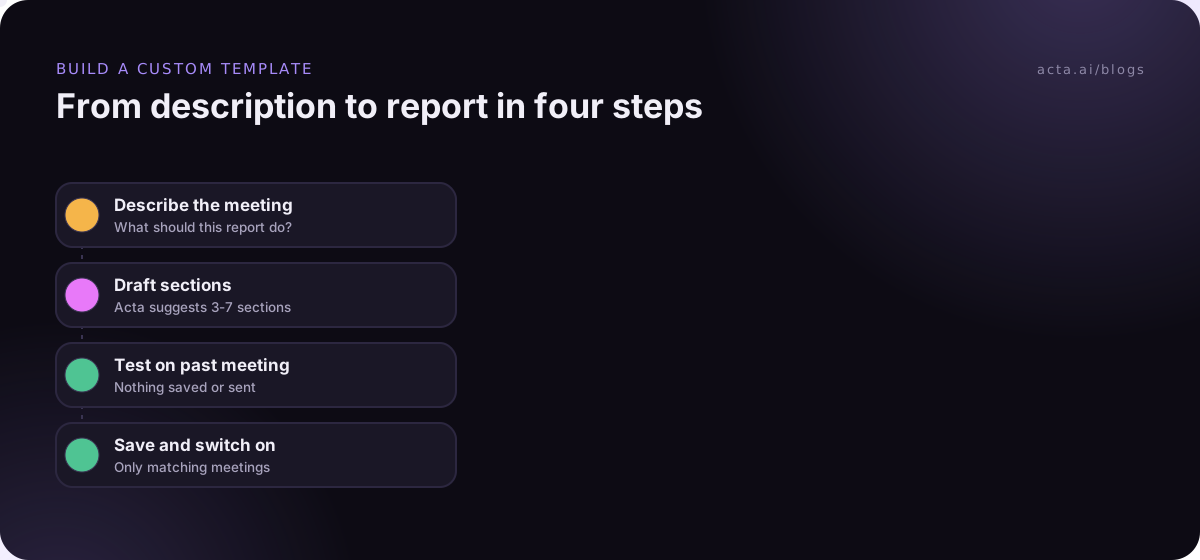
- Open Templates. In the Acta dashboard, click Templates in the sidebar, choose the "My templates" filter and click "+ Create template".
- Name it after the meeting. In "Template name", use the meeting type, such as "Weekly client status". You'll thank yourself when you have six of them.
- Choose how to start. Under "Start from", pick "Describe it" to have Acta draft the sections, "Built-in" to copy one of the 40 built-in report templates, or "Blank" if you already know your layout.
- Write the description. In "What should this report do?", describe the meeting and what you need out of it. If you chose "Describe it", click "Draft sections" and Acta drafts three to seven sections you can change.
- Edit the sections. For each one, set the title, what Acta should write there, and the format. Use the arrows to move sections up or down, remove the ones you don't need and add your own, up to 12.
- Add extra instructions if needed. This box is optional. Good ones are short: "Write in short sentences", "Use the client's own words", "Use first names only".
- Choose when it runs. Under "When should Acta use it?", pick "Every meeting" or "Only matching meetings". With the second, Acta checks each meeting against your description and runs the template only where it fits.
- Test it. In the Preview panel, click "Test on a past meeting", pick a real meeting of this type and click "Run on this meeting". You see what Acta would write; nothing is saved or sent.
- Share and save. Tick "Share with my team" if teammates should be able to turn it on (only you can edit it), then click Save.
A few things happen without you asking. Every report starts with an "In short" summary and includes a confidence rating and key quotes. If a section wasn't covered, Acta writes "Not discussed" rather than inventing something, and a task with no owner shows as "Unassigned". If a meeting turns out not to be the kind the template is for, the report is marked not relevant. That behaviour is the main defence against made-up content, which we cover in more depth in reducing hallucinations in AI meeting summaries.
After the meeting, the report shows up in the meeting's Templates tab labelled "Your template" (or "Team template" for shared ones), with Copy, Download and Push to CRM buttons. It's also emailed like Acta's other template reports. To try a new template on an older meeting, open that meeting and use "Run another template".
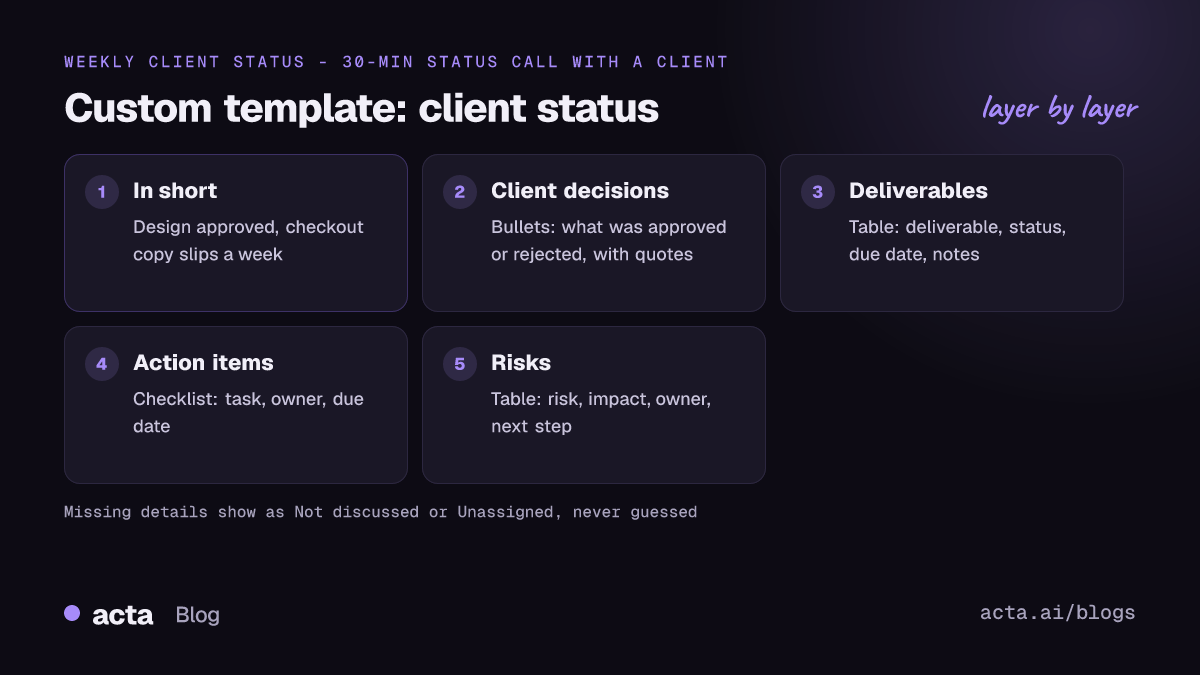
A filled-in example: the weekly client status call
Here's the full setup for one template, followed by the kind of report it produces. The names and project are invented for illustration.
Template name: Weekly client status
What should this report do? "For weekly status calls with a client on an active project: capture what the client approved or rejected, deliverables that moved or slipped, every task agreed with owner and due date, risks to the timeline or budget, and questions we still owe the client an answer on."
Sections: Client decisions (Bullets); Deliverables (Table: Deliverable, Status, Due, Notes); Action items (Checklist); Risks (Table: Risk, Impact, Owner, Next step); Questions we owe the client (Bullets).
Extra instructions: "Write in short sentences. Quote the client when they approve or reject something."
When to use: Only matching meetings.
And the output, as it might look after a 30-minute call with a retail client:
In short: Homepage design approved with one change. Checkout copy slips a week because legal review hasn't started. Two tasks have no owner yet.
Client decisions: Homepage design approved, with the hero image swapped for the spring range (Helen, client lead: "Go with B, but use the new photos"). Loyalty banner dropped from phase one.
Deliverables: Homepage design | Approved | 14 Mar | Swap hero image. Checkout copy | Late | 28 Mar (was 21 Mar) | Waiting on legal. Product page templates | On track | 4 Apr | None.
Action items: Send revised hero image - Marco - Thursday. Book legal review of checkout copy - Unassigned - Not discussed. Share analytics access - Helen - Friday.
Risks: Legal review not started | Could push checkout launch | Unassigned | Ask Helen who signs off.
Questions we owe the client: Whether the product page templates support video (Priya to check).
Two details to notice. The checkout task shows "Unassigned" because nobody took it in the call, which is exactly the thing you want surfaced on Tuesday afternoon rather than discovered next Tuesday. And "Not discussed" appears where no date was given, instead of a plausible guess.
Most weak templates fail in one of five ways
I've built and rebuilt a lot of these. The failures are nearly always the same.
- Too many sections. Twelve sections means half are empty or "Not discussed" every week, and readers learn to skip the whole thing. Start with five; add one only when you notice you keep looking for something.
- Vague section instructions. "Summarise the discussion" produces mush. "List each deliverable mentioned, its status as stated, and any new due date" produces a usable table.
- Tasks as bullets. If the section holds commitments, make it a Checklist so the owner and due date are always asked for.
- A description that's too broad. "For client meetings" will match your sales calls, your QBRs and your kickoff. Say which client meetings and what they're for.
- Skipping the preview. Ten seconds of "Test on a past meeting" shows you the empty sections and wrong formats before your team sees them.
One more, less obvious: asking a template to judge things nobody said out loud, such as "rate the client's satisfaction". Acta writes only from what was said, so a section like that will mostly come back as "Not discussed". Ask for evidence instead: "List anything the client said that signals satisfaction or frustration, with quotes."
Three variants worth building next
Once your first template works, the next ones go quickly, because you reuse the same skeleton. These are the three I'd build after a client status template.
Internal project sync
Swap "Client decisions" for "Decisions", drop "Questions we owe the client" and add "Blocked on other teams (Table: Team, What we need, Since, Owner)". Run it on "Only matching meetings" with a description that names the project or the team.
Decision meeting
For steering groups and approval meetings: "Proposal (Paragraph)", "Options discussed (Table: Option, For, Against)", "Decision and who made it (Bullets)", "Conditions or follow-ups (Checklist)". Keep the extra instruction "Quote the person who approved".
One-off adaptations of built-ins
If one of the built-in templates is close, such as Project status or PRD draft, don't start blank. Use Customize to copy it and change what you need; our guide on how to customize a meeting template from a built-in walks through a full MEDDPICC example. And when you have several templates, read automatic meeting templates by meeting type to make sure each one fires only on the right calls.
Frequently asked questions
How many sections should a meeting notes template have?
Five to seven is the range that works for most recurring meetings. Fewer than four and you're close to a generic summary. More than eight and many sections come back empty, which trains readers to skim past them. Acta's limit is 12 sections per template, but treat that as a ceiling, not a target.
Can I use a custom template on the free trial?
No. Custom templates are a paid-plan feature in Acta. During the 15-day free trial you can use the 40 built-in report templates, and the Templates page shows an upgrade prompt where the custom builder would be. Check the pricing page for current plan details.
What happens if a section wasn't covered in the meeting?
Acta writes "Not discussed" in that section instead of guessing. Tasks without an owner show as "Unassigned". If the whole meeting isn't the kind the template is for, the report is marked not relevant. This keeps the notes honest, and the gaps are often useful: they tell you what to ask next time.
Should I start from Describe it, Built-in or Blank?
Use "Describe it" when you know the meeting but not the layout; Acta drafts three to seven sections from your description. Use "Built-in" when one of the 40 templates is close to what you need. Use "Blank" when you already have a meeting notes format on paper and just want to enter it.
Can my teammates use a template I build?
Yes, if you tick "Share with my team" before saving. Teammates find it under the "Team" filter and can switch it on for their own meetings, but only you, the owner, can edit it. That keeps one version of the format instead of several slightly different copies.
Decide which meeting gets a template first
Don't build five templates this week. Build one, for the meeting where bad notes cost you the most, and live with it for two or three weeks before adding a second.
- Pick the meeting: Choose a recurring meeting where tasks or decisions regularly get lost.
- Write the five questions: Decide what the notes must answer before you open the builder.
- Choose formats deliberately: Checklist for tasks, Table for anything compared across rows, Bullets for the rest.
- Test on a real meeting: Run the preview on last week's call and fix empty or vague sections.
- Review after three weeks: Cut any section that's been "Not discussed" every time.
To get meetings into Acta without a bot joining, use the desktop app for Zoom and Teams apps or the Chrome extension for meetings in the browser, and tell participants you're taking AI notes (our guide to recording consent covers what to say).
Found this useful? Share it with your team.