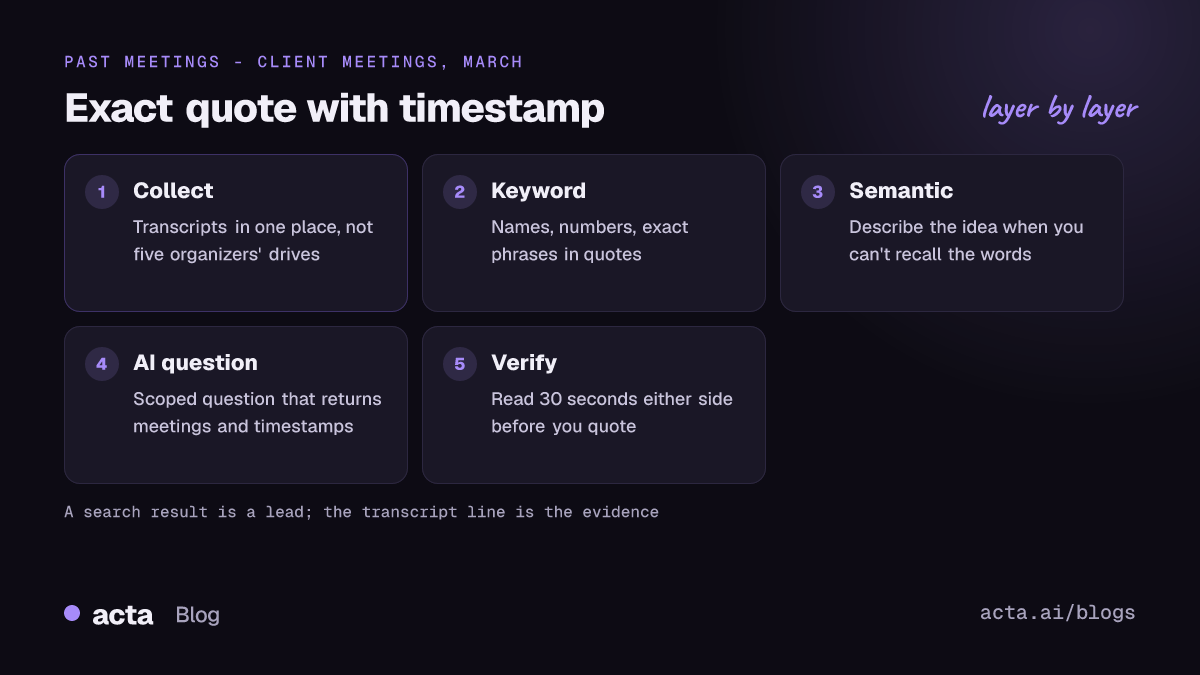
To search meeting transcripts for what someone actually said, get the transcripts into one searchable place, then match the search to what you remember: an exact phrase or name for keyword search, a description of the idea for semantic search, or a plain question for an AI assistant that cites its sources. Whatever you use, open the transcript at the timestamp and read the surrounding lines before you rely on the answer.
Guides & How-tos 10 min read
Search Meeting Transcripts: Find Exactly What Was Said
How to search meeting transcripts for the exact moment you need: keyword, semantic and AI search, query patterns that work, and how to check every result.
By Sarma BKP, Founder & CEO, Acta · Updated
This guide is about search technique: the queries that find the moment you need, why some searches come back empty, and how to check a result. It's for project leads, account managers and anyone who's been asked "didn't we agree to that in March?". If you're still working out where Zoom, Teams or Drive keep old recordings, start with our companion guide to finding old meeting recordings in Zoom, Teams and Drive, then come back here.
Key takeaways
- You can only search what was transcribed. Audio and video files aren't text-searchable, so transcription has to be on before the meeting.
- Keyword search is best for names, numbers, product terms and exact phrases. Use quotes for phrases and a minus sign to exclude noise.
- Semantic search and AI questions find ideas phrased differently ("the budget concern" matching "we can't afford that this quarter").
- Search for commitment language such as "I'll", "by Friday" and "agreed" to find promises fast.
- Never quote a search result without opening the transcript at that timestamp and reading 30 seconds either side.
Table of contents
- Three kinds of search find different things
- Transcripts have to be in one searchable place first
- Keyword queries work when you remember the words
- Semantic search and AI questions find what you can't quote
- Verify every result at the timestamp
- A worked example: finding a pricing promise from March
- Team habits keep meetings searchable a year later
- Where Acta fits
- Frequently asked questions
- Set up your meetings so you can search them later
Three kinds of search find different things
Searching meeting transcripts means looking for words or ideas across the text versions of past meetings, rather than scrubbing through hours of video. There are three ways to do it, and most frustration comes from using the wrong one for the job.
| Method | Good for | Misses | Example query |
|---|---|---|---|
| Keyword search | Names, numbers, product terms, exact phrases | Ideas said in other words; misheard terms | "Northwind" renewal |
| Semantic search | Topics and concerns phrased many ways | Exact figures; can return near misses | client worried about rollout timing |
| AI question with sources | Questions that span several meetings | Anything not transcribed; can over-summarize | What did we promise Northwind about pricing? |
Keyword search matches the characters you type. It's precise and predictable, and it fails the moment the speaker used a different word or the transcript misheard the one you're looking for.
Semantic search compares meaning instead. Tools turn each passage into an embedding, a list of numbers that represents what the text is about, and find passages close to your query. The idea behind many of these systems goes back to work like Sentence-BERT, which showed how to produce sentence embeddings that can be compared with cosine similarity. You don't need the theory to use it, only the habit of describing the idea rather than guessing the words.
AI question answering sits on top of search: the assistant retrieves relevant passages, then writes an answer. It's the most convenient and the most dangerous, because a fluent answer feels true. Only use tools that show which meeting and timestamp each claim came from. Our post on verifiable citations from meeting transcripts explains what good citations look like.
Transcripts have to be in one searchable place first
None of this works on recordings alone. Google's Drive help on searching for files notes that Drive can search text inside documents, but images, video and audio files aren't searchable by text. A recording with no transcript is invisible to search.
Each platform stores transcripts differently, as of November 2026:
- Zoom: cloud recordings with audio transcripts can be searched in the web portal under Recordings & Transcripts, using the field to search text in audio transcripts. Zoom's article on audio transcription for cloud recordings lists the requirements. Our guide to transcribing a Zoom recording covers local files too.
- Google Meet: Google's Meet transcripts help says transcripts are saved as documents in the organizer's Drive, in a Google Meet folder with a subfolder per meeting, and suggests searching Drive for "transcript".
- Microsoft Teams: Microsoft's admin documentation says transcripts are stored with the recording in the organizer's OneDrive, or the team's SharePoint site for channel meetings. You can download each one as .docx; see our guide to the Teams meeting transcript.
Notice the pattern: transcripts end up in the organizer's storage. If five different people organized your client meetings this year, the transcripts sit in five places, and you probably can't see all of them. That's the single biggest reason searches come back empty. The fix is a shared home, whether that's a team folder, a meeting tool's library or a proper meeting knowledge base.
Keyword queries work when you remember the words
When you can remember a name, number or phrase, keyword search is the fastest way to search meeting transcripts. Use it like this:
- Start narrow with something rare. A client name, product code or unusual word beats a common one. "Northwind" finds ten meetings; "pricing" finds three hundred.
- Use quotes for phrases. Drive and most tools treat words in double quotes as an exact phrase, such as "annual discount".
- Exclude noise with a minus sign. "Northwind -invoice" skips the finance calls.
- Add a date range or owner filter. Drive supports filters like before:, after: and owner:, and Zoom's portal lets you filter by date range and host.
- Try spelling variants. Transcripts mishear names. Search "Northwind", "North Wind" and "Norwind" before deciding it was never said.
- Open the best match and use Ctrl+F (Cmd+F on Mac) inside the transcript to jump between mentions.
Keep a few query patterns handy. These find the things people most often go looking for:
Promises: "I'll" + client name; "we'll send"; "by Friday"; "end of the month"
Decisions: "agreed"; "let's go with"; "decided"; "final answer"
Numbers: the figure written both ways, e.g. "15 percent" and "fifteen"
Risks: "concern"; "worried"; "blocker"; "can't"
Ownership: a person's name + "can you"; "will you"; "owns"
Numbers deserve a special note. Transcription tools write numbers inconsistently: "15%", "15 percent" and "fifteen percent" can all appear in the same transcript. Search each form.
Semantic search and AI questions find what you can't quote
Often you remember the gist, not the words: "the client was nervous about the rollout" or "someone raised a security worry". Keyword search fails here because you're guessing vocabulary. Semantic search and AI questions are built for this.
Phrase your query as a description of the idea, in plain language. Compare:
- Weak: rollout concerns
- Better: client worried the rollout would disrupt their busy season
- Best as an AI question: In meetings with Northwind since January, did anyone raise concerns about rollout timing? List each one with the meeting date and timestamp.
For AI questions, a few rules make answers far more reliable:
- Scope it. Name the client, project or date range. "Ever" produces vague answers.
- Ask for sources. Request the meeting and timestamp for each point.
- Ask for absence explicitly. "If it wasn't discussed, say so" stops the assistant from padding.
- Ask one thing at a time. "What did we promise and who owns it and when is it due" is three questions; ask them separately.
If you're building this yourself over transcripts, the hard part is splitting long meetings into passages that keep speaker turns and timestamps intact. Our technical guide on chunking meeting transcripts for RAG covers it. For everyone else, the shorter version: use a tool that returns the passage, not just an answer.
Verify every result at the timestamp
A search result is a lead, not evidence. Transcripts mishear, and AI answers compress. Before you quote anything back to a client or a colleague:
- Open the transcript at the timestamp the search returned.
- Read about 30 seconds before and after. "We'll include onboarding" reads differently when the previous line was "if you sign for two years".
- Check who said it. Speaker labels can be wrong, especially in conference rooms.
- If the words matter, play the audio at that point.
- Copy the exact quote with the meeting name and timestamp, not your paraphrase.
This sounds slow when all you wanted was to find what was said in a meeting. It takes about a minute per result, and it's the difference between "you promised" and "here's the exact line, 14 March, 22:10".
A worked example: finding a pricing promise from March
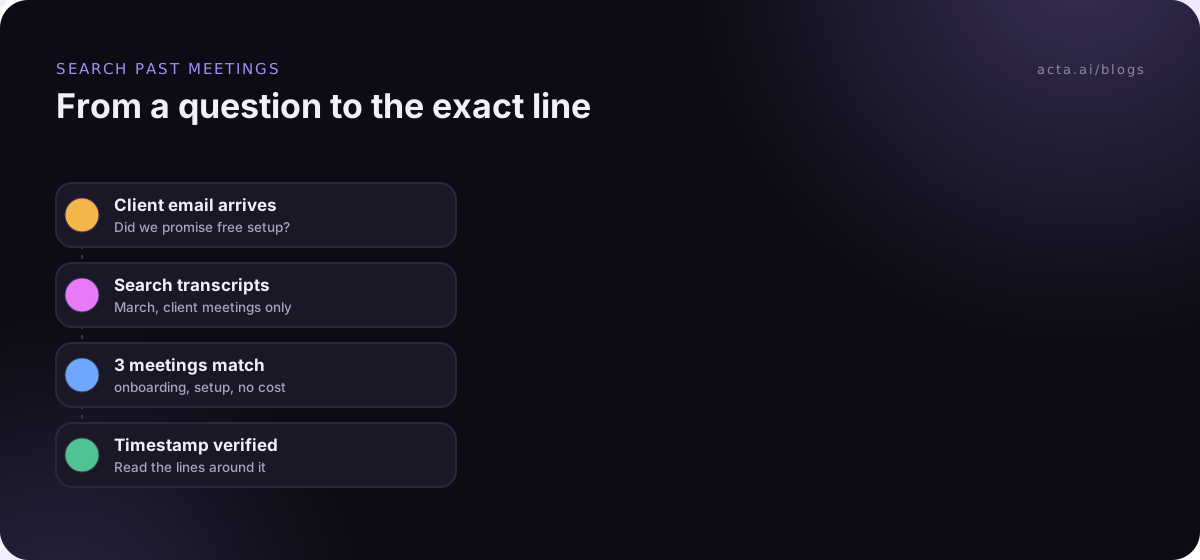
Marco, an account manager, gets an email from a client: "In March you told us onboarding would be included at no cost." He doesn't remember saying it. Here's how he'd search meeting transcripts to settle it:
- Scope: meetings with the client between 1 March and 31 March. That leaves four.
- Keyword pass: "onboarding" within those four. Two meetings match.
- Variant pass: "setup", "implementation" and "no cost" / "free". One more match in a third meeting.
- AI question: "In March meetings with this client, what did we say about onboarding costs? Quote each statement with the timestamp."
- Verify: the key line, at 22:10 on 14 March, is Dana saying: "Onboarding's included if you sign the two-year agreement." The client signed for one year.
Marco replies with the exact quote and timestamp, offers a reasonable compromise, and the conversation stays friendly because nobody's arguing from memory. Without transcripts, it's his recollection against theirs.
Team habits keep meetings searchable a year later
Search quality is mostly decided before anyone searches. These habits make the biggest difference:
- Transcribe by default. Turn on automatic transcription for recurring and external meetings. You can't search a meeting nobody transcribed.
- Name meetings consistently. "Northwind - QBR - 2026-03-14" beats "Catch-up".
- Use one name per thing. If the product is "Reports", don't also call it "Insights" and "the dashboard". Searches split across synonyms.
- Fix names in transcripts of important meetings, so a client's name is spelled the same way every time.
- Agree where transcripts live, and who can see them. Sensitive meetings may need narrower access than project meetings.
- Tell people meetings are transcribed. It's good practice and in many places a legal requirement; see our guide to recording consent.
For meetings where bots aren't welcome, you can still capture them: a desktop recorder like the Acta desktop app records the meeting's sound and your microphone from your own computer, so the transcript exists to search later.
Where Acta fits
Acta keeps transcripts from every recorded meeting in one place, and OneChat answers questions across your meetings with sources you can open and check. If you work in Claude or ChatGPT, the MCP connector lets you ask the same questions there.
Frequently asked questions
How do I search all my meeting transcripts at once?
Put them in one place first. Zoom, Teams and Meet each store transcripts in the organizer's account, so a search in one tool only covers meetings you organized or can access. A shared folder, a meeting notes tool or a meeting knowledge base lets you run one search across everything, including meetings other people hosted.
Can I search a meeting recording without a transcript?
Not by text. Google's Drive help notes that audio and video files aren't searchable by their content, and the same is true elsewhere. You'd need to transcribe the recording first, by uploading it to a transcription tool or running a speech-to-text model, and then search the transcript.
What is the difference between keyword search and semantic search?
Keyword search finds the exact words you type, which suits names, numbers and phrases. Semantic search compares meaning using embeddings, so it can find "we can't afford that this quarter" when you search for budget concerns. Use keyword search when you remember the words and semantic search when you only remember the idea.
Why can't I find something I know was said in a meeting?
Usually one of four reasons: the meeting wasn't transcribed, the transcript is in someone else's account, the transcription misheard the word, or the speaker used different words. Check you can access the meeting, try spelling variants and synonyms, then switch to a semantic or AI search describing the idea.
Is it safe to use AI to answer questions about past meetings?
It's useful if the tool shows its sources and you check them. AI answers can merge statements from different meetings or drop conditions like "if you sign for two years". Use tools that cite the meeting and timestamp, open the passage, and quote the transcript rather than the AI's wording when it matters.
Set up your meetings so you can search them later
The search you'll need in six months depends on what you set up this week:
- Turn on transcription: make it the default for recurring, client and decision meetings.
- Pick one home: agree where transcripts are kept so one search covers every meeting.
- Standardize names: consistent meeting titles, client names and product terms.
- Choose your search method: keyword for exact words, semantic or AI questions for ideas.
- Verify before quoting: open the timestamp, read the context, copy the exact words.
If you'd like every meeting transcribed and searchable without a bot in the call, try the Acta Chrome extension or desktop app during the 15-day free trial.
Found this useful? Share it with your team.