Hinglish transcription means turning speech that mixes Hindi and English, often inside one sentence, into text. It's harder than transcribing either language alone, because the tool must recognise which language each word is in and choose a script for it. Use a tool with a documented multi-language mode, test it on your own calls, and expect to fix English terms and names by hand.
Guides & How-tos 10 min read
Hinglish Transcription: How to Transcribe Mixed Hindi-English Meetings
Why Hinglish meetings are hard to transcribe, what Google Meet and other tools say about mixed languages, which script to choose, and how to test on your own calls.
By Sarma BKP, Founder & CEO, Acta · Updated
This explainer is for Indian teams whose meetings sound like "Client ne bola ki deadline push karni padegi, so let's revisit the scope on Monday." It covers why this kind of speech confuses transcription tools, what the major tools say about mixed languages as of November 2026, the output choices you have and a simple test. If your meetings are almost entirely in Hindi, the step-by-step guide to Hindi meeting transcription is a better fit.
Key takeaways
- Hinglish is code-switching: speakers move between Hindi and English mid-sentence. Most transcription engines assume one language per recording or per meeting.
- A single-language setting (Hindi only or English only) will mangle the other language; use a documented multi-language or auto-detect mode where one exists.
- Decide your output script up front: Devanagari with English words, all Roman script, or an English summary.
- Google Meet's "Take notes for me" handles one language at a time, so heavy Hinglish calls need another tool.
- Test with two or three real meetings and check English technical terms, names and numbers first, since they break most often.
Table of contents
- Hinglish transcription is code-switched speech to text
- Code-switching breaks single-language engines
- The script problem has three workable answers
- Tools handle Hinglish transcription through language settings
- A worked example: a Gurugram product stand-up
- Multi-language mode beats single-language settings for mixed calls
- Common mistakes with mixed-language meetings
- Frequently asked questions
- Choose a setup for your Hinglish meetings
Hinglish transcription is code-switched speech to text
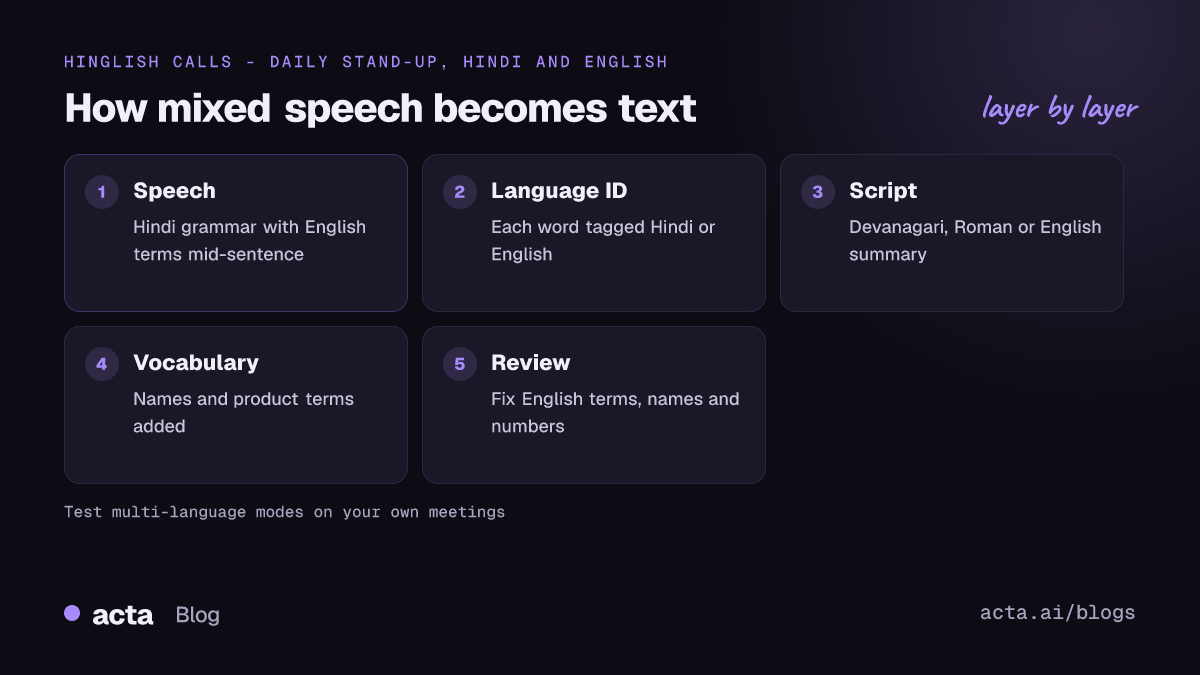
Linguists call switching between languages within a conversation "code-switching". When it happens inside a sentence, it's sometimes called code-mixing. Hinglish is the most common form in Indian offices: Hindi grammar and everyday words, with English nouns, verbs and phrases dropped in. "Presentation ready hai?", "Usko escalate kar do", "Budget approve ho gaya, but timeline tight hai."
For a transcription tool, every one of those sentences is a puzzle. It has to work out that "escalate" is English and "kar do" is Hindi, then decide how to write each. A human transcriber does this without thinking. Most speech recognition systems were built and tuned on one language at a time, which is why mixed meetings often come out as a jumble of half-right words.
Researchers treat this as its own problem. There's dedicated academic work on Hindi-English code-switched speech recognition, including a shared challenge, MUCS 2021, with a code-switching track; papers such as this study on monolingual pre-training for code-switched ASR and this work applying wav2vec 2.0 to multilingual and code-switched speech show how much specific effort it takes to get mixed speech right. The practical upshot for you: don't assume that a tool good at Hindi and good at English is good at Hinglish.
Code-switching breaks single-language engines
There are four reasons mixed speech goes wrong, and knowing them helps you pick fixes.
- Language identification per word. A tool set to one language tries to fit every sound into that language. Set to Hindi, it may write "deadline" as a Hindi-sounding word; set to English, it turns "karna padega" into English words that sound similar.
- Language detection per meeting, not per sentence. Some tools detect the language once, from the first part of the call. If the meeting starts in English and drifts into Hindi, the rest is transcribed with the wrong model.
- Vocabulary. Hinglish meetings are full of English business and technical terms ("sprint", "invoice", "API", "GST filing") pronounced with Indian accents. These are exactly the words that matter in the summary.
- Script. Even when the words are recognised correctly, the tool has to write them somewhere: Devanagari, Roman letters or a mix. Inconsistent scripts make the transcript hard to search.
Audio quality makes all of these worse. A tool that copes with clean headset audio may fall apart on a conference room speakerphone, which is where many Hinglish meetings happen. Our guide to improving transcription accuracy with accents, noise and crosstalk covers the audio side.
The script problem has three workable answers
Before choosing a tool, decide what you want the text to look like. Here's the same sentence in three forms:
- Devanagari with English words in Roman: "Client ने बोला कि deadline push करनी पड़ेगी, so let's revisit the scope on Monday."
- All Roman script: "Client ne bola ki deadline push karni padegi, so let's revisit the scope on Monday."
- English summary: "The client asked to push the deadline; the team will revisit the scope on Monday."
Each has a place. Mixed-script output is the most faithful record but awkward to search. All-Roman output matches how most teams type on Slack and WhatsApp, so it's easiest to search, but spellings vary ("padega", "padegaa", "parega"). An English summary is what most managers actually read, but it loses tone and some nuance.
My recommendation for most teams: keep whatever the tool produces as the source record, don't fight its script choice, and rely on an English summary and action items for day-to-day use. When you need the exact words, go back to the transcript and the audio.
Tools handle Hinglish transcription through language settings
What vendors document about mixed languages varies a lot. As of November 2026, here's what their own help pages say. Check each page before relying on it, because language support changes often.
Google Meet. Google's help page for "Take notes for me" in Google Meet says the feature works with one spoken language at a time, and that multiple languages in the same meeting aren't currently supported. It lists English, French, German, Italian, Japanese, Korean, Portuguese and Spanish. If a different language is spoken for a while, Meet can prompt you to change the notes language. For a Hinglish call, that means Meet's built-in notes aren't the right tool.
Fireflies. Fireflies documents a Multi-Language Mode (beta) that detects and transcribes multiple supported languages within one meeting, and lists Hindi among them, with an English-and-Hindi meeting as one of its examples. It's labelled beta, so test it on your own calls.
Microsoft Teams and Zoom. Both list Hindi for captions or transcription in their help pages, but those settings are chosen per meeting as a spoken language. Setting Hindi for a heavily mixed meeting will do better on the Hindi parts than the English ones, and the reverse is also true. Look for any multi-language option in your plan's current docs before assuming it handles code-switching.
Upload-based services. If your meeting platform doesn't cope, record the call and upload the file to a service that documents mixed-language or auto-detect transcription. This works with any platform, including WhatsApp calls or in-person meetings.
Our broader guide on transcribing meetings in other languages and mixed-language calls covers the same routes for other language pairs, such as Tamil-English or Spanish-English.
A worked example: a Gurugram product stand-up
Here's an illustrative example. A product team of six in Gurugram runs a 15-minute daily stand-up on Google Meet. About half of it is Hindi, half English, and almost every sentence mixes both. Their lead, Neha, wants action items in English for a Jira board and a searchable record.
- First attempt: Meet's built-in notes in English. The English parts come out well; Hindi parts are missing or garbled, and two action items spoken in Hindi ("Rohit, tu kal tak login bug dekh le") don't appear.
- Second attempt: a notetaker set to Hindi only. Hindi parts improve, but English technical terms ("OAuth", "staging", "PR review") are mangled.
- Third attempt: a notetaker with a documented multi-language mode. Both languages come through far better. Remaining errors are mostly product names and a few English words written in Devanagari.
- Fix: Neha adds product names to the tool's custom vocabulary, asks people to say owners' names clearly when assigning tasks, and closes each stand-up with a 30-second recap in English.
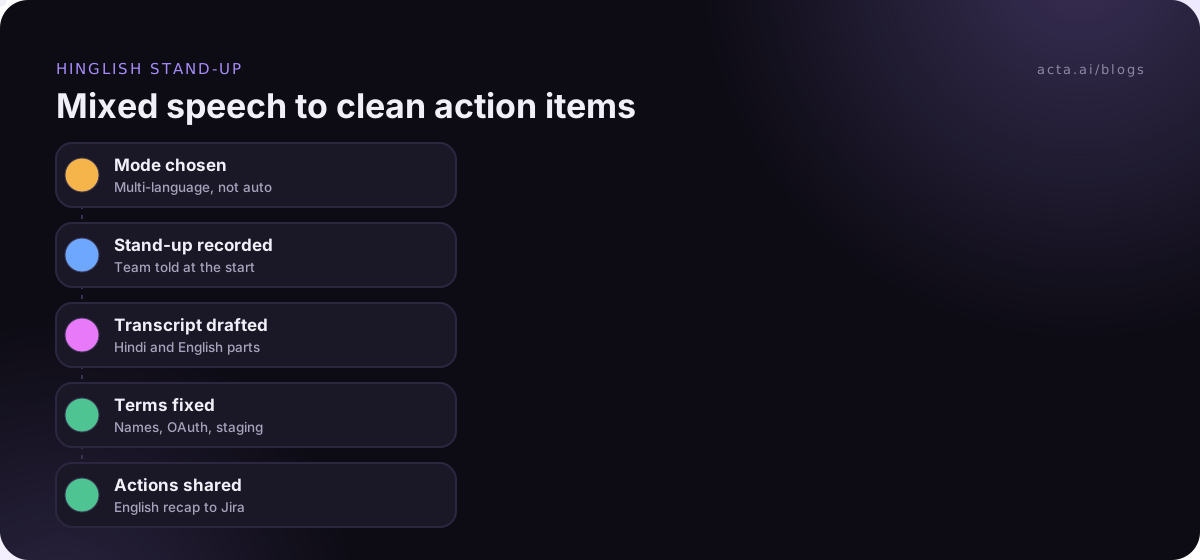
The English recap at the end is the cheapest fix of all. Even if the discussion was messy, the recap gives the summary a clean, single-language sentence for each decision and owner.
Multi-language mode beats single-language settings for mixed calls
Here's how the common approaches compare for a typical Hinglish meeting.
| Approach | Hindi parts | English parts | Best for |
|---|---|---|---|
| English-only setting | Poor | Good | Meetings that are mostly English with a few Hindi phrases |
| Hindi-only setting | Good | Weaker, terms mangled | Meetings mostly in Hindi with a few English words |
| Multi-language or auto-detect mode | Usually better | Usually better | Genuinely mixed meetings; test first, as many are beta |
| Human transcription | Good | Good | Legal, HR or board records where every word counts |
The table describes general patterns, not measured results; run your own test. The method in our guide to AI meeting notes accuracy works well: pick three meetings, list ten facts from each, and check how many the transcript and summary get right.
When should you not rely on AI Hinglish transcription at all? When the exact wording is the point: disciplinary hearings, legal statements, or anything that might be quoted in a dispute. Use AI for a draft and have a person who speaks both languages check it against the audio.
Common mistakes with mixed-language meetings
- Leaving auto-detect on for a meeting that starts in English. If the tool detects once, the Hindi that follows is lost. Choose multi-language mode explicitly if available.
- Judging by one sample. One person's Hinglish differs from another's. Test with your actual team.
- Ignoring names. Indian names and place names are the most common errors. Put them in custom vocabulary where the tool allows it.
- Expecting consistent spelling in Roman script. It won't be consistent, so search for the English keywords, not the Hindi ones.
- Skipping consent because it's informal. Even a casual stand-up recording needs people to know. See is it legal to record meetings with AI.
A short note on Acta. This post doesn't cover Acta's language support, so don't assume it handles Hinglish; test a real mixed-language recording during the 15-day free trial before you rely on it. For capturing the call without a bot, the Acta Chrome extension records Google Meet, Microsoft Teams in the browser and the Zoom web client, and the desktop app covers the Zoom and Teams desktop apps.
Frequently asked questions
What is Hinglish transcription?
Hinglish transcription is converting speech that mixes Hindi and English into text. Because speakers switch languages within sentences, the tool has to identify the language of each word and choose a script for it, which is harder than transcribing a single language. Tools with a multi-language mode usually handle it better than single-language settings.
Can Google Meet transcribe Hinglish?
Not well with its built-in notes. As of November 2026, Google's help page for "Take notes for me" says it works with one spoken language at a time and that multiple languages in the same meeting aren't supported. Hindi isn't in its language list either. For Hinglish calls, use another tool or upload the recording.
Should Hinglish be transcribed in Devanagari or Roman script?
Either works if you're consistent about how you use it. Devanagari with English words is more faithful; all-Roman script matches how most teams type and is easier to search, though spellings vary. For daily use, many teams keep the raw transcript as a record and work from an English summary and action items.
What is the difference between Hindi and Hinglish transcription?
Hindi transcription assumes the speech is in Hindi and uses a Hindi model throughout. Hinglish transcription has to handle switches to English, often mid-sentence, so it needs per-word language handling. A tool can be good at Hindi and still mangle the English terms in a Hinglish meeting, so test both separately.
How can I improve Hinglish transcription accuracy?
Use a documented multi-language mode, give everyone a decent headset, add names and product terms to custom vocabulary, and end each meeting with a short English recap of decisions and owners. Then review names, numbers and technical terms before sharing the notes.
Choose a setup for your Hinglish meetings
A few decisions settle most of the problem. Work through these before your next mixed-language meeting:
- Measure the mix: is your meeting mostly Hindi, mostly English, or genuinely mixed? That decides the setting.
- Pick the mode: use a documented multi-language mode for mixed calls, and a single language only when one clearly dominates.
- Choose the output: accept the tool's script for the record and rely on an English summary for action.
- Add vocabulary: load names, products and acronyms where the tool supports it.
- Close with a recap: one English sentence per decision and owner at the end of the call.
To test your own Hinglish calls without a bot, add the Acta Chrome extension for Google Meet and try it during the 15-day free trial.
Found this useful? Share it with your team.