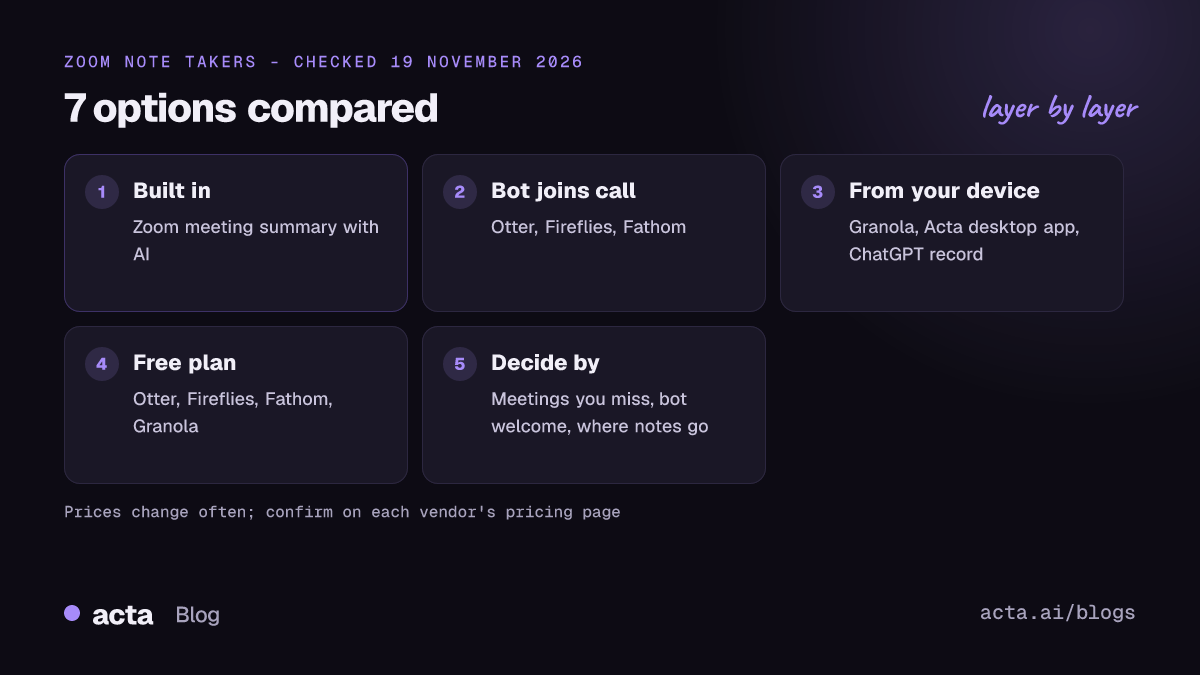
The best AI note taker for Zoom depends on one choice first: a bot that joins the call or a recorder on your own computer. If you host most calls on a paid Zoom plan, start with Zoom's built-in meeting summary. For every call covered automatically, Otter, Fireflies or Fathom send a bot. For client calls where bots aren't welcome, Granola, Acta's desktop app or ChatGPT record mode capture audio from your device.
Guides & How-tos 10 min read
Best AI Note Taker for Zoom: 7 Bot and Bot-Free Options Compared
Seven AI note takers for Zoom compared, from Zoom's built-in summary to bot-based and bot-free tools, with free plans, starting prices and who each suits.
By Sarma BKP, Founder & CEO, Acta · Updated
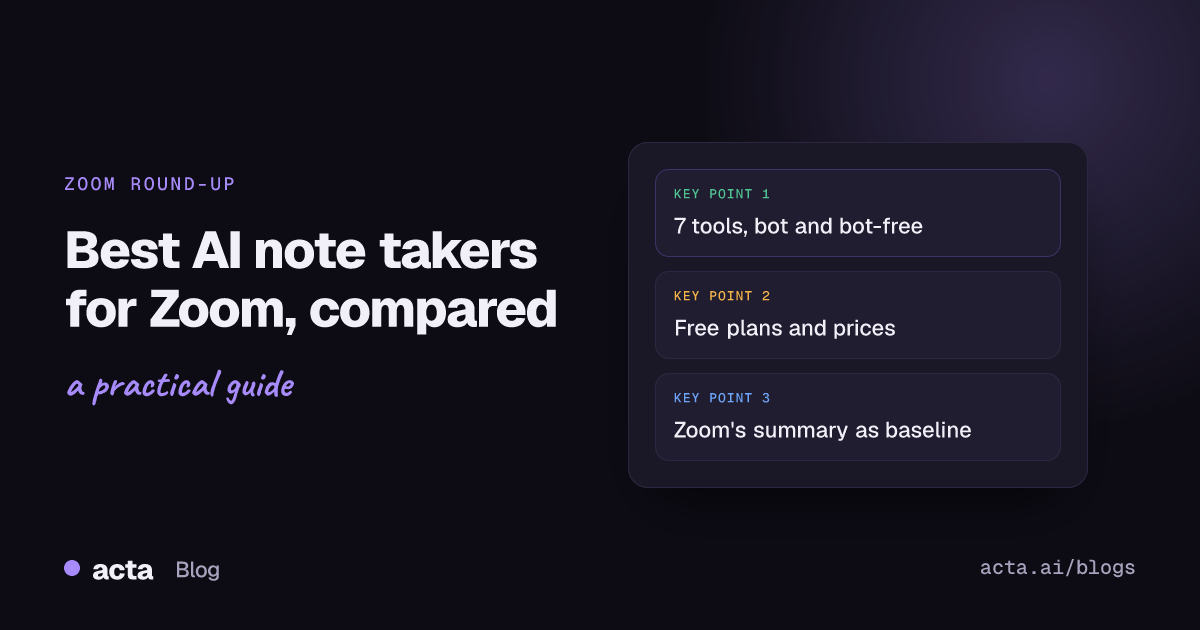
This round-up compares seven options on what matters for Zoom specifically: whether a bot joins, whether there's a free plan, what the paid plan starts at and who each one suits. I checked vendor pages on 19 November 2026. It's for people who live in Zoom and want notes they can trust without babysitting a tool. If your meetings are mostly on Teams or Google Meet, our guides to those platforms will serve you better.
Key takeaways
- Start with Zoom's own "Meeting summary with AI" if you host on an eligible paid plan; it costs nothing extra, but only the host or co-host can start it and it skips breakout rooms.
- Pick a bot (Otter, Fireflies, Fathom, or Acta's bot) when you want meetings recorded even when you can't attend.
- Pick a bot-free recorder (Granola, Acta's desktop app or Chrome extension, ChatGPT record mode) for client calls and companies that block meeting bots.
- Free plans differ a lot: Otter's free Basic plan caps conversations at 30 minutes, Granola's keeps 30 days of history, and Fathom's covers unlimited recordings.
- Prices are per seat and change often; check each vendor's pricing page before you commit a team.
Table of contents
- Three questions decide the best AI note taker for Zoom
- The comparison table shows the trade-offs at a glance
- Zoom's built-in summary is the baseline to beat
- Bot-based note takers cover every call automatically
- Bot-free note takers suit client calls and strict companies
- Five mistakes make a Zoom note taker disappoint
- Frequently asked questions
- Pick the right AI note taker for your Zoom calls
Three questions decide the best AI note taker for Zoom
Most comparison posts rank tools on summary quality. In my experience that's the wrong place to start, because every serious tool writes a decent summary from clean audio. The differences that actually decide whether you keep using a tool are about how it gets into the call and where the notes go afterwards.
- Do you need notes from meetings you can't attend? Only a bot can join without you. A bot-free recorder needs you in the call on your own computer.
- Will a bot be welcome? Clients, lawyers, healthcare teams and some large companies remove or block notetaker bots. Our explainer on why companies block meeting bots covers the reasons. If that's your world, bot-free capture saves awkward moments.
- Where should the notes end up? A private summary in your inbox is fine for a freelancer. A sales team needs action items in the CRM; a product team needs them in Jira.
Answer those three and your list shrinks from seven to two. Then try both on real calls for a week; free plans and trials make that cheap.
The comparison table shows the trade-offs at a glance
Here are the seven options side by side. "Bot-free" means the tool can capture a Zoom call without adding a participant.
| Tool | Best for | Bot-free? | Free plan | Starting price |
|---|---|---|---|---|
| Zoom meeting summary | Hosts on paid Zoom | Built in | No (paid plans) | Included in eligible plans |
| Otter | Individuals, light use | No, bot | Yes, Basic | $8.33/user/mo annual |
| Fireflies | Teams wanting every call | No, bot | Yes | $10/seat/mo annual |
| Fathom | Generous free use | Bot or bot-free | Yes | $16/user/mo annual |
| Granola | Your own calls, no bot | Yes | Yes, Basic | $14/user/mo |
| Acta | Mixed platforms, reports | Yes, or bot | 15-day trial | $8/seat/mo |
| ChatGPT record mode | Mac users on ChatGPT | Yes | No (paid plans) | Included in paid plans |
Checked on 19 November 2026; confirm on each vendor's pricing page.
For a wider view of costs across more tools, our AI notetaker pricing comparison lists plans side by side.
Zoom's built-in summary is the baseline to beat
Before you buy anything, check what Zoom already gives you. Any outside tool has to beat this on coverage, structure or where the notes go.
1. Zoom meeting summary with AI
Best for: hosts on an eligible paid Zoom Workplace plan who want a quick recap of their own meetings.
Pros: nothing to install and no extra participant. Zoom's help article on enabling meeting summary with AI shows admins can switch it on for an account or group, and accounts can use summary templates for stand-ups or one-on-ones. The host gets a summary with next steps by email and can edit it before sharing.
Cons: only the host or co-host can start it, it doesn't cover breakout rooms, and as a guest in someone else's Zoom meeting you depend on their settings. Zoom retired the "AI Companion" brand in July 2026, so menus and plan names have shifted.
Price: included with eligible paid plans; free Basic users don't get it. Check Zoom's page, as plans change. Our step-by-step guide to the Zoom AI Companion summary covers setup and the review habits that make it useful.
Bot-based note takers cover every call automatically
A bot joins the Zoom call as a participant, records it and sends notes afterwards. Connect your calendar and it can attend meetings you skip. The cost is visibility: everyone sees it in the participant list, and some hosts remove it.
2. Otter
Best for: individuals and small teams who want transcripts of Zoom, Teams and Meet calls and can live with free-plan limits.
Pros: a long-running product with a free Basic plan. Otter's own comparison posts list 300 transcription minutes a month on Basic, and higher monthly minutes on Pro and Business.
Cons: on the free plan, conversations are capped at 30 minutes per Otter's comparisons, which cuts off most real meetings. The bot is visible in the call.
Price: Otter's own blog lists Pro at about $8.33 per user per month billed annually, with monthly billing costing more. Check the vendor's page; plans change.
3. Fireflies
Best for: teams that want every calendar meeting recorded and searchable, with a free tier to start.
Pros: a permanent free plan, and paid plans that add video recording, downloads and more storage. Fireflies' guide to its pricing plans lays out Free, Pro, Business and Enterprise tiers.
Cons: the free plan's limits on summaries and storage are described differently across Fireflies' own pages, so check what you'd actually get. The bot is visible, and Fireflies' materials list per-meeting recording limits on Pro and Business.
Price: Pro from $10 per seat per month billed annually ($18 monthly), per Fireflies' materials as of November 2026. Check the vendor's page.
4. Fathom
Best for: people who want a generous free plan and the option to record with or without a bot.
Pros: Fathom's pricing page describes a free plan with unlimited recordings, transcripts and AI summaries, and says you can choose bot or bot-free capture. Paid plans add advanced summaries, action items and team features.
Cons: team plans have a two-user minimum, and CRM field sync sits on the higher Business tier.
Price: Premium is listed at $16 per user per month billed annually ($20 monthly); Team from $15 per user per month billed annually. Check the vendor's page.
Bot-free note takers suit client calls and strict companies
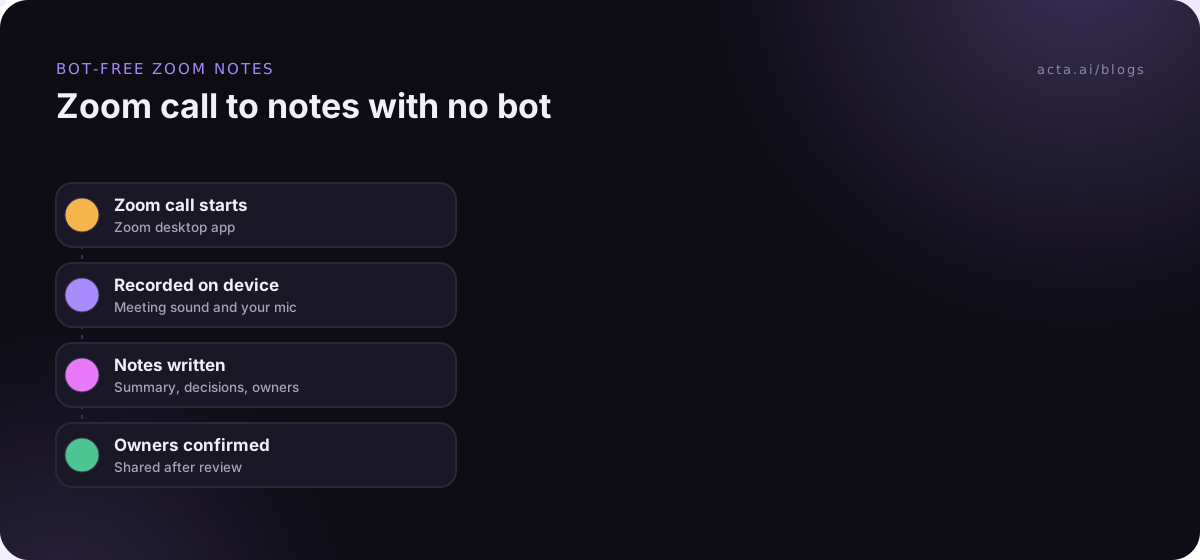
A bot-free tool records the Zoom call from your own computer: the meeting sound coming through your speakers and your microphone. Nobody sees an extra participant. The trade-off is that you have to be in the meeting, on that computer. Telling people you're recording still matters, bot or no bot; our guide on recording meetings with AI and what to tell participants covers the basics as general information, not legal advice.
5. Granola
Best for: individuals who want private notes from their own Zoom calls without a bot.
Pros: records from your device, so no notetaker appears in the call. Granola's pricing posts describe a free Basic plan with AI meeting notes, and a Business plan that adds unlimited history and integrations such as Notion and HubSpot.
Cons: Basic keeps only 30 days of meeting history, and integrations need Business. As with any bot-free tool, it can't attend meetings you miss.
Price: Granola lists Business at $14 per user per month and Enterprise at $35. Check the vendor's page.
6. Acta
Best for: people who meet on Zoom and also on Teams or Meet, and want structured reports rather than a generic summary.
Pros: three ways to record. A meeting bot for calls you can't attend; the desktop app for Windows and Mac, which notices a Zoom desktop meeting by itself and records the meeting's sound and your microphone, never your screen; and the Chrome extension for the Zoom web client. You get transcripts with speaker names, summaries, decisions and action items with owners, 40 report templates and integrations with Salesforce, HubSpot, Jira and Notion.
Cons: bot-free recording needs you in the meeting on your own computer, and there's no permanent free plan, only a trial. On Windows, the installer isn't code-signed yet, so you'll see "Windows protected your PC" and need to click More info, then Run anyway.
Price: Pro is $8 per seat per month billed monthly, or $72 per year billed annually, after a 15-day free trial. See our guide to recording Zoom on Windows without a bot for setup.
7. ChatGPT record mode
Best for: Mac users who already pay for ChatGPT and want private notes from their own calls.
Pros: OpenAI's help article says record mode transcribes and summarizes audio in the ChatGPT macOS app, so it captures a Zoom call without a bot, and you can keep chatting with the notes afterwards.
Cons: macOS only, paid plans only, and for Zoom you start it by hand; OpenAI says calendar auto-join works only with Google Meet links. Notes live in your chat history, not a shared team space.
Price: included in Plus, Pro, Business, Enterprise and Edu workspaces as of November 2026. Check the vendor's page. Our explainer on ChatGPT record mode goes deeper.
Five mistakes make a Zoom note taker disappoint
Picking the best AI note taker for Zoom is half the job. These are the mistakes I see most after people sign up.
- Testing on a five-minute call. Short calls hide problems. Test on a real 45-minute meeting with four or more people and someone on a bad connection.
- Ignoring free-plan caps. A 30-minute conversation limit or 30 days of history sounds fine until the first long workshop or the first "what did we agree in August?"
- Auto-sending summaries to everyone. Route summaries to yourself first, fix owners and dates, then share.
- Sending a bot to client calls without asking. If a client has to remove your bot, you've lost a little trust. Ask, or record from your own device.
- Leaving notes where nobody looks. If action items should be in the CRM or Jira, connect that on day one or the notes become an archive nobody opens.
For more on recording without a participant, our list of bot-free AI notetakers covers tools beyond Zoom.
Frequently asked questions
What is the best free AI note taker for Zoom?
It depends on your meetings. As of November 2026, Fathom's free plan covers unlimited recordings and summaries, Otter's free Basic plan caps conversations at 30 minutes, and Granola's free Basic plan keeps 30 days of history. Zoom's own summary needs a paid plan. Check each vendor's page, because free plans change often.
Can I use an AI note taker in Zoom without the host knowing?
A bot-free tool doesn't add a participant, but that doesn't mean you should record quietly. Tell everyone you're taking AI notes, and in many places the law requires consent. A short line at the start of the call is usually enough. This is general information, not legal advice.
Does Zoom have a built-in AI note taker?
Yes. Zoom's "Meeting summary with AI" writes a recap and next steps on eligible paid plans. The host or co-host starts it from the meeting toolbar, and the summary is emailed after the call. It doesn't cover breakout rooms, and free Basic accounts don't get it.
Is a bot or a bot-free note taker better for Zoom?
A bot is better when you need meetings recorded without being there. Bot-free is better for client calls, interviews and companies that block bots, because nobody sees an extra participant. Many people use both: a bot for internal meetings and a desktop recorder for external ones.
Do AI note takers work with the Zoom desktop app?
Bots join from Zoom's side, so they work whatever app you use. Bot-free tools that record your computer's audio, such as a desktop app, work with the Zoom desktop app. Browser extensions only work with the Zoom web client in Chrome, not the desktop app.
Pick the right AI note taker for your Zoom calls
Run through this list before you sign up for anything. It'll save you a month of trying the wrong tool.
- Check Zoom first: if you host on a paid plan, try the built-in summary for a week.
- Decide bot or no bot: list the meetings you miss and the clients who'd object to a bot.
- Read the free-plan limits: look for caps on minutes, conversation length and history.
- Test on real meetings: try two finalists on long, messy calls, not demos.
- Connect where notes go: set up the CRM, Jira or Notion link before rolling out to a team.
If you want bot-free notes from Zoom with an option for a bot when you can't attend, try Acta's desktop app with a 15-day free trial.
Found this useful? Share it with your team.