A meeting recap email is a short message sent after a meeting that lists what was decided, who owes what by when, and what's still open. The best ones fit on one screen, go out the same day, and lead with decisions rather than a play-by-play. Below are 10 copy-ready meeting recap email examples for different meetings, plus a base template and subject lines.
Meeting Productivity 13 min read
Meeting Recap Email: 10 Examples and a Template You Can Copy
Ten copy-ready meeting recap email examples for team syncs, kickoffs, decisions, client calls and leadership reviews, plus a base template and subject lines that get opened.
By Sarma BKP, Founder & CEO, Acta · Updated
Each example says when to use it, so you can pick one and paste it into your next recap. They're built for internal team meetings, client calls, kickoffs and leadership reviews. If you need a sales follow-up that asks a prospect for the next step, that's a different email with a different goal; there's a separate set of sales follow-up email examples for that.
Key takeaways
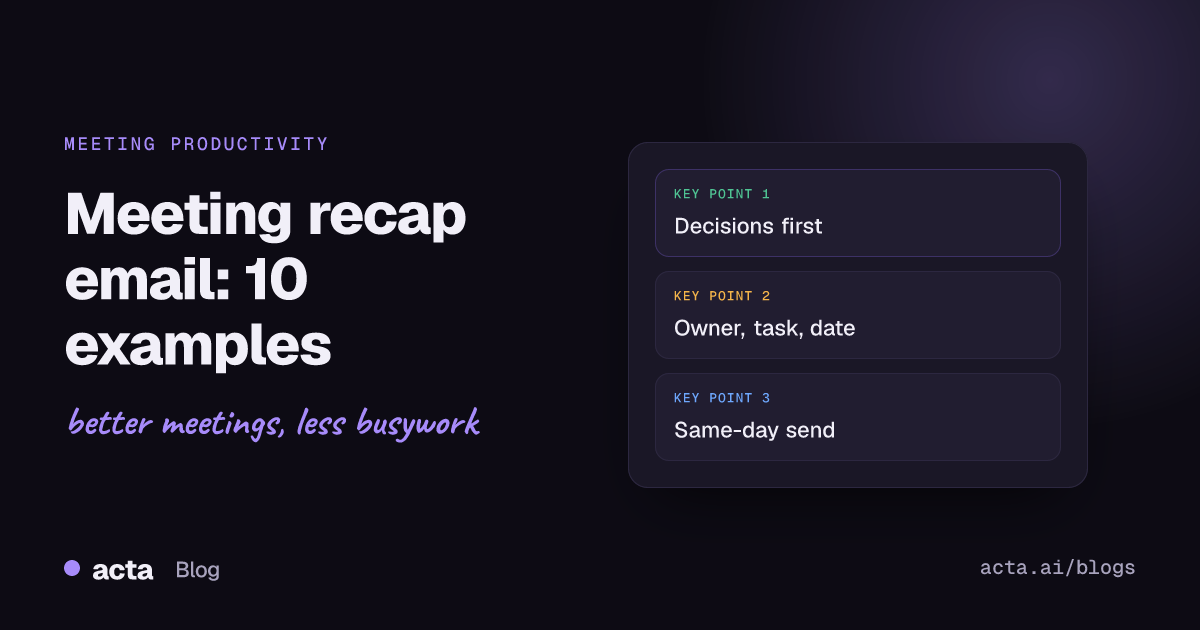
- Order every recap the same way: decisions, action items with owner and date, open questions, then links. Readers learn where to look.
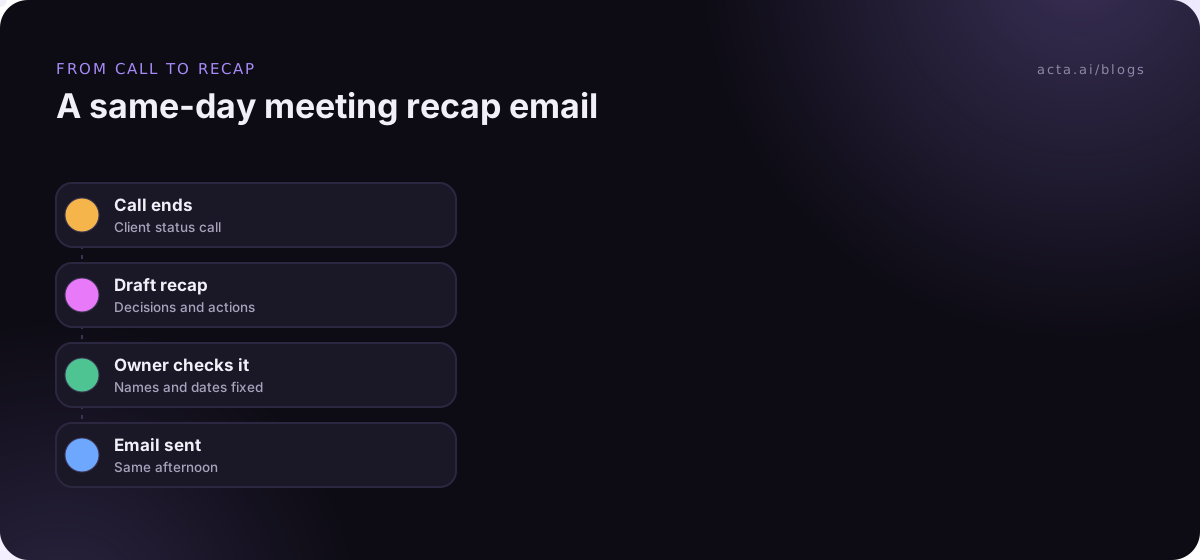
- Send it within a few hours, while people still remember the call. A recap sent three days later starts arguments instead of settling them.
- Put the meeting name and the main outcome in the subject line, such as "Recap: Q1 roadmap - launch moved to 3 March".
- Write action items as "Name - task - date". If an item has no owner, list it under open questions instead.
- Keep it under about 200 words for a routine meeting. Link the full notes rather than pasting them.
Table of contents
- A meeting recap email has five parts in a fixed order
- The base meeting recap email template
- Recap examples for internal team meetings
- Recap examples for client and partner meetings
- Recap examples for leadership and tricky meetings
- Subject lines should name the meeting and the outcome
- Five mistakes make recaps go unread
- Frequently asked questions
- Choose the right recap for your next meeting
A meeting recap email has five parts in a fixed order
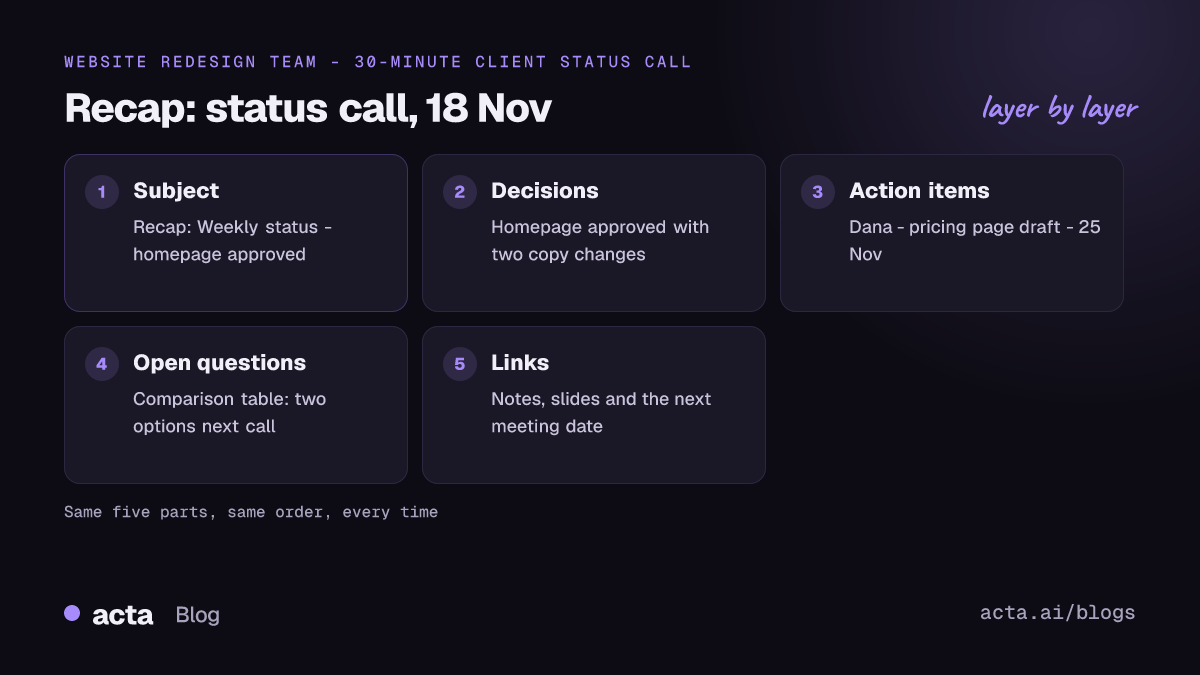
A recap has one job: make sure everyone leaves with the same understanding of what happened, and that the people who weren't there can catch up in a minute. Everything in it should serve that. In practice that means five parts, always in this order:
- Subject line with the meeting name and the headline outcome.
- Decisions. One line each, written as a statement: "We'll launch in the EU first."
- Action items. Owner, task, due date. Nothing else.
- Open questions. Anything unresolved, ideally with who will chase it.
- Links. Full notes, slides, the recording if there is one, the next meeting.
Notice what isn't there: a summary of who said what, a thank-you paragraph, or the agenda pasted back in. Those make the email longer without making it more useful. If someone needs the full discussion, the link to the notes covers it.
The fixed order matters more than it looks. When every recap from you looks the same, people learn to jump straight to "Action items" and find their name. Microsoft makes a similar choice in Teams: as of November 2026, its meeting recap page says the recap brings together the recording, transcript, notes and follow-up tasks, and that an Outlook email draft with the summary and tasks can be created from it on Teams Premium or Copilot licences. Check Microsoft's page for current licence details, as plans change.
The base meeting recap email template
Start here. Every example below is a variation on this structure, and you can use it as is for most meetings.
Subject: Recap: [Meeting name] - [main outcome]
Hi all,
Thanks for today. Here's where we landed.
Decisions
- [Decision 1]
- [Decision 2]
Action items
- [Name] - [task] - by [date]
- [Name] - [task] - by [date]
Open questions
- [Question] - [who's finding out]
Links: [notes] | [slides] | Next meeting: [date]
If I've missed or misstated anything, reply by [day] and I'll update the notes.
[Your name]
The last line is the one people skip, and it's worth keeping. It gives everyone a short window to correct the record, after which the recap stands. That's how a recap email settles disagreements rather than starting them.
Recap examples for internal team meetings
Internal recaps can be shorter and less formal than anything going to a client. The names and dates in these examples are illustrative.
1. Weekly team sync
When to use it: recurring team meetings where most of the content is progress and blockers.
Subject: Recap: Team sync 18 Nov - API freeze moved to Friday
Decisions: API freeze moves from Wednesday to Friday so the auth fix can land.
Actions: Marco - merge auth fix - Thu. Dana - update release notes - Fri. Sam - confirm QA cover for Friday - today.
Blocked: Staging certificates expire Monday; Lee is asking IT.
Notes: [link]
2. Project kickoff
When to use it: the first meeting of a project, where scope, roles and dates need to be written down before memories diverge.
Subject: Recap: Website redesign kickoff - scope and first milestone
Goal: New pricing and product pages live by 31 March.
In scope: Pricing page, three product pages, site menu. Out of scope: Blog, help centre.
Roles: Priya - project lead. Dana - design. Marco - build. Lee - approvals on the client side.
First milestone: Wireframes for review on 12 December.
Actions: Dana - share moodboard - Fri. Priya - send weekly check-in invite - today.
Open: Who signs off on copy? Priya to confirm with Lee.
For the meeting itself, this project kickoff agenda template lines up with the recap above.
3. Decision meeting
When to use it: a meeting called to make one specific choice. Lead with the decision and the reason, since that's what people will search for later.
Subject: Decision: We're signing vendor A for product analytics
Decision: Marco approved vendor A on 18 Nov.
Why: Fits the current budget and passes security review before the 15 Dec renewal. Vendor B's review wouldn't finish in time.
Conditions: Keep read-only access to the old tool for three months.
Next: Dana - migration plan - 25 Nov. Lee - contract to legal - 20 Nov.
Decision doc: [link]
If your team uses roles for decisions like this, the recap maps neatly onto the DACI framework: name the Approver, the reason and the date.
4. One-on-one
When to use it: after a manager and report meet, so both have the same list of commitments. Keep anything personal out of email.
Subject: Our 1:1 on 18 Nov - three follow-ups
Hi Sam, quick note so we're both tracking the same things:
- You'll draft the onboarding checklist by 29 Nov.
- I'll ask finance about the conference budget by Friday.
- We'll revisit the on-call rota in two weeks.
Anything I missed, just reply.
Recap examples for client and partner meetings
Recaps that leave your company need a bit more care. Write for someone who might forward it to their boss, avoid internal shorthand, and be precise about what you've promised.
5. Client status call
When to use it: regular check-ins with a client, where the recap doubles as a record of what they approved.
Subject: Recap: Weekly status, 18 Nov - homepage approved
Hi Lee,
Thanks for the time today. A summary of where we are:
Approved: Homepage design, with the two copy changes you mentioned.
Our next steps: We'll send the pricing page draft by 25 Nov.
From your side: Final product photos by 22 Nov, so we can keep the 12 Dec date.
Open: Whether the comparison table stays. We'll bring two options to the next call.
Next call: 25 Nov, 10:00. Let me know if anything here doesn't match your notes.
6. Discovery or first meeting with a new client
When to use it: after an intro meeting, to show you listened and to confirm the problem before you propose anything.
Subject: Recap: Our call today and what we heard
Hi Dana,
Thanks for walking us through the onboarding process. Here's what we understood, so you can correct anything we got wrong:
- New customers wait about a week for their first training session.
- Your team re-enters setup details in two systems.
- Success for you this quarter is getting that first session within two days.
Next step: We'll send a short proposal by Friday 22 Nov.
Repeating the client's own description of the problem, in their words, is the most useful thing this email does. If you got it wrong, you find out before the proposal, not after.
7. Vendor or partner call
When to use it: when you've negotiated or agreed terms verbally and want them in writing.
Subject: Recap: Call with [vendor] - pilot terms
Agreed on the call: 60-day pilot for one team, starting 1 Dec. Support contact is Marco on their side.
They will: send the pilot agreement by 22 Nov and set up SSO for our test group.
We will: name the pilot team by 25 Nov.
Not agreed yet: pricing after the pilot.
Please confirm this matches your understanding.
Recap examples for leadership and tricky meetings
8. Leadership or steering meeting
When to use it: senior meetings where readers want outcomes and risks, not discussion. Put decisions and risks first and keep it short.
Subject: Leadership review 18 Nov: 2 decisions, 1 risk
Decisions: (1) Hiring freeze lifted for engineering only. (2) EU launch stays on 3 March.
Risk: Payment provider migration is two weeks behind. Owner: Priya. Update at next review.
Actions: Lee - revised hiring plan - 2 Dec. Marco - EU launch checklist - 25 Nov.
Papers and notes: [link]
9. Meeting with nothing decided
When to use it: a meeting that ended without a decision. Say so plainly and set the path to one, rather than sending a vague summary.
Subject: Recap: Pricing discussion - no decision yet, next step Friday
We didn't reach a decision today. The open question is whether to raise the entry plan price or add a usage limit.
What we need: Lee's churn numbers for each option and Dana's view on support load.
Next: Marco decides on Friday 22 Nov, based on those two inputs.
This is the hardest recap to send and one of the most useful. It stops people walking away thinking something was agreed when it wasn't.
10. Recap for people who missed the meeting
When to use it: when key people couldn't attend and need to know what affects them, fast.
Subject: You missed: Planning 18 Nov - one item for you
Hi Sam,
The short version: we moved the launch to 3 March. The part that affects you: we'd like you to own the launch checklist, starting next week. Can you confirm by Friday?
Full notes and the recording are here: [link].
If you share a recording, make sure everyone in the meeting knew it was being recorded; this guide to recording consent explains what to tell people.
| Example | Best for | Lead with |
|---|---|---|
| 1. Weekly team sync | Recurring internal meetings | Changes and blockers |
| 2. Project kickoff | First meeting of a project | Goal, scope, roles |
| 3. Decision meeting | One specific choice | The decision and why |
| 4. One-on-one | Manager and report | Shared commitments |
| 5. Client status call | Regular client check-ins | What the client approved |
| 6. Discovery call | First client meeting | The problem in their words |
| 7. Vendor or partner call | Verbal agreements | Agreed and not agreed |
| 8. Leadership meeting | Senior reviews | Decisions and risks |
| 9. No decision reached | Stalled discussions | What's needed to decide |
| 10. For absentees | People who missed it | What affects them |
Subject lines should name the meeting and the outcome
Most recaps get opened, or not, from the subject line alone. "Meeting notes" or "Follow-up" tells the reader nothing and is impossible to find later. Nielsen Norman Group's advice on email subject lines is to put the important keywords at the start and keep them short, because inboxes cut off long subjects, and that applies well to recaps.
A few patterns that work:
- Recap: [meeting] - [outcome]: "Recap: Q1 roadmap - launch moved to 3 March"
- Decision: [what was decided]: "Decision: vendor A for analytics"
- [Meeting] [date]: [count] decisions, [count] actions: "Leadership review 18 Nov: 2 decisions, 1 risk"
- Action needed: [task] by [date]: "Action needed: product photos by 22 Nov"
- You missed: [meeting] - [what matters]: "You missed: Planning - one item for you"
Include the date for recurring meetings. Six weeks of emails all called "Recap: Team sync" are hard to tell apart when you're searching for when something was decided.
Five mistakes make recaps go unread
- Sending it too late. Aim for the same day. If you write it now and want it to land first thing tomorrow, Gmail lets you schedule emails to send for a set time.
- Writing a transcript instead of a recap. If the email is longer than the meeting notes, it's the wrong document. Link the notes; send the outcomes.
- Actions without owners or dates. "Look into the pricing question" will never happen. "Lee - churn numbers for both options - Fri" will.
- Burying the decision. If the headline outcome is in paragraph four, most readers never see it. Put it in the subject and the first line.
- Sending to everyone. Send to attendees and the people who need to act. Others can read the shared notes. A tighter list gets more replies when something's wrong.
For what to do in the minutes right after the call, including when to write the recap, see the first 10 minutes after a meeting. And if your team prefers chat to email, a Slack meeting recap works on the same structure.
Drafting recaps from the meeting itself
Writing recaps by hand is where most of the time goes. Acta writes a summary with decisions and action items with owners after Zoom, Google Meet and Teams calls, and drafts a follow-up email you can edit before sending. You check and adjust it rather than starting from a blank page; if you want this to run after every call, this guide to automating follow-up emails shows how.
Frequently asked questions
What should a meeting recap email include?
Include the decisions made, action items with an owner and a due date, open questions with who's chasing them, and links to the full notes or slides. Put them in that order every time. Leave out a blow-by-blow account of the discussion and the agenda itself; people who want detail can follow the link to the notes.
How soon should I send a meeting recap email?
The same day, ideally within a few hours. People still remember the meeting, so corrections come quickly and the recap becomes the agreed record. If you finish it late in the evening, schedule it for the next morning rather than sending at midnight. A recap sent several days later tends to reopen discussions instead of closing them.
What is the difference between a meeting recap and meeting minutes?
Minutes are the formal record of a meeting, often required for boards and committees, and they follow a set format with attendees, motions and votes. A recap email is shorter and informal, focused on decisions and next steps for the people who need to act. Many teams keep minutes or full notes and send a recap that links to them.
How do I write a meeting recap email to a client?
Thank them briefly, then list what was approved, what you'll do next with dates, what you need from them with dates, and anything still open. Avoid internal shorthand and be exact about commitments, because clients forward these emails. End by inviting corrections, so the recap becomes the shared record of what was agreed.
Should I use AI to write meeting recap emails?
It can save time, as long as someone checks the draft before it goes out. AI notetakers can pull decisions and action items from a recording, but they can miss context or attribute a task to the wrong person. Treat the AI version as a first draft, check names and dates, and send it under your own name.
Choose the right recap for your next meeting
Pick the example closest to your next meeting, adapt it once, and save it as a template. Before you hit send, run through these checks.
- Name the outcome: The subject line has the meeting name and the main result.
- Lead with decisions: One line each, written as statements.
- Own every action: Name, task and date, or move it to open questions.
- Keep it short: Under about 200 words for routine meetings, with a link to the full notes.
- Invite corrections: Give a reply-by date so the recap becomes the agreed record.
If you'd like recap drafts written from the call itself without a bot joining, the Acta Chrome extension works in Google Meet, Teams in the browser and the Zoom web client, and the desktop app covers the Zoom and Teams apps.
Found this useful? Share it with your team.