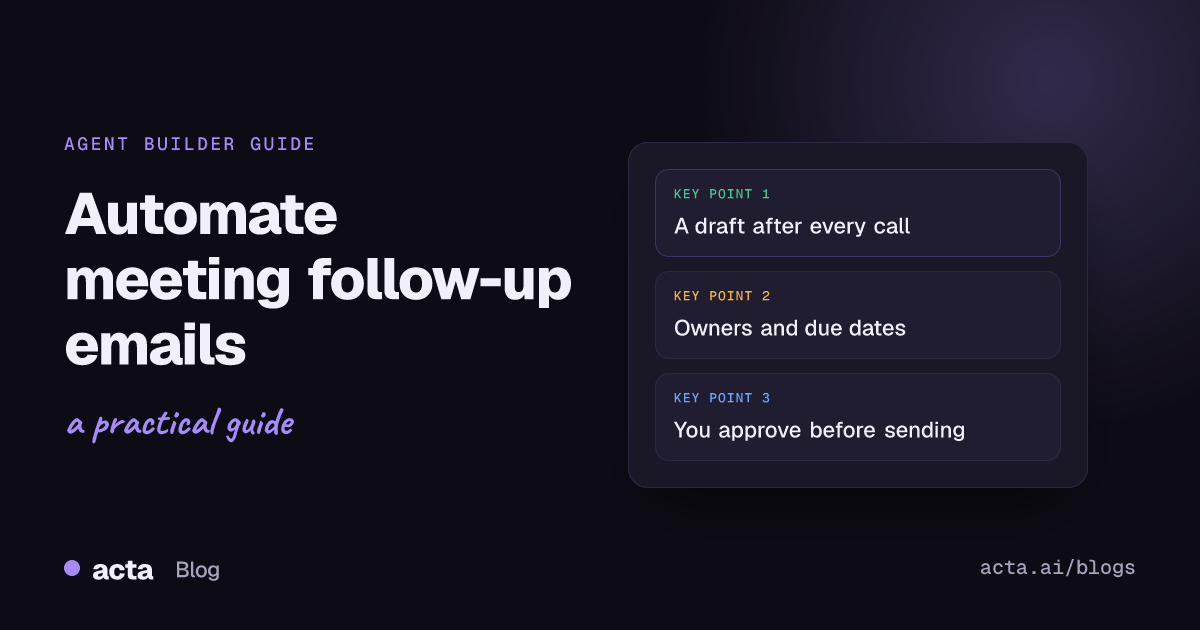
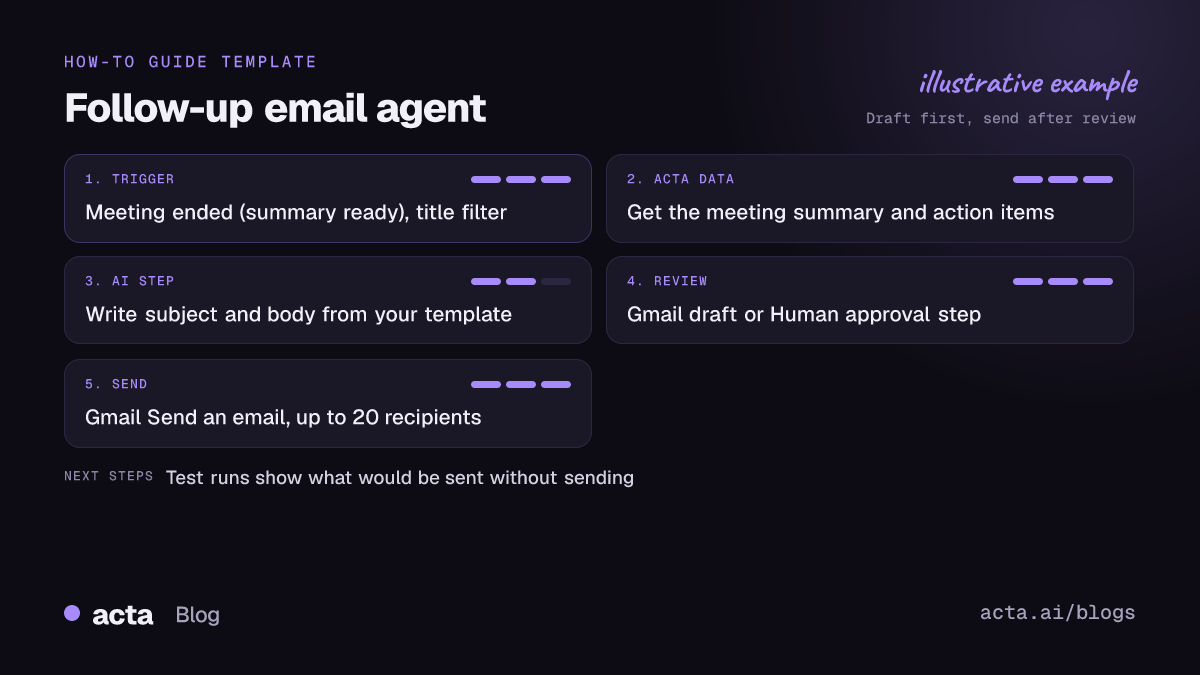
Quick answer: To automate meeting follow-up emails without losing control, build an agent that starts when a meeting ends, pulls that meeting's summary and action items, asks an AI step to write the email, and then either saves it as a Gmail draft or pauses for your approval before sending. You review every email; the agent does the typing.
Most people know they should send a recap after an external meeting. Fewer actually do it, because the call ends, the next one starts, and by the evening the details are fuzzy. This guide shows how to set up a workflow in Acta Agent Builder that writes the email for you after every meeting, while keeping a person in charge of what goes out.
The approach here is deliberate: when you automate meeting follow up emails, draft, don't auto-send. A follow-up email speaks for you to a customer, candidate or partner. Letting AI write the first version saves the time; letting it send unsupervised is how a wrong date or a misheard name ends up in someone's inbox.
Why automate meeting follow-up emails at all?
A follow-up email does three jobs: it confirms what was agreed, it puts names and dates next to each next step, and it gives everyone a written record to point back to. Harvard Business Review's advice on two things to do after every meeting is to send a short summary quickly, while the discussion is still fresh, rather than days later.
The hard part is not knowing what to write. It is finding ten minutes right after the call to write it. That is exactly the gap automation fills:
- Speed: the draft is ready minutes after the summary is, not at the end of the day.
- Consistency: every external meeting gets the same structure, so nothing important is skipped.
- Accuracy: the email is built from the meeting's own summary and action items, not from memory.
- Follow-through: owners and due dates are written down, which makes it easier to chase them later. See why action items don't get done for what happens when they aren't.
What should a follow-up email after a meeting include?
Before you automate anything, decide what a good email looks like. The AI step will copy whatever structure you give it, so this is the most important part of the setup. A follow-up email after a meeting should be short enough to read on a phone and specific enough that nobody has to ask "who is doing that?"
- A clear subject line with the meeting name and date, for example "Recap: Q1 rollout call, 4 November".
- One line of thanks, no more.
- What we agreed: the two to four decisions that matter, in plain sentences.
- Next steps: each action item with an owner and a due date. Your side and their side.
- Open questions that still need an answer, and who owes it.
- The next touchpoint: the date of the next meeting, or a proposed time.
HBR's tip on following up to make meetings more effective makes the same point: keep the recap to the essentials and attach an owner and date to every action. A full transcript is not a follow-up email.
If you want a reusable meeting follow-up email template for the AI step, here is one that works for most customer calls:
Subject: Recap: [meeting title], [date]. Hi [first names], thanks for the time today. What we agreed: [decisions as short bullets]. Next steps: [action item] (owner, due date). Still open: [question] (who answers). Next call: [date or proposed time]. Reply here if I've missed anything.
How to automate meeting follow-up emails with Acta Agent Builder
Acta Agent Builder is new in Acta. An agent is one trigger plus a list of steps. You can build it from scratch, start from a template, or describe what you want in plain words and let the AI draft the agent, along with a list of things you still need to fill in. Here is the setup step by step.
- Create the agent. Open Agent Builder in Acta and either start from scratch or type something like "After every customer meeting, write a follow-up email with decisions and action items and save it as a Gmail draft." Check the list of things the AI says you still need to fill in.
- Set the trigger to "Meeting ended". This trigger fires when the meeting's summary is ready. Use the optional "title contains" filter so it only runs on the meetings you want, for example titles that contain "Customer" or "Demo".
- Add an Acta data step. Use "get meetings" for the meeting that just ended to pull its summary, and add the meeting's action items (open items, with owners and due dates). This is the raw material for the email.
- Add an AI step to write the email. Paste your structure and tone rules into the instructions (see the prompt section below). Ask it to return a subject line and a body.
- Choose how the email leaves. Either add a Gmail "Save a draft" step (where available), or add a Human approval step followed by a Gmail "Send an email" step. Both options are explained in the next section.
- Run "Check setup". It flags missing settings and app connections, such as a Gmail account that isn't connected yet.
- Test it. Run a test on a past meeting. Test runs show what would be sent without sending anything. You can also test one step on its own, or send a test to your own email address to see the result in your inbox.
- Turn it on. Each time you turn an agent on, Acta saves a version you can restore later. After it runs, History shows what every step did, so you can see exactly which summary the email came from.
If you'd rather not build anything, Acta also creates follow-up email drafts on its own after meetings, and the Follow-ups view lists them. The agent is for when you want your own structure, your own filter and a Gmail draft waiting for you.
Gmail draft or human approval: which review step should you use?
Both options keep a person in the loop. They differ in where you do the reviewing.
Option A: save a Gmail draft
The agent writes the email and saves it in your Gmail drafts. You open Gmail, read it, fix anything that is off, and press send yourself. This feels the most natural for people who live in their inbox. One caveat: some Gmail features in Agent Builder, including drafts and replies, may not be available yet while Google's security review is pending. If "Save a draft" isn't offered in your account, use option B.
Option B: human approval, then send
The run pauses and the email appears in Acta's Approvals inbox. You can edit the text, then approve or reject it. You can also turn on an email with Approve and Reject buttons, which is handy on a phone. If nobody answers before the request expires (24 hours by default, up to 7 days), nothing is sent. Once approved, the Gmail "Send an email" step sends it, to up to 20 recipients.
A simple rule: use drafts if you always want to tweak the wording, and use approval if you mostly approve as-is and want one tap to send.
How do you write the AI step so the email sounds like you?
The AI step is where an AI follow-up email either sounds like a person or like a form letter. Give it clear rules rather than a vague request:
- Structure: paste the template above and tell it to keep the headings in that order.
- Length: "under 150 words, no more than four decisions and six action items".
- Tone: "plain, friendly, no filler phrases, no exclamation marks".
- Facts only: "use only what is in the summary and action items; if a due date is missing, write 'date to confirm' instead of guessing".
- Audience: "leave out internal-only notes, pricing discussions and anything said about competitors".
That "facts only" rule matters. The draft is built from the meeting summary, so if the summary is unclear, the email should say so rather than invent a date. Your review step catches the rest.
How do you only send follow-ups for external meetings?
You don't want a recap email after every internal stand-up. There are two ways to narrow it down:
- Title filter: the "Meeting ended" trigger's "title contains" filter is the simplest option. If your team names external calls consistently ("Customer:", "Demo:", "Interview:"), filter on that word.
- Sort, then branch: add an AI step that sorts the meeting as external or internal from its summary, then an If/else step so only external meetings continue to the email steps.
You can also run several versions side by side: one agent for sales calls with a deal-focused template, one for candidate interviews with a warmer tone. Teams that also log the call in their CRM can pair this with the steps in updating the CRM after a sales call.
Can the agent propose the next meeting time too?
Yes, if you use Google Calendar. Agent Builder has a Google Calendar step that finds free times, and another that creates an event with guests and an optional Meet link. A practical pattern is to have the agent find two or three free slots on your calendar and drop them into the "next call" line of the draft, so the customer can just pick one. Google's own help page on finding times to meet in Google Calendar explains how availability works when guests have shared their calendars.
Keep the event creation behind your approval step as well. Booking a meeting on someone's calendar is as visible as sending them an email.
What this workflow doesn't do
Be clear about the limits before you roll it out to a team:
- Outlook is not supported. The email actions are Gmail only. If your team works in Outlook, this agent can still write the text, and you can pass it to an existing Zapier or Make flow with the "Send to a Zap" or "Send to a scenario" step. How Agent Builder compares with Make for meeting follow-up covers that trade-off.
- Gmail drafts and replies may not be available yet, pending Google's security review, as noted above.
- No Microsoft Teams chat or Google Chat. If you want a recap posted somewhere other than email, Slack is the supported chat app.
- It only knows what was captured. If a meeting wasn't captured in Acta, there is no summary for the email to be built from.
Recording, consent and what the email can contain
This workflow depends on the meeting being captured. Acta can join Zoom, Google Meet and Microsoft Teams from your calendar with a meeting bot, record without a bot through the desktop app or Chrome extension, or work from an uploaded recording. Recording someone needs their consent where the law requires it, so tell participants up front. Our guide on whether it's legal to record meetings with AI covers what to say.
It is also worth deciding what never goes into a customer email. The AI step instructions are the place to write that down, and the approval step is the place to enforce it. Acta does not use customer data to train AI models, and people only see meetings they have access to.
Where to go next
A follow-up email is usually the first agent a team builds, because it saves time on day one. Once it works, the same trigger can feed other steps: action items into Jira or Asana, a note on the HubSpot contact, a recap to Slack. The guide to meeting automation workflows lists ten worth setting up, and syncing action items to Jira, HubSpot and Salesforce goes deeper on the task side. You can browse ready-made agents on the Acta agents page, and the full product is on Acta's features page.
Frequently asked questions
Can I automate meeting follow up emails so they send without review?
Technically you can connect the AI step straight to a Gmail "Send an email" step. We don't recommend it for external meetings: a draft or an approval step takes a few seconds and catches wrong names, dates and anything that shouldn't leave the building.
Can I automate meeting follow up emails in Outlook?
No. Agent Builder's email actions are for Gmail. Outlook email is not supported, though you can hand the drafted text to a Zapier or Make flow you already run.
How soon after the meeting is the draft ready?
The "Meeting ended" trigger fires when the meeting summary is ready, and the agent runs from there. In practice the draft is waiting for you shortly after the summary appears in Acta.
Can the follow-up email include action items for the customer too?
Yes. Action items in Acta have owners and due dates, so the AI step can list your team's tasks and the customer's tasks separately. Tell it to write "date to confirm" when a due date is missing.
Do I need to know how to code to set this up?
No. You can describe the agent in plain words and the AI drafts it, then you fill in the remaining settings, run Check setup and test it before turning it on.
You can try Acta free for 15 days and build your first follow-up agent today.