Hindi meeting transcription works best when you pick a tool that lists Hindi for the feature you'll actually use, set the meeting's spoken language to Hindi before the call, and get clean audio from each speaker. As of November 2026, Microsoft documents Hindi (India) for Teams live transcription, Zoom lists Hindi for captions, and Google Meet's built-in transcripts don't list Hindi, so Meet users need a separate tool.
Guides & How-tos 10 min read
Hindi Meeting Transcription: Tools, Steps and Accuracy Tips
How to transcribe Hindi meetings on Teams, Zoom, Meet or by upload: what each tool's docs say about Hindi, eight steps, a setup checklist and fixes for bad transcripts.
By Sarma BKP, Founder & CEO, Acta · Updated
This how-to is for teams that hold meetings mostly in Hindi: sales calls with clients in north India, government and PSU reviews, family business board meetings, field team check-ins. It covers the steps, a setup checklist you can copy, a filled-in example and the mistakes that cost the most accuracy. If your meetings switch between Hindi and English every few words, read our separate guide to Hinglish transcription, because code-switching needs different settings.
Key takeaways
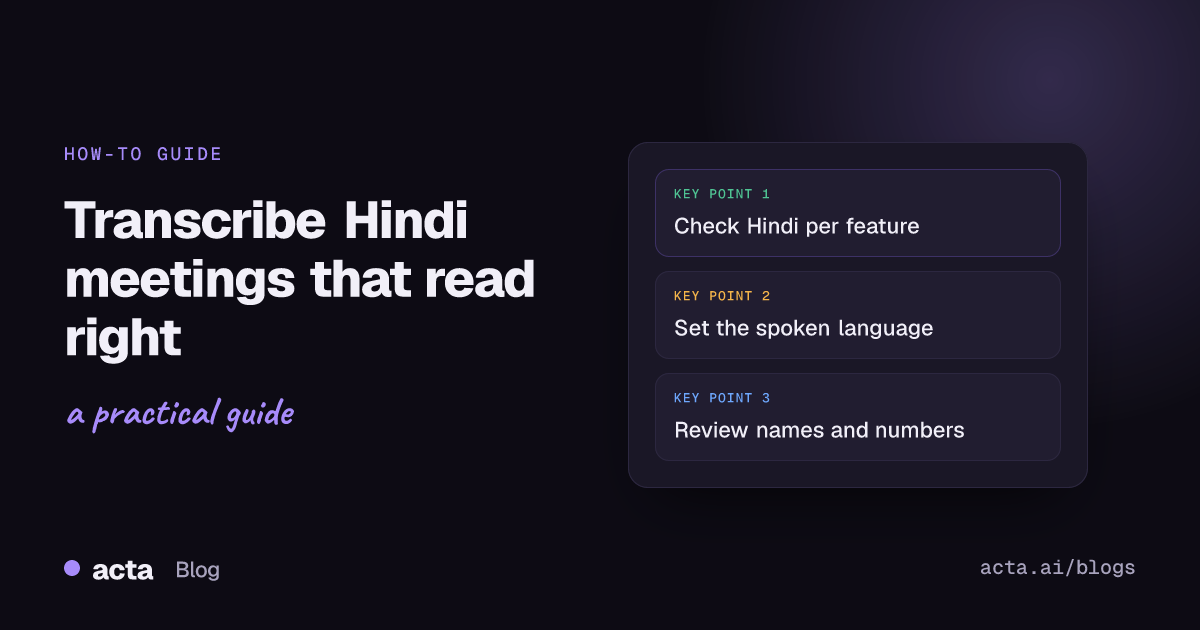
- Check the language list for the exact feature (live transcript, recording transcript, AI notes), because one platform can support Hindi in one feature and not another.
- Set the spoken language to Hindi before you start; a transcript recorded as "English" won't fix itself afterwards in most tools.
- Decide up front whether you want Devanagari script, Roman script or an English translation, and test that output.
- Most accuracy problems come from audio: one headset per speaker beats one laptop mic for a room of five.
- Budget 10 minutes after each important call to fix names, numbers and English technical terms.
Table of contents
- Hindi meeting transcription support differs by tool and feature
- Eight steps to transcribe a Hindi meeting
- A setup checklist you can copy
- A filled-in example: a Lucknow sales review
- Choose Devanagari, Roman script or translation on purpose
- Common mistakes that lower accuracy
- Troubleshooting a bad Hindi transcript
- Frequently asked questions
- Set up your next Hindi meeting
Hindi meeting transcription support differs by tool and feature
Hindi transcription tools don't all mean the same thing by support. The first thing that trips people up is that "supports Hindi" can mean live captions, a saved transcript, translated captions or AI notes, and these often have separate language lists. Here's what the vendors' own help pages say as of November 2026. Plans and lists change, so check each vendor's page before you commit.
| Tool | What its docs say about Hindi | Watch out for |
|---|---|---|
| Microsoft Teams | Hindi (India) is listed for live transcription in the admin docs | Translated captions in meetings need Teams Premium |
| Zoom | Hindi is listed for automated and translated captions | Translated captions need certain paid plans or an add-on |
| Google Meet | Built-in transcripts list English, French, German, Italian, Japanese, Korean, Portuguese and Spanish | No Hindi in that list; use another tool or upload the recording |
| Fireflies | Hindi is listed in its Multi-Language Mode (beta) | Beta feature; check its language table for your plan |
For Teams, Microsoft's admin page on managing transcription and captions for Teams meetings lists Hindi (India) among the live transcription languages and says captions show in the language spoken in the meeting by default. For Zoom, the help article on enabling translated captions lists Hindi and the account types that can use the feature. For Google Meet, the help page on using transcripts with Google Meet lists eight languages, none of them Hindi. Fireflies documents Hindi in its Multi-Language Mode guide.
If your platform's built-in option doesn't cover Hindi, you still have two routes: a notetaker that lists Hindi, or recording the meeting and uploading the file to a transcription service that does. The second route is slower but works with any platform. Our broader guide on transcribing meetings in other languages compares these routes for other Indian and foreign languages.
Eight steps to transcribe a Hindi meeting
Follow these in order. Steps 1 to 4 happen before the meeting, and they decide most of the result.
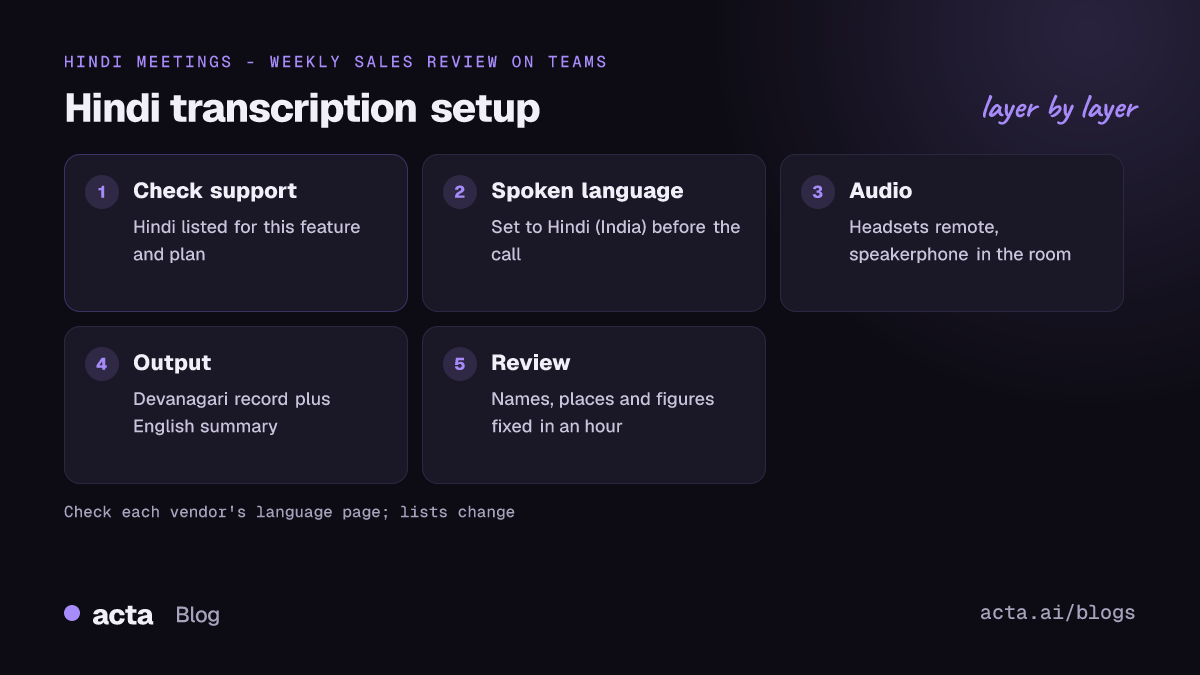
- Decide what you need at the end. A searchable Hindi transcript, an English summary for a manager in Bengaluru, or minutes in Hindi for a board file? Write it down; it decides the tool and the output script.
- Check the feature's language list. Look up the help page for the specific feature you'll use (live transcript, recording transcript or AI notes) and confirm Hindi is on it for your plan.
- Set the spoken language before the call. In Teams and Zoom, the spoken or caption language is a meeting setting; in a notetaker it's usually in your account or per meeting. Set Hindi, or the tool's multi-language mode if people mix languages.
- Fix the audio. Ask everyone to use a headset or earphones with a mic. In a conference room, use a proper speakerphone in the middle of the table. Our guide to the best microphone for meetings has options.
- Tell people and start recording. Announce that you're recording and transcribing, in Hindi if that's the meeting language, and get agreement. See is it legal to record meetings with AI for what to say.
- Speak for the transcript. Say names in full the first time ("Sunita Verma from accounts"), read numbers clearly ("teen lakh pachaas hazaar, that's 3.5 lakh"), and avoid talking over each other.
- Generate or upload the transcript. Use the built-in transcript if Hindi is supported; otherwise download the recording and transcribe Hindi audio with a service that lists Hindi for file uploads.
- Review and fix within the hour. Correct names, places, product names and figures while the call is fresh, then share. This is where most of the value is.
Two small habits help a lot. First, recap decisions at the end in one clear sentence each; even if the discussion was messy, the recap transcribes cleanly. Second, keep a short glossary of names and terms your team uses, and paste it into the tool's custom vocabulary if it has one.
A setup checklist you can copy
Paste this into your meeting invite template or team wiki and fill in the brackets.
- Meeting: [name, date, platform]
- Main language: Hindi / Hindi with English terms / Hinglish
- Transcription tool and feature: [e.g. Teams live transcript]; Hindi listed on vendor page: yes / no, checked on [date]
- Spoken language set to: [Hindi (India) / multi-language]
- Output wanted: Devanagari transcript / Roman-script transcript / English summary
- Audio: headsets for remote attendees; speakerphone for the room
- Consent: announced at start by [host]; objections: [none / note]
- Glossary: [names, products, places, acronyms]
- Reviewer: [name] fixes names and numbers by [time]
It takes two minutes to fill in, and it stops the most common failure: discovering after the call that the transcript was generated in English.
A filled-in example: a Lucknow sales review
Here's an illustrative example. A regional sales team in Lucknow holds a weekly 40-minute review on Microsoft Teams, almost entirely in Hindi, with English product names. The regional manager, Sunita, needs an English summary for head office in Mumbai and a Hindi transcript for the team.
- Meeting: UP East weekly sales review, Monday, Teams
- Main language: Hindi with English terms
- Transcription tool and feature: Teams live transcript; Hindi (India) listed on Microsoft's admin page, checked this month
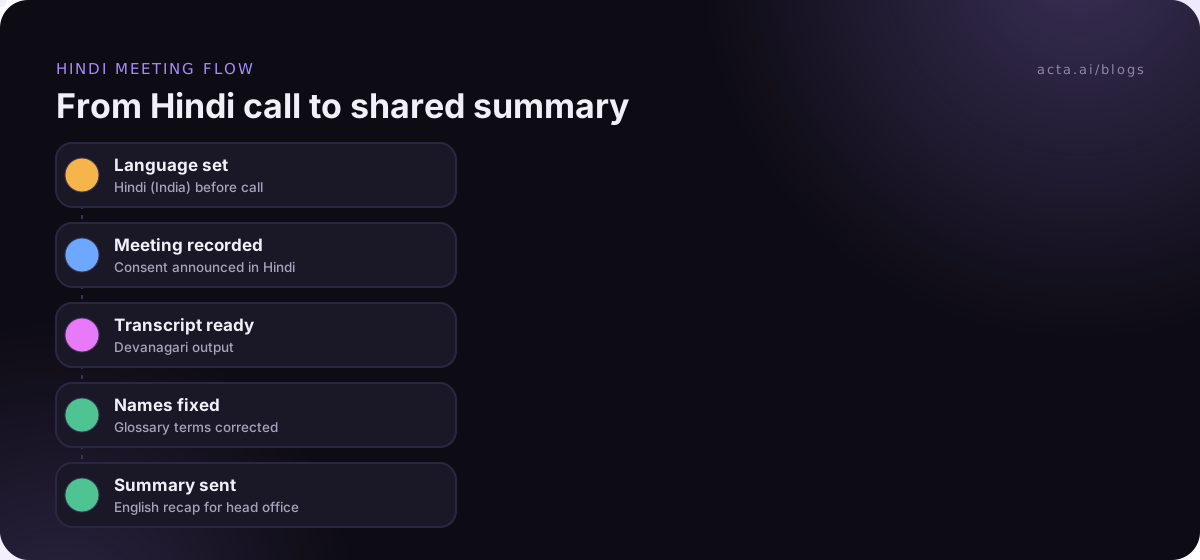
- Spoken language set to: Hindi (India)
- Output wanted: Devanagari transcript for the team; English summary for Mumbai
- Audio: five reps on earphones; Sunita and two colleagues on a speakerphone in the Lucknow office
- Consent: Sunita announces recording in Hindi; nobody objects
- Glossary: Gomti Nagar, Varanasi, Prayagraj, "FlexiPlan", distributor names
- Reviewer: Rahul fixes names and figures by 1 pm
After the first week, Rahul finds "FlexiPlan" transcribed several different ways and two distributor names wrong, and the target figures mostly right. He adds the terms to the team glossary and asks reps to say figures twice in the recap. By the third week, the review takes him about five minutes. The English summary is drafted from the corrected transcript with an AI tool, and Sunita checks it before sending.
Choose Devanagari, Roman script or translation on purpose
Hindi can come out of a transcription tool in three forms, and teams often don't realise they have a choice until they get the "wrong" one.
- Devanagari transcript. The natural output for Hindi speech recognition. Best for Hindi minutes, legal or government files and readers comfortable in Hindi. Harder to search if your colleagues type in Roman script.
- Roman-script (transliterated) transcript. "Kal tak report bhej dena" instead of Devanagari. Easier for teams who chat in Roman Hindi, but spellings vary, which makes search less reliable.
- English translation or summary. Best when the reader doesn't speak Hindi. Keep the Hindi transcript as the source, because translation can lose nuance and figures.
My advice: keep the Devanagari transcript as your record and generate an English summary from it when needed. If you prompt an AI model to summarise, ask it to keep numbers and names exactly as in the transcript and to flag anything unclear; our guide to summarising a meeting transcript with AI has prompts you can adapt.
Common mistakes that lower accuracy
- Leaving the spoken language on English. The tool tries to hear Hindi as English and produces nonsense. Set it before the meeting starts.
- Trusting "supports Hindi" on a marketing page. Check the help page for the exact feature and plan.
- One laptop mic for a room. Far-away voices drop out first, and those are often the senior people who sit at the end of the table.
- Turning on heavy noise suppression. Aggressive filters can clip quiet syllables. Use a quiet room and a decent mic instead.
- Not reviewing numbers. Hindi number words, lakhs and crores, and mixed forms like "2.5 cr" are where errors hurt most.
- Judging the tool on one call. Test on three real meetings, as explained in our guide to AI meeting notes accuracy.
Troubleshooting a bad Hindi transcript
If the transcript is poor, work through the causes in this order, because each is cheaper to fix than the next.
- Wrong language setting. If the transcript is in English words that make no sense, the spoken language was wrong. Some tools let you re-transcribe a recording in a different language; otherwise upload the recording again with Hindi selected.
- Feature doesn't support Hindi. If you see partial English with gaps, check whether Hindi is listed for that feature. Switch tools or upload the file elsewhere.
- Audio problems. Listen to 30 seconds of the recording. Echo, distant voices or clipping mean the fix is the microphone, not the software.
- Heavy code-switching. If the speakers switch languages mid-sentence, a single-language Hindi setting struggles. Try the tool's multi-language mode.
- Names and terms only. If the rest is fine, add a glossary or custom vocabulary and plan a quick manual pass.
If none of that helps, compare two tools on the same recording. That's the fastest way to tell whether the problem is the audio or the engine. For general fixes, our guide to improving transcription accuracy covers accents, noise and crosstalk in more depth.
A note on Acta, since you're on its site. This post doesn't cover Acta's language support, so don't assume Hindi; upload a sample Hindi recording through the upload option during the 15-day free trial and judge the transcript yourself. For recording, Acta can join as a bot or work without one through the desktop app, which captures the Zoom and Teams desktop apps and records the meeting's sound and your microphone, never the screen.
Frequently asked questions
Does Google Meet transcribe Hindi?
As of November 2026, Google's help page for Meet's built-in transcripts lists English, French, German, Italian, Japanese, Korean, Portuguese and Spanish, so Hindi isn't on that list. Check the page for updates. For Hindi Meet calls, use a notetaker that lists Hindi, or record the meeting and upload the file to a Hindi-capable transcription service.
Can Microsoft Teams transcribe meetings in Hindi?
Microsoft's admin documentation lists Hindi (India) among the languages for Teams live transcription, and captions appear in the spoken language by default. Set the meeting's spoken language to Hindi before you start. Translated captions in meetings need Teams Premium. Check Microsoft's page, as lists and licences change.
How accurate is Hindi meeting transcription?
It varies with audio quality, accents, how much English is mixed in and the tool. Vendor accuracy claims are measured on their own test audio, so they don't predict your results. Test three real meetings, check names, numbers and decisions, and plan a short review of each important transcript before sharing it.
Should a Hindi transcript be in Devanagari or English letters?
Use Devanagari for the official record, because it matches what Hindi speech recognition produces and reads naturally to Hindi speakers. Use Roman script only if your team works that way and accepts inconsistent spellings. For readers who don't speak Hindi, create an English summary from the Hindi transcript rather than replacing it.
What is the best way to transcribe a recorded Hindi meeting?
Download the recording, upload it to a service that lists Hindi for file transcription, and select Hindi as the language rather than relying on auto-detect. Then fix names, places and figures, and keep the corrected transcript as your source for any summary or translation.
Set up your next Hindi meeting
Getting good Hindi meeting transcription is mostly preparation. Before your next call:
- Check the feature: confirm Hindi on the vendor's help page for the exact feature and plan you use.
- Set the language: choose Hindi, or multi-language mode for Hinglish, before the meeting starts.
- Fix the audio: headsets for remote attendees and a speakerphone for rooms.
- Pick the output: Devanagari record, Roman script or English summary, decided in advance.
- Name a reviewer: one person fixes names and numbers within the hour.
To try it without a bot in the call, install the Acta desktop app and test a few real Hindi meetings during the 15-day free trial.
Found this useful? Share it with your team.