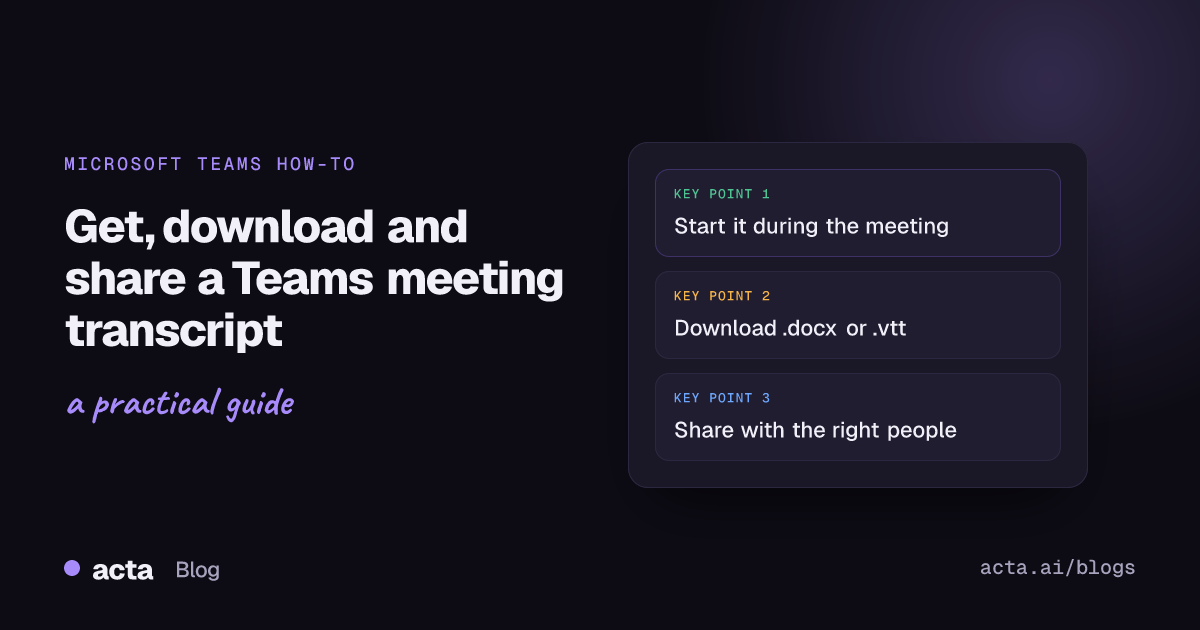
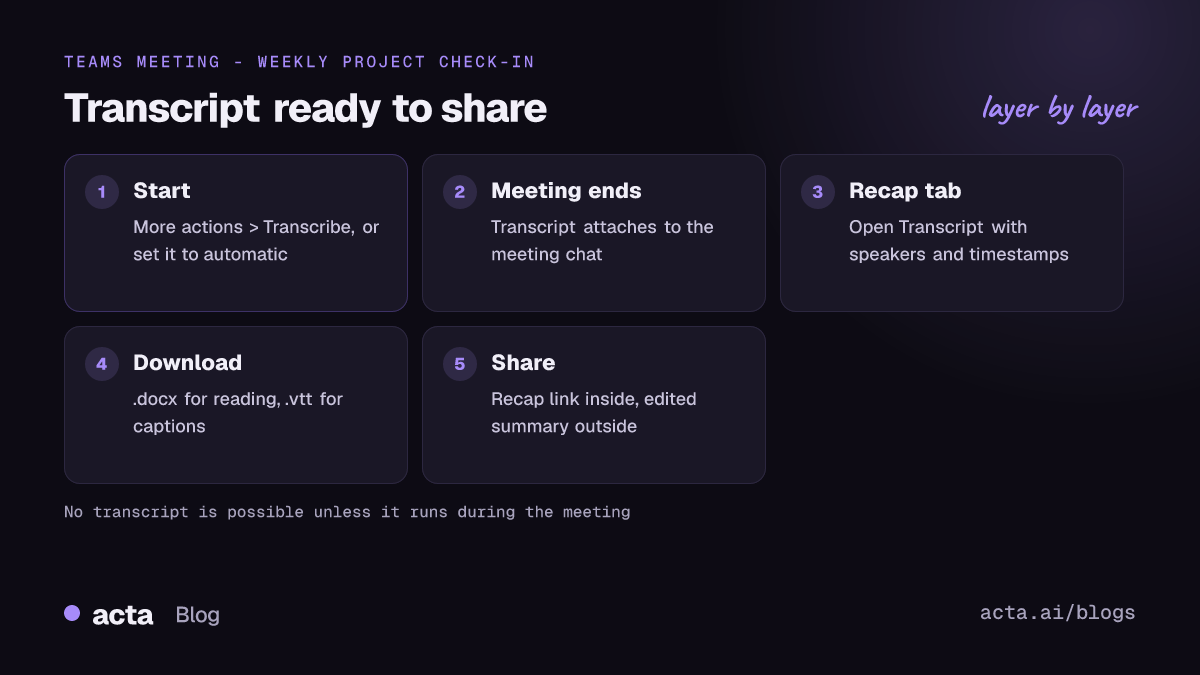
To get a Teams meeting transcript, start transcription during the meeting: open More actions in the meeting controls and choose Transcribe, or turn on Record and transcribe automatically in meeting options beforehand. After the call, open the meeting chat, go to the Recap tab and select Transcript, where organizers can download it as a .docx or .vtt file.
Guides & How-tos 11 min read
Teams Meeting Transcript: How to Get, Download and Share It
How to start, find, download and share a Microsoft Teams meeting transcript, who can access it by default, and what to check when it isn't there.
By Sarma BKP, Founder & CEO, Acta · Updated
This guide walks through starting, finding, downloading and sharing the transcript, who is allowed to do each of those by default, and what to check when the transcript isn't there. It's for meeting organizers and the people who end up writing the notes. It won't help much if you joined someone else's meeting as an external guest: by default you can't start or download their transcript, and the last sections cover what to do instead.
Key takeaways
- Teams can't create a transcript after the fact. If nobody started transcription during the meeting, there's nothing to download later.
- Captions are not saved. Only a transcript gives you text after the call.
- By default, organizers and co-organizers can download the transcript as .docx (for reading) or .vtt (timestamped, for captions and tools). Colleagues in the same organization can usually view it but not download it.
- For personal meetings, transcripts are stored with the recording in the organizer's OneDrive; for channel meetings, in the team's SharePoint site.
- When the Transcribe button is missing, the cause is almost always a policy or meeting option, not a bug: check the organizer's settings first, then your admin.
Table of contents
- A Teams meeting transcript is not the same as live captions
- Start the transcript during the meeting, or it won't exist
- Find and download the transcript from the Recap tab
- Share a transcript without oversharing
- A worked example: from transcript to recap in ten minutes
- A missing transcript usually comes down to one of six settings
- Without Teams transcription, capture the audio another way
- Where Acta fits
- Frequently asked questions
- Set up your next Teams meeting so the transcript is there
A Teams meeting transcript is not the same as live captions
A Teams meeting transcript is a written, timestamped record of what was said in the meeting, with each line attributed to a speaker, that stays attached to the meeting after it ends. Live captions are the subtitles that appear at the bottom of the screen while people talk. They look similar in the moment, but Microsoft is clear that Teams doesn't save captions. If you want text afterwards, you need transcription turned on.
This trips up a lot of people. Someone turns on captions because a colleague has a strong accent or the audio is poor, assumes Teams is "writing it all down", and finds nothing in the chat afterwards. The fix is simple: if the text matters after the call, use Transcribe, not captions.
A transcript also isn't a recording. You can transcribe without recording, record without transcribing, or do both. Microsoft's admin article on managing transcription and captions for Teams meetings explains that when both exist, the transcript is saved alongside the recording. If you want the full picture of recording options, licences and where video files go, see our guide on how to record a Teams meeting.
Start the transcript during the meeting, or it won't exist
Microsoft's support article on starting, stopping and downloading live transcripts describes the steps as of November 2026. In a scheduled meeting:
- Join from the Teams desktop app. Microsoft says live transcription is a Teams for desktop feature; on mobile you can read the transcript once the meeting is over.
- In the meeting controls, select More actions (the three dots), then Transcribe.
- Confirm the spoken language of the meeting. Pick the language people will actually speak; the wrong setting produces nonsense.
- Everyone in the meeting sees a notification that transcription has started. That's your cue to say a sentence about why you're transcribing.
- To watch the text appear, use the show or hide option for the transcript pane under the Transcribing dropdown.
- To stop, go back to the same menu and stop transcription, or simply end the meeting.
The better habit for recurring meetings is to set it once. In meeting options, under Recording & transcription, the Record and transcribe automatically toggle starts both as soon as the meeting begins. Your IT admin sets the default, but the organizer can change it per meeting. Microsoft notes that webinar and town hall templates turn automatic recording and transcription on by default.
One detail worth knowing: transcription is controlled by a policy on both the organizer and the person who starts it. If either has it switched off, the meeting won't be transcribed, even if the button looks available to someone else.
Find and download the transcript from the Recap tab
When the meeting ends, the transcript is attached to the meeting itself. You can reach it in two places: the meeting chat, or the meeting event in your Teams calendar. Here's the route I use:
- Open the meeting chat in Teams (or open the past meeting from the calendar).
- Select the Recap tab.
- Choose Transcript. You'll see the text with speaker names and timestamps.
- Open the Download menu and choose a format.
Pick the format based on what you'll do next:
- .docx opens in Word. Use it for reading, editing, adding comments and pasting into notes or an AI assistant.
- .vtt is a plain-text caption format with timestamps. Use it for subtitles on a video, or for tools that need exact timings.
Where does the file actually live? According to Microsoft's admin documentation, transcripts are kept with the recording in the organizer's OneDrive for personal meetings, and in the team's SharePoint site for channel meetings. That matters for two reasons: retention rules in your organization apply to it like any other file, and if the organizer leaves the company, the transcript's fate follows their OneDrive. For anything you need long-term, such as a decision record or a client commitment, download a copy into the project's own folder.
Share a transcript without oversharing
The default permissions in Microsoft's support article decide who can view and download Teams transcript files. They're a sensible starting point, though your IT admin's policies can change them:
| Who | Start transcription | View after the meeting | Download |
|---|---|---|---|
| Organizer and co-organizers | Yes | Yes | Yes |
| People in the same organization | Depends on meeting options | Yes | Not by default |
| Anonymous users | No | No | No |
| People who called in by phone | No | No | No |
With Teams Premium or a Copilot license, organizers get extra control: the Who can record and transcribe option, and a choice of who can view the recording and transcript (everyone, organizers and co-organizers, or specific people). Plans change, so check Microsoft's page for what your licence includes.
Before you send a transcript to anyone, read it. Transcripts capture everything: the side comment about another client, the salary number someone mentioned, the joke that reads badly in print. My rules for sharing a Teams meeting transcript:
- Internal attendees: point them to the Recap tab rather than emailing a copy, so there's one version.
- People who missed the meeting: send a summary with a link, not the full transcript. Nobody reads 9,000 words.
- External clients: send an edited recap. Share the raw transcript only if they ask and you've reviewed it.
- Anything sensitive: HR, legal or medical conversations follow your organization's policy, not convenience.
A worked example: from transcript to recap in ten minutes
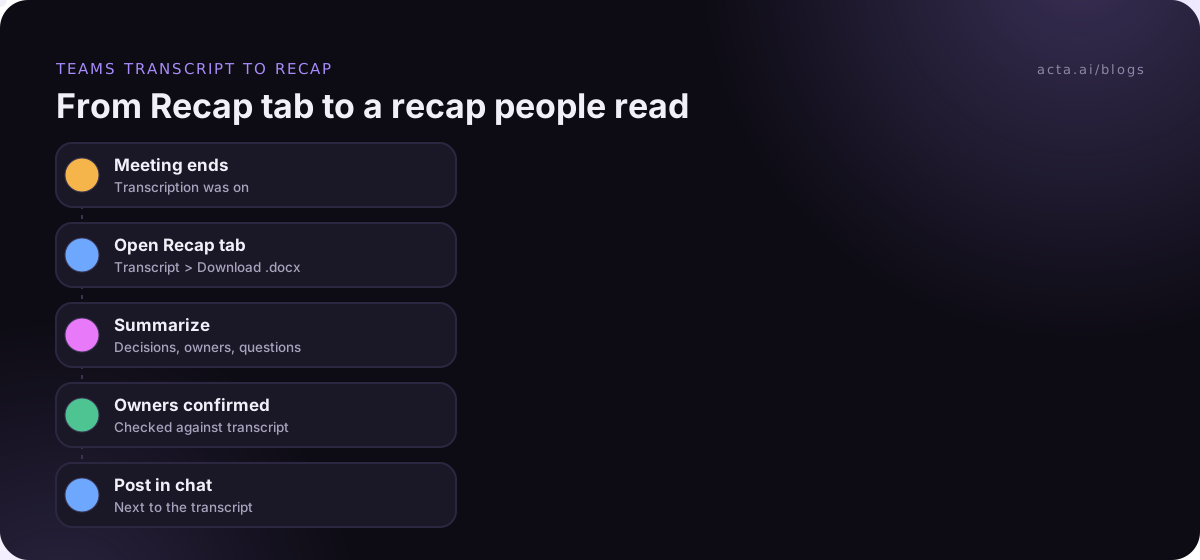
Dana runs a weekly 30-minute project check-in with Marco and Priya. Record and transcribe automatically is on in the series' meeting options, so she never has to remember. After Thursday's meeting she:
- Opens the meeting chat, selects Recap, then Transcript, and downloads the .docx.
- Searches the document for "will", "by Friday" and "decide" to find commitments quickly.
- Pastes the transcript into an AI assistant with a short prompt asking for decisions, action items with owners and open questions. Our guide to summarizing a meeting transcript with AI has prompts that work.
- Checks every owner and date against the transcript, because AI summaries do occasionally assign a task to the wrong person.
- Posts the recap in the meeting chat, where the transcript already lives.
The recap she posts follows this template. Copy it:
Project check-in, Thursday
Decisions: Launch moves to 3 March. Marketing copy freezes a week earlier.
Action items: Marco updates the release plan by Monday. Priya books the vendor review by Wednesday.
Open questions: Do we need legal sign-off on the new pricing page? Dana to ask.
Transcript: Recap tab in this chat (search "pricing" around the 18-minute mark).
The last line is the useful bit: it tells people where to check the exact words instead of arguing from memory.
A missing transcript usually comes down to one of six settings
Microsoft's troubleshooting page, I can't transcribe a meeting in Microsoft Teams, lists the reasons the option can be unavailable. In practice, work through them in this order:
- Nobody started it. Teams can't generate a transcript later from a recording. Turn on automatic transcription for next time.
- The organizer limited it. If Who can record and transcribe is set to organizers and co-organizers, other attendees won't see the button. If it's set to "No one", nobody can start it.
- Your organization's policy blocks it, either for the whole meeting or for the organizer. Admins control this in the Teams admin center under meeting policies, and changes can take time to apply.
- You're from a different organization. External participants can't use transcription in someone else's meeting.
- Your role or setup. Some meetings let only organizers and presenters start it, and participants on Location-Based Routing can't use it.
- You're on the wrong app. Starting transcription needs Teams on desktop; the mobile app shows transcripts only after the meeting.
If the transcript exists but is hard to read, the problem is usually audio: people talking over each other, a room microphone far from the speaker, or the wrong spoken language selected. Our guide to improving transcription accuracy covers fixes for each.
Without Teams transcription, capture the audio another way
Sometimes Teams transcription simply isn't available to you: you're a guest in a client's tenant, your company has it switched off, or you're on a call that isn't a scheduled meeting. You still have options, as long as everyone knows the conversation is being captured. Read our guide on recording consent and what to tell participants before you rely on any of them.
- Ask the organizer. The simplest route. They can transcribe and share the recap with you.
- Use a meeting notetaker. Many tools send a bot into the meeting, but some tenants block bots, which our post on Teams bot detection explains.
- Record from your own computer. A desktop recorder captures the meeting sound and your microphone from your side, with no participant added to the call, and transcribes it afterwards.
Where Acta fits
Acta can give you a transcript when Teams transcription isn't an option. The Acta desktop app detects meetings in the Teams app on Windows and Mac and records the meeting's sound and your microphone with no bot, and the Chrome extension does the same for Teams in the browser. You get a transcript with speaker names, a summary and action items with owners, which you can then share.
Frequently asked questions
Can I get a Teams meeting transcript after the meeting if nobody turned it on?
No. Teams creates a transcript only when transcription runs during the meeting. Microsoft notes that if transcription wasn't started, Teams can't generate one afterwards from the recording. To avoid this, turn on Record and transcribe automatically in meeting options, especially for recurring meetings where the notes matter.
Why can't I download the Teams transcript?
By default only the organizer and co-organizers can download it. People in the same organization can usually view it in the Recap tab but not download it, and external or dial-in participants can't access it at all. Ask the organizer to download and share it, or ask your admin whether a policy restricts downloads.
Where are Teams meeting transcripts stored?
Microsoft's admin documentation says transcripts are saved with the meeting recording: in the organizer's OneDrive for regular meetings, and in the team's SharePoint site for channel meetings. You reach them from the meeting chat's Recap tab or the meeting in your calendar. Your organization's retention policies apply to them.
What is the difference between .docx and .vtt transcripts in Teams?
A .docx file opens in Word and is best for reading, editing and sharing. A .vtt file is a timestamped plain-text caption format, useful for subtitles or tools that need exact timings. If you plan to summarize or quote the meeting, download the .docx; if you're adding captions to a video, use the .vtt.
Is Teams transcription free?
Microsoft's admin documentation describes transcription as a meeting policy setting that is on by default for new policies, so many business users can transcribe without extra cost. What you can use still depends on your licence and your admin's policies. Some controls, such as limiting who can record and transcribe, need Teams Premium or a Copilot license. Plans change, so check Microsoft's page and your admin settings.
Set up your next Teams meeting so the transcript is there
A transcript you forgot to start can't be recovered, so settle these before the meeting:
- Turn on automatic transcription: set Record and transcribe automatically in meeting options for any series where notes matter.
- Check who can start it: confirm the Who can record and transcribe option and your admin policy allow the person who takes notes.
- Tell people at the start: one sentence explaining that the meeting is transcribed and where the notes will go.
- Choose the download format: .docx for notes and summaries, .vtt for captions.
- Save what you'll need later: copy decision records into the project folder rather than relying on the organizer's OneDrive.
If Teams transcription isn't available in a meeting you attend, try the Acta desktop app during the 15-day free trial and get the transcript and notes from your own computer.
Found this useful? Share it with your team.