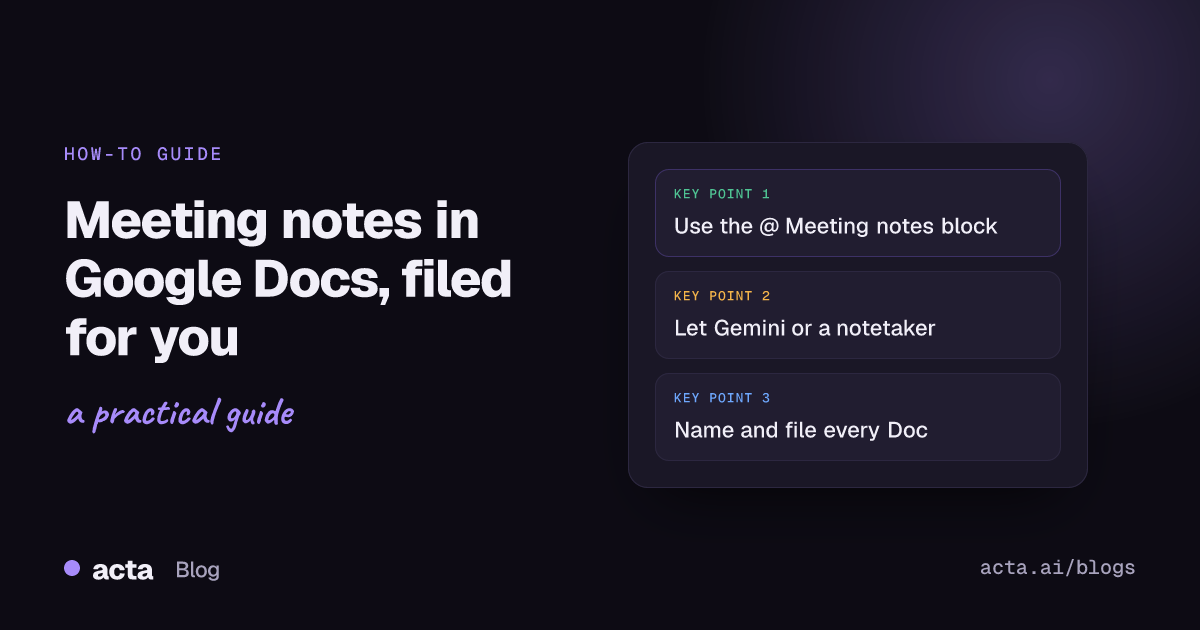
The quickest way to keep meeting notes in Google Docs is to stop starting from a blank page. Type @ in a Doc and insert the Meeting notes building block, which pulls the title, date and guests from your Calendar event. For notes written for you, use Gemini's Take notes for me on an eligible plan, or an AI notetaker that files a Doc in Drive after every call.
Guides & How-tos 13 min read
Meeting Notes in Google Docs: Save Them to Drive Automatically
Three ways to get every meeting's notes into Google Docs and filed in Drive: the @ Meeting notes template, Gemini's Take notes for me and an AI notetaker.
By Sarma BKP, Founder & CEO, Acta · Updated
This guide is for people who already live in Google Workspace and want every meeting to end up in the same Drive folder, named the same way, without copy-paste. It covers the three routes, a folder structure, a template and the sharing mistakes that cause most of the mess. If your team writes notes in Notion or Confluence instead, the steps for the template still apply, but the filing advice won't.
Key takeaways
- Type @, choose Meeting notes and pick the Calendar event: the Doc fills in the date, title and attendees for you. It needs a work or school Google account.
- Start notes from the Calendar event when you want the Doc attached to the invite; notes started inside Docs are not attached on their own.
- Gemini's Take notes for me saves its Doc to the organiser's Drive, in a Google Meet folder with one sub-folder per meeting, as of November 2026.
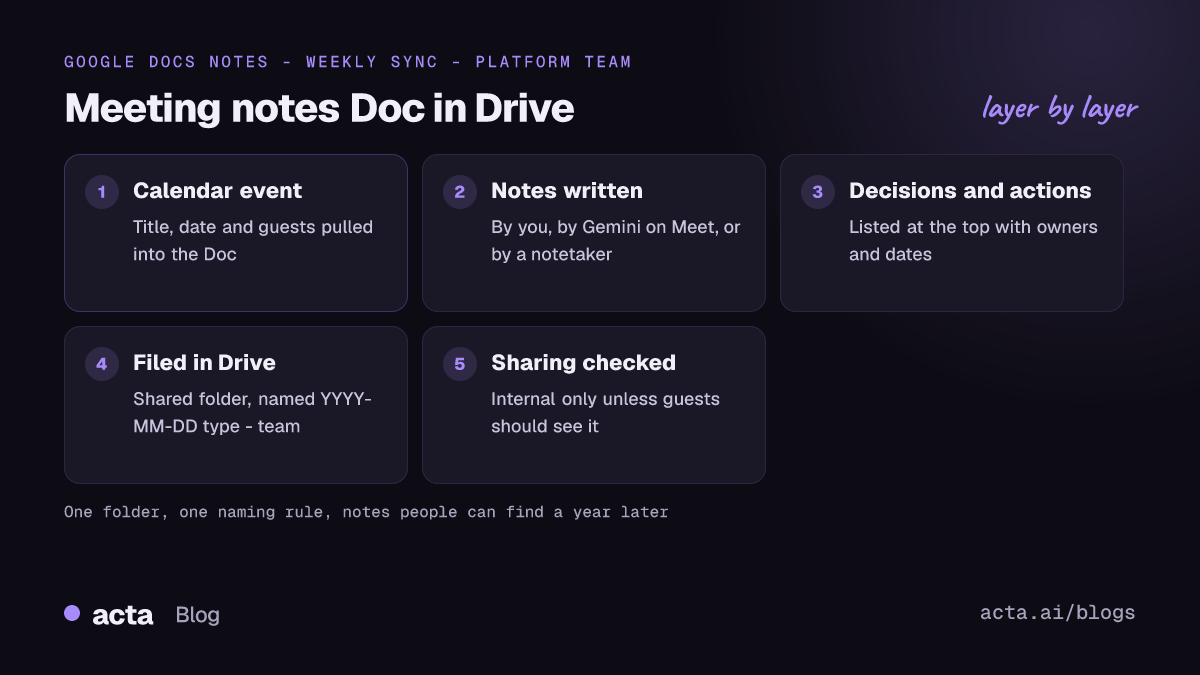
- Use one naming rule for every file: YYYY-MM-DD, meeting type, team or client. It makes Drive search work a year later.
- For Zoom, Teams or phone calls, use a notetaker that exports to Drive, then check sharing before the notes go to outside guests.
Table of contents
- Three routes get meeting notes into Google Docs
- The @ Meeting notes template is the fastest manual route
- Gemini's Take notes for me writes the Doc on eligible plans
- An AI notetaker covers the calls Google can't see
- A simple Drive structure keeps a year of notes findable
- A meeting notes Google Docs template you can copy
- Most problems come from sharing and naming, not the notes
- Where Acta fits
- Frequently asked questions
- Set up your meeting notes Google Docs routine this week
Three routes get meeting notes into Google Docs
People who search for meeting notes google docs usually want one of two things. Either they want a cleaner way to write notes by hand in a Doc, or they want the notes to appear in Drive without anyone typing. Those are different jobs, and the right route depends on which meetings you have and who runs them.
Here's how the three options compare.
| Route | Who writes the notes | Where the Doc lands | Works for |
|---|---|---|---|
| @ Meeting notes template | You | Wherever you create the Doc | Any meeting with a Calendar event |
| Gemini Take notes for me | Gemini | Organiser's Drive, Google Meet folder | Google Meet, eligible plans |
| AI notetaker with Drive export | The notetaker | A Drive folder you choose | Zoom, Teams, Meet, calls, in person |
A rule of thumb: if almost all your meetings are on Google Meet and your plan includes Gemini, start there. If you're on Zoom or Teams half the week, or you take calls on your phone, a notetaker is the only route that catches everything. Use the manual template either way for the meetings where you want your own words, such as a 1:1 or a sensitive client call.
The @ Meeting notes template is the fastest manual route
Google Docs has a building block called Meeting notes. Google's help page on adding meeting notes to Calendar events explains that it pulls the event's details from Calendar, so you don't type the date, title or guest list. It also adds sections for notes and action items, with checkboxes for the actions.
- Open a new Doc (type docs.new in the address bar).
- Type @ and choose Meeting notes from the menu.
- Search for the Calendar event, or type the start of its name. The block fills in the date, title and attendees.
- Write your notes under the headings. Turn each next step into a checkbox item and @-mention the owner.
- If you want guests to see the Doc from the invite, attach and share it yourself, because a Doc started this way isn't attached to the event.
The other way in is from Google Calendar. Open the event and choose the option to take meeting notes. Google creates a Doc linked to the event. When you do this while creating a new event, the notes are shared with the attendees once you save it; on an existing event, Docs prompts you to share. That difference catches people out, so check the share dialog before you start typing anything you'd rather keep internal.
Two limits. The building block needs a work or school account; personal Google accounts can still attach a Doc to an event by hand. And it only saves typing at the top of the page: the notes themselves are still yours to write, which is fine for a 20-minute check-in and painful for a 90-minute workshop.
Gemini's Take notes for me writes the Doc on eligible plans
Take notes for me is Gemini's note-taker inside Google Meet. As of November 2026, Google's Calendar and Meet settings page says it needs an eligible Google Workspace edition or Google AI plan, so check the vendor's page for your account, because plans change. You can turn it on from the top right of the meeting screen once you've joined, or ahead of time from the Calendar event. Everyone in the call sees a notice that notes are being taken.
After the meeting, the notes Doc is saved in the organiser's Drive, in a folder called Google Meet with a sub-folder for each meeting. It's attached to the Calendar event. The organiser picks who gets access: everyone invited, internal guests only, or just the hosts and co-hosts. When Google first launched the feature, its Workspace Updates post described the same pattern of storing the notes in the meeting owner's Drive.
A few things to know before you rely on it for everything:
- It only covers Google Meet. A Zoom call in your calendar gets nothing.
- The notes belong to the organiser. If a client runs the meeting, the Doc sits in their Drive, and they decide whether you get it.
- Google recommends it for meetings between 15 minutes and 8 hours, and supports a set list of spoken languages, one per meeting.
- Organisers can switch it on for every meeting they host, which is handy and also easy to forget during a confidential call.
If you want the full picture of what it writes and how good the notes are, our new guide to Gemini notes in Google Meet goes through it. Separately, Meet transcripts (a different feature) also go to the organiser's Drive. Google's transcripts help page says they're usually ready within a few hours and can take up to 24, and you can find them by searching Drive for "transcript".
An AI notetaker covers the calls Google can't see
Most teams don't run every meeting on Meet. Sales calls happen on the customer's Zoom, partners send Teams links, and half the important conversations are phone calls or a chat in a meeting room. An AI notetaker records the conversation, writes a meeting transcript and summary, and many can push the result into Google Drive or Docs through an integration or Zapier.
There are two ways a notetaker can capture the call. A meeting bot joins as a participant, which works even when you can't attend. A bot-free recorder captures the audio from your own computer instead: if bots aren't welcome in the call, a desktop recorder like Acta's or a browser extension records it locally, and nobody sees an extra participant. Either way, tell people you're recording. Our guide on whether it's legal to record meetings with AI covers consent and what to say.
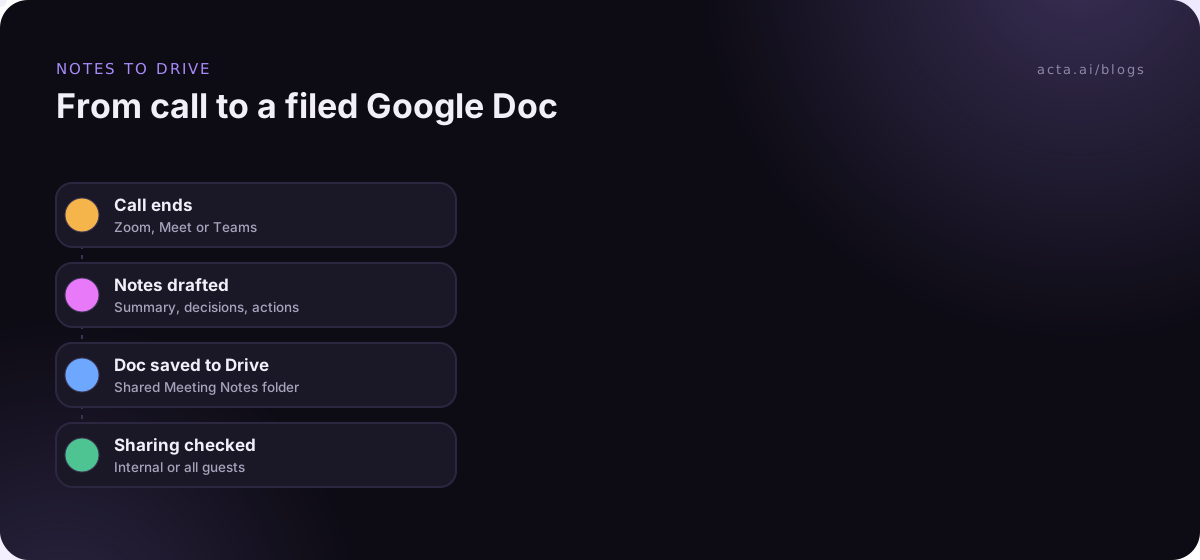
When you set up the export, decide these three things first:
- Which folder. Point every export at one shared drive folder, not someone's My Drive, so notes don't leave when a person does.
- Which format. A Doc with summary, decisions and actions at the top, transcript at the bottom or linked. Nobody reads a 9,000-word transcript in Docs.
- Which meetings. Exclude 1:1s, HR conversations and anything under NDA from automatic export, or send those to a restricted folder.
If your notetaker has no Drive integration, Zapier has a ready-made template that creates a Google Doc from a new Calendar event, and many notetakers can send their summaries through Zapier too. See how Acta meetings go to Sheets and other apps with Zapier for one example of that set-up.
A simple Drive structure keeps a year of notes findable
The notes are only useful if you can find them in March when someone asks what was agreed in October. Drive search is decent, but it works far better when names and folders follow a rule. Here's the structure I'd use for a team of five to fifty people:
- Meeting Notes (shared drive)
- Clients > one folder per client
- Internal > Leadership, Product, Team rituals
- Restricted > HR, legal, board (limited access)
Name every file the same way: 2026-11-18 Weekly sync - Platform team or 2026-11-18 QBR - Northwind. Dates first, in year-month-day order, so files sort by date. Then the meeting type, then the team or client. Sorting by name then gives you a timeline.
Gemini puts its Docs in the organiser's Google Meet folder, so they won't follow your structure on their own. Once a week, move or add shortcuts to the important ones in your shared folder. It takes five minutes and saves the hunt later. For finding old calls across tools, see our guide to searching meeting recordings in Zoom, Teams and Drive.
A meeting notes Google Docs template you can copy
If you write notes by hand, or you want AI notes to follow a shape your team knows, paste this into a Doc and save it as your team's starting file. It works as a Google Docs meeting notes template whether you fill it in yourself or paste a summary into it.
[YYYY-MM-DD] [Meeting type] - [Team or client]
Attendees: [names] | Notes by: [name or tool] | Recording or transcript: [link]
Purpose: [one sentence on why this meeting happened]
Decisions: [decision, who made it, any condition]
Action items: [checkbox] [task] - [@owner] - [due date]
Open questions: [question] - [who will answer]
Discussion notes: [short bullets by topic, not a transcript]
Next meeting: [date or "none planned"]
Here's the same template filled in, from an illustrative product meeting:
2026-11-18 Release planning - Mobile team
Attendees: Priya, Marco, Dana, Lee | Notes by: AI notetaker, checked by Dana | Transcript: linked
Purpose: Decide whether offline mode ships in the December release.
Decisions: Offline mode ships to 10% of Android users first; iOS waits for the sync fix. Agreed by Priya.
Action items: Marco to finish the sync fix by 2 December. Dana to write the rollout note for support by 4 December. Lee to set up the crash dashboard for the 10% group.
Open questions: Do we need a setting to turn offline mode off? Priya to ask two customers.
Next meeting: 2026-12-03, same time.
Notice what's missing: no paragraph-by-paragraph retelling. Decisions and actions sit at the top because that's what people open the Doc for. Our guide on how to take meeting notes goes deeper on what to capture, and the meeting minutes template suits formal meetings that need minutes rather than notes.
Most problems come from sharing and naming, not the notes
Once the notes flow into Docs, the problems shift. They're rarely about the notes being wrong. They're about the wrong people seeing them, or nobody finding them. These are the mistakes I see most, with the fix for each.
- Notes shared with outside guests by default. Calendar-created notes are shared with attendees when you save a new event, and that can include people outside your company. Check the share setting before an external call, and keep internal commentary out of shared Docs.
- Notes stuck in one person's My Drive. Gemini notes live in the organiser's Drive. If that person leaves, access gets messy. Copy or add shortcuts to key notes in a shared drive.
- Twenty files called "Notes - Weekly sync". Calendar names files from the event title, so recurring meetings produce identical names. Add the date at the front when you file them.
- Action items that never leave the Doc. A checkbox in a Doc isn't a task system. Copy actions into Jira, Asana or whatever your team tracks work in, or use a tool that sends them there.
- Transcripts pasted in full. Keep transcripts as a linked file. A Doc that opens with 40 pages of dialogue doesn't get read.
Troubleshooting a few common snags:
- The Meeting notes option doesn't appear when you type @. You're probably on a personal Gmail account. Attach a Doc to the event manually instead.
- Take notes for me is missing from the meeting. Your plan or your admin settings may not include it. Ask your Workspace admin, and check Google's page for eligibility.
- You can't open the Gemini notes from the invite. The attachment shows on the event, but access depends on the Doc's sharing. Ask the organiser to share it with you.
- The transcript isn't in Drive yet. Google says it can take up to 24 hours. Search Drive for "transcript" before assuming it failed.
Where Acta fits
Acta records Zoom, Google Meet and Microsoft Teams with a meeting bot, a bot-free desktop app or a Chrome extension, and writes a transcript with speaker names, a summary, decisions and action items with owners. It lists Google Drive among its integrations, and Agent Builder can run an automation after each meeting, such as filing the notes or drafting the follow-up. It's one option among several; if all your meetings are on Meet and Gemini is in your plan, you may not need it.
Frequently asked questions
How do I create meeting notes in Google Docs from a Calendar event?
Open the event in Google Calendar and choose the option to take meeting notes, or open a Doc, type @ and pick Meeting notes, then select the event. Both fill in the date, title and attendees. Notes created from Calendar are attached to the event; notes started in Docs are not, so attach and share them yourself if guests need them.
Where does Google Meet save Gemini meeting notes?
As of November 2026, Google's help pages say the notes Doc is saved in the meeting organiser's Google Drive, in a folder called Google Meet with a sub-folder for each meeting. It's also attached to the Calendar event. Whether invitees can open it depends on the sharing option the organiser chose, so ask them if you can't.
Can I save meeting notes to Google Drive automatically for Zoom or Teams calls?
Not with Google's own tools, since Take notes for me only works in Google Meet. You need an AI notetaker that records Zoom or Teams and exports to Drive, either through a built-in integration or through Zapier. Point the export at a shared drive folder and use a consistent file name so the notes stay easy to find.
Is the Google Docs meeting notes template free?
The Meeting notes building block is part of Google Docs, but Google's help page says it needs a work or school account. With a personal account, you can still write notes in a Doc and attach it to the Calendar event by hand, or paste the template from this guide into a Doc and copy it for each meeting.
What is the difference between a meeting transcript and meeting notes?
A meeting transcript is the word-for-word record of who said what. Meeting notes are the short version: purpose, decisions, action items and open questions. Keep the transcript as a linked file for checking details, and put the notes in the Doc people actually read. Most readers only need the notes.
Set up your meeting notes Google Docs routine this week
You don't need a big project for this. Pick the route that fits your meetings, set up the folder once, and run it for two weeks before changing anything.
- Pick the route: template for hand-written notes, Gemini for Meet-heavy teams on an eligible plan, a notetaker for mixed Zoom, Teams and phone calls.
- Create the shared folder: Clients, Internal and Restricted, owned by a shared drive rather than one person.
- Fix the naming rule: YYYY-MM-DD, meeting type, team or client, for every file.
- Save the template: paste the copy-ready template above into a Doc and pin it at the top of the folder.
- Check sharing: before each external call, confirm who the notes will be shared with.
If you want notes from calls Google can't see, try Acta's desktop app on your next Zoom or Teams meeting; the 15-day free trial is on the pricing page.
Found this useful? Share it with your team.