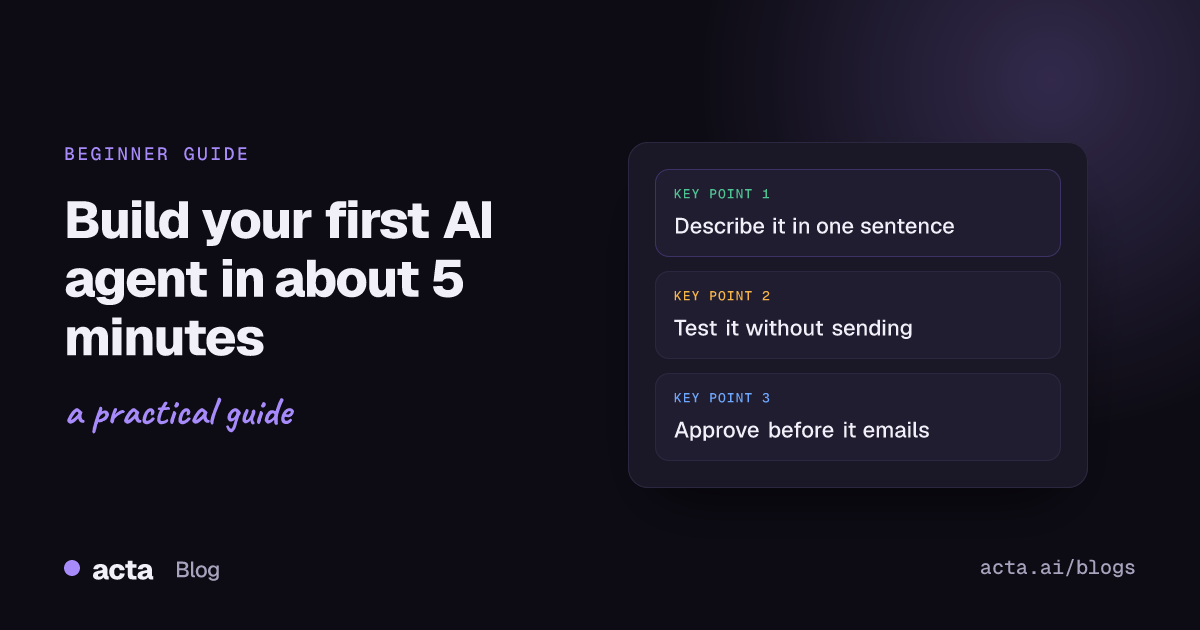
Quick answer: To build your first AI agent, pick one small job you repeat after meetings, describe it in a sentence ("after every client call, draft a follow-up email and wait for my OK"), let the builder turn that into a trigger and steps, fill in the gaps it lists, connect your email, run Check setup and a test run, then turn it on and watch History.
You don't need to know what an "agentic workflow" is for this. You need one meeting you have every week and one thing you always do after it. That's the agent.
We'll build a real one here, step by step, in Acta Agent Builder: a follow-up email that gets drafted after every client call and waits for your approval before it goes anywhere. It takes about five minutes if your meetings are already in Acta. I'll describe each screen in words so you can follow along.
What is an AI agent, in plain terms?
Forget the hype for a minute. In Acta, an agent is one trigger plus a few steps.
- The trigger is what starts it. "A meeting ended." "Every Monday at 9:00." "A new action item was created."
- The steps are what it does next. Get the meeting's notes. Have the AI write something. Wait for you to approve. Send it.
Some steps use AI, some don't. A Gmail step just sends what it's given. An AI step writes, summarizes, sorts or pulls out fields. There's also an "AI agent" step that picks its own tools (search meetings, look up action items, search the web), but you don't need it for your first one. Honestly, most useful agents never need it.
That matches the advice in Anthropic's Building effective agents write-up: find the simplest thing that works and only add complexity when the simple version falls short. A fixed sequence of steps is predictable. Predictable is what you want when the output is an email to a client.
If you want the longer explanation, read what an AI meeting agent is and how it works.
What should your first agent do?
Pick something that is:
- Frequent. At least weekly, so you'll notice if it's useful.
- Annoying by hand. You do it, but you resent it.
- Low-stakes if it's a bit off, or protected by your approval.
The follow-up email after client calls ticks all three. You know what goes in it (thanks, what we agreed, who does what by when), the meeting already has the answers, and it's easy to read before it goes out.
What I'd skip for a first agent: anything that writes to five apps at once, anything with a loop, and anything that sends to customers without you seeing it first. You can build those later. If you want more ideas, our list of meeting automation ideas has plenty.
One prerequisite: the agent works from your recorded meetings, so the calls need to be in Acta (meeting bot, desktop app, Chrome extension, mobile or upload). Recording people needs their consent where the law requires it. Here's our guide on recording consent and what to tell participants.
How do you build your first AI agent, step by step?
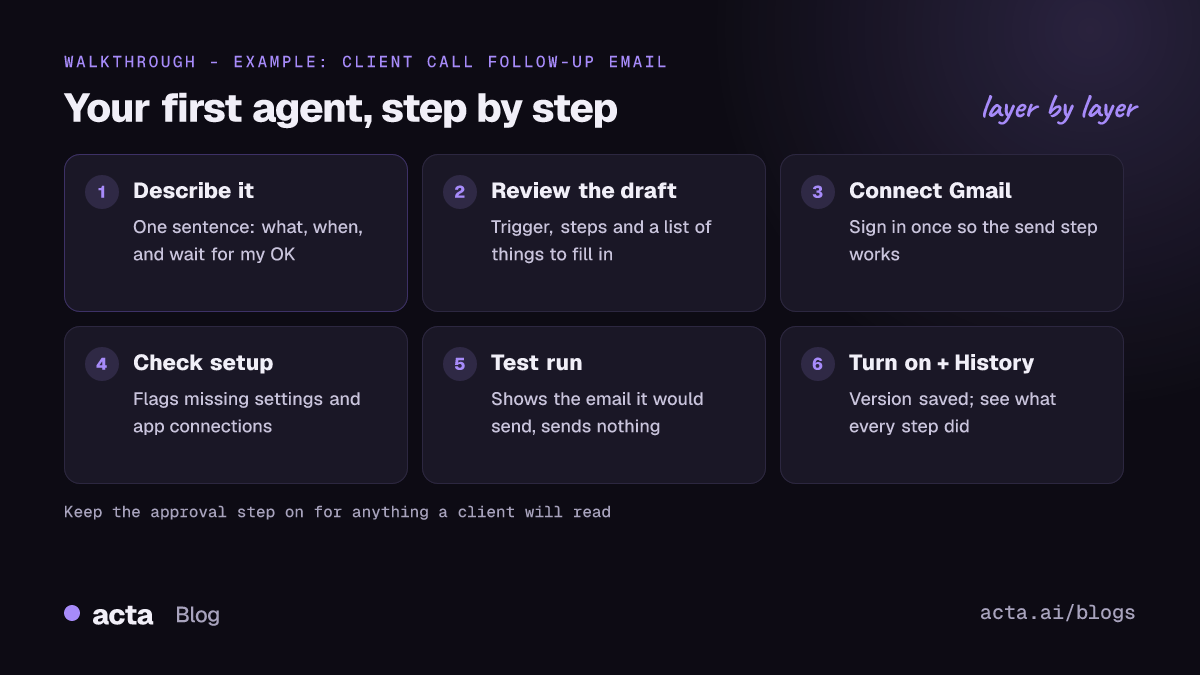
Here's the whole thing. Open Agent Builder and create a new agent.
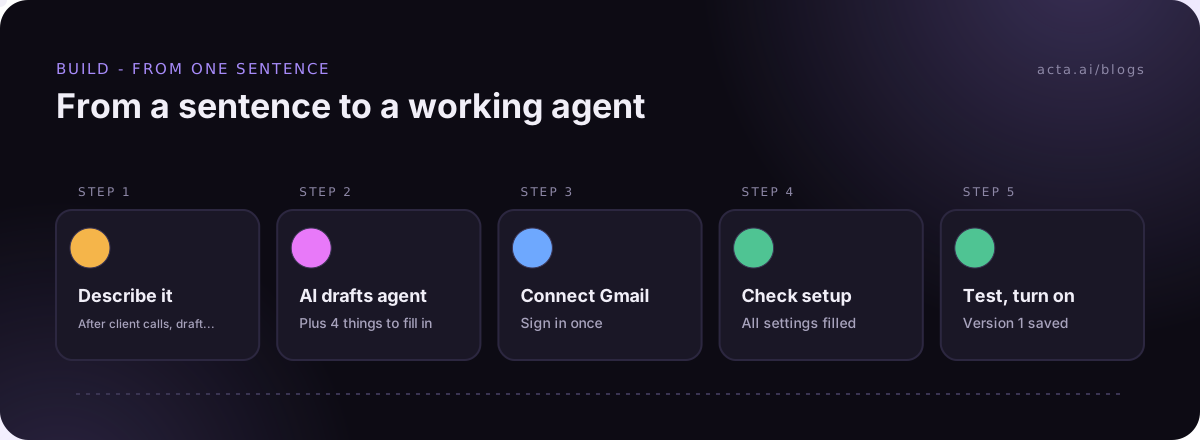
Step 1: Describe it in plain words
You get three ways to start: from scratch, from a template, or by describing what you want. Pick describe. Type something like:
After every client call, draft a short follow-up email to the people from the client's side with what we agreed and the next steps. Wait for my OK before sending.
Be specific about the who and the when. "Client call" and "the people from the client's side" do a lot of work in that sentence.
Step 2: Read the draft the AI built
The AI drafts the agent for you and shows it as a list of steps. For the sentence above you'd expect roughly:
- Trigger: Meeting ended (it fires when the summary is ready), with a "title contains" filter.
- Acta data: get the meeting, with its summary, decisions and action items.
- AI step: write the follow-up email.
- Human approval: pause until you approve.
- Gmail: send the email.
Next to the draft you'll see a list of things still to fill in. That list is your to-do for the next two minutes.
Step 3: Fill in the gaps
Typical items on that list:
- The title filter. What word do your client calls share? If it's "Client call", put that. Don't use just "client", or it'll match "Client prep (internal)" too.
- The instruction for the AI step. Make it boringly specific: "Max 120 words. Thank them in one line. Then bullets: what we agreed, then each next step with owner and date. No sales language."
- The recipients. External attendees only. Gmail can send to up to 20 recipients, which is plenty for a client call.
- The approval settings. Who approves (you), and whether you also want an email with Approve/Reject buttons. I'd say yes; it's faster than opening the inbox.
Step 4: Connect Gmail
The Gmail step needs your account connected. Click connect, sign in, allow access. If you'd rather save drafts to Gmail than send, there are draft and reply actions too (where available).
Step 5: Run Check setup
Check setup flags missing settings and app connections: a step with no recipient, an app that isn't connected, a filter left blank. Fix whatever it lists. This takes a minute and catches most of the silly stuff.
How do you test it without emailing a client?
This is the part people skip, and the part that matters most.
Run a test using one of last week's client calls. A test run walks through every step and shows what would be sent without sending it. You'll see the subject, the body, and exactly who it would go to.
Read it the way your client would. Check that:
- Nobody from your own team is on the recipient list.
- Every next step has an owner and a date (and the dates make sense).
- There's nothing in it you'd rather the client didn't see, like that internal comment about pricing.
Then send a test to yourself (your own email or Slack channel) to see it in a real inbox. On your phone, if that's where you read email. Long paragraphs look much worse there.
Not every tool works this way. In Zapier, for example, an action test is live: its help article on testing Zap steps says testing an action performs it in your app. Worth knowing if you build there too. We cover the full routine in how to test automation without sending.
What happens when you turn it on?
Click turn on. Acta saves this as a version, so if you change something later and it gets worse, you can restore this one.
From now on, after every client call:
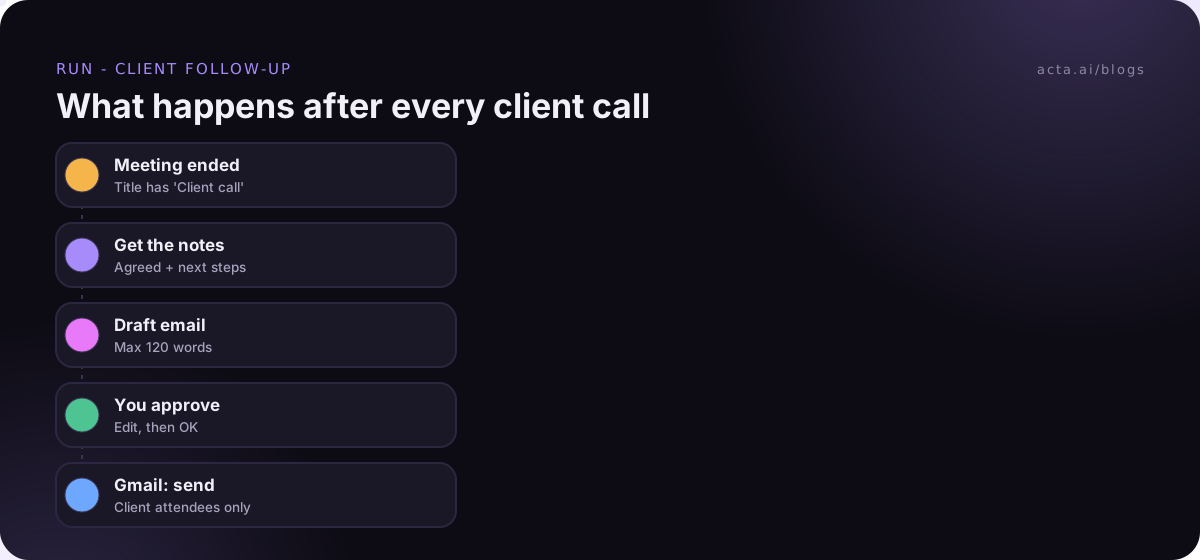
- The call ends and Acta finishes the summary.
- The agent picks up the notes and drafts the email.
- The run pauses in your Approvals inbox. You get an email with Approve/Reject buttons if you turned that on.
- You read it, tweak a line if needed, approve.
- Gmail sends it.
If you don't answer before the approval expires (24 hours by default, you can set up to 7 days), nothing is sent. That's on purpose. A missed follow-up is recoverable; a wrong one is harder.
More on why this step matters in our post on human approval in automation.
How do you check that it's working?
Open History after the first two or three real runs. It shows what every step did: which meeting triggered it, what the Acta data step returned, what the AI wrote, whether you approved, and what was sent.
What to look for in week one:
- Runs that shouldn't have happened. An internal meeting slipped through the filter? Tighten it.
- Edits you keep making. If you trim the same paragraph every time, change the AI instruction instead.
- Runs that didn't happen. A client call with no run usually means the title didn't match, or the call wasn't recorded.
After a couple of weeks of approving without edits, you'll trust it. Some people keep the approval forever for client emails. I would.
What should you build next?
Once the first one works, the second takes half the time. A few natural next steps:
- A Monday digest of overdue action items, posted to your team's Slack channel on a schedule.
- A prep brief that arrives 30 minutes before a meeting starts, with notes from your last call with the same people.
- A CRM note on the right HubSpot, Salesforce or Zoho contact after a sales call.
You can also start from a template rather than a description. The Acta agents page shows ready-made ones by team. And if you're weighing this against a general tool, we compared Acta Agent Builder and Zapier for meeting automation honestly. For a different version of today's agent, see how to automate meeting follow-up emails.
Stuck on what the second one should be? After your next few meetings, jot down what you do in the ten minutes after you hang up. Whatever shows up three times on that list is your next agent.
Frequently asked questions
Do I need to code to build an AI agent?
No. In Acta you can describe the agent in plain words and the AI drafts the trigger and steps for you. There's no code step today.
How long does it take to build your first AI agent?
About five minutes for a simple one like the follow-up email, if your meetings are already in Acta. Add ten more for proper testing.
Will the agent send emails without asking me?
Only if you build it that way. With an approval step, the run waits for your OK, and if nobody approves before it expires, nothing is sent.
What can trigger an agent?
A meeting ending, a schedule, a new or overdue action item, a decision being made or changed, a webhook, a form, or an event in a connected app like Jira, HubSpot or Google Sheets.
Can I undo a change that broke my agent?
Yes. Every time you turn an agent on, Acta saves a version, and you can restore an earlier one.
Ready to try it on your own calls? Start your free 15-day Acta trial.