Check four things before trusting a language list
A vendor's "languages" page usually answers one question: can the speech engine produce text in this language? For meeting notes, that's only the first of four. I'd ask every tool, Acta included, these questions before a pilot:
- Is the language detected or chosen? Tools that auto detect language are convenient, but many detect only a few languages and need the rest set by hand.
- Which script comes back? A Hindi transcript in Devanagari is very different from one in romanised Hindi. Check which you'll get and whether your readers want it.
- What language are the notes in? Summaries and action items may follow the transcript, follow your account language, or be fixed to English.
- What happens with mixing? Code-switching (Hindi with English, Telugu with English) is how many Indian teams actually talk. Find out which mixes are handled.
Platform features answer these differently. As of November 2026, Microsoft's own page on multilingual speech recognition in Teams describes the spoken language as something the organiser or transcript starter sets for the meeting, with a per-person option when multilingual recognition is on, and its guide to live transcripts in Teams meetings covers starting and downloading them. Check the vendor's page before you rely on it; plans and features change.
AI notetaker languages supported in Acta: the full list
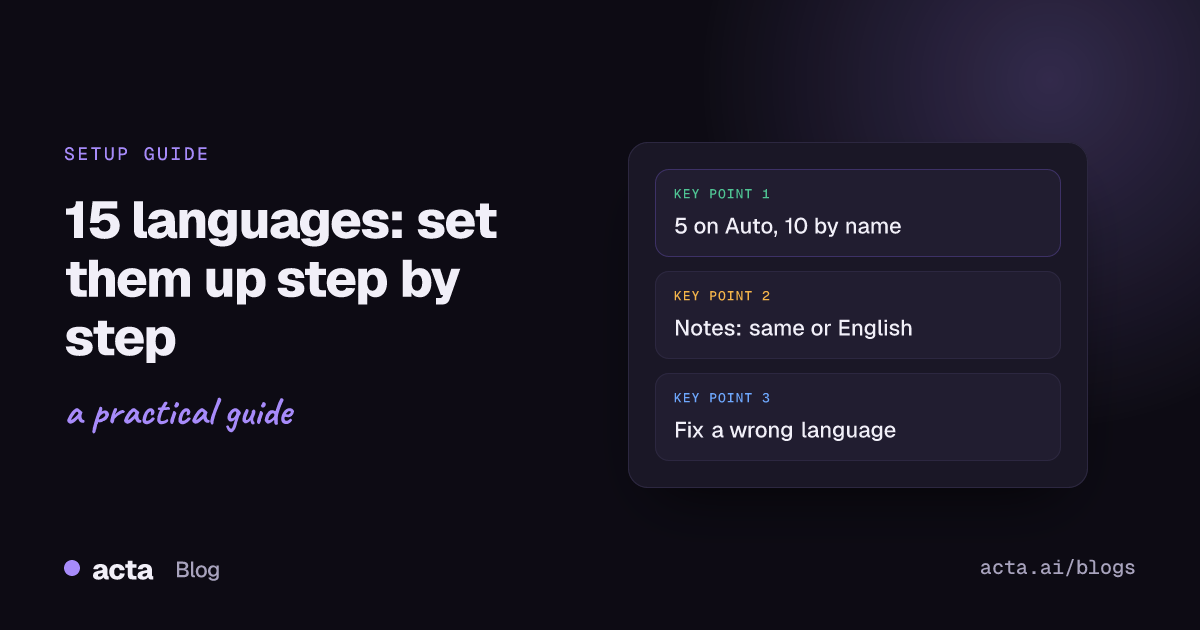
Here are the 15 languages, how each one gets selected, and the script the transcript arrives in. Beta means usable, with accuracy still improving; expect the Indian languages in particular to need clean audio. Anyone hunting for a Telugu transcription app or a Tamil one should read the beta label as "works, still improving".
| Language | Selected by | Transcript script |
|---|
| English | Auto or manual (default) | Latin |
| Hindi, incl. Hinglish | Auto or manual | Devanagari |
| French, Spanish, German | Auto or manual | Latin |
| Italian, Portuguese, Dutch (beta) | Manual only | Latin |
| Arabic (beta) | Manual only | Arabic, shown left-aligned for now |
| Japanese (beta) | Manual only | Japanese |
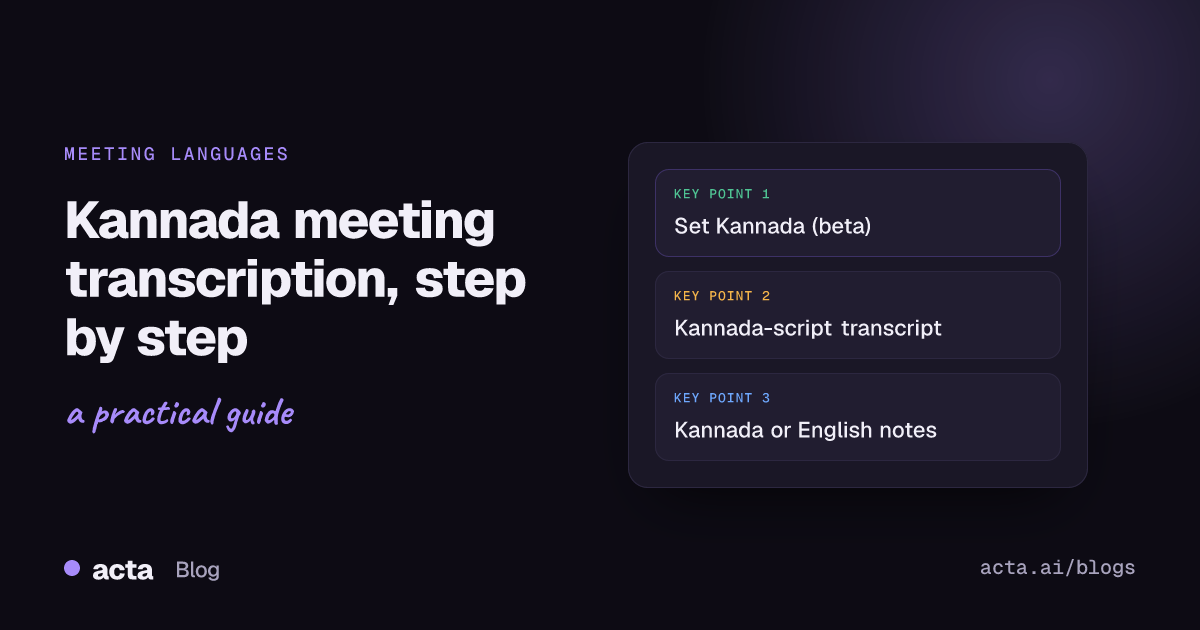
| Telugu, Tamil, Kannada (beta) | Manual only | Telugu, Tamil, Kannada scripts |
| Marathi (beta) | Manual only | Devanagari |
| Bengali (beta) | Manual only | Bengali |
Not on the list, and so not supported today: Urdu, Malayalam, Gujarati, Punjabi, Odia, Chinese, Korean, Russian, Turkish, Polish and Swedish, among others. If a Dubai team's weekly call runs in Malayalam, no setting will fix that yet. It's better to know before you buy seats. For approaches to languages outside a given tool's list, the older post on transcribing meetings in other languages covers options.
Set the meeting language in five steps
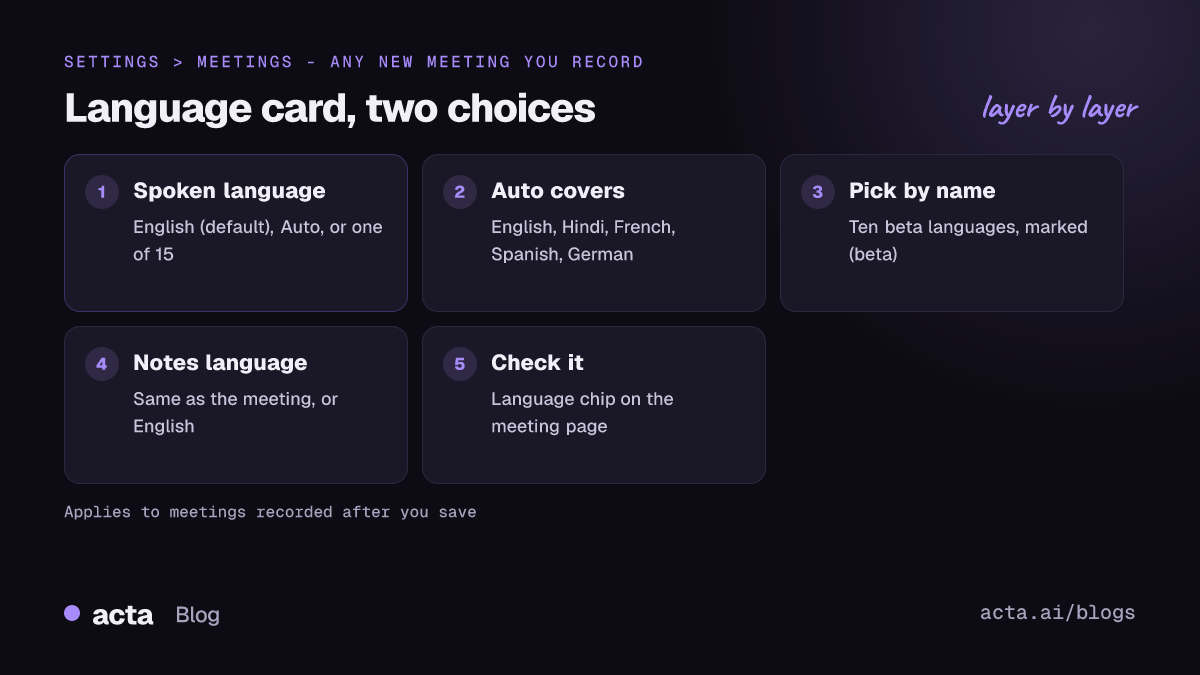
Your meeting language settings sit on one card in your account. They're per person, so each colleague sets their own.
- Sign in to the Acta dashboard and click Settings.
- Open the Meetings tab.
- Scroll to the Language card. It's directly under the "Add Acta Notetaker to my meeting invites" option.
- Open Language spoken in meetings. You'll see English (selected by default), Auto, and each of the 15 languages, with "(beta)" after the ten beta ones.
- Pick one and save. The next meeting you record uses it.
Which should you pick? If every meeting you hold is in English, Hindi, French, Spanish or German, choose Auto and forget about it. If you regularly meet in a beta language, choose that language. If your week mixes a beta language with English, choose the one your important meetings use and change it on the days that differ. It's a two-click change, and the chip on each meeting tells you whether you remembered.
The setting covers every way of capturing a call: the Acta notetaker bot in Zoom, Google Meet or Microsoft Teams, the browser extension, the desktop app, the mobile apps and uploaded audio files.
Choose the notes language as a separate step
Right under the meeting language you'll find Language for my notes. It has two options:
- Same as the meeting (default): a Spanish meeting gives Spanish notes, a Tamil meeting gives Tamil notes.
- English: any meeting gives English notes, while the transcript stays in the spoken language.
"Notes" covers more than the summary. It's the decisions list, the action items with owners, every built-in or custom report template you run on the meeting, and the follow-up email draft. Names, numbers, dates, amounts and product terms aren't translated in either mode, and quotes stay in the language they were spoken in.
What doesn't change: the dashboard, menus and report section headings (things like "In short" or "Key quotes") stay in English. So a Bengali summary still sits under an English heading. People sometimes report this as a bug in week one; it's by design.
A sensible default for mixed teams: people who forward notes to clients or head office choose English; people who mostly read their own team's meetings keep Same as the meeting. Because the choice is per person, both can share one workspace without arguing about it.
Each meeting shows its language on a chip and in the email
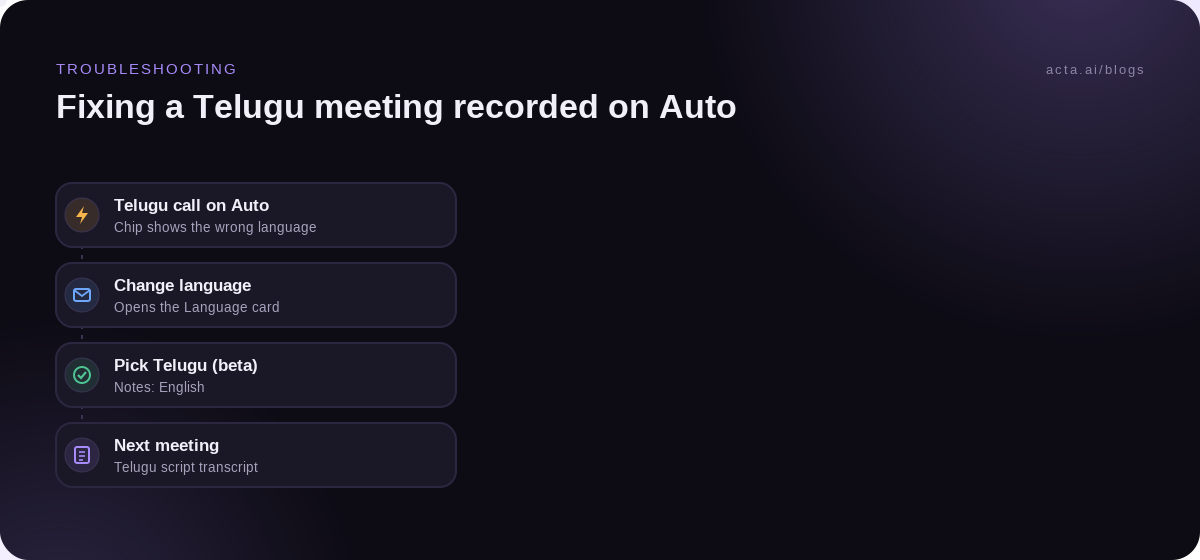
After a meeting is processed, its page has a small chip next to the tabs showing the language it was transcribed in. Click Change language on the chip and you go straight to the Language card in Settings. The meeting-notes email shows the language too, along with a short tip linking to the same setting.
Make a habit of glancing at that chip for the first few weeks. It's the quickest check that your setting matched the room. A Japanese partner call that shows "English" on the chip explains a garbled transcript before you waste time reading it.
Questions you ask afterwards don't depend on any of this. Ask Acta, for one meeting, and OneChat, across all your meetings, answer in the language you type in. So you can ask in English about a Portuguese meeting, or in Hindi about an English one.
Fix a meeting that came back in the wrong language
Most language problems trace back to one of five causes. Work through them in order.
A beta-language meeting was recorded on Auto
Auto picks only among English, Hindi, French, Spanish and German. A Telugu meeting on Auto will be forced into one of those and look like nonsense; a Marathi meeting may be treated as Hindi or English. Change the spoken language to Telugu (or Marathi) and record the next one. The processed meeting keeps its original language, because the setting applies to new meetings. If you have the audio file, uploading it as a new recording after the change is worth a try.
The setting was left on English
English is the default. New users who skip the card get English transcripts for everything. Send the rollout message below on day one.
The meeting mixed two languages heavily
One language per meeting. Hindi with English works because Hinglish is part of Hindi. For other mixes, choose the language most of the discussion uses; the other parts will be weaker. The post on mixed Hindi-English meetings explains what good looks like there.
Speaker names are missing
For some languages, speaker labels may not be available. The transcript still comes back in the right language, without names, rather than failing. Owners in action items can still come from what people said ("Kiran will send it").
The Arabic transcript looks odd
Arabic currently displays left-aligned; right-to-left display is being fixed. The text itself is in Arabic script.
If quality is poor even with the right language, it's usually audio: speakerphones in big rooms, people talking over each other, a fan next to the laptop. The accents, noise and crosstalk guide has fixes that help most with beta languages.
Roll it out with a short message to your team
People won't find a settings card on their own. Copy this and adjust the names:
Subject: Set your meeting language in Acta (2 minutes)
Acta now transcribes 15 languages. Please open Settings, then Meetings, then the Language card, and set:
1. Language spoken in meetings: Auto if you only meet in English, Hindi, French, Spanish or German. Otherwise pick your language by name (marked beta).
2. Language for my notes: Same as the meeting, or English if you share notes outside the team.
Check the language chip on your next meeting. If it's wrong, click Change language. Questions: [name].
A filled-in example, for an illustrative 30-person services firm with offices in Hyderabad and Dubai:
Hyderabad delivery leads who run client calls in Telugu: spoken language Telugu (beta), notes in English so account managers in Dubai can read them.
Dubai sales team, English and Hindi calls: spoken language Auto, notes Same as the meeting.
Two Arabic-speaking account managers: spoken language Arabic (beta), notes in English for the CRM; transcripts left-aligned for now.
Finance, all English: no change needed.
Since people will be recording more meetings in more languages, repeat the basic courtesy: tell participants a notetaker is on. The guide to recording consent has phrasing you can adapt for each team. For teams in India, the DPDP Act recording guide covers the privacy side.
Where Acta fits
Acta records Zoom, Meet and Teams calls with a bot or without one, transcribes them in the spoken language, and writes notes in that language or in English. The full option list is in the meeting languages help article.
Frequently asked questions
How many languages does Acta support?
Acta supports 15 languages for transcripts and notes. Five (English, Hindi with Hinglish, French, Spanish and German) are detected automatically when the meeting language is set to Auto. Ten (Italian, Portuguese, Dutch, Arabic, Japanese, Telugu, Tamil, Kannada, Marathi and Bengali) are in beta and have to be chosen by name in Settings.
Does Auto detect every supported language?
No. Auto chooses only among English, Hindi, French, Spanish and German. The ten beta languages are never picked by Auto, so a Japanese, Arabic or Tamil meeting recorded on Auto will come back wrong. If you meet in any beta language, open Settings, then Meetings, then Language, and select it by name before the meeting.
Can AI transcribe Telugu meetings?
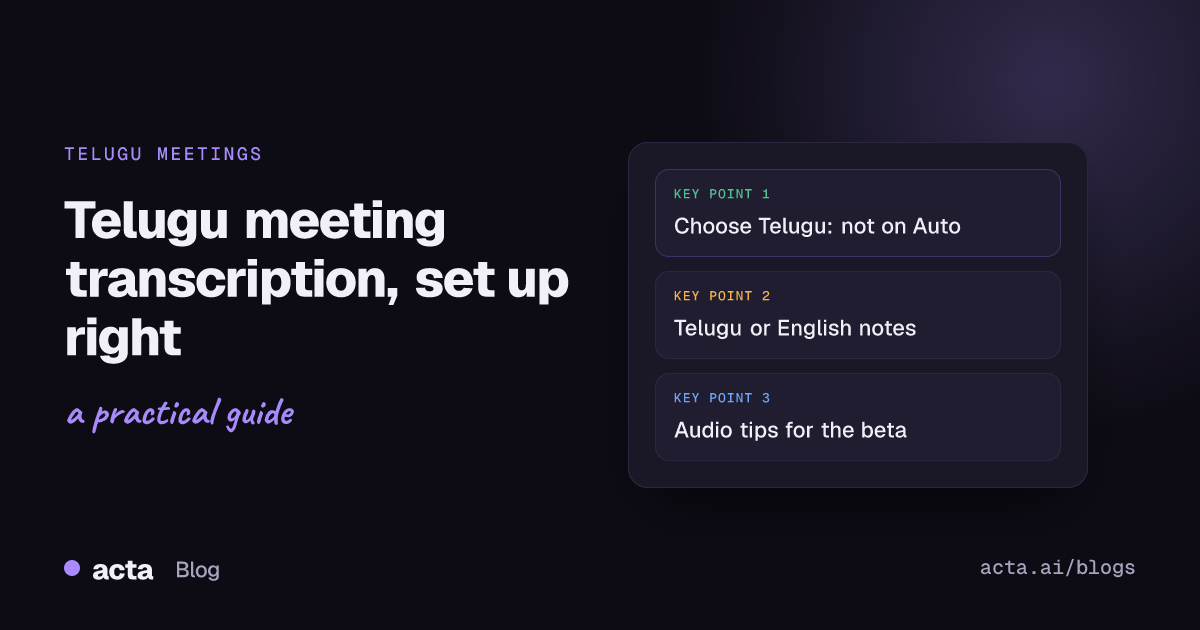
Yes, Acta transcribes Telugu meetings in Telugu script, as a beta language. Choose Telugu under "Language spoken in meetings", because Auto won't detect it. Notes can be in Telugu or in English. Accuracy is still improving, so clear audio, headsets and one speaker at a time make a noticeable difference.
Can I change the language of a meeting I already recorded?
Changing the setting affects meetings recorded after you save it; meetings already processed keep their original language. The chip on each meeting page shows which language was used, and its Change language link opens the setting so the next meeting is right. If you still have the audio file, you can upload it as a new recording.
Is Urdu or Malayalam supported?
Not yet. Urdu, Malayalam, Gujarati, Punjabi and Odia are not among Acta's 15 languages, and neither are Chinese, Korean, Russian, Turkish, Polish or Swedish. Choosing a nearby language such as Hindi for an Urdu meeting won't give reliable results, so it's best not to depend on Acta for those meetings for now.
Run a one-week language rollout
A short, deliberate rollout avoids a week of confused notes:
- Inventory languages: ask each team lead which languages their recurring meetings use, and flag any outside the 15.
- Send the setup message: use the template above on day one, with a named person for questions.
- Watch the chips: for the first week, check the language chip on every non-English meeting.
- Spot-check beta meetings: read owners, dates and amounts in three or four beta-language meetings against what was said.
- Fix the rooms: replace speakerphones with headsets where beta-language meetings are held.
To test the settings on real calls, add the Acta Chrome extension for browser meetings and start the 15-day free trial.