Telugu meeting transcription serves more teams than it seems
Telugu is one of the 22 languages listed in the Constitution's Eighth Schedule and the main language of Andhra Pradesh and Telangana. The Census of India 2011 tables report mother-tongue data state by state for anyone who wants the official figures. What matters for meetings is simpler: a lot of real business in these two states happens in Telugu, even inside companies whose email and documents are in English.
Think of who actually meets in Telugu. A pharma plant's shift review in the Hyderabad belt. A real estate firm walking a landowner through terms in Vijayawada. A Guntur chilli trader on a call with buyers. A Visakhapatnam logistics office briefing drivers. A software team in HITEC City that writes code in English but argues about priorities in Telugu over lunch-time calls. And outside India, Telugu-speaking families and business owners in the US, the UK and the Gulf who'd rather talk to their accountant or builder in their own language.
In all these cases, notes in English alone miss something, and notes in Telugu alone can't be shared with everyone who needs them. Getting both right is the point of the setup below.
Choose Telugu by name, because Auto won't pick it
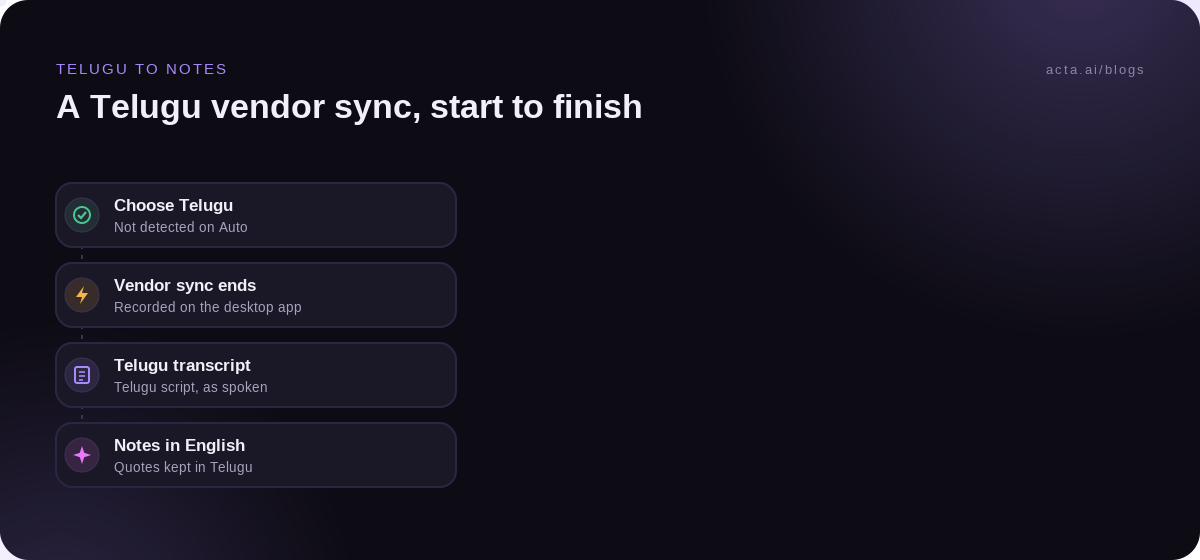
Acta detects English, Hindi, French, Spanish and German automatically; ten more languages, Telugu among them, have to be chosen in Settings. The other nine are Italian, Portuguese, Dutch, Arabic, Japanese, Tamil, Kannada, Marathi and Bengali. All ten are beta.
This is the single most common mistake. Someone sets the spoken language to Auto, records a Telugu meeting, and gets a transcript that looks like broken Hindi or English, because Auto can only answer with one of its five languages. Nothing is wrong with the recording. The setting simply never offered Telugu as an option.
So the rule is short: if you hold Telugu meetings, choose Telugu. If you also hold English meetings, you have two options. Switch the setting before each Telugu meeting, or leave it on Telugu and switch for the English ones, whichever happens less often. The language chip on each meeting page tells you which one was used, so mistakes are easy to spot.
Set up Telugu transcription in five steps
- Sign in to Acta and open Settings, then the Meetings tab.
- Find the Language card. It sits just below "Add Acta Notetaker to my meeting invites".
- Open Language spoken in meetings (it starts on English) and select Telugu (beta).
- Under Language for my notes, choose Same as the meeting for Telugu notes, or English.
- Record the meeting. Afterwards, check the chip next to the meeting tabs reads Telugu. If it doesn't, use Change language to correct the setting for the next one.
The setting applies to meetings recorded from then on; earlier meetings stay in whatever language they were processed in. It covers every way of capturing a call: the notetaker bot in Zoom, Google Meet or Microsoft Teams; the Chrome extension for meetings in the browser; the desktop app, which also handles WhatsApp or other calling apps when you press record; the mobile app for meetings around a table; and uploaded files. Whatever you use, let people know before you record; the post on consent and what to tell participants has wording you can translate. For teams in India, the DPDP Act recording guide covers the privacy side. The meeting languages help article has the full option list.
The transcript is in Telugu script and the notes are your choice
With Telugu selected, the transcript is written in Telugu script, the characters Unicode places in its Telugu block, so you can copy it into documents, WhatsApp or email and it displays as normal text. Speaker names appear where they're available. If speaker labels can't be produced, you still get the Telugu transcript, just without names, rather than an error or an English fallback.
The notes follow your second setting. With Same as the meeting, the summary, decisions, action items, report templates and follow-up email draft are written in Telugu. With English, all of those come in English while the transcript stays in Telugu and quotes stay as spoken. Either way, names, numbers, dates, amounts and technical terms are kept as they were said. If the vendor quoted "రెండు లక్షలు" (two lakh), the notes say two lakh, not 200,000.
The dashboard, menus and section headings such as "In short" remain in English. And you can ask questions about the meeting in either language: Ask Acta and OneChat reply in whichever language you type.
Which notes language should you pick? Telugu if the people reading the notes were in the meeting and read Telugu comfortably: a family business, a site team, a local school committee. English if the notes go to a manager in Bengaluru, a client in Dubai, or a CRM where everything else is in English.
Telugu mixed with English needs a judgement call
Hardly anyone in Hyderabad speaks pure Telugu at work. A sentence like "ఈ ఫైల్ రేపటి లోపల approve చేయాలి" (this file must be approved by tomorrow) is normal. That mixing, sometimes called Tenglish, is how real meetings sound.
Here's the honest position. Acta handles one language per meeting, and Hindi-English is the only mix supported as a mix. For Telugu, choose the language that most of the talk is in. If a meeting is mostly Telugu with English nouns and verbs scattered through it (file, approve, client, deadline), pick Telugu; common English words inside Telugu speech are part of what you'll see. If a meeting is mostly English with a few Telugu asides, pick English and accept that the asides may be rough.
What doesn't work well is a meeting that swaps fully between the two every few minutes, such as a client call where the client speaks English and your team replies in Telugu among themselves. In that case, decide which part you need recorded accurately. Usually that's the client's commitments, so English wins.
For a comparison with how Hindi-English mixing is handled, the article on Hinglish transcription is useful background.
Example: a Hyderabad vendor sync
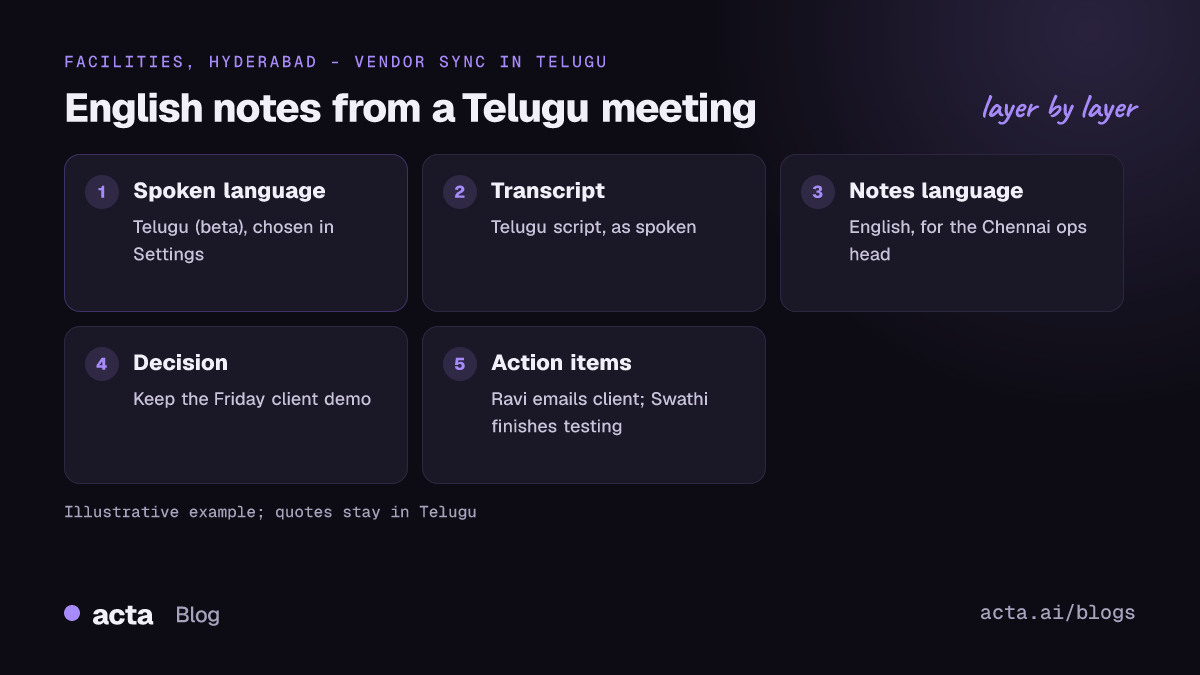
An illustrative example, not a real customer. A facilities team at a Hyderabad office runs a 20-minute vendor sync in Telugu. Spoken language is set to Telugu, notes to English, because the operations head in Chennai reads them.
A few transcript lines, with an English gloss:
రవి: క్లయింట్ డెమో శుక్రవారం ఉంటుంది. (Ravi: The client demo is on Friday.)
స్వాతి: టెస్టింగ్ ఇంకా పూర్తి కాలేదు. (Swathi: Testing isn't finished yet.)
రవి: సరే, నేను మెయిల్ పంపుతాను. (Ravi: Okay, I'll send the mail.)
The English notes from that stretch:
In short: The client demo is set for Friday, but testing is still incomplete.
Decision: Keep the Friday demo date.
Action items: Ravi to email the client. Swathi to finish testing before Friday.
Key quote: "టెస్టింగ్ ఇంకా పూర్తి కాలేదు."
With Telugu notes instead, the decision would read something like "నిర్ణయం: డెమో శుక్రవారం." (Decision: demo on Friday.) under the same English heading. Notice that the quote stays in Telugu in the English version: anyone checking later sees exactly what Swathi said.
Audio quality decides how good beta results are
With a beta language, poor audio hurts more than it would in English. These fixes are cheap and make a visible difference:
- Use a headset or a decent USB mic. A laptop's built-in mic in a tiled conference room picks up echo that blurs Telugu consonants.
- One speaker at a time. Overlapping voices are hard for any transcription, and harder in beta. A chair who says "ఒక్కొక్కరు" (one at a time) helps.
- Keep the phone close for in-person meetings. If you record a site meeting on the mobile app, put the phone in the middle of the table, not in someone's pocket.
- Turn off fans and AC blowers near the mic where you can. Hyderabad summers make this hard, so at least point the mic away.
- Say names and numbers clearly. Restate owners and deadlines at the end: "Ravi mail పంపుతారు, Swathi శుక్రవారం లోగా testing." Clear restatement makes action items far more reliable.
The broader guide on accents, noise and crosstalk goes into more detail, and almost all of it applies to Telugu.
Tell your team what the beta can't do yet
Being upfront avoids disappointment in week one. As of November 2026, these are the limits:
- Beta accuracy. Telugu works and gives usable transcripts and notes, but it's still improving. Strong regional accents (Rayalaseema, coastal Andhra, Telangana) and fast speech may produce more errors than English or Hindi would.
- No Auto detection. Telugu must be chosen by name every time it's the meeting language.
- One language per meeting. Fully bilingual meetings will be weaker in whichever language you didn't choose.
- Notes in Telugu or English only. There's no option for Hindi or Tamil notes from a Telugu meeting.
- Speaker names may be missing in some meetings, though the transcript still arrives in Telugu.
- Past meetings don't change when you switch the setting.
None of these is a reason to avoid it. They're reasons to check the first few meetings carefully, especially names, dates and rupee amounts, before you forward notes to clients.
Where Acta fits
Acta records your Telugu meetings by bot, extension, desktop app, phone or upload, transcribes them in Telugu script, and writes notes in Telugu or English. Its report templates follow the same notes language, so a client recap or project update comes out in the language you chose.
Frequently asked questions
Can AI transcribe Telugu meetings?
Yes. Acta transcribes Telugu meetings in Telugu script as a beta language. Choose Telugu under "Language spoken in meetings" in Settings, because Auto does not detect it. The summary, decisions and action items can be written in Telugu or English. Accuracy is still improving, so clear audio and one speaker at a time help noticeably.
Is there a Telugu transcription app for meetings?
Acta works as a Telugu transcription app for meetings across Zoom, Google Meet, Microsoft Teams, a Chrome extension, a desktop app, mobile apps and uploaded recordings. In every case, the same Language setting applies: choose Telugu (beta) and decide whether you want the notes in Telugu or English. The transcript always comes in Telugu script.
Why is my Telugu transcript wrong?
The most common cause is recording on Auto or on the default English. Auto only picks among English, Hindi, French, Spanish and German, so Telugu speech gets forced into one of those. Select Telugu in Settings, Meetings, Language, then record the next meeting. If the language was right, check audio: echo and overlapping voices hurt beta languages most.
Does it work with Telugu and English mixed?
Partly. Acta handles one language per meeting, and Hindi-English is the only mix supported as a mix. For Telugu meetings with English words sprinkled in, choose Telugu. For meetings that are mostly English with Telugu asides, choose English. Meetings that switch fully between the two will be weaker in whichever language you didn't select.
Can I get English notes from a Telugu meeting?
Yes. Set "Language for my notes" to English. The transcript stays in Telugu script, while the summary, decisions, action items, report templates and follow-up email draft are written in English. Quotes stay in Telugu, and names, dates and amounts like "two lakh" are kept as spoken rather than converted.
Plan your first Telugu meetings
A little preparation makes the first week go smoothly:
- Pick the right meetings: start with recurring Telugu meetings that have one main speaker at a time, such as a weekly site or vendor review.
- Set Telugu and the notes language: Telugu for the spoken language; English notes if anyone outside the room reads them.
- Fix the audio: headsets on calls, the phone in the middle of the table in person.
- Restate owners at the end: one sentence naming who does what by when.
- Check three meetings: compare names, dates and amounts against what was said before sharing notes widely.
When you're ready to try it, install the Acta desktop app and start the 15-day free trial on your next Telugu meeting.