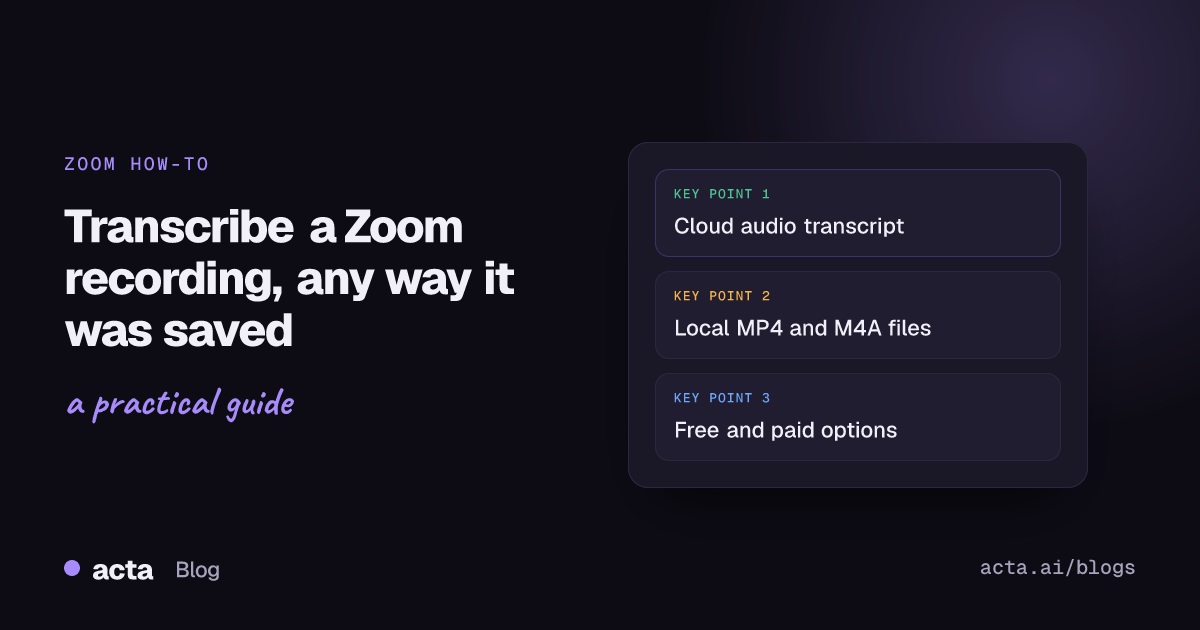
To transcribe a Zoom recording, use Zoom's own audio transcript if the meeting was recorded to the cloud on a paid account: turn on Create audio transcript before the meeting and a VTT text file appears next to the video. If you recorded to your computer, Zoom won't transcribe the file, so upload it to a transcription tool or run an open-source model such as Whisper.
Guides & How-tos 12 min read
Transcribe Zoom Recording: Cloud, Local and Free Options
How to transcribe a Zoom recording: Zoom's built-in cloud transcript, what to do with local files, free and paid options, and why transcripts go missing.
By Sarma BKP, Founder & CEO, Acta · Updated
This guide covers all three routes step by step, what each one costs you in time and setup, and how to fix the usual reason a transcript never shows up. It's written for people who already have a recording, or are about to make one, and want text they can search, quote or turn into notes. If you need a word-perfect legal transcript, none of these replace a human transcriber, and I'll say where that line sits.
Key takeaways
- Zoom's audio transcript works only for cloud recordings, and the setting has to be on before you record. It does not apply to recordings saved to your computer.
- As of November 2026, Zoom lists a Pro, Business, Education or Enterprise account with cloud recording enabled as the requirement for audio transcripts.
- The transcript is a VTT file you can edit line by line in the Zoom web portal, search, and download.
- For a local MP4 or M4A file, upload the audio-only M4A to a transcription service, or run Whisper on your own machine if the audio must not leave it.
- Budget time to fix names, product terms and numbers: proofreading a one-hour call usually matters more than which tool produced the first draft.
Table of contents
- Three routes turn a Zoom recording into text
- Zoom's cloud audio transcript is the built-in route
- Find, edit and download the VTT transcript
- Local recordings need an outside transcription tool
- A worked example: a 50-minute client call
- Most missing transcripts trace back to four causes
- Where Acta fits
- Frequently asked questions
- Choose how to transcribe your next Zoom recording
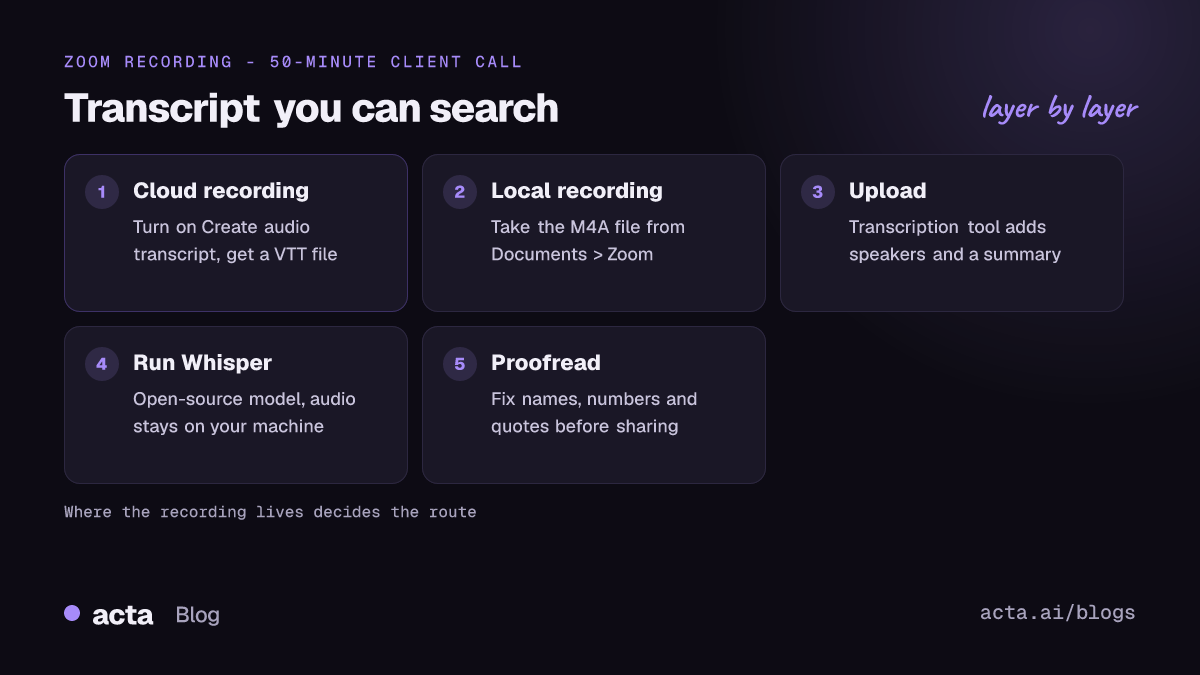
Three routes turn a Zoom recording into text
Before you pick a tool to transcribe Zoom recording files, check where the recording lives. Zoom saves recordings in one of two places: the cloud (on Zoom's servers, available in the web portal) or your computer (a local folder). Zoom's guide to finding your computer and cloud recordings explains how to tell which one you have. That single fact decides most of what follows.
Here's how the three routes compare in practice:
| Route | Works with | What you get | Main catch |
|---|---|---|---|
| Zoom cloud audio transcript | Cloud recordings on paid plans | VTT file, editable and searchable in the portal | Must be switched on before the meeting |
| Upload to a transcription or notes tool | Any MP4 or M4A file | Transcript, often with speakers and a summary | The audio goes to a third party |
| Open-source model (Whisper) | Any audio file | Plain transcript, created on your machine | Command-line setup and a decent computer |
There's also a fourth option that isn't about recordings at all. Zoom has a separate meeting transcripts feature: during the call you open the transcript panel and click Save transcript, which saves a .TXT file to a Zoom folder in your Documents directory, according to Zoom's article on using meeting transcripts. Zoom says transcripts are off by default, so a host or admin has to enable them. It's handy when you never planned to record, but you have to remember to save it before you leave.
Zoom's cloud audio transcript is the built-in route
If your account qualifies, the Zoom audio transcript is the easiest way to transcribe Zoom recording files, because nothing leaves Zoom and there's no extra tool to set up. Zoom's article on using audio transcription for cloud recordings lists the prerequisites as a Pro, Business, Education or Enterprise account with cloud recording and audio transcription enabled. Plans change, so check the vendor's page for your own account. If you meet the requirements and still don't see the setting, Zoom says to contact Zoom Support.
Switch it on like this:
- Sign in to the Zoom web portal and open Settings.
- Click the Recording tab.
- Under Advanced cloud recording settings, tick Create audio transcript.
- Click Save. If the option is greyed out, your admin has locked it at account or group level, so ask them.
- In your next meeting, choose Record to the cloud (not "Record on this computer").
- After the meeting, wait for the email that says the recording is ready. The transcript can take longer than the video, so give it time before assuming it failed.
Two things trip people up. First, the setting only applies going forward. Zoom community answers are consistent that a meeting recorded while the setting was off won't get a transcript just because you turn it on later. Second, the cloud folder can hold two text files that look alike: the audio transcript (VTT) and a closed-caption file (CC.VTT) if captions were used. For notes, you want the audio transcript.
Admins can set this for the whole account or for a group, which is the better choice for a team. If one person forgets the setting, the meeting you needed is the one without text.
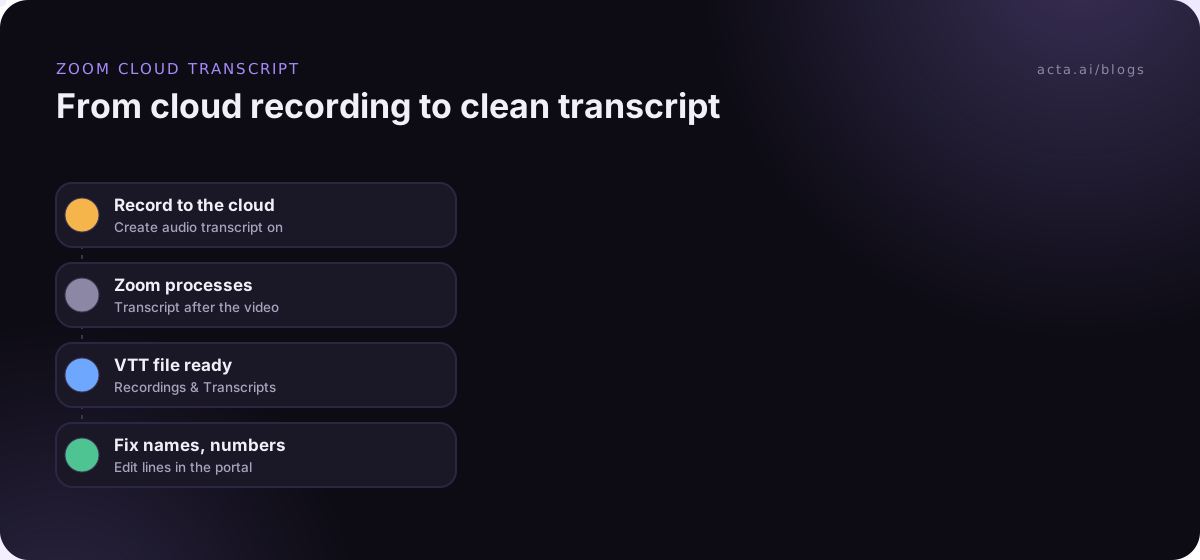
Find, edit and download the VTT transcript
Once processing finishes, the Zoom cloud recording transcript sits next to the video in the web portal. Go to Recordings & Transcripts, open the Cloud recordings tab and click the meeting name. The audio transcript is listed as its own file.
Edit before you share. In the portal you can hover over a line, click the pencil icon, fix the text and save, and the corrected text shows when the recording plays. Fix these first, in this order:
- Names of people and companies. Speech models guess at unusual names, and a wrong client name in a shared transcript is embarrassing.
- Numbers. Prices, dates, quantities and percentages. "Fifteen" and "fifty" sound close on a poor line.
- Product and internal terms. Acronyms and code names come out as near-miss English words.
- Anything you plan to quote. Play the audio at that timestamp and check the wording.
To download, use the download option on the transcript file. A VTT file is plain text with timestamps, so any text editor or word processor opens it. If you want clean prose, strip the timestamp lines: a quick find-and-replace in a word processor works, or paste it into an AI assistant and ask it to remove timestamps without changing the words.
The portal also lets you search text in audio transcripts across your cloud recordings, which is one of the better reasons to turn transcripts on for everyone. Admins can search transcripts across the account. If search across old calls is your real goal, our guide to searching meeting transcripts covers query habits that find the right moment quickly.
Local recordings need an outside transcription tool
Local recordings are the common case on free accounts, and Zoom doesn't transcribe them. By default Zoom puts them in a Zoom folder under Documents, with one subfolder per meeting. Inside you'll usually find a video file (MP4) and an audio-only file (M4A). Use the M4A for transcription: it's smaller, uploads faster and contains everything a transcriber needs.
Option A: upload to a transcription or notes tool
Most AI notetakers and transcription services accept an uploaded file. The steps barely differ between tools:
- Open the meeting's subfolder and find the M4A file.
- Rename it with the date and meeting name, for example 2026-11-12 Northwind renewal.m4a. You'll thank yourself in a month.
- Upload it in the tool and set the spoken language if it asks.
- Wait for processing, then check speaker labels before you read anything else.
- Export the transcript (TXT or DOCX) or keep it in the tool if you'll search it later.
Before you upload, think about where the audio goes. A client call or HR conversation is now on a third party's servers, so read the tool's privacy terms and your company's policy. If you recorded people, they should have known about it; our guide on recording consent and what to tell participants covers the basics.
Option B: run Whisper on your own computer
If the audio can't leave your machine, an open-source model is the free route. OpenAI's Whisper repository describes a speech recognition model that handles multilingual transcription, translation into English and language identification, and installs as a Python package. You run it from the command line, point it at the M4A file and get text back.
Be honest with yourself about the trade-off. Whisper is free to use but you supply the setup, the computer time and the patience. Larger models are more accurate and much slower on a laptop without a capable GPU. Out of the box you get a plain transcript, not speaker names or a summary, so a one-hour call becomes one long wall of text. It's a great fit for a developer or a researcher with sensitive interviews, and a poor fit for a sales manager who needs notes by lunch. If you want to go further, our look at open-source LLMs for meeting summaries covers models that can add a summary step on top.
Free versus paid, in plain terms
Free options exist for every route: Zoom's transcript comes with qualifying paid Zoom plans at no extra step, Whisper costs nothing but your time, and many notetakers include a trial. Paid transcription tools mostly sell three things: speaker names, a summary with action items, and a searchable library. If you only need the words once, free is fine. If you transcribe Zoom recordings every week, the structure is what saves time.
A worked example: a 50-minute client call
Say Priya, an account manager, recorded a 50-minute renewal call with a client on a Pro account, but forgot to tick Create audio transcript. Here's how she'd still get usable text that afternoon:
- She checks the web portal: the cloud recording is there, but no VTT file. The setting was off, so Zoom won't create one now.
- She downloads the audio-only M4A from the cloud recording.
- She uploads it to a transcription tool, sets the language to English and waits for processing.
- She corrects the client's company name, two product names and a discount percentage by replaying those moments.
- She turns the transcript into a short recap and sends it to the client.
- She turns on Create audio transcript so the next call doesn't need steps 2 and 3.
The recap she sends looks like this. Copy the structure for your own calls:
Northwind renewal call, 12 November
Attendees: Priya (us), Marco and Dana (Northwind)
Decisions: Renew for 12 months; add the reporting module from January.
Open questions: Whether Dana's team needs separate logins. Marco to confirm by Friday.
Action items: Priya sends the revised quote by Thursday. Dana shares the user list by next Wednesday.
Quote to check: "We'd sign today if the reporting module is in the January release." (32:14)
Notice the timestamp on the quote. Keep timestamps for anything someone might dispute later; it takes ten seconds and saves an argument.
Most missing transcripts trace back to four causes
When someone tells me Zoom "didn't transcribe the recording", it's almost always one of these:
- The meeting was recorded locally. Only cloud recordings get audio transcripts. Check the Zoom folder in Documents; if the files are there, use the local route above.
- The setting was off when the meeting started. Turning it on afterwards doesn't backfill old recordings. Ask your admin to enable it account-wide.
- It's still processing. The transcript can arrive after the video. Long meetings take longer, so check again later before you escalate.
- The account or plan doesn't qualify, or an admin locked the option. Look for a greyed-out setting, then ask your Zoom admin or Zoom Support.
And when the transcript exists but reads badly, the cause is usually the audio, not the software. Crosstalk, a laptop microphone across the room and one person on a speakerphone all hurt accuracy. Our guide to improving transcription accuracy with accents, noise and crosstalk covers fixes you can make before the next call, and how to record a Zoom meeting walks through local versus cloud recording in more detail.
A few habits avoid most of the cleanup. Ask people to use headsets on important calls. Say names and numbers clearly when they matter ("that's one-five, fifteen percent"). And don't share an unedited transcript outside the company; read it first.
Where Acta fits
If you'd rather not depend on Zoom settings or plan limits, Acta records Zoom meetings with a meeting bot or, with no bot in the call, through the desktop app for the Zoom app or the Chrome extension for the Zoom web client. You can also upload an existing MP3 or M4A recording. Either way you get a transcript with speaker names, a summary, decisions and action items with owners.
Frequently asked questions
Can I transcribe a Zoom recording for free?
Yes, in a few ways. Zoom's meeting transcripts feature lets you save a .TXT file during a call once a host or admin enables it. For a recording file, you can run the open-source Whisper model on your own computer at no cost, or use the free trial of a transcription tool. Cloud audio transcripts need a qualifying paid Zoom plan.
Why doesn't my Zoom recording have a transcript?
Usually because it was saved to your computer, or because Create audio transcript was off when the meeting started. Zoom only transcribes cloud recordings, and turning the setting on later doesn't add transcripts to old ones. If neither applies, the file may still be processing, or your admin may have locked the setting.
How do I transcribe Zoom recording files saved on my computer?
Open the meeting's folder (by default a Zoom folder in Documents), take the M4A audio file and upload it to a transcription tool or AI notetaker. If the audio must stay on your machine, run an open-source model such as Whisper locally. Either way, rename the file with the date and meeting name first.
Does the Zoom transcript show who was speaking?
Treat speaker labels as something to verify, not trust. Names depend on how people joined: a shared conference room or a phone dial-in can put several voices under one label. Check the first few minutes against the recording, then fix labels in the portal before you share the transcript or quote anyone.
What is a VTT file and how do I open it?
VTT (WebVTT) is a plain text format that pairs each line of speech with a timestamp. Zoom uses it for audio transcripts. Any text editor or word processor opens it. To get clean prose, remove the timestamp lines with find-and-replace, or ask an AI assistant to strip them without changing the wording.
Choose how to transcribe your next Zoom recording
Settle these before the next call, not after it:
- Check where you record: cloud recordings can be transcribed inside Zoom; local recordings need an outside tool.
- Turn the setting on now: tick Create audio transcript, or ask your admin to enable it for the team.
- Decide where the audio may go: sensitive calls may rule out third-party uploads, which points to Whisper or an approved vendor.
- Tell people you're recording: a one-line notice at the start of the call is enough in most teams.
- Plan the proofread: names, numbers and quotes get checked against the audio before anything is shared.
If you'd like the transcript, summary and action items without touching Zoom settings, try the Acta desktop app on your next Zoom call during the 15-day free trial.
Found this useful? Share it with your team.