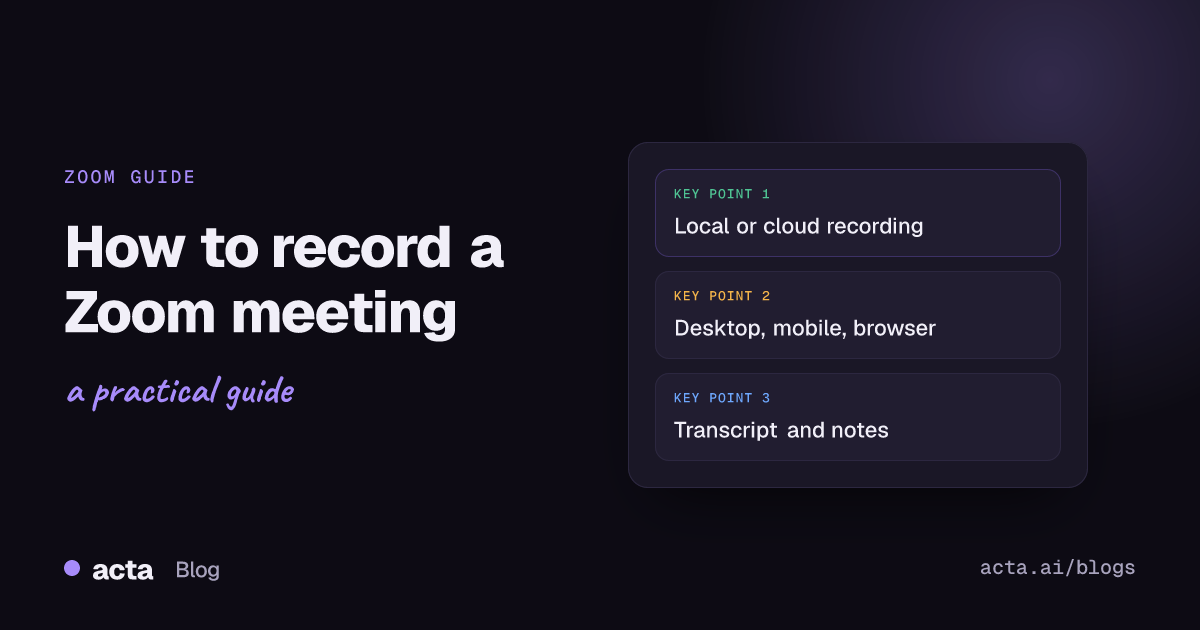
Quick answer: To record a Zoom meeting, start or join it as host, click Record in the meeting controls and choose Record on this computer or Record to the cloud. Local recording works on free and paid plans in the desktop app. Cloud recording needs a licensed user on a paid plan. Participants need the host's permission. Tell everyone you are recording.
Zoom makes recording easy once you know which kind you have. The confusing parts are usually the plan you are on, whether you are the host, and where the file ends up. This guide covers all of it, step by step, using Zoom's own help pages as the source, and ends with how to turn the recording into notes you will actually use.
Local vs cloud: which Zoom recording can you use?
Zoom has two kinds of recording, and the difference matters.
Zoom local recording (computer recording)
- Available to free and paid users, according to Zoom's article on starting a computer recording.
- Works in the Zoom desktop app on Windows, Mac and Linux. Zoom says computer recording is not supported on iOS, iPadOS or Android.
- The file is saved on your computer. Zoom does not keep a copy.
- No automatic audio transcript.
Zoom cloud recording
- Requires a licensed user on a Pro, Business or Enterprise account, with cloud recording enabled, according to Zoom's article on starting a cloud recording. Zoom says it is enabled by default for paid subscribers, but an admin can turn it off or lock it.
- Works from the desktop app and the mobile apps.
- The recording is stored in your Zoom account and can be shared with a link.
- An automatic audio transcript can be added (see below).
Plan names and what they include change from time to time, so check your own account's settings. The details here reflect Zoom's help pages as of November 2026.
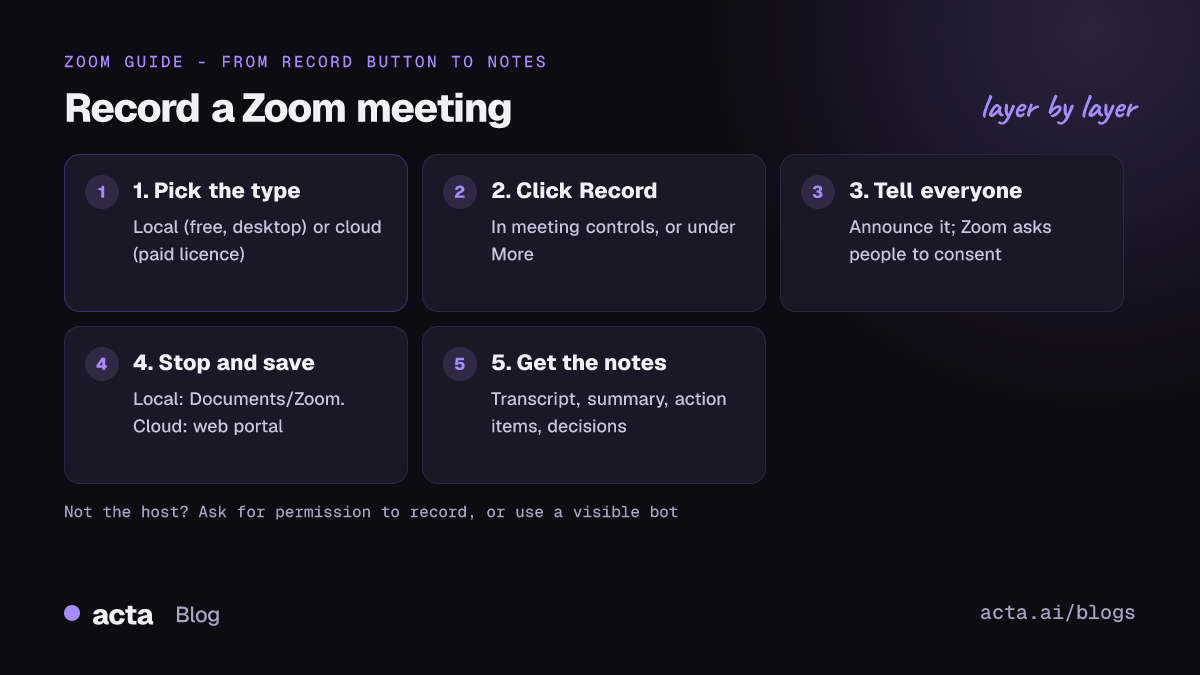
How do you record a Zoom meeting on desktop?
- Start the meeting in the Zoom desktop app as the host (or join as co-host, or as a participant who has been allowed to record).
- Click Record in the meeting controls. If you do not see it, click More first.
- Choose Record on this Computer or Record to the Cloud. If your account only allows one, Zoom starts that one.
- Use Pause or Stop when you need to. Zoom says pausing and resuming keeps one file, while stopping and restarting creates a new file for the next segment. Click Stop Recording before you end the meeting.
- For a local recording, Zoom converts the file after the meeting ends. Do not close your laptop or shut down until conversion finishes; Zoom warns that interrupting it can stop the conversion and, in some cases, corrupt the files.
If you record every meeting, Zoom also has a setting to record automatically when a meeting starts. Admins can control it at account level.
How do you record a Zoom meeting on iPhone or Android?
On the Zoom mobile app, only cloud recording is available, so you need a paid, licensed account. Zoom's steps are short: during the meeting, tap the record option in the meeting controls and start the recording. Stop it the same way. The recording is processed in the cloud and appears in your account with your other cloud recordings.
If you are on a free plan and on your phone, you cannot record with Zoom itself. You could join from a computer instead, or use a different method, with everyone's consent.
Can you record a Zoom meeting in the browser?
Zoom lists the Zoom web app among the platforms supported for cloud recording, so if you have a paid licence and are the host or co-host, recording in the browser is possible. Local recording, though, needs the desktop app. If you mostly join Zoom in a browser on a free plan, install the desktop app when you need a recording.
Where are Zoom recordings saved?
Zoom's guide to finding your computer and cloud recordings gives these locations:
- Local recordings: by default in a Zoom folder inside Documents on Windows and Mac. You can see or change the folder in the desktop app under Settings, then Recording. Zoom recommends keeping it on a local drive, not a cloud-synced folder, external drive or network share, which can cause saving and conversion problems.
- Cloud recordings: in the Zoom web portal under Recordings & Transcripts. Zoom says cloud recordings generally take about twice the recorded length to process, so a one-hour meeting can take around two hours to appear.
- Recordings started by a co-host: cloud recordings started by a co-host show up in the host's list.
How do you record a Zoom meeting as a participant?
By default only the host (and co-hosts for cloud recording) can record. To record a Zoom meeting as a participant, you need the host's permission:
- The host opens the participants list, clicks More next to your name and selects Allow Record. They can take it back with Forbid Record.
- Depending on account settings, you may be able to request permission to record from inside the meeting, and admins can approve such requests automatically.
- Permission from the host lets you make a local recording on your computer. Cloud recording stays with hosts and co-hosts.
If the host says no, respect that. If they are unavailable or the Record button simply is not there, our guide on recording a meeting when you are not the host walks through the options.
Can you record Zoom without the built-in Record button?
Yes, there are two ways, both of which should be done openly.
A note-taker bot
Acta's meeting bot joins your Zoom meetings from your calendar, records them and produces notes. It shows up as a participant, so everyone can see it, and the host can admit or remove it. This does not depend on whether your Zoom plan includes cloud recording.
A bot-free desktop app
The Acta desktop app for Windows and Mac records your computer's sound and your microphone. It starts when Zoom starts, adds nothing to the call and does not record your screen. Because there is no bot or Zoom indicator, you must tell people you are recording. More on this in our short answer on how to record a Zoom meeting without a bot.
How do you get a Zoom transcript and meeting notes?
Zoom's own transcript
Zoom can create an audio transcript for cloud recordings. According to Zoom's article on audio transcription for cloud recordings:
- It requires a Pro, Business, Education or Enterprise account with cloud recording on.
- Turn on Create audio transcript under the Recording settings in the web portal (or ask your admin, who may have locked it). It cannot be changed during a meeting.
- It works only for cloud recordings, not local ones, and Zoom states it supports English only.
- The transcript is saved as a separate VTT file with the recording.
Notes you can act on
A transcript is the raw material. What most people want is the summary, the decisions and the action items with names and dates. If you used Acta's bot or desktop app, you get these automatically: a transcript with speakers, a summary, action items with owners and due dates, a decisions log and a draft follow-up email. If you recorded with Zoom, upload the file to Acta to get the same.
Acta can also write the notes in a set format, choosing from 40 report templates such as MEDDPICC for sales calls, 1:1s or board minutes, or pick one automatically from the conversation.
Do you need consent to record a Zoom meeting?
Often, yes. Zoom itself asks participants for consent: its article on providing consent to be recorded explains that people who join a meeting being recorded, or who are in the meeting when recording starts, are asked to agree or to leave. That prompt helps, but it is not a substitute for following the law where you and your participants are. Some places require everyone's consent, and bot-free recordings show no Zoom prompt at all.
This is general information, not legal advice. Announce the recording at the start, mention it in the invite, and stop if someone objects. Our guide to whether it is legal to record meetings with AI covers consent and what to tell participants.
Why is my Zoom Record button missing or greyed out?
- You are not the host. Ask the host to allow recording.
- You are on a phone with a free plan. Mobile apps only do cloud recording, which needs a paid licence.
- Your admin turned recording off. Account owners and admins can disable computer or cloud recording, or lock the setting.
- Your licence is not assigned. On a paid account, cloud recording needs a licensed user. Check with your admin.
For recording in other tools, see our guides on how to record a Teams meeting and Google Meet recording, or the overview of every way to record a meeting.
Frequently asked questions
Can you record a Zoom meeting on the free plan?
Yes, as a local recording in the desktop app. Cloud recording and Zoom's audio transcript need a paid plan.
Does Zoom notify people when you record?
Yes. Zoom asks participants to consent to the recording or leave the meeting. A bot-free app on your own computer does not trigger this, so tell people yourself.
Where are Zoom recordings saved?
Local recordings go to the Zoom folder in Documents by default. Cloud recordings appear in the Zoom web portal under Recordings & Transcripts after processing.
Can I record a Zoom meeting if I am not the host?
Only if the host allows you to record, which gives you a local recording. Otherwise, ask the host, or use a visible note-taker bot with everyone's agreement.
How do I get a transcript of a Zoom recording?
Turn on Zoom's audio transcript for cloud recordings, or upload the recording to Acta for a transcript with speakers, a summary and action items.
See Acta's plans and start a 15-day free trial to get notes from your next Zoom meeting.