Teams Premium intelligent recap is Microsoft's AI layer on the Teams meeting recap. After a recorded and transcribed meeting, it adds AI-generated notes, suggested tasks, personal name mentions, speaker timeline markers and chapters to the Recap tab. Microsoft says users need a Teams Premium or Microsoft 365 Copilot license to get it. It's worth paying for if your meetings are internal Teams meetings; it does little for calls on other platforms.
AI at Work 11 min read
Teams Premium Intelligent Recap: What You Get and Is It Worth It
What Teams Premium intelligent recap adds to the Teams Recap tab, which license you need, why the transcript matters, and when an AI notetaker fits better.
By Sarma BKP, Founder & CEO, Acta · Updated
This guide covers what intelligent recap actually shows, which license gives you which part, the limits that catch people out and how it compares with a separate AI notetaker. It's for IT admins weighing the add-on and for managers who were told "just use the recap." If your company already pays for Microsoft 365 Copilot, the licensing question is mostly settled for you; skip to the limits section.
Key takeaways
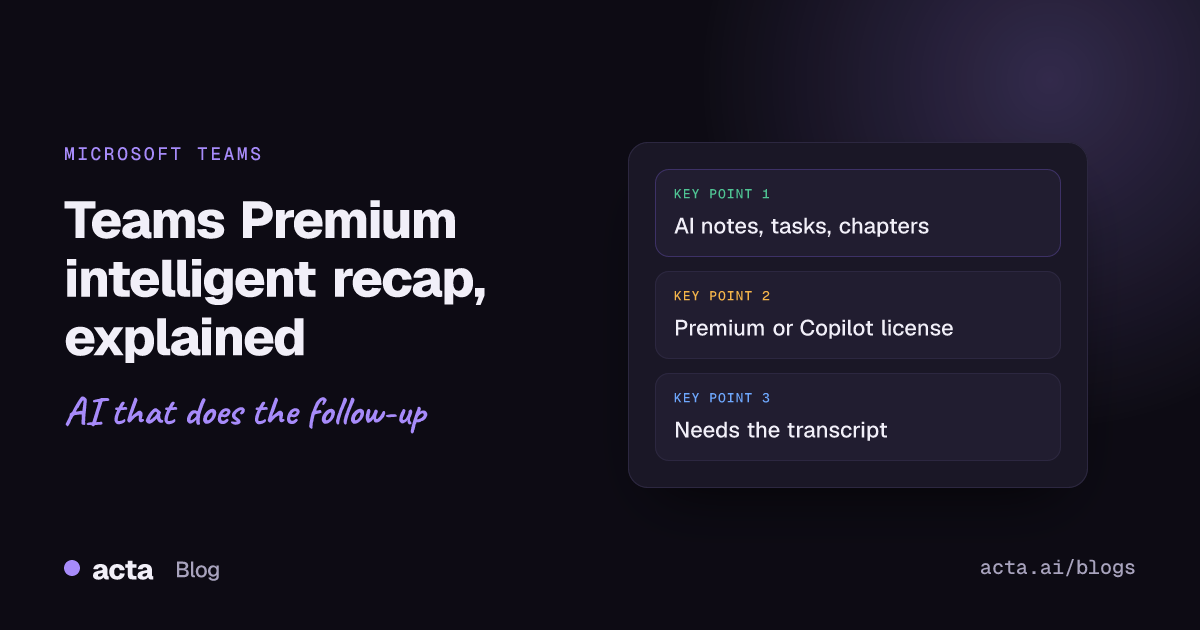
- Intelligent recap needs a Teams Premium or Microsoft 365 Copilot license assigned to the user, according to Microsoft Learn as of November 2026; audio and video recaps need Copilot.
- Most of it depends on the transcript: with recording off, Microsoft says users get recap without the recording, speakers, topics and chapters.
- AI notes and tasks are stored in participants' mailboxes and expire under your organization's retention policies, so plan where the important decisions should live long term.
- External guests can't open the AI summary in Teams; the organizer has to share it, for example through the Outlook email draft from the recap.
- Use intelligent recap for internal Teams meetings; add a separate notetaker if you also meet on Zoom or Meet, join other companies' Teams tenants, or need answers across many meetings.
Table of contents
- Teams Premium intelligent recap adds AI to the meeting recap
- Licensing decides which recap features you see
- The transcript drives almost every recap feature
- A worked example shows a recap from start to finish
- Intelligent recap has limits worth knowing before you buy
- Four rollout mistakes waste the add-on
- Intelligent recap and an AI notetaker suit different meetings
- Frequently asked questions
- Decide whether intelligent recap is worth it for your team
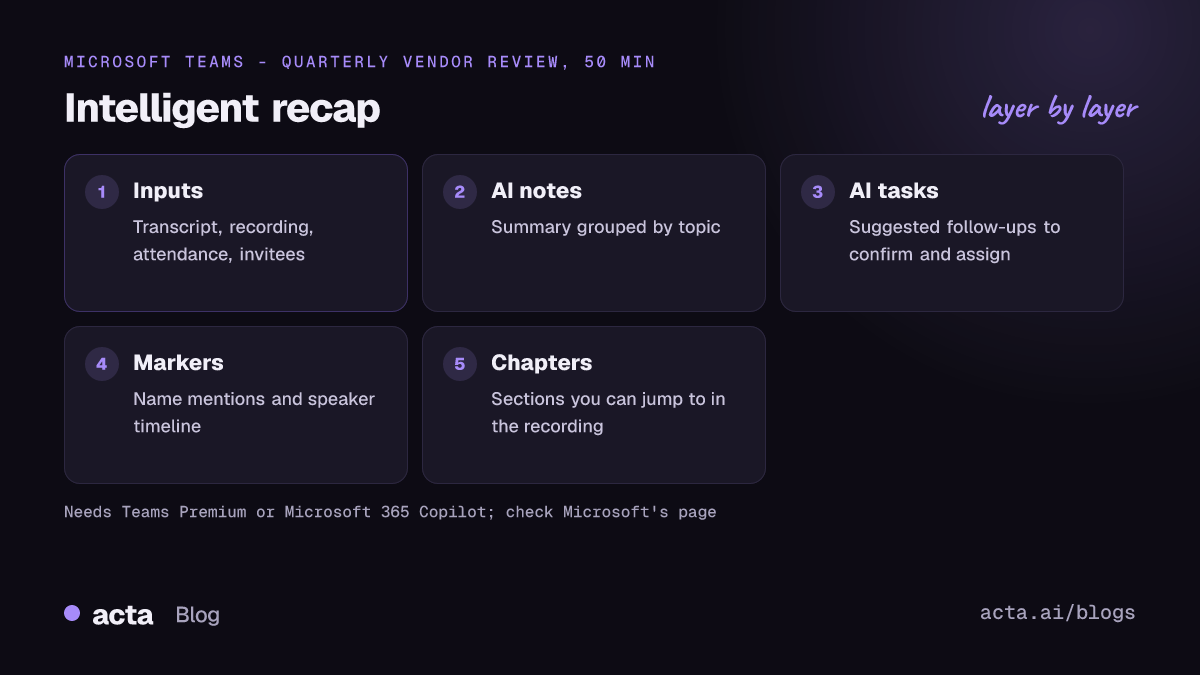
Teams Premium intelligent recap adds AI to the meeting recap
Every Teams meeting can have a Recap tab. Without AI, it holds the recording, the transcript, shared files and meeting notes people typed. Intelligent recap is the AI part on top of that. Microsoft's support article on meeting recap describes it as automatically generated meeting notes, suggested tasks and personalized highlights.
Here's what you'll find, in plain terms:
- AI notes: a written summary of the discussion, grouped by topic.
- AI tasks: suggested follow-ups pulled from what people said, which someone still has to confirm and assign.
- Name mentions: markers on the recording timeline showing when your name came up. They're personal, so only you see your own.
- Speaker timeline markers: who spoke, when, with a jump to that point in the recording.
- Chapters and topics: the meeting split into sections, based on keywords from the transcript or slides shared with PowerPoint Live.
Microsoft's Tech Community launch post says intelligent recap is built from the meeting transcript, the recording, the attendance report and the names of the invitees. That list tells you most of what you need to know about how it behaves: if one of those inputs is missing, part of the recap goes with it.
Licensing decides which recap features you see
The licensing has moved around since Teams Premium launched in 2023, so treat any blog post (this one included) as a starting point and check Microsoft's own pages. As of November 2026, Microsoft's admin article on intelligent recap for calls and meetings says you must assign users a Microsoft 365 subscription that includes Teams (or a separate Teams license) and then a Teams Premium license or a Microsoft 365 Copilot license. The same article says audio recap requires a Copilot license.
That gives you roughly three tiers:
| License | What you get in the recap |
|---|---|
| Standard Teams only | Recording, transcript, files and typed notes; no AI notes or tasks |
| Teams Premium | Intelligent recap: AI notes, AI tasks, name mentions, speaker markers, chapters |
| Microsoft 365 Copilot | Intelligent recap plus Copilot-only extras such as audio recap; video recap is reported as Copilot-only |
Two practical points. First, licensing is per user: in Teams events, Microsoft says intelligent recap is available to organizers, co-organizers and presenters, not attendees. Second, Microsoft moved some Teams Premium capabilities into the base Teams Enterprise license in April 2026, according to licensing analysts. Reports disagree on whether recap features were part of that move, so confirm what your own tenant shows before you renew. For prices and plan contents, check the vendor's page; plans change.
The transcript drives almost every recap feature
This is where most "the recap is empty" tickets come from. Microsoft's admin documentation says that if recording is turned off, users get recap without the recording, speakers, topics and chapters. AI notes rely on a transcript; an older version of Microsoft's support page said they appeared for meetings longer than five minutes that were transcribed, and the current version refers to meetings transcribed in a supported language.
So the order of operations matters:
- Make sure your admin policy allows recording and transcription for the people who organize meetings.
- Start transcription (and recording, if you want chapters and speaker markers) once the meeting begins, or set the meeting options to do it for you.
- Set the spoken language correctly. Name mentions only work when a person's name in the transcript matches their Teams display name, and a wrong language setting wrecks both.
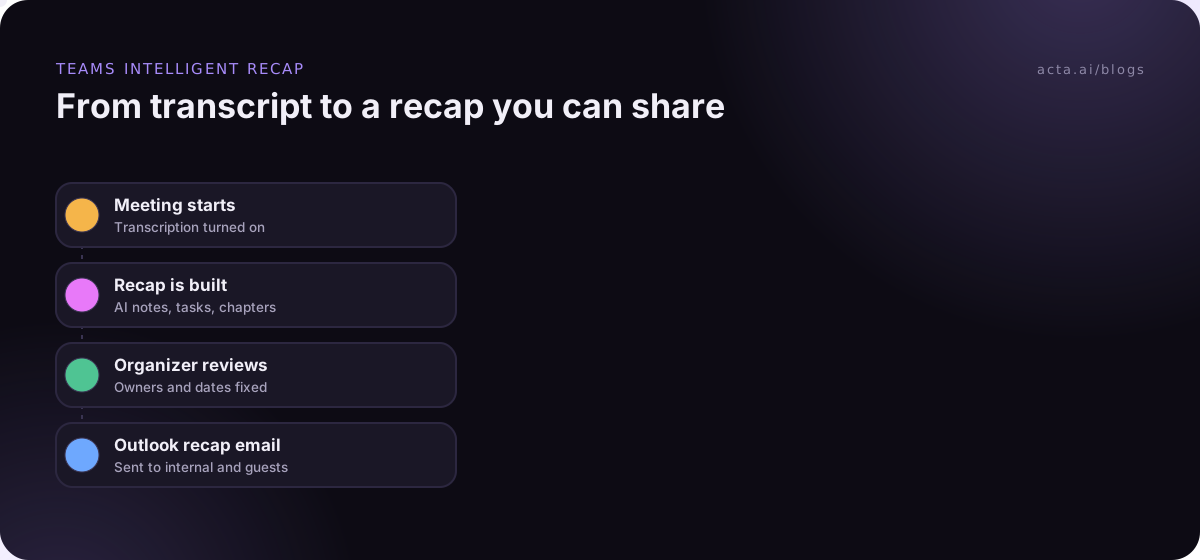
- After the meeting, open the chat or calendar event and go to the Recap tab. Give it time; AI notes appear after processing, not the second the call ends.
- Review the AI tasks, assign owners and share the summary.
Microsoft has also been working on a recap that doesn't need a saved transcript. Its Learn page on intelligent recap without saving transcripts covers that option for Copilot-licensed users, and it says attendees in the organizer's organization with a Copilot license can access the AI summary, while guests and external attendees can't. If your compliance team blocks transcripts, read that page with them; it changes the picture.
A worked example shows a recap from start to finish
An illustrative example. Marco organizes a 50-minute quarterly vendor review in Teams with Priya from finance and Dana from procurement. All three have Teams Premium. Meeting options record and transcribe automatically, and the spoken language is English.
Twenty minutes after the meeting, the Recap tab shows something like this (made up, not real output):
AI notes: Contract renewal (the team agreed to request a 12-month term instead of 24); service issues (two outages in the quarter, vendor to share root-cause reports); budget (Priya confirmed the renewal fits the current budget line).
AI tasks: Dana to draft the renewal request. Vendor to send root-cause reports. Priya to confirm the budget code.
Chapters: Renewal terms, Outages, Budget, Next review date.
What Marco should do with it: check the tasks against the transcript, because "the vendor will send reports" is not a task anyone in the room can own. Reword it as "Dana to chase root-cause reports by Friday." Then use the option to draft a recap email in Outlook, which Microsoft says includes the summary and follow-up tasks and can go to people outside the organization. Finally, copy the one decision that matters (12-month term) somewhere it won't expire with a mailbox policy, such as the vendor file or a decision log. Our guide on tracking decisions made in meetings has a simple format for that.
Intelligent recap has limits worth knowing before you buy
Teams Premium intelligent recap does one job well: it makes a long internal Teams meeting skimmable. The limits are about everything outside that job.
- Teams only. It doesn't cover Zoom, Google Meet, Webex or phone calls on other systems. Microsoft's support page has also said meeting recap doesn't support every meeting type, such as some instant meetings and calls, so check the current list.
- Your tenant, your licenses. When you join a customer's Teams meeting, their policies decide what gets recorded and transcribed, and you may get no recap at all.
- Storage and retention. Microsoft's privacy page for intelligent recap says AI notes and tasks are stored in participants' mailboxes and expire according to your organization's policies. Good for data hygiene; bad if you wanted a permanent record.
- One meeting at a time. Each recap belongs to one meeting. Questions across meetings ("what did we promise this vendor all year?") are Copilot territory or need another tool.
- External sharing is manual. Guests don't get the AI summary in Teams; someone has to send it.
Four rollout mistakes waste the add-on
I've seen companies buy Teams Premium for intelligent recap and then wonder why nobody uses it. It's usually one of these.
- Licensing only the managers. If the people who organize most meetings don't have the license, most meetings don't get intelligent recap. License the organizers first.
- Leaving transcription off by default. No transcript, no AI notes. Fix the meeting policy before you announce the feature.
- Treating AI tasks as assigned tasks. They're suggestions. Ask organizers to confirm owners and dates before sharing, or the recap becomes a list of things nobody agreed to.
- Not telling people about recording. Teams shows a notice when recording starts, but tell people why, and what happens to the transcript. Whether you need consent depends on local law; our guide to recording meetings with AI and what to tell participants is general information, not legal advice.
Intelligent recap and an AI notetaker suit different meetings
"Is intelligent recap worth it?" really means "which of my meetings will it cover?" Count them. If most are internal Teams meetings organized by licensed people, intelligent recap is a sensible buy, especially as it keeps data inside your Microsoft 365 tenant. If a big share are client calls on Zoom or Meet, or Teams meetings in other companies' tenants, you'll pay for Premium and still miss the meetings that matter most.
A separate AI notetaker is tied to you, not to the meeting's tenant. That's the main difference. It usually covers Teams, Zoom and Meet, keeps your meetings in one place you can search, and can push notes into a CRM or project tracker. The trade-off is another vendor to review and, if it uses a bot, a visible participant that some organizations block; our explainer on Teams bot detection covers how that works.
A sensible pattern for many teams: intelligent recap for internal meetings, a notetaker for external ones. If bots aren't welcome in a customer's Teams call, a desktop recorder such as Acta's desktop app records the Teams desktop app from your own computer, with no participant added; the desktop app guide covers setup on Windows and Mac. For a broader comparison, see our list of the best AI note takers for Microsoft Teams, and if your company also uses Google, our guide to Gemini Google Meet notes covers the equivalent feature there.
Where Acta fits
Acta records Teams, Zoom and Google Meet with a meeting bot, or without one through the desktop app or Chrome extension, and writes transcripts with speaker names, summaries, decisions and action items with owners. OneChat answers questions across all your meetings with sources. It's an option for the meetings intelligent recap doesn't reach, not a replacement for it inside your own tenant.
Frequently asked questions
What is the difference between Teams Premium and Copilot for meeting recaps?
Both licenses give intelligent recap: AI notes, suggested tasks, name mentions, speaker markers and chapters. Microsoft 365 Copilot adds extras on top, such as audio recap, and video recap is reported as Copilot-only. Copilot also answers questions in and across meetings. As of November 2026, check Microsoft's licensing pages, because features have moved between plans.
Do all attendees need Teams Premium to see intelligent recap?
Microsoft licenses intelligent recap per user, so users without Teams Premium or Copilot don't get the AI features. In Teams events, only organizers, co-organizers and presenters get it. External guests can't open the AI summary in Teams; the organizer can send it in an Outlook email drafted from the recap.
Why is my Teams intelligent recap empty?
Usually the meeting wasn't transcribed, the meeting was too short, or the organizer lacks a license. Without recording, Microsoft says you lose the recording, speakers, topics and chapters. Check that transcription started, that the spoken language was right, and give the recap time to process after the meeting ends.
Is Teams Premium intelligent recap worth it?
It's worth it when most of your meetings are internal Teams meetings organized by licensed users, and when keeping data inside Microsoft 365 matters. It's weaker if many meetings happen on Zoom or Meet or in other companies' tenants. Count last month's meetings by platform and host before deciding.
How long are intelligent recap notes kept?
Microsoft says AI notes and tasks are stored in participants' mailboxes and expire according to your organization's policies. The recording and transcript follow their own storage rules. If a decision needs to outlive those policies, copy it into a document or system your team keeps.
Decide whether intelligent recap is worth it for your team
Pull last month's calendar data before you buy or renew. The answer is in where meetings happened and who organized them.
- Count by platform: work out what share of meetings ran in your own Teams tenant versus Zoom, Meet or customer tenants.
- License organizers first: intelligent recap follows the user, so the people who set up most meetings need it.
- Fix transcription policy: turn on transcription by default for meetings where you want AI notes.
- Plan retention: decide where decisions go once mailbox policies expire the AI notes.
- Cover the gaps: pick one approach for external meetings, whether that's a bot, a desktop recorder or manual notes.
If your external meetings are the gap, try Acta's desktop app on your next customer call, with a 15-day free trial.
Found this useful? Share it with your team.