Gemini Google Meet notes come from a feature called "Take notes for me." When the meeting organizer has an eligible Google Workspace edition or a Google AI Pro or Ultra plan, Gemini listens to the call, writes a summary, decisions and suggested next steps into a Google Doc in the organizer's Drive, attaches it to the Calendar event and emails a recap after the meeting. It covers Meet only, and only meetings an eligible account hosts.
AI at Work 13 min read
Gemini Google Meet Notes: What They Capture and Where They Stop
What Gemini's Take notes for me writes in Google Meet, who can turn it on, where the Doc goes, its language and host limits, and when to add a notetaker.
By Sarma BKP, Founder & CEO, Acta · Updated
This guide settles what the notes actually contain, who can switch them on, where they end up and where they fall short. It's written for people who run a lot of Meet calls and want to know whether the built-in notes are enough, or whether a separate notetaker still earns its place. If every meeting you have is an internal Meet call hosted by someone on a Workspace plan that includes Gemini, you may not need anything else, and I'll say so plainly below.
Key takeaways
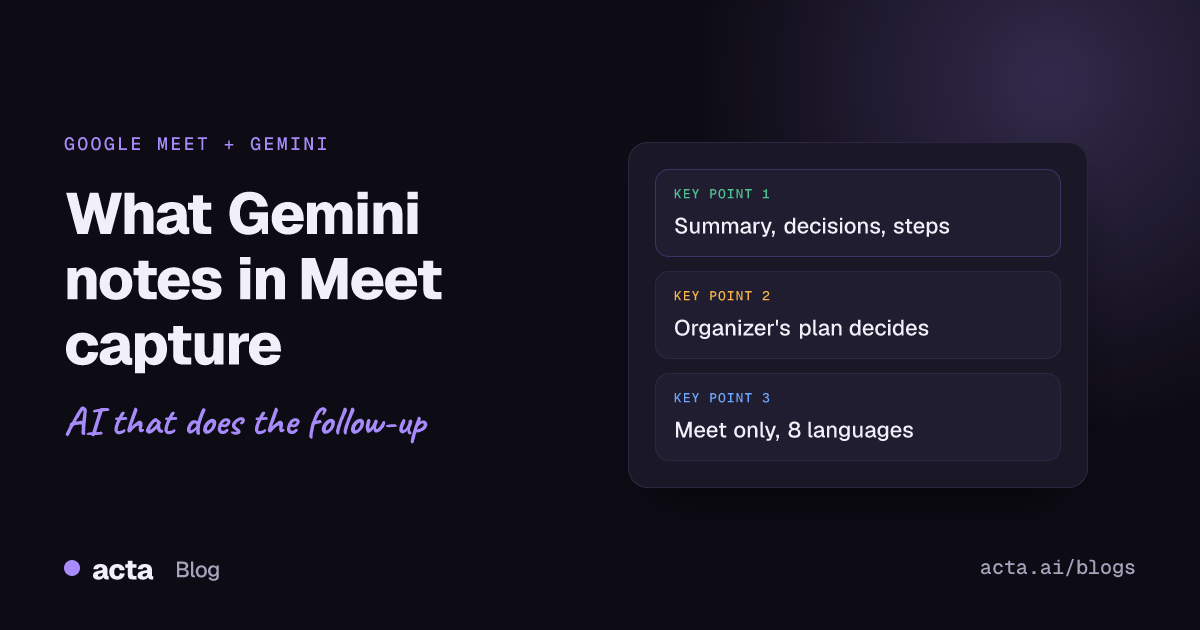
- The organizer's plan decides everything: if the host's Workspace edition or Google AI plan doesn't include "Take notes for me," nobody in that meeting gets Gemini notes, however good their own plan is.
- As of November 2026, Google lists eight spoken languages (English, French, German, Italian, Japanese, Korean, Portuguese, Spanish), one language per meeting.
- Notes land as a Google Doc with a summary, decisions, next steps and a details section; turn on transcription too if you want citations that jump to timestamps.
- Google recommends meetings of at least 15 minutes and warns notes can be incomplete; review the next steps before you forward the recap.
- Add a separate notetaker when you also meet on Zoom or Teams, join meetings other companies host, or need answers across many meetings rather than one Doc per call.
Table of contents
- Gemini "Take notes for me" turns a Meet call into a Doc
- The organizer's plan decides who gets Gemini notes
- Turning on Gemini notes takes one click, with a few settings behind it
- A worked example shows what the notes look like
- Gemini Google Meet notes have clear limits
- Five mistakes make Gemini notes less useful
- Built-in Gemini notes and a separate notetaker solve different problems
- Frequently asked questions
- Decide whether Gemini notes are enough for your meetings
Gemini "Take notes for me" turns a Meet call into a Doc
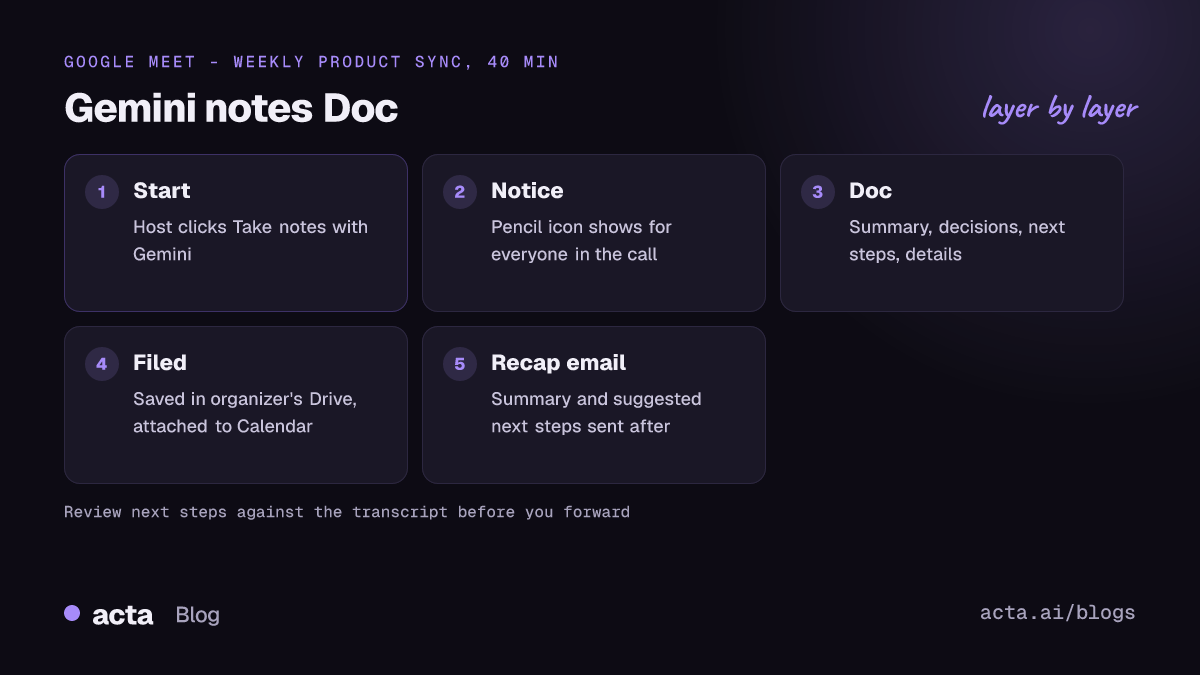
"Take notes for me" is Google's built-in AI notetaker for Meet. It's powered by Gemini, it runs inside the meeting rather than as a separate participant, and its output is an ordinary Google Doc. According to Google's Meet help page, the notes are organized in Docs and saved in the organizer's Drive, and the Doc is attached to the Google Calendar event so invitees can find it later. Everyone in the call sees that notes are being taken, and a pencil icon appears on their screens.
The Doc is split into sections. Google's help content lists a summary, decisions, next steps and a details section that expands on each discussion point. In February 2025 Google added "suggested next steps," which you can edit and assign to a person after the call. If transcription is also on, the details section carries citations that link to timestamps in the transcript, which is the fastest way to check whether Gemini heard something correctly.
After the meeting, Meet sends an email to the organizer and to anyone else who turned the feature on. Google's July 2025 Workspace update changed that email so it carries the meeting summary and the suggested next steps, not just a link to the Doc. For a lot of people, that email is the only part they'll read.
One thing it is not: a recording. Taking notes, recording and transcripts are separate switches in Meet. You can have Gemini notes with no recording at all, which some teams prefer, and you can add a transcript when you want the evidence behind the summary. If you need the video too, our guide to Google Meet recording covers who can record and where the file goes.
The organizer's plan decides who gets Gemini notes
This is the part that trips people up. Gemini notes depend on the meeting organizer's account, not yours. Google's help page says the organizer's Workspace edition must include "Take notes for me." If you're a guest in a meeting hosted by a company whose plan doesn't include it, the option won't be there for you, even if your own plan has it.
As of November 2026, there are two main routes to the feature. Business and enterprise customers get it through eligible Google Workspace editions; Google folded Gemini features into its Business and Enterprise plans in early 2025, but which editions include Meet notes still varies, so check Google's edition comparison for your plan. Individuals got a second route on 29 June 2026, when Google said on its official blog that Google AI Pro and Ultra subscribers can use "Take notes for me" in meetings they host, on web and mobile, in select languages. Free personal Google accounts don't get it. Plans and prices change, so check the vendor's page before you buy anything on the strength of this paragraph.
Admins have a say too. A Workspace admin can turn the feature off for the organization, and the same admin setting applies to in-person note taking. If the button is missing and your plan should include it, ask your admin before you assume Google has a bug.
Languages and meeting length
Google's help center lists English, French, German, Italian, Japanese, Korean, Portuguese and Spanish as supported spoken languages, and the feature handles one language at a time. A meeting that switches between English and Hindi, or English and Arabic, isn't something it claims to cover. Google also recommends meetings of at least 15 minutes, so a five-minute check-in may not produce useful notes.
Turning on Gemini notes takes one click, with a few settings behind it
Starting the notes is simple. Google's steps, as of November 2026, are:
- Open the meeting in Meet on your computer.
- Click Take notes with Gemini in the top right corner of the meeting screen.
- Choose whether to add a transcript, if your account offers that option.
- Run the meeting as normal. Everyone sees the pencil icon while notes are on.
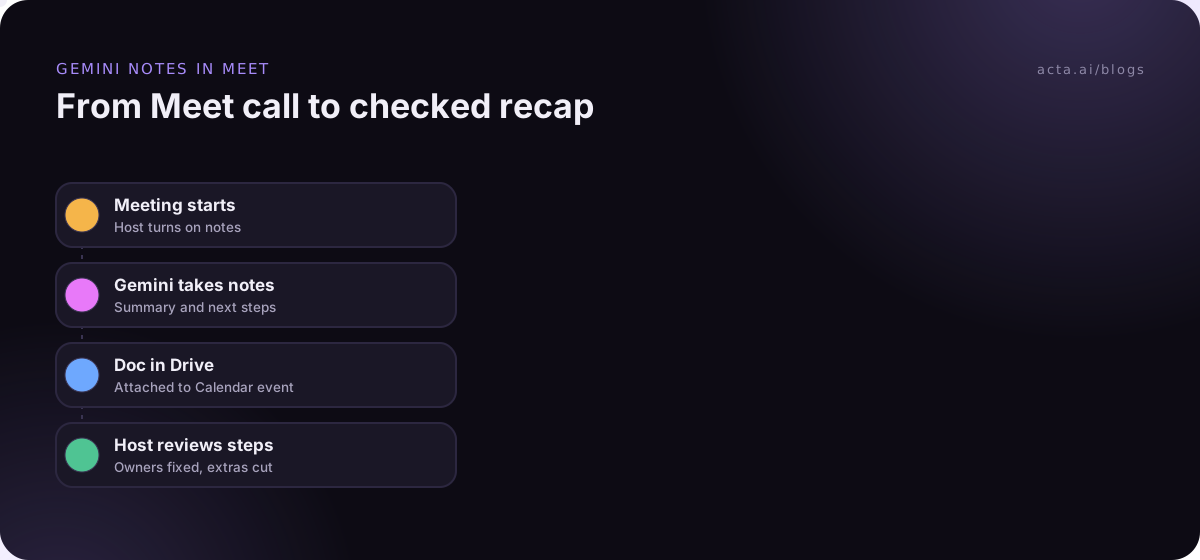
- After the call, open the Doc from the recap email or from the Calendar event, then review and assign the next steps.
The settings around it matter more than the button. Google has added several controls since launch. With host controls enabled, only the organizer, hosts and co-hosts can start or stop notes; without them, internal participants can too. A January 2026 update added a toggle so a host can have notes start by themselves in every meeting they host. A February 2026 update lets eligible users turn notes and transcription off from the green room before joining.
Sharing is the setting I'd check first. Google offers three choices for who gets the Doc and the recap email: all invited guests, invited guests in your organization, or hosts and co-hosts only. If you run client calls, "all invited guests" sends Gemini's summary of your internal pricing chat to the client's inbox. Pick the narrower option and share by hand when it makes sense.
In-person meetings
Since 13 August 2026, according to Google's Workspace Updates post, you can also start a note-taking session for an in-person meeting from the Meet home screen on web or mobile. The output is the same kind of Doc, with a summary, action items and a transcript, and you can pause, resume or stop the session. Eligibility and admin settings are the same as for video calls.
A worked example shows what the notes look like
Here's an illustrative example. Priya runs a 40-minute weekly product sync on Meet with Marco from engineering and Dana from support. Her company's Workspace plan includes Gemini notes, host controls are on and sharing is set to "invited guests in your organization." She clicks Take notes with Gemini and ticks the transcript option.
About the shape of what comes back (this is a made-up example, not real output):
Summary: The team agreed to delay the export feature by one sprint so support can clear the backlog of billing tickets. Marco flagged that the new search index needs a migration window.
Decisions: Export moves to the next sprint. Billing tickets take priority this week.
Suggested next steps: Marco to propose a migration window by Thursday. Dana to share the top ten billing ticket themes. Priya to update the roadmap page.
Details: One paragraph per topic, each with citations back to the transcript.
What Priya should do next takes about three minutes. Check each suggested next step against the transcript citation, because a next step Gemini inferred from "maybe Marco could look at it" reads exactly like one Marco agreed to. Assign the steps to real names in the Doc. Then forward the recap email, or paste the decisions into the team channel. If the next steps keep slipping between meetings, the problem usually isn't the notes; our piece on why action items don't get done covers the habits that fix it.
Gemini Google Meet notes have clear limits
Gemini Google Meet notes are good at one job: a readable summary of a single Meet call, filed where Google users already look. The limits show up once your meetings stop fitting that shape.
- Meet only. It doesn't take notes on Zoom, Microsoft Teams, Webex or phone calls. If half your client calls happen on the customer's Teams tenant, half your meetings have no notes.
- Host-dependent. As a guest in another company's Meet call, you get notes only if their plan and settings allow it, and you see only what they choose to share.
- One Doc per meeting. Each call becomes a separate file. Answering "what did we promise this customer across the last six calls?" means opening six Docs, unless you have a tool that indexes meetings together.
- Language coverage. Eight languages, one per meeting, as of November 2026.
- Accuracy. Google's own help page warns that notes can be incomplete or inaccurate because of connection problems, meeting length or browser issues.
- No direct push to your systems. The output is a Doc and an email. Getting decisions into a CRM, Jira or a project tracker is a manual step.
None of these is a flaw in the sense of a bug. Google Meet AI notes are a feature bundled into Workspace, and the trade-offs make sense for that. They just mean the built-in notes cover the easy case well and leave the awkward cases to you.
Five mistakes make Gemini notes less useful
Most complaints I hear about Gemini notes come from setup and habits rather than from the AI itself. Fix these first.
- Leaving sharing on "all invited guests" for external calls. Set the default to internal guests or hosts only, and share the Doc on purpose.
- Skipping the transcript. Without it, you can't check a summary line against what was actually said. Turn transcription on for any meeting where a decision might be disputed later.
- Forwarding the recap unread. Suggested next steps are suggestions. Read them, fix the owners and delete the ones nobody agreed to.
- Expecting notes in meetings you don't host. If the organizer's plan doesn't include the feature, there will be no notes. Ask the host, or bring your own notetaker.
- Not telling people why notes are on. Meet shows the pencil icon, but a short line at the start ("I've got Gemini taking notes, I'll share the summary after") avoids awkward questions. Whether you need consent depends on where people are; our guide on recording meetings with AI and what to tell participants is general information, not legal advice, but it covers the basics.
Built-in Gemini notes and a separate notetaker solve different problems
The honest comparison isn't "which writes better summaries." It's "which meetings does each one cover, and what happens to the notes afterwards." Here's how the two usually split.
| Question | Gemini in Google Meet | Separate AI notetaker |
|---|---|---|
| Which platforms? | Google Meet, plus in-person sessions from the Meet app | Usually Meet, Zoom and Teams; varies by tool |
| Whose plan matters? | The organizer's | Yours, as the person recording |
| Where do notes live? | One Google Doc per meeting in the organizer's Drive | The tool's workspace, often searchable across meetings |
| Extra cost | Included in eligible Workspace and Google AI plans | A separate subscription |
| Best fit | Internal Meet calls on a Gemini-enabled Workspace | Mixed platforms, client-hosted calls, cross-meeting questions |
Use Gemini when your meetings are mostly internal, mostly on Meet and hosted by people on an eligible plan. It's already paid for and it files notes where your team looks. Add a separate notetaker when you regularly join calls on other platforms or hosted by other companies, when you need structured reports such as sales call notes or interview scorecards, or when you want to ask questions across months of meetings.
The guest problem has a practical answer. If bots aren't welcome in a client's Meet call, a browser extension such as Acta's Chrome extension records from your own Chrome tab, so no extra participant joins; the Chrome extension guide walks through setup. For a wider view of the options, see our round-up of the best AI note takers for Google Meet.
Where Acta fits
Acta is one of those separate notetakers. It records Google Meet, Zoom and Microsoft Teams with a meeting bot, or without one through the Chrome extension or the desktop app, and writes transcripts with speaker names, summaries, decisions and action items with owners. OneChat answers questions across all your meetings with sources, and you can send meeting reports to Salesforce, HubSpot or Zoho. It doesn't replace Gemini for teams that live in Meet; it covers the meetings Gemini can't reach.
Frequently asked questions
Is Gemini note taking in Google Meet free?
No. As of November 2026, "Take notes for me" needs an eligible Google Workspace edition or a Google AI Pro or Ultra subscription, and it works in meetings that account hosts. Free personal Google accounts don't get it. Google changes plan contents, so check the vendor's page for which editions include Meet notes before you rely on it.
How do I turn on Gemini notes in Google Meet?
Join the meeting on your computer and click Take notes with Gemini in the top right corner. Everyone sees a pencil icon while notes are on. Hosts can also set notes to start by themselves in meetings they host. If the button is missing, the organizer's plan may not include the feature, or your admin may have turned it off.
Where do Gemini Google Meet notes go?
Into a Google Doc saved in the meeting organizer's Drive. The Doc is attached to the Google Calendar event, and a recap email with the summary, suggested next steps and a link goes to the organizer and anyone else who turned notes on. Who can open the Doc depends on the sharing setting the host chose.
Does "Take notes for me" record the meeting?
No. Notes, recording and transcripts are separate features in Meet. You can run Gemini notes with no recording at all. Turning on transcription as well adds citations in the notes that link to timestamps in the transcript, which makes it much easier to check what was actually said.
Can Gemini take notes in meetings I don't host?
Only if the organizer's plan includes the feature and their settings let participants start it. With host controls on, only the organizer, hosts and co-hosts can start or stop notes. For meetings other companies host, a notetaker that records from your own device is the usual workaround.
What is the difference between Gemini notes and an AI notetaker?
Gemini notes are built into Meet and tied to the organizer's Google plan; each meeting becomes one Doc. A separate AI notetaker is tied to your account, usually covers Zoom and Teams too, and keeps meetings in one searchable place. Many teams use Gemini for internal Meet calls and a notetaker for everything else.
Decide whether Gemini notes are enough for your meetings
Look at last month's calendar before you decide. The answer usually falls out of where your meetings happened and who hosted them.
- Count the platforms: if more than a handful of meetings ran on Zoom or Teams, Gemini alone leaves gaps.
- Check who hosted: meetings hosted by clients or partners only get Gemini notes if their plan includes it.
- Set sharing first: change the default recipient to internal guests or hosts only before you run a client call.
- Turn on transcripts for decisions: any meeting where a decision might be questioned later needs citations you can check.
- Decide where answers should live: one Doc per meeting is fine for a weekly sync; cross-meeting questions need a searchable tool.
If your meetings go beyond Meet, try Acta's Chrome extension on your next call, with a 15-day free trial.
Found this useful? Share it with your team.