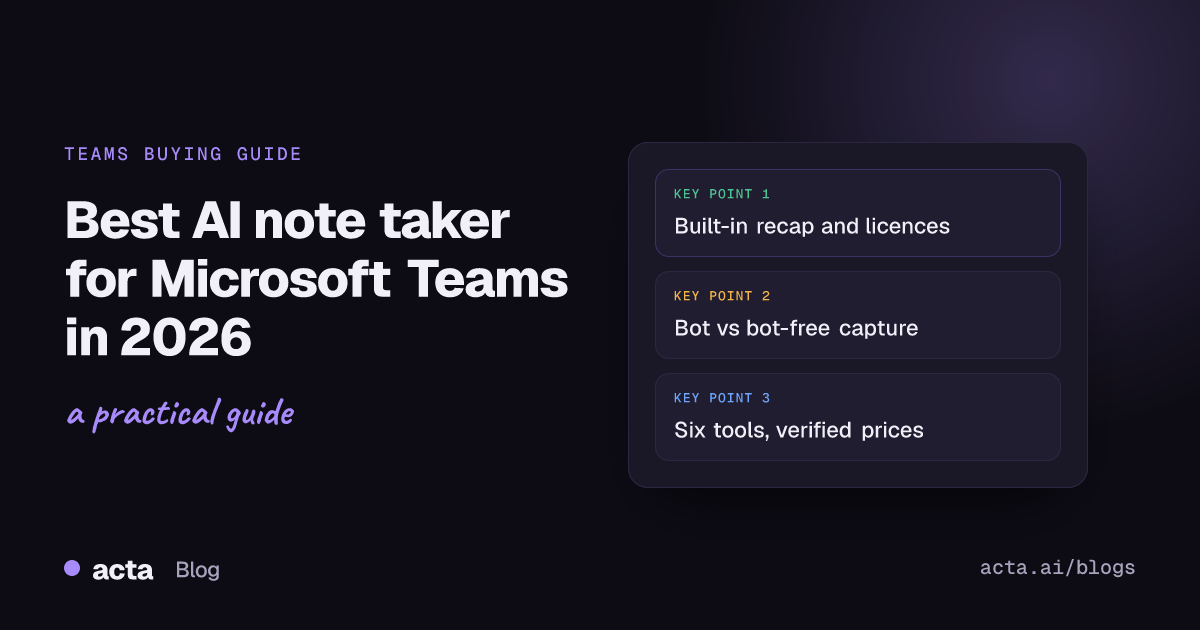
Quick answer: The best AI note taker for Microsoft Teams depends on your licences and your admin's rules. If you already pay for Microsoft 365 Copilot or Teams Premium, start with intelligent recap. If you need notes across Teams, Zoom and Meet, reports by role, or capture without a bot, Acta is a strong pick. Otter, Fireflies, Fathom and tl;dv are solid bot-based alternatives.
Teams already transcribes meetings, and with the right licence it writes AI notes too. So the real question is not "which tool has AI" but "which setup gives my team usable notes without fighting IT, licences or the lobby." This guide covers what Teams gives you out of the box, how third-party note takers get into a Teams meeting, and six tools worth a look, with prices checked as of October 2026.
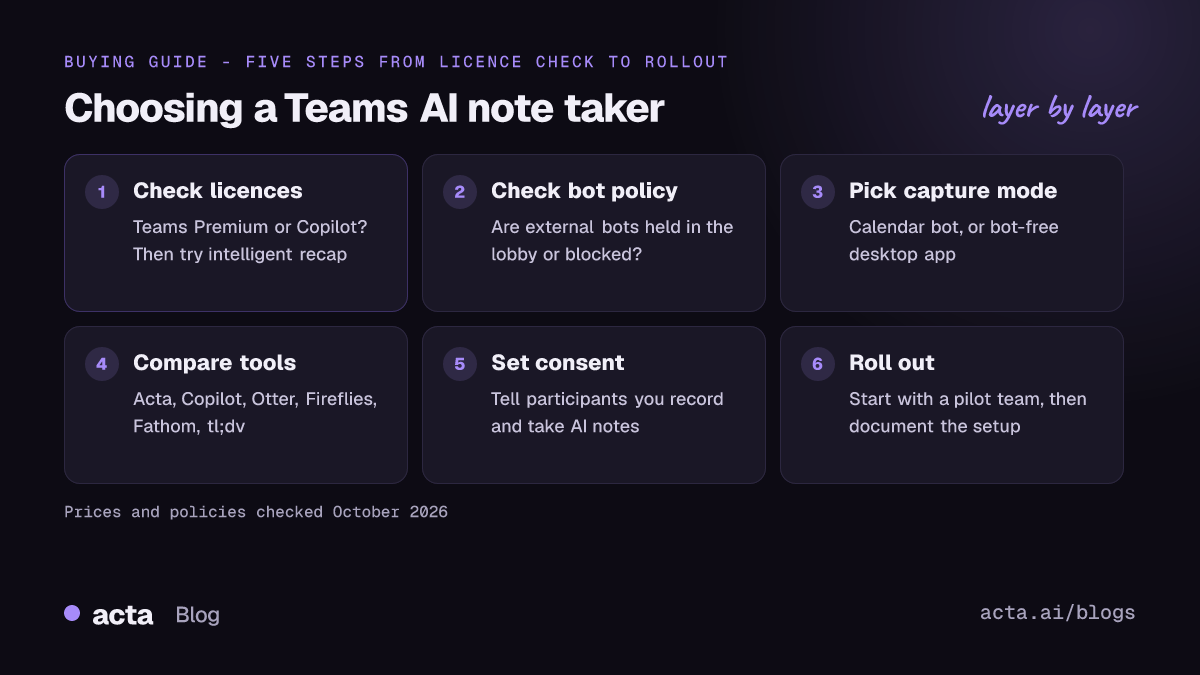
What does Microsoft Teams give you built in?
Teams has three layers of meeting notes, and each one needs a different licence.
- Live transcription. Included with most business and enterprise Microsoft 365 plans, including Business Basic, Standard and Premium, and E3 and E5. Organizers, co-organizers and presenters can start it; attendees, guests and people from another organization generally cannot. Your admin can also switch it off by policy. Microsoft's guide to starting, stopping and downloading live transcripts in Teams has the details.
- Intelligent recap (AI notes, tasks, chapters). According to Microsoft Learn, intelligent recap needs a Teams Premium or Microsoft 365 Copilot licence, on top of a Teams base licence, and transcription must be turned on. Audio and video recap need a Copilot licence.
- Copilot in the meeting. With a Microsoft 365 Copilot licence you can ask questions during or after a meeting. If the organizer sets Copilot to run only during the meeting, no transcript is needed, but Copilot is then not available in the recap afterwards unless the meeting was transcribed or recorded.
Prices as of October 2026 on Microsoft's own pricing pages: Teams Premium is $10 per user per month billed yearly; the Microsoft 365 Copilot add-on for enterprise plans is $30 per user per month billed yearly; and Microsoft 365 Copilot Business is $21 per user per month billed yearly, with a promotional $18 for the first year on purchases made by December 31, 2026. All of these are add-ons to an existing Microsoft 365 plan.
For a side-by-side of what the built-in tools do and do not cover, see our comparison of Acta and the built-in Teams, Zoom and Meet AI notes.
When is a third-party Teams AI note taker worth it?
Built-in recap is a good default if everyone you meet is on Teams and your company already pays for Copilot. A separate tool earns its place when:
- You meet outside Teams. Customers on Zoom, partners on Google Meet, and in-person meetings all need notes too. One tool across all of them means one searchable history (our guide to AI note takers for Google Meet covers that side).
- You are not the organizer. In an external customer's Teams meeting you usually cannot start their transcription, and their recap stays in their tenant.
- You need structured output. Sales teams want MEDDPICC or BANT fields, managers want 1:1 notes, product teams want PRDs and Jira tickets. Generic recaps do not do this.
- You do not have the licence. Copilot for a whole team is a real cost when only a few people run meetings that need notes.
- You need follow-through. Action items with owners and due dates, a decisions log and follow-up emails matter more than a summary nobody reopens.
How do AI note taker bots join Teams meetings?
Most third-party tools send a bot that joins the meeting as a participant, usually picked up from your calendar. In Teams that bot typically joins as an anonymous or external guest, which runs into three controls:
- Anonymous join. Otter's own guide to setting up Otter Notetaker for Teams says a Teams admin must allow anonymous users to join, or the notetaker fails to join. Fathom and Fireflies document similar requirements.
- The lobby. If external people wait in the lobby, someone has to admit the bot. A bot stuck there records nothing.
- External bot detection. Microsoft lets admins manage external bots and their access to meetings. The default holds detected bots in the lobby until someone admits them, even when others can bypass it. Admins can also block detected bots outright. Microsoft notes that some bots may not be detected and that people are occasionally misclassified as bots.
The upshot: in a locked-down tenant, a bot-based note taker may never get in, and in a customer's tenant you have no say over these settings at all.
What is bot-free capture, and when should you use it?
Bot-free capture records the meeting from your own device instead of sending a participant. Nothing extra appears in the attendee list, and the lobby and bot policies do not come into it. Our answer on how to record a Teams meeting without a bot walks through the options.
Bot-free does not mean consent-free. Tell people you are recording and taking AI notes, and get consent where the law requires it. Our guide to recording consent, privacy and what to tell participants covers what to say. A visible bot at least announces itself; with bot-free capture, saying so is your job.
For a wider look at tools that work this way, see the best AI note takers without a bot.
Which AI note takers work best with Microsoft Teams in 2026?
Prices below are as listed by each vendor as of October 2026. Check the vendor's page before you buy, since plans change often.
1. Acta: best for teams that meet on Teams and elsewhere
Acta records Teams, Zoom and Google Meet through a meeting bot that joins from your calendar, or without a bot through the Acta desktop app for Windows and Mac, which starts with Teams and records your computer's sound and your mic (no screen recording). A Chrome extension covers browser meetings, mobile apps cover in-person meetings, and you can upload recordings.
- Best for: teams that need more than a recap: transcripts with speakers, summaries, action items with owners and due dates, a decisions log, a Follow-ups view and follow-up email drafts.
- Stand-out: 40 report templates in 11 role groups (MEDDPICC, BANT, SPICED, SPIN, 1:1s, board minutes, PRDs, Jira ticket suggestions and more), which Acta can pick automatically from the conversation. OneChat answers questions across all your meetings with sources. Reports export to PDF, Word or Markdown and, on a paid plan, push to Salesforce, HubSpot or Zoho. A connector lets Claude and ChatGPT read your meetings.
- Limits: it is a separate app from Teams, so notes live in Acta rather than in the Teams recap tab. The bot is subject to your tenant's external bot and lobby rules like any other.
- Pricing: free 15-day trial; see Acta pricing for plans.
2. Microsoft 365 Copilot and Teams Premium: best if you already pay for them
- Best for: Microsoft-only organizations. Notes appear in the Teams recap with no extra app, no bot and no admin exceptions.
- Limits: works on Teams meetings only, needs transcription turned on for recap, and the organizer's settings and licences decide what you get. In another company's meeting you are usually not in control.
- Pricing (as of October 2026): Teams Premium $10 per user per month billed yearly; Microsoft 365 Copilot $30 per user per month billed yearly for enterprise plans, or Copilot Business at $21 ($18 promotional) for eligible Business plans.
3. Otter: best for simple, low-cost transcription
- Best for: individuals who want a readable transcript and summary. Otter Notetaker can join Teams meetings from your connected calendar.
- Limits: joins as an anonymous guest, so your Teams admin must allow anonymous join, and Teams may label it "Unverified". The free Basic plan has 300 minutes a month with a 30-minute cap per conversation; Pro has 1,200 minutes and a 90-minute cap.
- Pricing (as of October 2026): Basic free; Pro $8.33 per user per month billed annually or $16.99 monthly; Business $30 per user per month billed monthly; Enterprise custom.
4. Fireflies: best for search and integrations across many meetings
- Best for: teams that want a low per-seat price across a whole team, with CRM integrations on paid plans.
- Limits: its notetaker joins Teams as a guest, so guest access must be on, and if it is left in the lobby the meeting is not recorded. Some advanced features use AI credits sold separately.
- Pricing (as of October 2026): Free; Pro $10 per seat per month billed annually or $18 monthly; Business $19 annually or $29 monthly; Enterprise $39 per seat per month, annual only.
5. Fathom: best free starting point
- Best for: people who want good notes for free. Fathom's free plan includes capture, transcription and AI summaries for Teams.
- Limits: on Teams it records by joining as a participant, not bot-free, and needs anonymous join turned on. It only records when you are on the call, and only Teams meetings that are scheduled on your calendar (or added manually).
- Pricing (as of October 2026): Free; Team $15 per user per month billed annually or $19 monthly (2-user minimum); Business $25 annually or $34 monthly, adding CRM sync and coaching scorecards; Enterprise custom.
6. tl;dv: best for recording-heavy teams on a budget
- Best for: teams that want recordings plus notes, with a choice of a calendar bot or a bot-free desktop app.
- Limits: the free plan includes AI notes on only your first 10 meetings. In bot mode the host may still need to admit it from the lobby.
- Pricing (as of October 2026): Free; Pro $18 per user per month billed annually or $29 monthly; Business and Enterprise vary, so check tl;dv's site.
Who should pick something else?
Be honest about fit before you buy anything:
- If every meeting is internal, on Teams, and your company already licenses Copilot, the built-in recap is likely enough. Adding another tool just splits your notes in two places.
- If you only need a free transcript now and then, Fathom's or Otter's free plans are hard to beat on price.
- If your admin blocks all external bots and you cannot install desktop apps, a browser-based or built-in option is your only route.
Acta makes most sense when you meet across several platforms, need role-based reports and follow-through rather than a recap, or need to capture Teams meetings where a bot will not be let in.
How do you set up Acta for Microsoft Teams?
There are two routes. Pick one, or use both.
Option A: the calendar bot
- Sign up and connect your calendar.
- Choose which meetings the Acta bot should join. It joins Teams meetings from the calendar invite.
- If your tenant holds external bots in the lobby, admit the bot when it appears, or ask your admin how bots are handled.
- After the meeting, review the transcript, summary, action items and report in Acta.
Option B: the desktop app, no bot
- Install the Acta desktop app on Windows or Mac.
- Join your Teams meeting as usual. The app starts with Teams and records your computer's sound and your mic.
- Tell participants you are recording and taking AI notes.
- Your notes appear in Acta alongside your bot-recorded and uploaded meetings.
Option B is the one to use for customer meetings in someone else's tenant, or wherever bots are blocked.
What should IT admins check before allowing an AI note taker in Teams?
- Decide your external bot setting. Choose between holding detected bots in the lobby (the default) and blocking them, and document the choice.
- Review anonymous join and lobby rules. Many bots need anonymous join. Decide who can bypass the lobby and who can admit people from it.
- Check transcription and recording policies. Built-in recap depends on transcription being allowed for the organizer.
- Count licences. Work out who actually needs Teams Premium or Copilot versus a separate note taker.
- Review where data goes. Ask each vendor who can see meetings, how access is controlled, and whether customer data trains AI models. Acta does not use customer data to train AI models, and people only see meetings they have access to; details are on Acta's security page.
- Set a consent policy. Agree how staff tell participants about recording and AI notes, for both bot and bot-free capture.
- Approve desktop apps deliberately. Bot-free tools run on endpoints, so treat them like any other installed software.
Frequently asked questions
Does Microsoft Teams have a free AI note taker?
Live transcription is included in most business Microsoft 365 plans, but AI notes through intelligent recap need a Teams Premium or Microsoft 365 Copilot licence. Free third-party plans from Fathom, Otter, Fireflies and tl;dv are other options.
Why can't my AI note taker join a Teams meeting?
The usual causes are anonymous join being turned off, the bot waiting in the lobby, or your admin blocking detected external bots. A bot-free desktop app avoids all three.
Can I get Teams meeting transcription when I am not the organizer?
Usually not through Teams itself, since organizers, co-organizers and presenters control transcription and outside guests generally cannot start it. A third-party tool can capture your side of the meeting, with participants' consent.
Do all participants need a licence for intelligent recap?
Microsoft Learn says intelligent recap requires a Teams Premium or Microsoft 365 Copilot licence. Community answers differ on exactly who must hold it, so test with a real meeting in your own tenant before you buy seats.
Is a bot-free AI note taker allowed in Teams?
It does not use Teams' bot controls, but recording laws and your company's policies still apply. Get consent where required and follow your IT rules on installed apps.
Want to see the difference on your own meetings? Start a free 15-day Acta trial and try it on your next Teams call.