Record Zoom and Teams app meetings with the Acta desktop app
The Acta desktop app records meetings held in the Zoom and Microsoft Teams desktop apps, with no bot joining. It waits in the system tray and opens a small window by itself when a meeting starts. Meetings in the browser are recorded with the Chrome extension.
Set it up
- 1Download the app for Windows or Mac from acta.ai/desktop and install it.
- 2Click Log in to Acta and sign in. The app stays logged in until you log out.
- 3Mac: allow Microphone and Screen Recording for Acta in System Settings → Privacy & Security. Windows: make sure "Let desktop apps access your microphone" is on in Settings → Privacy → Microphone.
Record a meeting
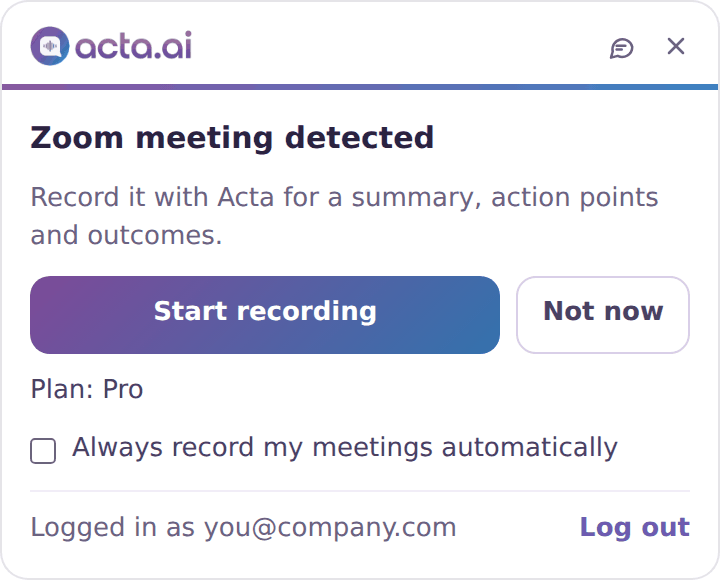
- 1Join your meeting in the Zoom or Teams app. The Acta window opens by itself, e.g. Zoom meeting detected.
- 2Click Start recording. To never miss one, tick Always record my meetings automatically.
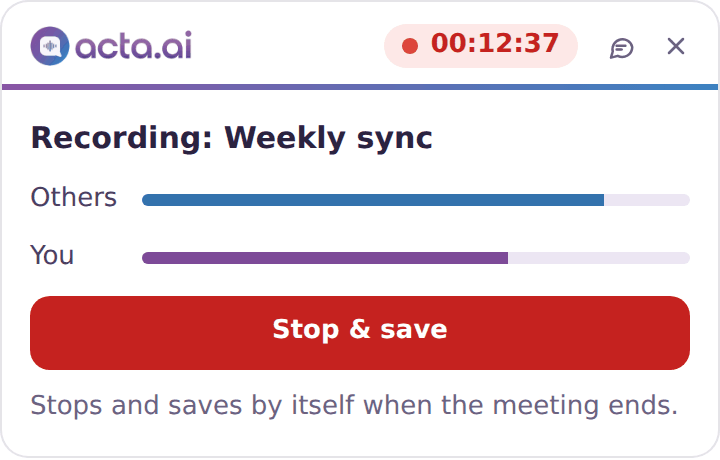
- 3While recording, the window shows the meeting's name and two sound bars: Others and You.
- 4Click Stop & save, or just end the meeting: it stops and saves by itself.
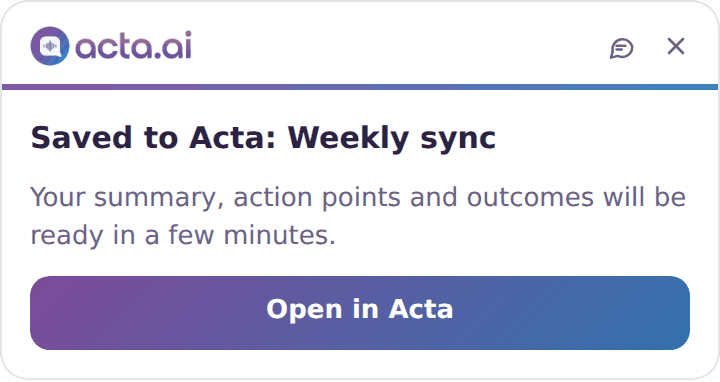
- 5Click Open in Acta. Your summary, action points and outcomes are ready a few minutes later.
What it records
- The screen, the computer's sound (the other people) and your microphone (you), as one recording.
- The recording is uploaded while the meeting runs. If Acta can't be reached, it's kept in Documents/Acta Recordings.
- The meeting is named after the calendar meeting at that time; otherwise after the Teams meeting window, or "Zoom meeting" / "Teams meeting".
Only meetings are recorded
The app records only while a Zoom or Teams meeting is detected. There's no "record now": opened with no meeting, it just says it's waiting for one.
Good to know
- Right-click the tray icon for Open Acta dashboard, Send feedback, Stop and save, auto-record, open at login and log in or out.
- On the free trial the window shows the days left. Once it ends, a detected meeting shows "Your free trial has ended" with Upgrade, and nothing is recorded.
Troubleshooting
The window didn't open for my meeting
It opens for Zoom and Teams meeting windows. Teams chat and the main Teams window aren't meetings, and neither are meetings in a browser: use the Chrome extension for those.
It says it hears me but not the other people
Make sure the meeting plays through your default speaker or headset (Windows: Settings > System > Sound > Output), then check the "Others" bar moves when they talk.
Where's my recording if it couldn't be saved to Acta?
In Documents/Acta Recordings on your computer. The window tells you when this happens.