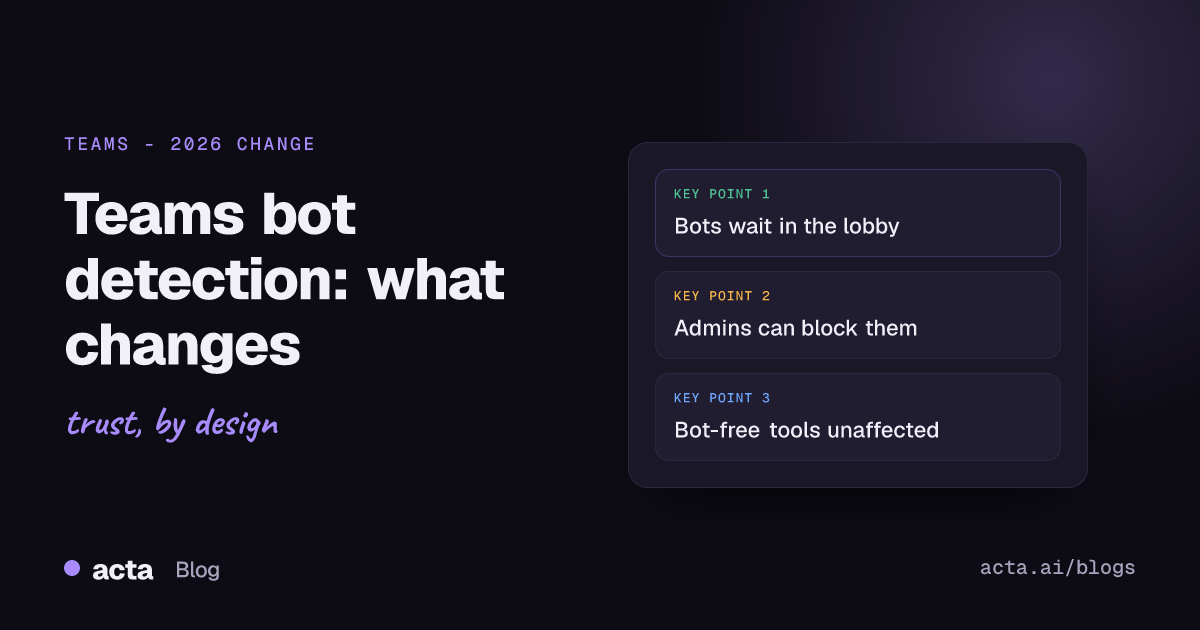
Quick answer: Teams bot detection is a Microsoft Teams feature, switched on by default for tenants as of November 2026, that spots external bots (most third-party AI notetakers among them) when they try to join a meeting. Teams holds them in the lobby with a label, and the organizer decides whether to let them in. Admins can change that behaviour in a meeting policy, including blocking detected bots.
If your notetaker has started sitting in the lobby while everyone else walks straight into the call, this is the reason. Microsoft began rolling out detection for outside meeting bots in mid-2026, and most organizations now have it running whether their admins touched anything or not. Below is what the feature does, what admins can change, and what it means for you, depending on whether you organize meetings, join other companies' meetings, or look after the Teams tenant.
What is Teams bot detection, exactly?
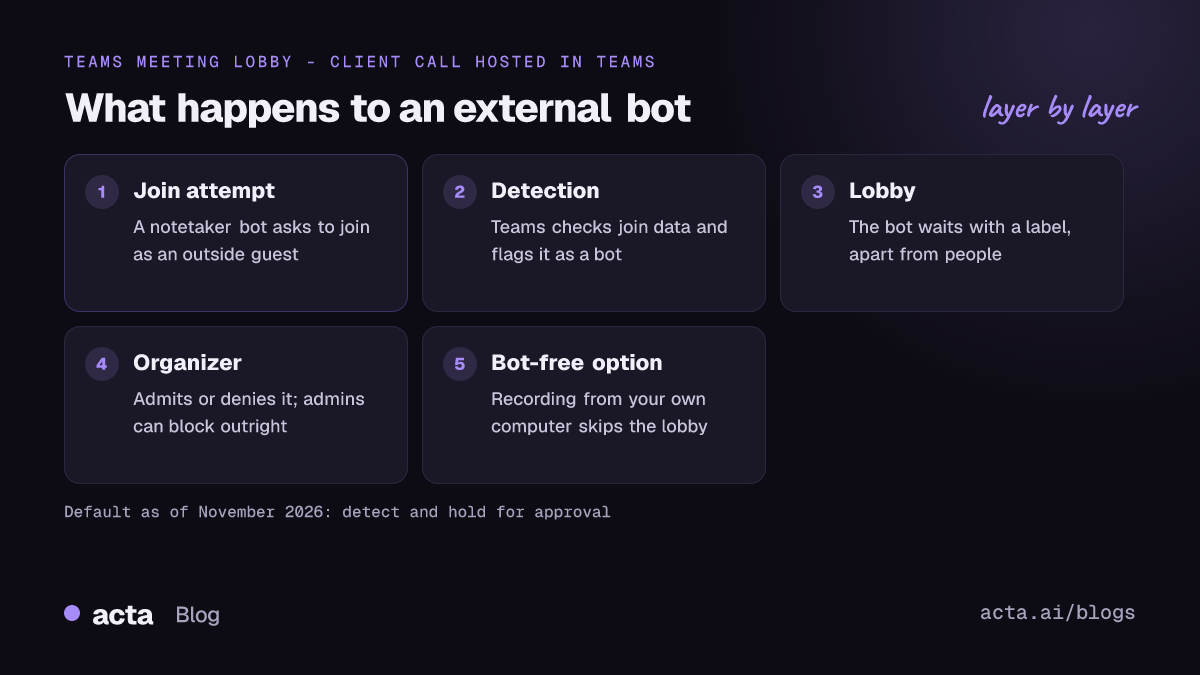
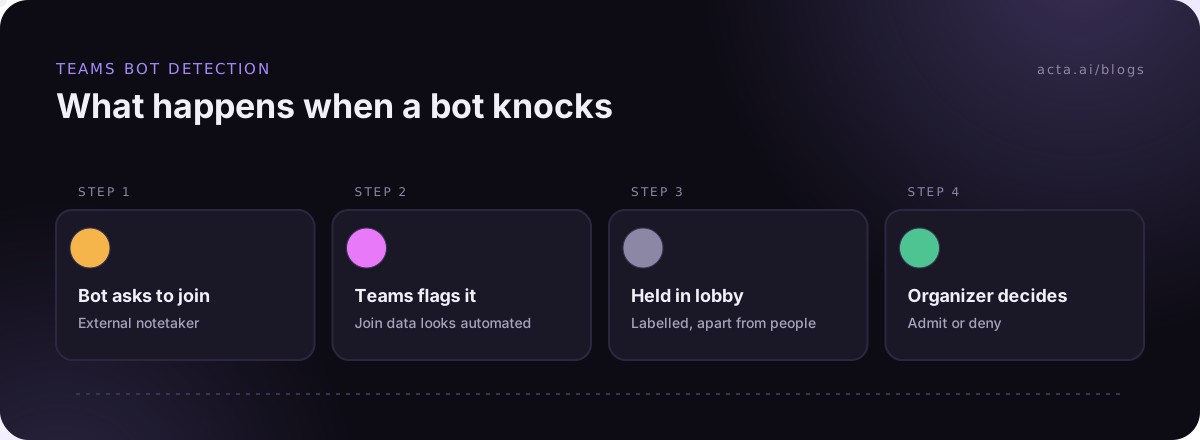
Microsoft announced the change in Message Center post MC1251206, titled "Identify external bots joining your Teams meetings". When someone joins a meeting, Teams looks at the join information. If it concludes the attendee is an automated external bot rather than a person, it flags it and treats it differently from human guests. Microsoft's admin documentation on managing external bots and their access to meetings describes it as a set of controls to detect and manage external bots that try to join meetings hosted in your organization.
The rollout was staged. According to Microsoft's Message Center updates, targeted release started in mid-May 2026, general availability began in June, and the rollout was expected to wrap up by the end of October 2026. So if you haven't seen it yet, check again: as of November 2026 it should be live for most tenants.
The word that matters is "external". The feature is aimed at bots that come in from outside your tenant. Coverage of the announcement says Microsoft 365 Copilot and apps registered in your own Entra ID are out of scope, so Teams' own transcription and Copilot recaps carry on as before. The tools that feel the change are third-party notetakers that join the call as a guest.
How does Teams decide that an attendee is a bot?
Microsoft hasn't published the full detection logic, which makes sense, since a published rulebook is a rulebook to dodge. What we know is that it analyzes join metadata. Many notetakers join without signing in to a Teams account, as an anonymous guest with a name like "Sam's Notetaker". Avoma's help center, for example, explains that its assistant gets flagged as "Unverified" in the lobby because it joins without a Teams sign-in.
Two things follow from that:
- Detection isn't perfect. Some bots will get through. Microsoft says some bots may go undetected, and people can report one that Teams missed through the Feedback option in Teams.
- Vendors can identify themselves. Microsoft runs a Teams Bot Identification Program where bot makers register and mark their join requests. As of November 2026, Microsoft lists it as a public preview that has reached its current capacity for new bot providers. If a vendor tells you they're "approved by Microsoft", ask them what that means in practice. Being identified isn't the same as being let in.
What do organizers see in the meeting lobby?
With the default setting, a detected bot doesn't get into the meeting on its own. It waits in the meeting lobby with a label, listed apart from the people waiting, and someone allowed to admit attendees has to let it in. Microsoft describes the lobby splitting into a "Waiting" group and a "Suspected threats" group. There's no one-click admit for identified bots, and "Admit all" warns you when bots are in the list, so a quick click for your human guests won't quietly sweep the notetaker in with them.
In practice this changes a few small habits:
- If you're the organizer and you expect a colleague's notetaker, keep an eye on the lobby for the first minute. Nobody else may be able to admit it.
- If you don't recognise the bot, don't admit it. Ask in the chat whose it is. In my experience it's usually someone's calendar sending a notetaker automatically, and they've forgotten it's switched on.
- Some admins limit who can admit from the lobby to organizers and co-organizers, so presenters can't wave bots through. If you can't see the admit button, that's probably why.
What can Teams admins change?
The setting lives in the Teams admin center under Meetings, then Meeting policies, in the meeting join and lobby section. In PowerShell it's the ExternalBotAccessMode parameter of Set-CsTeamsMeetingPolicy. The values you'll come across:
- Require approval when detected (RequireApprovalWhenDetected). This is the default. Detected bots wait in the lobby until an organizer or co-organizer admits them.
- Block detected bots (BlockDetectedBots). A newer option, announced in Message Center post MC1459141 in August 2026 (roadmap item 566201). It's off by default. Detected external bots are blocked from joining meetings hosted in your organization.
- Don't detect bots (AllowAllBots). Detection is off, and bots are handled like any other guest under your normal lobby rules.
The value names have shifted between announcements and documentation, so check the Microsoft Learn page before you script anything. And remember whose policy counts: the controls cover meetings hosted in your organization. When you join a client's meeting, their admin's choice applies, not yours. It's one more reason to warn clients ahead of time; our AI notetaker disclosure email templates help.
My take for most companies: leave the default. Blocking everything sounds tidy, but people who rely on notes will find another way to get them, often a less visible one. A clear AI notetaker policy works better than a blanket block. Turning detection off puts you back where you were, with notetakers joining calls that nobody invited them to.
Which AI notetakers does Teams bot detection affect?
Anything that joins the meeting as a participant from outside your organization. That covers the familiar "a bot joins your call" AI notetaker, whichever brand it is. If the tool shows up in the participant list with its own name, assume Teams bot detection will see it.
What it doesn't touch:
- Teams' own recording and transcription. These follow your recording policy, not the bot policy. Our guide on how to record a Teams meeting covers licences and storage.
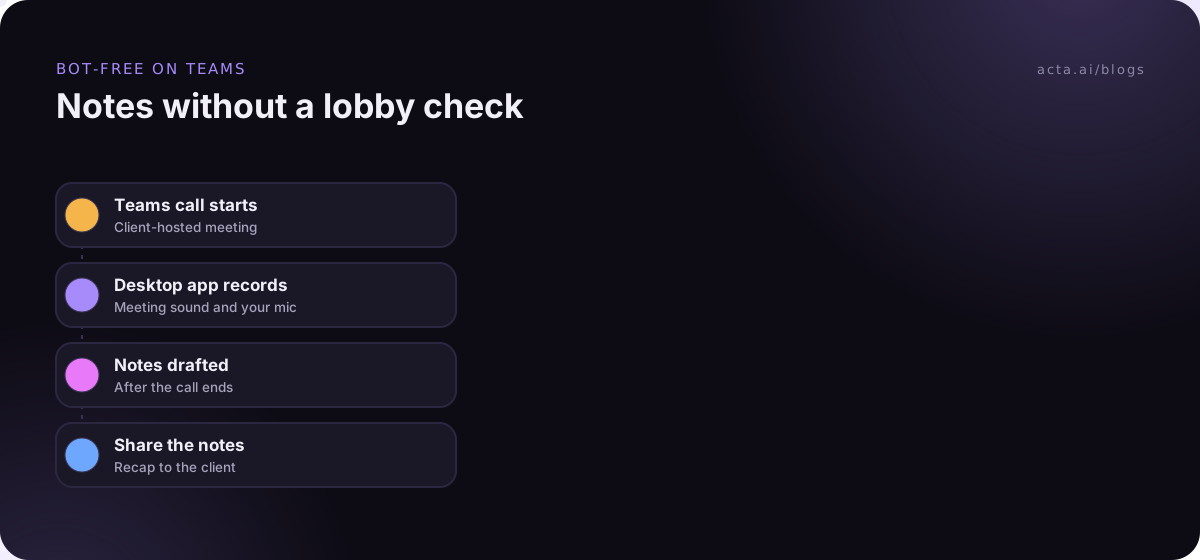
- Bot-free recording from your own device. Desktop apps and browser extensions capture the audio on your computer, so nothing joins the meeting and there's nothing in the lobby to approve. If you're in a lot of client-hosted Teams calls, a desktop recorder like Acta's desktop app records the meeting sound and your microphone from your own machine. We compared the options in meeting bot vs desktop app vs Chrome extension.
Bot-free recording is not a way around the rules, though. The lobby check was one way the other side found out a recording was happening. Without a bot, you're the one who has to tell them. Our post on whether it's legal to record meetings with AI covers consent and what to say.
What should you do as an organizer, a guest or an admin?
If you organize the meeting
Decide before the call whether a notetaker is welcome, and say so in the invite. If a guest wants to bring one, ask them to tell you beforehand, so you know which name to look for in the lobby. When you admit a bot, say out loud that the meeting is being recorded. People who joined late might not know.
If you're a guest in someone else's Teams meeting
Their policy decides, and their organizer is the one who has to click admit. Don't count on it happening mid-call. Send a short note a day ahead: "I'd like to use a notetaker so I can follow up properly. Is that OK with you?" If their company blocks detected bots, you'll learn that from the reply, not from an empty transcript. If they're happy with notes but not a bot, recording from your own device with their agreement is the usual answer.
If you look after the Teams tenant
- Check which ExternalBotAccessMode value your policies use today, including any custom policies for sales or support teams.
- Decide who may admit from the lobby. Organizers and co-organizers only is a sensible default.
- Write down which notetakers are approved, and tell people. A list that lives only in IT's heads gets ignored.
- Tell staff what they'll see. A one-paragraph message saves a lot of "why is my notetaker stuck" tickets.
Is Teams bot detection about privacy or about control?
Honestly, both. Plenty of organizations got tired of notetakers turning up in confidential calls because one attendee had auto-join switched on. We wrote about that in why companies block meeting bots. Detection hands the decision back to the organizer, which is where it belongs.
It doesn't settle consent, though. An admitted bot still records people who might not have agreed, and a bot-free recorder is invisible by design. Neither removes the need to tell everyone. The rule I'd follow: whatever records the meeting, a person says so at the start.
Where Acta fits
Acta can record Teams with a notetaker bot or without one. In a tenant with detection on, any outside notetaker bot may be held in the lobby until the organizer admits it. The Acta desktop app (Windows and Mac) and the Chrome extension record without a bot joining: the desktop app picks up Teams desktop meetings on its own, and the extension covers Teams in the browser, with the same transcript, summary and action items afterwards.
Frequently asked questions
Is Teams bot detection on by default?
Yes. Detection is enabled by default, and the default setting holds detected external bots in the lobby until an organizer admits them. Blocking detected bots outright is a separate option that admins have to turn on.
Does it block Microsoft Copilot or Teams transcription?
No. Coverage of the announcement says Microsoft 365 Copilot and apps registered in your own Entra ID are out of scope. Teams' built-in recording and transcription follow your recording policies instead.
Why can't I admit my notetaker in a client's meeting?
Because their tenant's policy applies and only their organizer or co-organizers may be able to admit. Their admin may also have chosen to block detected bots. Ask the host before the call.
Can I record a Teams meeting without a bot?
Yes. A desktop app or a browser extension records the audio on your own computer, so nothing joins the meeting. Our guide to recording a Teams meeting without a bot walks through it. You still need to tell people you're recording.
Which notetakers work best with Teams now?
It depends on who hosts your meetings. If most are in your own tenant, a bot your admin has approved is fine. If you're mostly a guest, bot-free tools avoid the lobby altogether. Our roundup of AI note takers for Microsoft Teams compares both kinds.
To try bot and bot-free recording side by side on your own Teams calls, Acta has a 15-day free trial on the pricing page.