Quick answer: To search meeting recordings, you need a transcript, because search tools look for words, not sound. Zoom lets you search cloud recordings by keyword if audio transcripts were switched on. Teams recordings in OneDrive and SharePoint can be found by what was said once a transcript exists. Google Meet saves transcripts as Docs in Drive. Anything else needs transcribing first.
Someone asks, "Didn't we agree on the renewal discount back in March?" and you know the answer is sitting in a recording somewhere. The trouble is that "somewhere" might be Zoom's cloud, a colleague's OneDrive, a Drive folder, or an MP4 on your desktop called zoom_0.mp4. This guide is about the practical side: where your old recordings actually are, what each platform lets you search, and how to get the stragglers into one place you can query.
If what you really want is to ask questions across many meetings and get an answer, we covered that in how to ask questions across every meeting you've had. This post is the step before: finding the files and making them searchable at all.
Why can't you search meeting recordings like documents?
A video file has no words in it as far as a search index is concerned. Search in Drive, OneDrive or Zoom's portal matches titles, file names and, if one exists, a transcript. No transcript means you're searching for "Weekly sync (2)" and hoping the title helps.
So the whole job comes down to two questions for each recording: is there a transcript, and is that transcript indexed somewhere you can search? Most people find that the answer is "sometimes", depending on who hosted, which plan they were on, and whether anyone flipped a setting before the call started.
One other thing to keep in mind before you start digging: the recordings belong to the people and teams who were in those meetings. Searching your own calls is fine. If you're pulling colleagues' recordings into a shared archive, check that participants knew they were being recorded and that your company's policy allows it. We wrote up the basics in recording consent and what to tell participants.
How do you search Zoom cloud recordings?
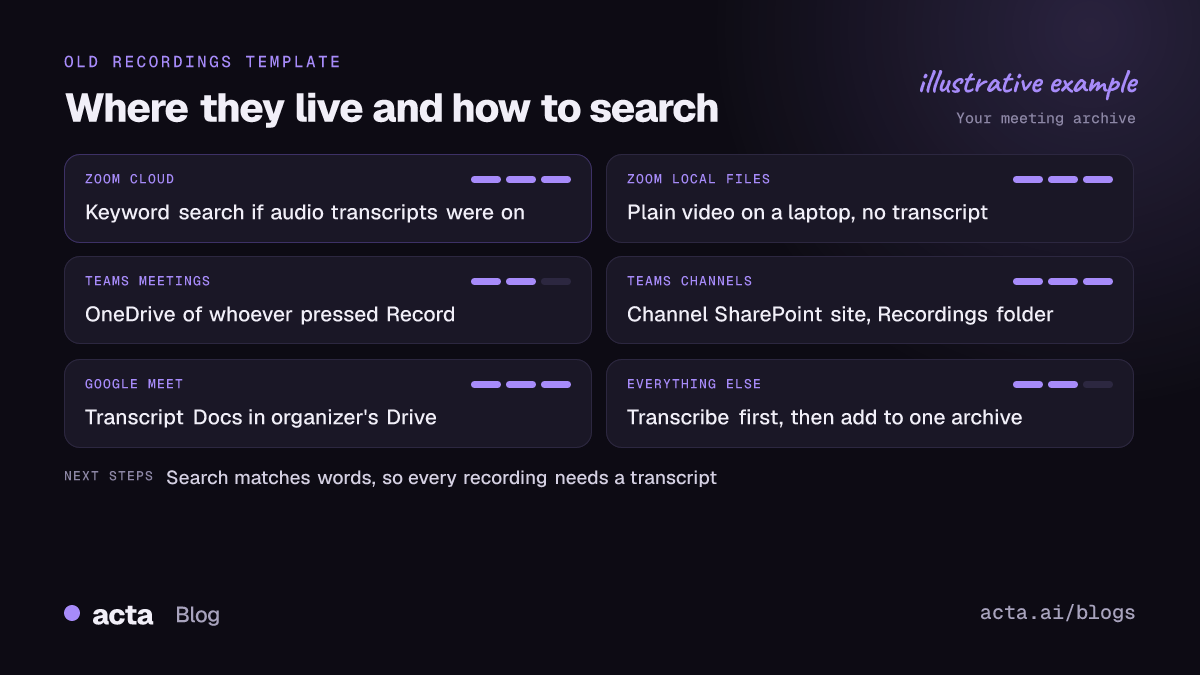
Zoom cloud recordings are the easiest of the three to search, as long as audio transcripts were enabled. In the Zoom web portal, open Recordings, set the date range, and search by keyword. The handier trick is inside the recording itself. As the Brown University IT guide explains, inside a single recording you can type a word into the search box above the Audio Transcript panel, and every instance gets highlighted, so you can jump straight to that moment in the video.
The catches with Zoom
- Transcripts must be on before the meeting. The audio transcript setting has to be enabled by the account holder ahead of time. Meetings recorded before someone turned it on have no transcript to search.
- Local recordings don't count. If the host chose "Record to this computer", the result is a video file on their laptop with no transcript in Zoom's portal. You'll have to ask them for the file.
- Transcripts lag behind the video. The recording usually shows up first and the transcript follows a bit later, so a search right after the call may come back empty.
- Machine transcripts aren't perfect. Product names and surnames get mangled. Search for a nearby common word if the exact term doesn't hit.
Where are Teams meeting recordings, and can you search them?
Teams meeting recordings now live in OneDrive and SharePoint rather than the old Stream. If you're weighing the platforms more broadly, see our Zoom vs Teams vs Google Meet comparison. According to Microsoft Learn, recordings from ordinary meetings and calls go to the OneDrive of the person who clicked Record, while channel meeting recordings go to that channel's SharePoint site. That split explains most "I can't find it" moments: the recording is in the OneDrive of whoever happened to press the button, not the organizer's.
For search, Microsoft added the ability to find a recording by the words spoken in it once a transcript exists. When Microsoft rolled this out in 2021, Office 365 for IT Pros explained that transcript text is copied and indexed against the recording, which can take anywhere from about 15 minutes to a day after the meeting, and that only attendees see those recordings in their results.
A quick routine for Teams
- Open the meeting chat in Teams first. The recording link is usually posted there, which saves guessing whose OneDrive it went to.
- If the chat is long gone, search Microsoft 365 (Office.com or the search bar in OneDrive) for a distinctive word you remember someone saying.
- For channel meetings, open the channel's Files tab and look in the Recordings folder.
- Still nothing? Ask the person who would have pressed Record. It's usually the organizer, but not always.
If transcription wasn't turned on for a meeting, there's nothing for Microsoft Search to match except the title. That's the gap you'll fill later in this guide.
How do you find Google Meet transcripts in Drive?
Google Meet transcripts are saved as Google Docs in the meeting organizer's Drive. As of November 2026, Google's help page says they go into a "Google Meet" folder with a subfolder for each meeting, and the older "Meet Recordings" folder is being renamed "Legacy Meet Recordings" and moved inside it. If you have bookmarks pointing at the old folder, that's why they look wrong.
Because transcripts are ordinary Docs, Drive search reads their text. Type a phrase you remember into Drive's search bar and you'll often land on the right transcript. A few things trip people up:
- Transcripts sit in the organizer's Drive. If you weren't the organizer, you'll find it under "Shared with me" only if it was shared with you.
- Transcripts need an eligible Workspace edition and someone has to start them in the meeting. Personal Gmail meetings often have none.
- Google says transcripts usually appear within a few hours, but it can take up to 24.
Our post on Google Meet recording covers who's allowed to record and where the video goes, which is a separate question from the transcript.
What about recordings with no transcript at all?
This is the pile most teams underestimate. Local Zoom files, phone voice memos from in-person meetings, Webex exports, a few years of Teams calls recorded before anyone thought about transcripts. None of it shows up in search.
My advice: don't try to transcribe everything. Make a short list of what you'd genuinely search for in the next six months. For a sales team that's usually the last year of customer calls. For a product team it's discovery interviews and the meetings where roadmap decisions were made. Transcribe that, and leave the rest archived as plain video.
When you do transcribe, speaker names matter more than people expect. "We'll cover the onboarding cost" means something very different depending on whether your rep or the customer said it. Tools that separate speakers save you from re-listening to check. There's a good explanation of how that works in our piece on speaker diarization.
How do you build a searchable meeting archive?
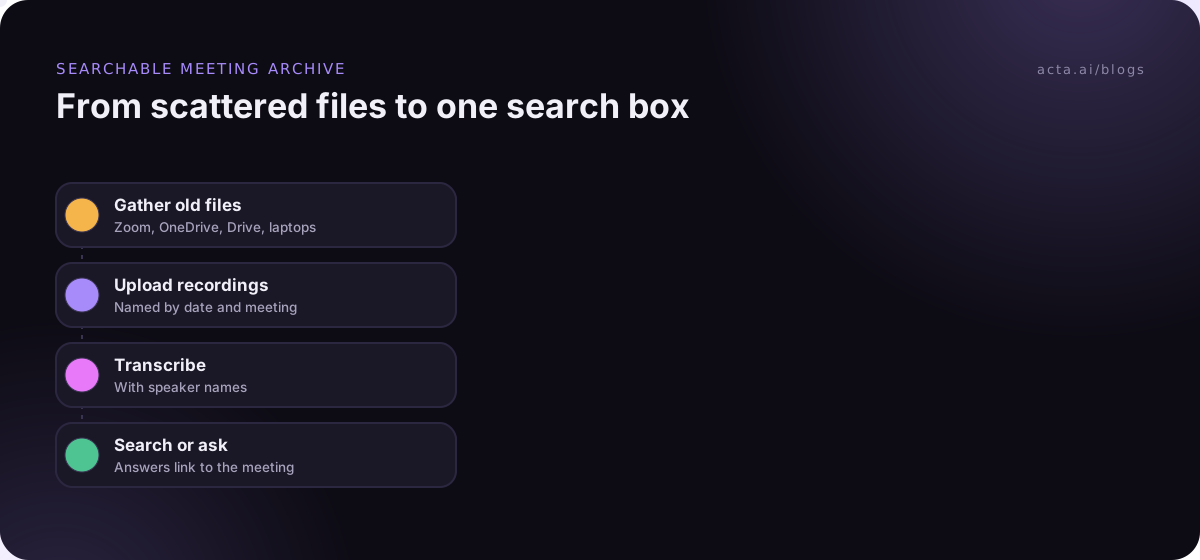
Three places with three different search boxes is the real problem. A searchable meeting archive puts every transcript in one spot with consistent metadata, so a single search covers all of it. Here's the order I'd do it in.
- Collect the files. Download the recordings you care about from Zoom, OneDrive or SharePoint, and Drive. Ask colleagues for local files. Rename them as date plus meeting name, for example 2026-03-14 Acme renewal call.
- Transcribe the ones without transcripts. Use whatever transcription tool your company already approves.
- Keep the link back to the source. Every transcript should point to the original recording, so when search finds a line you can play the exact moment. Once it's searchable, it can grow into a proper meeting knowledge base for the team.
- Tag lightly. Customer or project name, meeting type, and date are enough. Elaborate tagging schemes get abandoned in a month.
- Fix the future, not just the past. Turn on transcripts by default in Zoom, Teams and Meet, or use a recorder that always produces one. Otherwise you'll be doing this cleanup again next year.
Keyword search will get you a long way. Its weak spot is wording: you search "discount" and the customer said "we'd need it 15% cheaper". If that's a regular problem, meaning-based search is the fix, and our guide to semantic search with embeddings shows how that works under the hood if you'd rather build it yourself.
How do you find a meeting recording fast when you only remember one detail?
Most searches start with a scrap of memory, not a date. A few tactics that work when you need to find a meeting recording quickly:
Search the rare word, not the topic
"Pricing" appears in half your calls. "Annual prepay" or a competitor's name appears in three. Pick the most unusual word you remember hearing.
Narrow by people first
If you know the customer or the colleague who was there, filter by their name or calendar invites before searching text. Your calendar is a decent index of who met when.
Check the follow-up email
The recap email or chat message after the meeting is often easier to find than the recording and usually links to it.
Search for the decision, then confirm in the recording
Notes and summaries are shorter and quicker to scan. Use them to find the right meeting, then play the transcript section to confirm the exact wording before you quote it to anyone.
How do you stop this from happening again?
If you want to search meeting recordings next year without this kind of dig, the cheapest fix is to make sure every meeting you might care about produces a transcript, in a place you control. A few habits that help:
- Set transcription on by default in your meeting platform admin settings, so it doesn't depend on someone remembering.
- Agree on one home for meeting notes and recordings per team, not per person.
- For calls on platforms that don't transcribe well, or where meeting bots aren't allowed, record from your own machine. A desktop recorder like Acta's desktop app captures the meeting's sound and your microphone without joining the call, and the Chrome extension does the same for Google Meet, Microsoft Teams in the browser and the Zoom web client.
- Tell people the call is recorded, every time. It's courteous, and in many places it's a legal requirement.
Where Acta fits
Acta can take uploaded recordings as well as new meetings, so your back catalog of old calls gets transcripts with speaker names alongside everything recorded from now on. OneChat then answers questions across those meetings and shows which meeting each answer came from, so you can check the source. It's one option among several; if your old calls already have transcripts in Zoom, Teams or Drive, start there.
Frequently asked questions
Can I search inside a Zoom recording without downloading it?
Yes, if it's a cloud recording with an audio transcript. Open it in the Zoom web portal and use the search box above the transcript panel. Local recordings have to be downloaded and transcribed separately.
Why can't I find a Teams recording I was in?
It's most likely in the OneDrive of whoever clicked Record, or in a channel's SharePoint site for channel meetings. Check the meeting chat for the link first. If the meeting had no transcript, search will only match its title.
Where did my Google Meet transcripts go?
As of November 2026, Google saves them in the organizer's Drive in a "Google Meet" folder, with the old "Meet Recordings" folder renamed "Legacy Meet Recordings" inside it. Search Drive for a phrase from the meeting or for the word "transcript".
Is it worth transcribing years of old recordings?
Usually not all of them. Transcribe what you'll realistically search, such as the last year of customer calls or key decision meetings, and leave the rest as archived video.
What's the difference between searching transcripts and asking questions across meetings?
Search finds where a word was said. Question answering reads the relevant parts of many meetings and writes an answer, ideally with links back to the source so you can verify it.
If you'd like your old and new meetings searchable in one place, you can try Acta with a 15-day free trial.