Quick answer: To record a webinar as an attendee, first ask the organizer for the replay, since most hosts record anyway. If you need your own copy, check the event's terms, then use a recorder on your computer that captures the webinar's sound, because webinar platforms usually don't give attendees a record button. Keep it for personal notes and don't republish it.
You've registered for a 90-minute webinar, it clashes with something, or you just want notes you can search later. The record button you'd use in a normal meeting isn't there. That's by design: webinar platforms treat attendees as an audience, not participants, and recording rights belong to the host.
So the question is less "how do I hit record" and more "which of the routes available to an attendee fits here". Here they are, in the order I'd try them.
Can attendees record a webinar at all?
Not with the platform's own tools, in most cases. On Zoom Webinars, for example, the University of Minnesota's IT guide to recording a Zoom meeting or webinar says attendees can't record unless the host makes them a panelist. Most hosts won't do that for an audience member, because panelists can talk and share their screen.
Microsoft Teams town halls work the same way: the organizer controls the recording and decides if and when attendees can see it. Platforms built only for webinars generally follow the same model, with recording handled by the organizer.
That leaves you three practical options:
- Get the host's recording.
- Record the audio yourself from your own computer.
- Take notes live and skip the recording.
Should you ask for the webinar replay first?
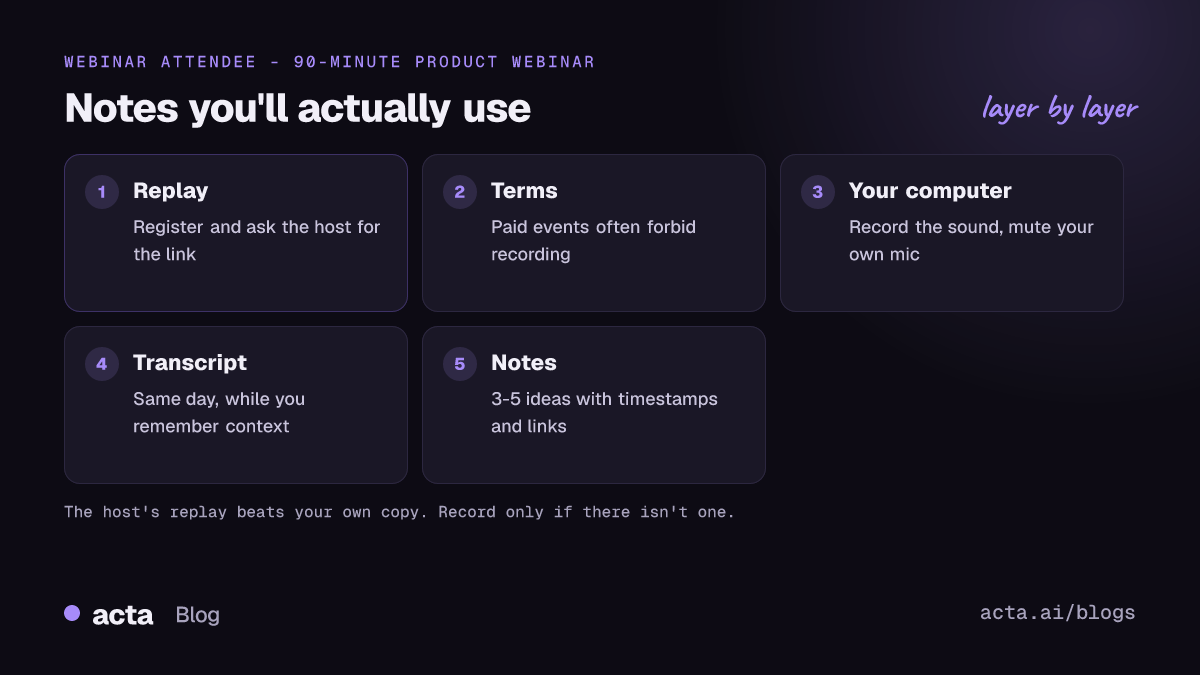
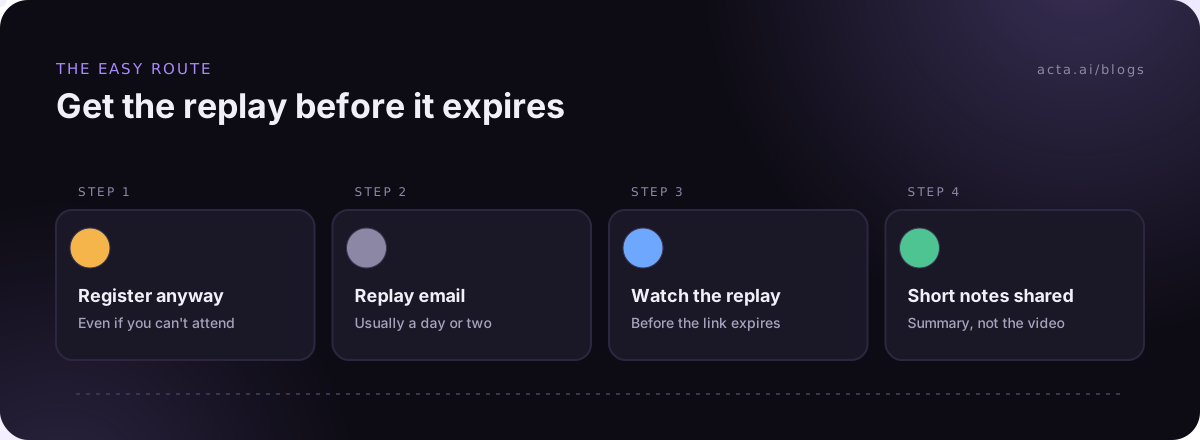
Yes, nearly always. Most organizers record their webinars and send a replay link to everyone who registered, often within a day or two. It's better quality than anything you'll capture, includes the slides, and you don't have to worry about permission.
A few things to know about replays:
- They can expire. Microsoft's support page on managing town hall recordings in Teams says that by default most event recordings expire after 30 days unless the organizer extends them, and attendees get an email once the organizer publishes the recording. If you want the content long-term, watch it or take notes before then.
- Registering matters. Replays usually go to the registration email, so register even if you know you'll miss the live session.
- Ask directly. If no link arrives, reply to the confirmation email and ask. Hosts get this question all the time.
If the replay is coming, the only thing left is turning it into notes, which I cover further down.
Is it legal to record a webinar you're attending?
This is general information, not legal advice. Two separate questions apply.
Consent and recording laws. Some places require everyone in a conversation to agree to being recorded. A one-to-many broadcast where you're a silent viewer is a different situation from a two-way call, but if the webinar has open Q&A, breakout sessions or attendees talking, other people's voices are in your recording. Our guide on recording meetings with AI, consent and what to tell participants goes through the rules.
The event's terms and copyright. Paid training, conferences and courses often say in their terms that recording isn't allowed. The presenter's slides and talk are their work. Recording for your own notes and never sharing it is a very different thing from posting it to YouTube or passing it round your team as a replacement for buying seats.
My rule: if the terms say no, don't. If they're silent, record only for personal notes, and ask the organizer if you want to share anything.
How do you record a webinar from your own computer?
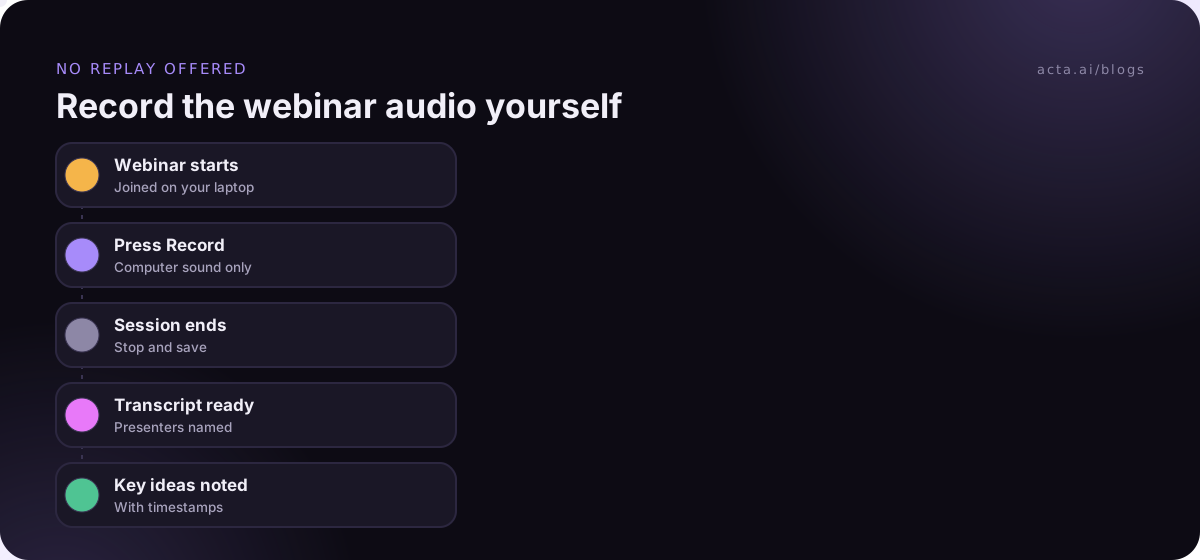
If you've checked the terms and you need your own copy, record the audio on your computer. You don't usually need video: a webinar's value is mostly in what's said, and the slides often get sent afterwards. Audio files are smaller and transcribe just as well.
- Join on a computer, not your phone. Desktop recorders capture what your computer plays.
- Close other sound sources. Mute notifications, pause music and close other tabs that might play audio, or they'll end up in the recording.
- Mute your microphone if you won't be asking questions, so your keyboard and coffee mug stay out of it.
- Start recording a minute before the start time so you don't miss the opening.
- Check the levels once the presenter starts talking. A recording of silence is a common, painful mistake.
- Stop and save when the host ends the session, and name the file with the date and event title straight away.
A desktop recorder like Acta's desktop app works for this: open it and press Record, and it captures everything you hear through the computer plus your microphone, without joining the event as a participant. It records sound only, never your screen. The desktop app guide covers setup on Windows and Mac. For more on capturing calls from different apps this way, see record any call on your computer.
What if you want the slides too?
Ask for them. Many presenters share the deck after the session on request, and a PDF of the slides plus your audio transcript is a better reference than a screen recording you'll never scrub through. If you really need video, a screen recorder will do it, but the files get large quickly and you're more likely to run into the terms issue above.
What about webinars hosted in Zoom or Teams as regular meetings?
Plenty of "webinars" are actually normal meetings with a big invite list. In that case you're a participant, and the usual meeting rules apply: the host may allow participants to record, or you can ask. Our guide on recording a meeting when you're not the host covers Zoom, Teams and Google Meet, and how to record a Zoom meeting goes through Zoom's own options.
The quick way to tell: if you can see the other attendees' names and unmute yourself, it's probably a meeting. If you only see the presenters and a Q&A box, it's a webinar.
How do you turn a webinar recording into useful notes?
A 90-minute recording you never open is worth nothing. Good webinar notes come from getting it into text the same day, while you still remember which parts mattered. If you take them by hand, our comparison of note-taking methods like Cornell and outline helps you pick a format.
- Transcribe it. If you recorded with a tool that transcribes, that's done. If not, the steps in how to transcribe a YouTube video or podcast work for any audio file. Otherwise upload the audio file to a transcription tool.
- Write down why you attended. "Find out how they price usage-based plans" makes the summary far more focused than "summarize this webinar".
- Pull out the three to five ideas you'll use, with the timestamp for each, so you can go back to the exact explanation.
- Note any links, tools or books the presenter mentioned. These are easy to miss and useful later.
- Share a short summary with colleagues who'd benefit, instead of the recording itself.
One mistake to avoid: treating the AI summary as the final word. Presenters often hedge ("this worked for us, but..."), and summaries can flatten that into a firm claim. Check the timestamps for anything you plan to act on.
What goes wrong when people record a webinar themselves?
The same handful of things, over and over:
- The recording has your side, not theirs. A phone voice memo next to the laptop picks up your typing louder than the speaker. Capture the computer's sound instead.
- Headphones unplugged halfway. Audio switches to the laptop speakers, the levels jump and notifications start dinging into the file. Pick your output before you start.
- The laptop went to sleep. On a long session with the lid half closed, check your power settings first.
- Nobody looks at it again. If you don't block 15 minutes after the session to turn it into notes, it's just a large file in your downloads folder.
Do you need to record a webinar at all?
Honestly, often not. If the host sends replays, recording it yourself is duplicate work. If the content is generic, the slides plus five lines of notes may be enough. Where your own recording earns its keep is with sessions that won't have a replay (live panels, partner briefings, some internal all-hands) and ones you'll want to search later alongside your other meetings.
And if you're the one attending dozens of these a year, it's worth having a consistent place where the notes end up, so "that webinar about onboarding metrics from spring" can actually be found.
Where Acta fits
Acta records from your own computer with the desktop app, or you can upload a replay file you've downloaded (the upload guide shows how). Either way you get a transcript with speaker names and a summary, and OneChat can answer questions across all your recordings with links back to the source. It doesn't change what the event's terms allow, so check those first.
Frequently asked questions
Can the host see if I record a webinar?
A recorder running on your own computer doesn't join the webinar, so it doesn't show up in the attendee list. That doesn't change what the event's terms allow.
Why can't I find the record button in a Zoom webinar?
Attendees in Zoom Webinars can't record with Zoom unless the host makes them a panelist. Ask the host for the replay instead.
How long do webinar replays stay available?
It depends on the organizer and platform. In Teams, most event recordings expire after 30 days by default unless the organizer extends them.
Should I record webinar audio or video?
Audio is enough for most webinars. Ask the presenter for the slides and pair them with your transcript.
Can I share my webinar recording with my team?
Only if the organizer agrees. Share your written summary instead, and point colleagues to the official replay.
If you want to record a webinar and get notes from it without a bot joining, you can try Acta free for 15 days.