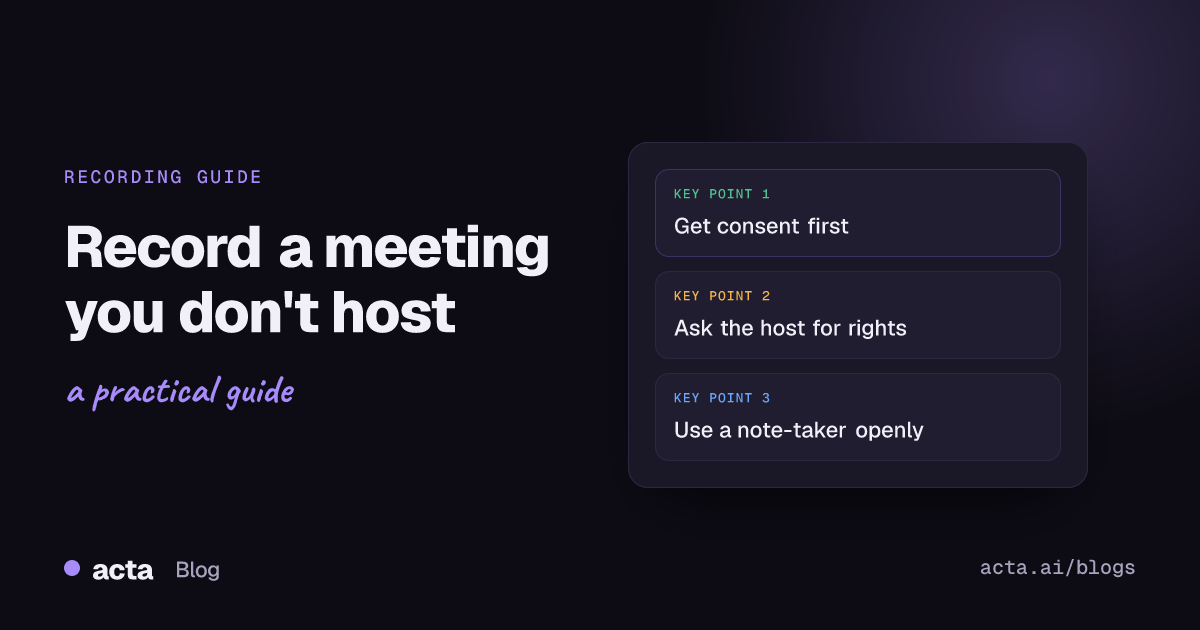
Quick answer: To record a Zoom, Teams or Google Meet call when you are not the host, first make sure everyone knows and agrees, then ask the host for recording rights: Zoom hosts can click Allow Record, Teams organizers can make you a presenter, and Meet hosts can make you a co-host. If built-in recording stays off, use an AI note-taker the host admits, or a bot-free desktop app or Chrome extension, and say so openly.
You joined a client call, a vendor demo or a partner's weekly sync, and you want a record of it. The problem is that the recording button belongs to someone else. On all three major platforms, the host or organizer (and the company's IT admin) decides who can record.
This guide covers the honest way to get a recording when you are a participant: what the law expects, what each platform lets you do, how to ask the host, and what to use when built-in recording isn't an option. It does not cover hiding a recording from the people in it. That is a bad idea in every case and illegal in many places.
Do you need permission to record a meeting you don't host?
You need two different kinds of permission, and people often mix them up:
- Legal consent from the people being recorded, which depends on where they are.
- Platform permission from the host, which decides whether the record button works for you.
Getting the second does not give you the first. A host who clicks "Allow Record" has not agreed on behalf of everyone else in the call.
One-party vs all-party consent
In the United States, the federal wiretap law (18 U.S.C. section 2511) allows a person who is a party to a conversation to record it, or to record with the prior consent of one party, unless the purpose is criminal or tortious. That is called one-party consent. Many states follow the same rule, but a smaller group requires every party to agree. Justia's 50-state survey of recording laws lists each state's rule and notes that when a call crosses state lines, it may be wise to follow the strictest law that applies.
Online meetings cross state and national borders all the time. A team call with one person in California and another in Germany is not governed by your home state's rule alone. The practical answer is the same everywhere: tell everyone, get their agreement, and keep proof that you did.
What to say to participants
- Say it at the start, before anything substantive: "I'd like to record this so I can take accurate notes. Is everyone OK with that?"
- Put it in the invite or the chat as well, so people who join late see it.
- Say what you will do with it: notes and action items for you, not a public post.
- If anyone objects, don't record. Take notes by hand instead.
For a fuller walk-through of consent, privacy and the wording to use, read our guide Is it legal to record meetings with AI? Consent, privacy and what to tell participants. This article is general information, not legal advice; check with a lawyer if you record regulated or sensitive conversations.
What are your options when you're not the host?
Once consent is sorted, work through these options in order. Start with the simplest and only move down the list when the step above it isn't available.
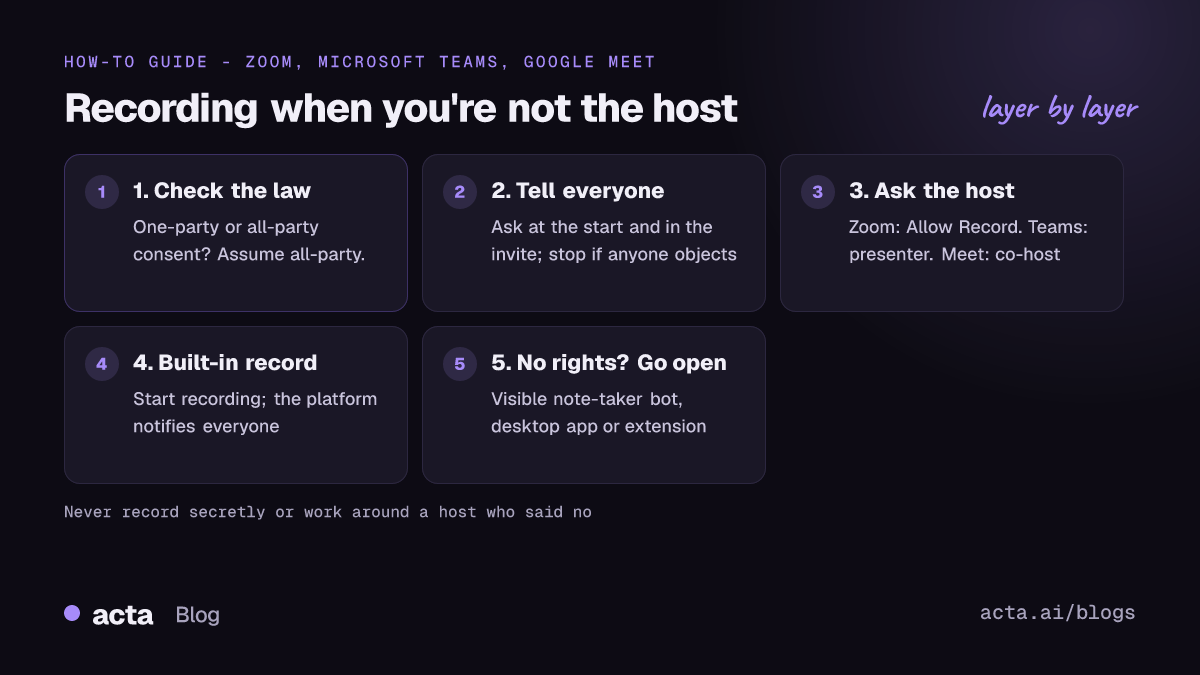
- Ask the host for built-in recording rights. Free, official, and everyone gets the platform's own recording notice.
- Ask the host to record and share the file. Useful when your account isn't allowed to record at all, for example as a guest.
- Use an AI note-taker bot. It joins as a visible participant, so the host can see it and admit or remove it.
- Use a bot-free desktop app or Chrome extension. It records the meeting audio on your own computer. You still tell everyone.
- Use a phone app for the in-person part of a hybrid meeting, again with everyone's agreement.
How do you record a Zoom meeting when you're not the host?
Zoom's default is that only the host can start a recording. A participant needs the host to grant recording rights, or to be made an alternative host. Zoom calls the participant version "computer recording" (also known as local recording): it saves the meeting audio and video to your computer rather than to the cloud. According to Zoom's support article on starting a computer recording, it works in the Zoom desktop app; it is not supported on iOS, iPad or Android devices.
Steps to ask the host for recording permission in Zoom
- Open the meeting in the Zoom desktop app on Windows or Mac, not the web client or your phone.
- Say in the meeting or chat that you would like to record for notes, and ask whether everyone agrees.
- Click Record in your meeting controls. If the option is shown, choose Request to record to this computer; this sends the host a request.
- The host approves the request, or opens Participants, clicks More next to your name and picks Allow Record. You get a notification once you have recording rights.
- Click Record again to start. A recording icon appears next to your name so others can see you are recording.
If you don't see a request option, the host's or the account admin's settings probably don't allow participant recording. The host can still change that for their own meetings in the Zoom web settings, under the Recording tab, or simply make you an alternative host. The host can also take the rights back at any time with Forbid Record.
Zoom also shows its own consent notice: people who join a meeting that is already being recorded, or where recording starts, are asked to consent. That notice helps, but it does not replace telling people why you are recording.
If you want notes without asking for rights each time, see how to record a Zoom meeting without a bot.
How do you record a Microsoft Teams meeting when you're not the organizer?
Teams has stricter rules than Zoom. Microsoft's help page on recording a meeting in Teams says only one person can record a meeting at a time, and everyone is notified when recording starts. To start a recording in a work or school meeting you generally need to:
- be in the same organization as the organizer (guests and people from other companies can't start a recording),
- have an eligible license with recording turned on by your IT admin, and
- have a meeting role that allows recording. Attendees, even from the same company, usually can't record unless the organizer makes them a presenter.
With Teams Premium or a Copilot license, organizers can also choose who may record: organizers and co-organizers only, those plus presenters, or no one. Recordings are saved to the organizer's OneDrive, so the organizer controls who the file is shared with.
Steps to record a Teams meeting as a participant
- Before the meeting, message the organizer: ask to record, explain why, and ask them to make you a presenter or co-organizer.
- At the start of the call, tell everyone you'd like to record and wait for agreement.
- In the meeting controls, select More actions, then Record and transcribe, then Start recording. Teams notifies everyone.
- If the option is grey or missing, you're probably a guest, an attendee, or recording is off in the meeting options. Ask the organizer to record and share the file with you instead.
When you are an outside guest on a customer's Teams call, built-in recording is normally closed to you. That's the most common reason people look for other options; our page on recording a Teams meeting without a bot covers them.
How do you record a Google Meet call when you're not the host?
Google's help page on recording a video meeting sets out the rules:
- A Google Workspace admin has to turn on recording for the account, and recording isn't available on every edition.
- You can only record if the host also has permission to record.
- If Host Management is off, people in the host's organization can record. If it's on, only the host and co-hosts can.
- People from outside the host's organization have to be made co-hosts to record.
- Recording works on a computer or an Android device. Participants are told when recording starts and stops, and the file is saved to the organizer's Google Drive.
Steps to record a Google Meet call as a participant
- Ask the host, before or at the start of the call, to make you a co-host and let them know why.
- Tell everyone in the call you'd like to record and wait for agreement.
- On a computer, use the recording control in the meeting toolbar to start recording.
- If the option doesn't appear, the host's account may not allow recording at all. Ask the host to record and share the Drive file, or use one of the options below.
Note that the recording goes to the organizer's Drive, not yours, so even when a co-host presses record, the host controls the file. For notes without a bot or a co-host role, see Google Meet AI notes without a bot.
Can you use an AI note-taker if you're not the host?
Yes, with two conditions. Everyone must know, and the host keeps control. A meeting bot joins the call as a named participant, for example "Acta Notetaker", so it is visible in the participant list. That visibility is a feature, not a flaw: nobody is recorded without seeing it.
What to expect as a non-host:
- The bot may land in the waiting room or lobby, and the host has to admit it.
- Some companies block outside bots, and some hosts remove them. If that happens, respect it.
- On platforms where recording needs host permission, the host may have to approve the bot as well.
With Acta, the bot joins Zoom, Google Meet and Microsoft Teams meetings from your calendar. After the call you get a transcript with speakers, a summary, action items with owners and due dates, and a log of decisions. A short line in the invite ("Acta will join to take notes") saves surprises.
How do you record a meeting without a bot joining?
Sometimes a bot isn't welcome, or the host's settings keep it out, but everyone is happy for you to take notes. A bot-free recorder captures the meeting audio on your own device, so it doesn't need a seat in the call or the host's recording settings. It does still need everyone's agreement. No bot in the participant list means you have to be more careful to tell people, not less.
Desktop app for Zoom and Teams
The Acta desktop app for Windows and Mac records the computer's sound and your microphone. It does not record your screen. It is built to start with Zoom and Teams meetings, and it works whether or not you are the host.
- Install the desktop app and sign in.
- Join the meeting as normal and tell everyone you are taking AI notes.
- Start recording in Acta once people agree.
- Stop when the call ends. The transcript, summary and action items appear in Acta.
Chrome extension for browser meetings
If you join Google Meet or other calls in the browser, the Acta Chrome extension records the meeting without a bot. The same rule applies: announce it at the start and stop if anyone objects.
Phone app for in-person and hybrid meetings
For the people around a meeting-room table, the Acta mobile app records the conversation in the room. Put the phone in plain view and say what it's for. You can also upload an existing recording, such as one the host shares after the call, and Acta will turn it into notes.
For a comparison of other bot-free tools, see our roundup of the best AI notetakers without a bot.
What should you never do?
- Don't record secretly. Even where one-party consent applies to you, the other people may be in all-party states or countries, and secret recordings damage trust.
- Don't work around a host who said no. If the host or a participant declines, a bot-free tool is not a loophole. Take notes by hand.
- Don't share the recording beyond what you told people. If you said "for my notes", don't forward the file to a wider list.
- Don't ignore company policy. Your employer, or the host's, may have rules on recording and on which AI tools are approved.
- Don't keep it forever. Delete recordings you no longer need, and keep the notes instead.
Frequently asked questions
Can I record a Zoom meeting without the host's permission?
Not with Zoom's own recording. By default only the host can record, and participants need the host to grant recording rights or make them an alternative host. A bot-free app can capture the audio on your computer, but you still need everyone's consent where the law requires it.
Why can't I record a Teams meeting?
The usual reasons are that you're a guest or from another organization, you're an attendee rather than a presenter, your license or IT policy doesn't allow recording, or the organizer limited recording in meeting options. Ask the organizer to change your role or to record and share the file.
Who can record in Google Meet?
The host, co-hosts and, when Host Management is off, people in the host's organization, as long as the host's account has recording turned on by an admin. Outside guests need to be made co-hosts.
Does everyone get notified when I record?
With built-in recording on Zoom, Teams and Google Meet, participants are notified. A bot-free app on your computer doesn't trigger that notice, which is why you need to tell people yourself.
Is it legal to record a meeting I'm part of?
It depends on where everyone is. Some places allow one party to consent, others require all parties. The safe approach is to tell everyone and get agreement every time.
If you need clear notes from meetings you don't host, you can try Acta free for 15 days.