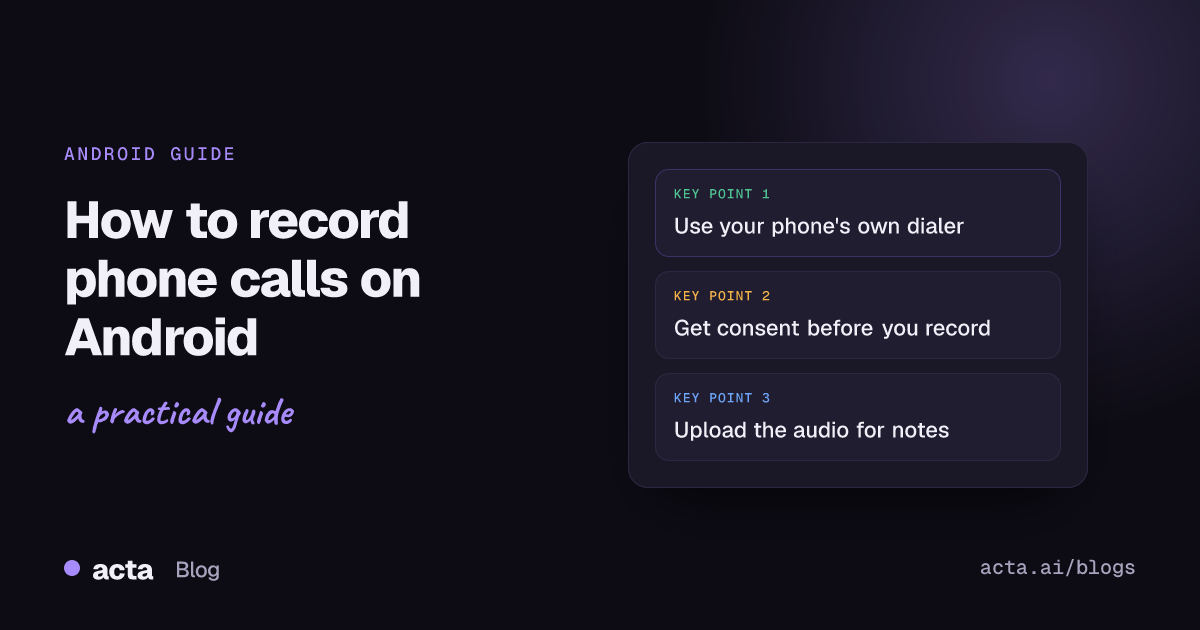
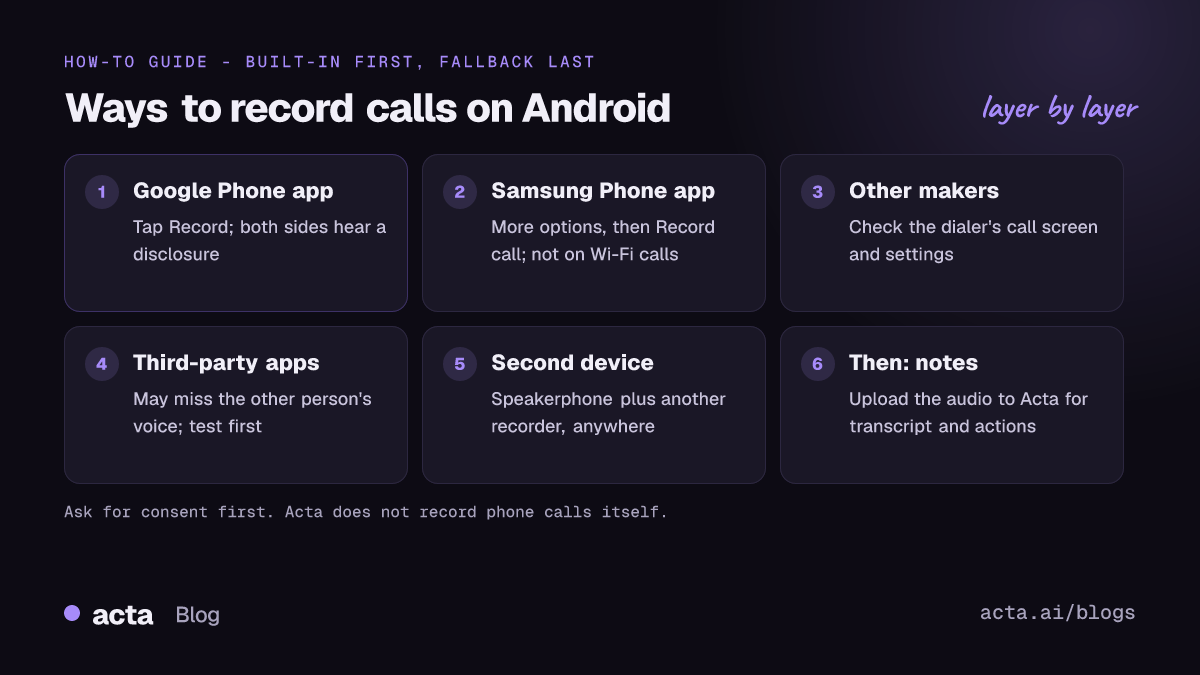
Quick answer: To record phone calls on Android, use the recorder built into your phone's own dialer. In the Google Phone app, tap Record (or Call Assist, then Call Recording on a Pixel) during a call; both sides hear a disclosure. On a Samsung Galaxy, tap More options, then Record call. Availability depends on your phone, carrier and country, and you need consent where the law requires it.
Android has no single, universal call recorder. Whether you can record a call depends on which Phone app your device uses, which Android version it runs, your carrier and the country you're in. This guide covers the built-in options from Google and Samsung, what to do if your phone doesn't offer recording, where the files end up, and how to turn a recorded call into notes you can actually use.
One thing up front: Acta, the AI meeting notes app we make, does not record phone calls. If you want a transcript, summary and action items from a call, the honest route is to record it with your phone's own feature (where that's legal and available), then upload the audio file to Acta. More on that below.
Can you record phone calls on Android?
Usually, yes, but only through the dialer that came with your phone. Google's help page for the Phone app says only certain devices and carriers support call recording. For the Google Phone app, it lists these requirements:
- Non-Pixel phones: Android 9 or later.
- Pixel phones: Pixel 6 or later, running Android 14 or later.
- The latest version of the Phone app.
Samsung Galaxy phones have their own recorder in the Samsung Phone app. Other makers ship their own dialers, and each decides whether to include recording. If your phone's call screen has no record option at all, the feature is either not supported on your model or not offered in your country.
How to record phone calls on Android with the Google Phone app
Google's Phone app help page on recording calls describes three ways to use call recording on Android with the Google dialer: record a single call, always record calls from numbers not in your contacts, or always record calls from selected contacts.
Record one call
- Start or answer the call.
- On most phones, tap Record on the ongoing call screen. On a Pixel, tap Call Assist, then Call Recording.
- To finish, tap Stop recording (on a Pixel, Call Assist, then Stop), or hang up.
Record calls automatically
- Open the Phone app and tap More options, then Settings, then Call recording.
- Turn on recording for numbers not in your contacts, or choose specific contacts whose calls should always be recorded.
Limits in the Google Phone app
According to Google, you can't record a call before it's answered, while it's on hold, or when you set up a conference call.
The announcement the other person hears
Google Phone app call recording is not silent. Google says both parties are notified with a disclosure when you start recording, and again when recording stops. Treat it as the start of getting consent, not a substitute for it. Google's page also notes that many jurisdictions require consent from all parties, and that following the law is your responsibility.
How do you record calls on a Samsung Galaxy phone?
Samsung call recording lives in the Samsung Phone app. Samsung's guide to the call recording feature on Galaxy phones describes both manual and automatic recording.
Record one call
- During the call, tap the three dots (More options).
- Tap Record call.
Record calls automatically
- Open the Phone app, tap the three dots, then Settings.
- Tap Record calls and turn on auto recording.
- Choose whether it applies to all calls, unsaved numbers, or specific numbers.
Samsung limits to know
- Samsung says call recording does not work over Wi-Fi calling.
- Menu names can differ by One UI version and region.
- The Samsung support pages we found don't describe an automatic announcement to the other person, so don't assume they are told. Tell them yourself.
What about other Android phones?
Phones from other makers use their own dialer apps, and recording support varies by model, software version and country. Some ship with the Google Phone app as the default dialer, in which case the Google steps above apply. Others have their own recorder in the in-call menu. The quickest check is to place a test call to a friend (with their agreement) and look at every button on the call screen and in the dialer's settings.
Why can't I record calls on my Android phone?
If the option is missing, the usual reasons are:
- Your country. Device makers switch recording off where local rules make it a problem. Google says its feature is limited by device and carrier, and Samsung's own help warns call recording may not be supported in every country.
- Your device or software. On the Google Phone app, Pixels before the Pixel 6, Pixels on an Android version earlier than 14, and other phones below Android 9 are not supported.
- An outdated Phone app. Update the dialer from the Play Store.
- The call type. Samsung's recorder doesn't work on Wi-Fi calls; Google's can't record held or conference calls.
Do third-party call recorder apps work?
Often not well. A call recorder app from the Play Store is not your phone's default dialer, and Android limits what such apps can capture from a call. Samsung's support page on recording and sharing voice recordings on Galaxy phones says calls recorded with the Samsung Phone app capture both sides, but with downloaded third-party apps the other party's voice may not be recorded.
So before you rely on a third-party recorder for anything important:
- Make a test call and check you can hear the other person in the file.
- Read what permissions the app asks for and where it stores or uploads your recordings.
- Check that it tells the other person, or plan to tell them yourself.
The fallback: speakerphone and a second device
If your phone simply has no recorder, there's a low-tech option that works anywhere: put the call on speaker and record it with a second device, such as another phone's voice recorder app or a laptop. A few tips:
- Use a quiet room and put the recording device close to the phone's speaker.
- Turn the call volume up, but not so far that it distorts.
- Say at the start that you're recording, so the consent is on the recording too.
The quality won't match a built-in recorder, but it is usually good enough for a transcript. Our guide on how to record a conversation has more tips on getting clean audio.
Where are call recordings saved on Android?
Google Phone app. Google says recordings are stored on your device and are not saved or backed up off the device. To play one, open the Phone app, select the caller (recent calls on the home screen, older ones in history) and tap Play. Google's Pixel help explains how to save and share recordings and transcripts, including sharing a recording to email or messaging apps. Be careful with your call log: Google says deleting a call log also deletes its recording.
Samsung Phone app. In the Phone app, go to Settings, then Record calls, then Recorded calls. Samsung says you can share the files with Quick Share, Messages, email, Bluetooth and more.
Because the recordings live only on the phone, copy anything you need to keep somewhere safe.
Is it legal to record phone calls on Android?
It depends on where you and the other person are, not on the phone. This is general information, not legal advice.
- In the US, federal law allows recording a call with the consent of at least one party, according to the Reporters Committee for Freedom of the Press Reporter's Recording Guide. The same guide notes that about 11 states primarily require the consent of all parties, so state law can be stricter.
- If the people on the call are in different places, the safe approach is to follow the strictest rule that could apply.
- Outside the US, rules differ again, and some countries restrict call recording enough that phone makers disable it.
The simplest habit is to ask at the start of every call: "Is it OK if I record this so I can take notes?" and only record if they say yes. Our explainer is it illegal to record a conversation? covers one-party and all-party consent in more detail, and our guide to consent, privacy and what to tell participants when recording meetings covers workplace recording.
How to get a transcript and notes from a recorded call
A recording on its own is hard to use: nobody wants to scrub through 40 minutes of audio to find the price someone quoted. Here's the workflow we suggest:
- Record the call with your phone's built-in recorder, with the other person's consent.
- Share or copy the audio file off the phone (see the sharing steps above).
- Upload the file to Acta.
Again, Acta does not record phone calls itself. Once you upload the audio, Acta produces a transcript with speakers, a summary, action items with owners and due dates, and a decisions log. You can pick a report template (for example a sales call format like MEDDPICC, or 1:1 notes), or let Acta pick one from the conversation, then export to PDF, Word or Markdown. OneChat lets you ask questions across all your meetings, with sources. See the full list on our features page.
For in-person meetings rather than calls, Acta's mobile apps record directly. If you're on iPhone too, see our companion guide to iPhone call recording.
Frequently asked questions
How do I record a phone conversation on Android without an app?
Use the recorder in your phone's own dialer: tap Record (Google Phone app) or More options, then Record call (Samsung). That is how to record a phone conversation on Android without installing anything, if your phone and country support it.
Does the other person know I'm recording?
With the Google Phone app, yes: Google says both parties hear a disclosure when recording starts and stops. With other dialers, don't assume it; tell them yourself and get their agreement.
Why is there no record button on my call screen?
Recording may not be offered for your device, carrier or country, your Phone app may be out of date, or you may be on a call type that can't be recorded, such as a Wi-Fi call on Samsung or a held call on Google's app.
Can Acta record my phone calls?
No. Acta records online meetings and in-person meetings, and accepts uploaded recordings. Record the call with your phone, then upload the audio to Acta for a transcript, summary and action items.
Are call recordings backed up?
Not by Google's Phone app: Google says recordings stay on the device and deleting the call log deletes the recording. Share or copy files you want to keep.
Have a recorded call you need notes from? Start a free 15-day Acta trial and upload the audio.