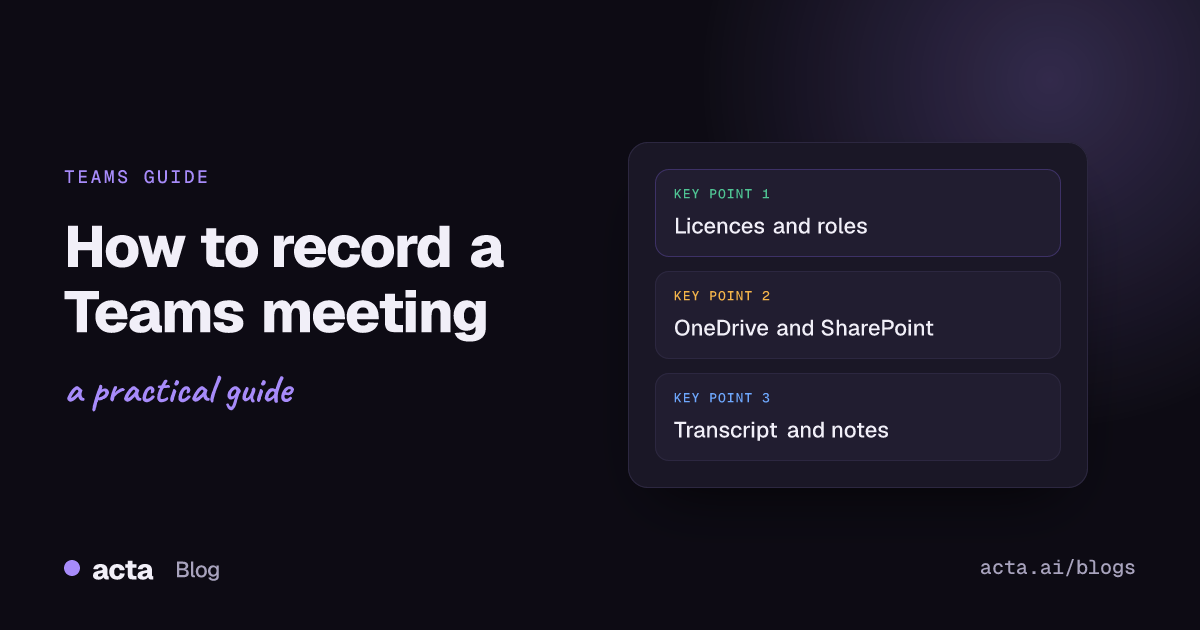
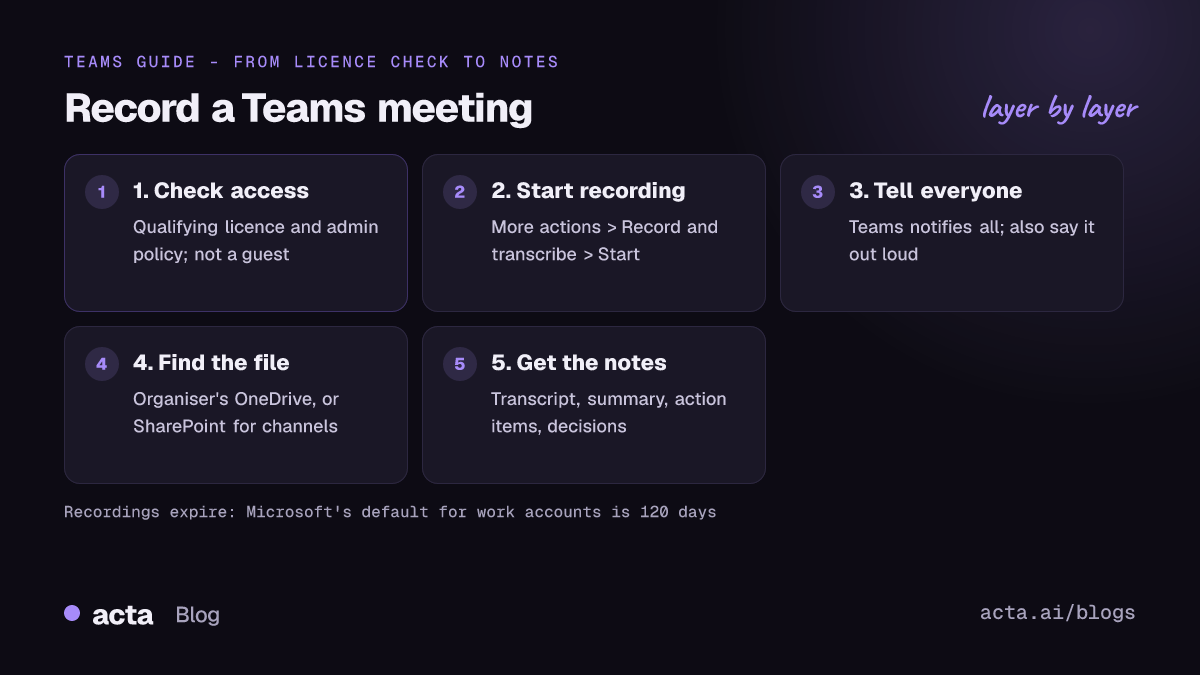
Quick answer: To record a Teams meeting, join it from the Teams app, select More actions, then Record and transcribe, then Start recording. Everyone is notified. You need a qualifying Microsoft 365 licence and your organisation's policy must allow recording. Recordings go to the organiser's OneDrive, or to SharePoint for channel meetings.
Teams recording is simple once it is set up, but whether the button works for you depends on your licence, your role in the meeting and what your IT admin allows. This guide covers each of those, step by step, based on Microsoft's own help pages, plus what to do when you cannot record and how to turn the recording into notes.
Who can record a Teams meeting?
For work and school accounts, Microsoft's help article on starting, stopping and finding meeting recordings sets out the rules:
- Licence: both the meeting organiser and the person recording need a qualifying licence. Microsoft lists Office 365 Enterprise E1, E3, E5, F3, A1, A3 and A5, and Microsoft 365 Business, Business Premium and Business Essentials.
- Policy: your IT admin must allow recording in the organisation's meeting policy. If the option is missing, this is the most likely reason.
- Guests and external people: guests and people from other organisations cannot start or stop a recording.
- One at a time: only one person can record a meeting at a time.
Microsoft also notes that letting the organiser choose who may record (organisers and co-organisers only, or organisers plus presenters) is a Teams Premium or Copilot feature. Without it, your organisation's policy decides.
Plans and licence names change, so treat this as accurate as of November 2026 and check with your admin if you are unsure.
How do you record a Teams meeting step by step?
- Join the meeting from the Teams desktop or web app.
- In the meeting controls, select More actions (the three dots).
- Select Record and transcribe, then Start recording.
- Everyone in the meeting is notified that recording has started.
- To stop, go back to More actions, then Record and transcribe, and select Stop recording.
If you record the same kind of meeting every week, the organiser can set it to record automatically from the meeting options, so nobody has to remember.
Is there a time limit on Teams recordings?
Yes. Microsoft's limits and specifications for Teams list a maximum of 4 hours or 1.5 GB per meeting recording. When the limit is reached, the recording ends and restarts automatically, so a long workshop may produce more than one file.
Where are Teams recordings saved?
For work and school accounts, where Teams recordings are saved depends on the type of meeting. According to Microsoft's article on how to play, share and download meeting recordings:
- Channel meetings: in the channel's SharePoint site, under the channel's Files tab. People in the channel can view and edit them.
- All other meetings (calendar meetings, chats, Meet now): in the organiser's OneDrive, in the Recordings folder. Invitees can find the recording in the meeting chat or in the meeting details.
Two things often catch people out:
- Recordings expire. Your admin sets how long recordings are kept. Microsoft's default is 120 days, after which an expired recording moves to the recycle bin. If you need to keep one, check your organisation's setting.
- Downloads are restricted. Microsoft's help notes that only the meeting organiser can download the meeting recording.
How do you get a Teams meeting transcript?
Transcription in Teams is separate from recording. Microsoft's article on starting, stopping and downloading transcripts explains the steps:
- In the meeting controls, select More actions and choose to transcribe (under Record and transcribe).
- Confirm the language being spoken and select Confirm. Everyone is notified that the meeting is being transcribed.
- The transcript appears during the meeting with each speaker's name and a time stamp.
- After the meeting, open the meeting chat, go to the Recap tab and select Transcript. You can download it as a .docx or .vtt file.
Limits worth knowing: organisers, co-organisers and presenters can start transcription, but attendees cannot. Starting transcription is a desktop feature; on mobile you can view the Teams meeting transcript after the meeting ends. Live captions are not saved, so turn on transcription if you want a record of what was said.
Can you record a Teams meeting with a free or personal account?
Teams for personal use works differently from work accounts. Microsoft's article on meeting and call recordings in Teams for personal use says:
- Recording is available to people with a Microsoft 365 Personal, Family or Premium subscription. Participants without one cannot start or stop a recording.
- Any participant with a qualifying subscription can record, and only the person who started a recording can delete it.
- The recording appears in the meeting chat and is kept in the cloud for 30 days before it expires.
- Recordings capture no more than four participants' video at once.
- Minors cannot use recording features in meetings.
Microsoft also reminds personal users that, depending on the region, you may need everyone's permission before you record them.
What if you can't record a Teams meeting?
Common reasons the Record and transcribe option is missing or greyed out:
- You are a guest or from another organisation.
- Your licence, or the organiser's, does not include recording.
- Your admin's meeting policy turns recording off.
- The organiser has limited recording to organisers and co-organisers.
- Someone else is already recording.
The first step is to ask the organiser to record it and share the file. If that is not possible, there are two alternatives, both of which should be used openly and with consent.
A note-taker bot
Acta's meeting bot joins Teams meetings from your calendar, records them and writes the notes. It appears in the participant list, so everyone can see it, and the organiser can admit or remove it. It does not depend on your Microsoft 365 recording licence. For a comparison of tools that work this way, see our guide to the best AI note takers for Microsoft Teams.
A bot-free desktop app
The Acta desktop app for Windows and Mac records your computer's sound and your microphone. It starts when Teams starts, adds no participant to the meeting and does not record your screen. Since Teams will not show its own recording notice, you have to tell people yourself. Our short answer on how to record a Teams meeting without a bot explains the setup, and our guide to recording when you are not the host covers the etiquette.
Tips for a better Teams meeting recording
- Start recording before the important part. Decisions often come in the first five minutes or the last five, when people are joining or wrapping up.
- Use the organiser's account for recurring meetings. Since recordings land in the organiser's OneDrive, keeping the same organiser keeps every recording of a series in one place.
- Ask people to say their names when they first speak in a meeting room with one shared microphone. When several people share one device, this makes it much easier to tell later who said what and who took on each action item.
- Plan for long sessions. With the 4-hour limit, a full-day workshop will be split into several files.
- Write down the expiry date of recordings you must keep, or move the notes somewhere permanent.
Do you need consent to record a Teams meeting?
Teams notifies everyone when its own recording or transcription starts, which covers the basic notice. But the law in some places requires everyone's consent, not just a notice, and bot-free recordings show no Teams notice at all. For an internal meeting, check your company's policy. For meetings with customers or candidates, say at the start that you are recording, why, and who will see it, and stop if anyone objects.
This is general information, not legal advice. Our guide to whether it is legal to record meetings with AI covers consent and what to tell participants in more detail.
How do you turn a Teams meeting recording into notes?
A Teams meeting recording is useful for people who missed the meeting, but few will watch an hour of video. What people need afterwards is shorter:
- a summary of what was discussed
- decisions, with who made them
- action items with owners and due dates
- a follow-up email to send out
Acta produces all of these from meetings it records with its bot or desktop app, or from a recording you upload. It keeps a decisions log and a Follow-ups view across meetings, and OneChat answers questions across all your meetings with links to the sources. You can push action items to Jira, and on a paid plan send reports to Salesforce, HubSpot or Zoho.
Recording in other tools? See how to record a Zoom meeting, or the overview of every way to record a meeting.
Frequently asked questions
Why can't I record a Teams meeting?
Usually because you are a guest, your licence does not include recording, or your admin's policy has turned it off. Ask the organiser or your IT admin.
Does Teams tell people when you record?
Yes. Everyone in the meeting is notified when Teams recording or transcription starts. A bot-free app on your own computer does not trigger that notice, so tell people yourself.
Where are Teams recordings saved?
For work accounts, in the organiser's OneDrive Recordings folder, or in the channel's SharePoint site for channel meetings. For personal accounts, in the meeting chat for 30 days.
How long are Teams recordings kept?
Your admin decides. Microsoft's default expiry for work and school recordings is 120 days; personal-account recordings expire after 30 days.
Can I record a Teams meeting on the free version of Teams?
No. In Teams for personal use, recording needs a Microsoft 365 Personal, Family or Premium subscription.
Try Acta free for 15 days and get notes, decisions and action items from your next Teams meeting.