Quick answer: To record a meeting, pick the method that fits where it happens. For Zoom, Teams or Google Meet, use the platform's own Record button if your plan and role allow it. If not, use a note-taker bot or a bot-free desktop app or browser extension. For in-person meetings, use a phone app. Tell everyone first and get consent where the law requires it.
Recording a meeting used to mean a dictaphone on the table. Today there are at least six ways to do it, and the right one depends on three things: where the meeting happens, whether you are the host, and what you want at the end. A video file you will never rewatch is not much use. A transcript, a summary and a list of who owes what by when usually is.
This guide explains how to record a meeting with every method, with a short section for each and links to the step-by-step guides for each platform. It ends with what to do with the recording once you have it.
What are the ways to record a meeting?
Here are the main options, from most to least common for online work meetings:
- Built-in platform recording in Zoom, Microsoft Teams or Google Meet. Free or included in many plans, but tied to your licence and your role in the meeting.
- A note-taker bot that joins the call as a participant, records it and sends notes afterwards.
- A bot-free desktop app that records your computer's sound and your microphone, so no extra participant appears in the call.
- A browser extension that records meetings you join in Chrome.
- A phone app for in-person meetings, interviews and site visits.
- Uploading a file you recorded some other way, to get it transcribed and summarised.
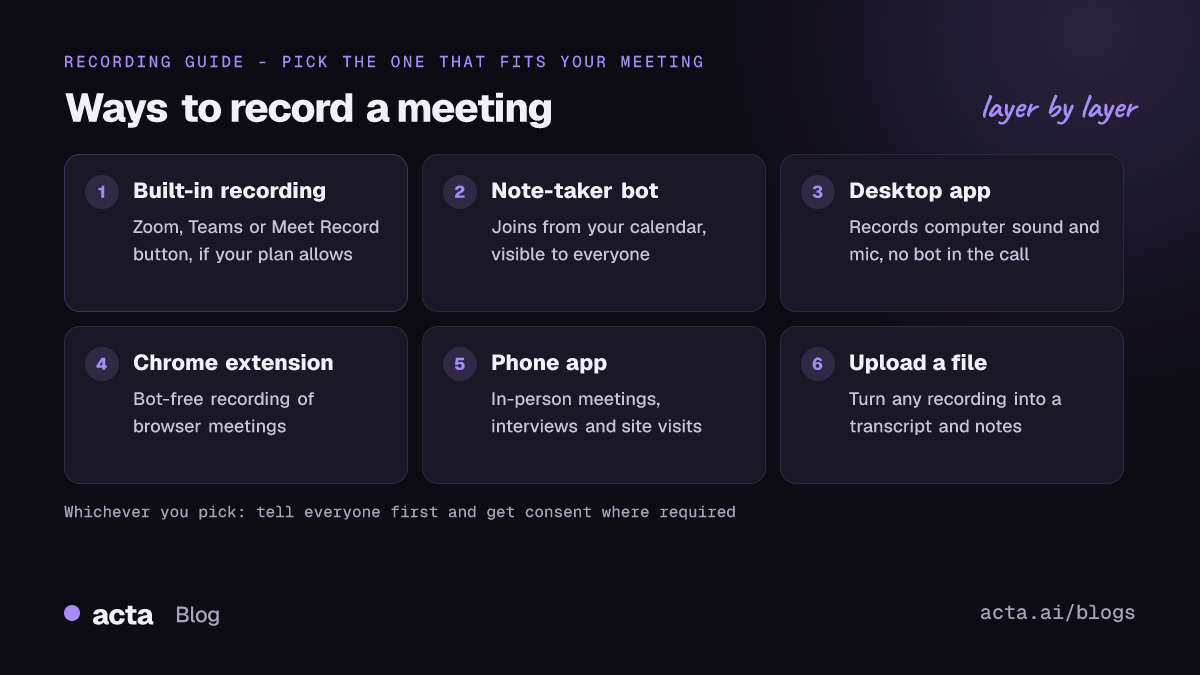
Whichever you choose, the first step is the same: tell people. Many places require the consent of everyone being recorded, and even where the law is looser, a surprise recording damages trust. There is a full section on consent below.
How do you record a meeting in Zoom?
Zoom has two kinds of recording. According to Zoom's guide to getting started with computer and cloud recording, local (computer) recording saves the file to your own machine, while cloud recording saves it to your Zoom account and is available on paid plans.
- Start the meeting as host, select Record in the meeting controls and choose to record on this computer or to the cloud.
- By default only the host can record. A participant needs the host to allow recording.
- Local recording works in the desktop app only, not on phones or tablets.
Plans, file locations, transcripts and the participant case are covered step by step in our guide on how to record a Zoom meeting.
How do you record a meeting in Microsoft Teams?
In Teams you start a recording from the meeting controls: More actions, then Record and transcribe, then Start recording. Microsoft's help page on starting, stopping and finding meeting recordings explains that everyone in the meeting is notified when recording starts, and that recording depends on your organisation's licence and policy. Guests and people from other organisations cannot start a recording.
For work and school accounts, recordings of ordinary meetings are stored in the organiser's OneDrive, and channel meeting recordings in the channel's SharePoint site. Our step-by-step guide on how to record a Teams meeting covers licences, storage, transcripts and the personal (free) version of Teams.
How do you record a meeting in Google Meet?
Google Meet recording is available in certain Google Workspace editions, and an administrator must turn it on. Google's help article on how to record a video meeting says you can record if you are the host or have been given permission, and that recordings are saved to the organiser's Google Drive.
To start, open the meeting tools or activities menu during the call and choose to record. Our Google Meet recording guide goes through editions, where the file lands, transcripts and what to do if your plan does not include recording.
Can you record a meeting without a bot?
Yes. Note-taker bots are convenient because they join from your calendar and need no setup on the day. But some people dislike an extra tile in the call, some external guests remove bots, and some meetings are better without one. There are two bot-free routes.
Desktop app
The Acta desktop app for Windows and Mac records your computer's sound and your microphone. It does not record your screen, and it starts when Zoom or Teams starts. Because it captures audio on your own machine, nothing joins the call, so it is your job to tell people you are recording.
Chrome extension
If you take meetings in the browser, the Acta Chrome extension records browser meetings without a bot. This is useful for Google Meet in particular.
If you are not the host and the built-in Record button is greyed out, these bot-free options are often the practical answer. Our guide on recording when you are not the host covers that situation in more detail.
How do you record a meeting with a note-taker bot?
A note-taker bot is a participant that joins the meeting, records it and sends you notes afterwards. With Acta, you connect your calendar and the bot joins your Zoom, Google Meet and Microsoft Teams meetings. The advantages:
- It works even when you cannot use the built-in Record button, as long as the host admits it.
- It is visible, so everyone can see the meeting is being recorded.
- It works the same way across all three platforms.
The downside is that it is visible: some hosts remove bots, and some external guests object. In those meetings, use a bot-free option, or skip recording.
How do you record an in-person meeting?
To record an in-person meeting, a phone is usually the best tool. Put it in the middle of the table, away from laptops and coffee cups, and make sure the room is reasonably quiet. If you want to record a meeting on your phone and get notes rather than just an audio file, use an app built for it. The Acta mobile apps record in-person meetings and turn them into transcripts, summaries and action items.
A few tips for good audio in a room:
- Keep the phone within a couple of metres of the main speakers.
- Ask people not to talk over each other, so speakers can be told apart.
- Close windows and move away from air conditioning and projectors.
- Do a 10-second test recording before an important meeting.
For interviews, one-to-one conversations and calls, see our guide on how to record a conversation.
Do you need consent to record a meeting?
Often, yes. The rules depend on where you and the other people are. In the United States, the Reporters Committee for Freedom of the Press explains in its introduction to the Reporter's Recording Guide that federal law allows recording with the consent of one party, but about 11 states primarily require the consent of everyone, including California, Florida, Illinois, Maryland, Massachusetts, Pennsylvania and Washington. When people are in different states, it advises assuming the stricter law applies. Other countries have their own rules, and data protection law can apply to recordings at work.
This is general information, not legal advice. In practice:
- Say at the start that you are recording and why, and what will happen to the recording.
- Put it in the calendar invite too, so people can object before the call.
- Stop recording if someone does not agree.
- Do not rely on a platform banner alone, and be especially careful with bot-free recording, where no one sees a recording indicator unless you tell them.
Our guide to whether it is legal to record meetings with AI covers consent, privacy and what to tell participants in more depth.
What should you do with a meeting recording afterwards?
Most recordings are never watched again. An hour of video is hard to search and takes an hour to review. The value is in turning it into something you can act on:
- Transcript with speakers. So you can search for what was said and quote it accurately.
- Summary. A short version for people who missed the meeting.
- Action items with owners and due dates. The part that actually moves work forward.
- Decisions. What was agreed, by whom, so it does not get relitigated next month.
- Follow-up email. Sent while the meeting is still fresh.
Acta does this for every meeting it records, and for recordings you upload. It also keeps a decisions log and a Follow-ups view across meetings, and OneChat lets you ask questions across all your meetings with sources. You can export reports to PDF, Word or Markdown, and on a paid plan push them to Salesforce, HubSpot or Zoho.
Which way to record a meeting should you choose?
- You host on Zoom, Teams or Meet and your plan allows it: use the built-in recording, then upload the file or add a note-taker if you want notes.
- You want notes from every meeting without remembering to press Record: a calendar-connected note-taker bot.
- You do not want a bot in the call, or you are not the host: a bot-free desktop app or Chrome extension, with consent.
- The meeting is in a room: a phone app.
- You already have an audio or video file: upload it.
Frequently asked questions
How do I record a meeting on my laptop?
Use the Record button in Zoom, Teams or Google Meet if your plan and role allow it. Otherwise, a desktop app that records your computer's sound and microphone works for any meeting app, as long as you tell participants.
Can I record a meeting if I am not the host?
Usually not with the built-in feature unless the host gives permission. You can ask the host, or use a bot or a bot-free app, with everyone's consent.
Can I record a meeting on my phone?
Yes. For in-person meetings, a phone app is the simplest option. For online meetings, Zoom's mobile app can start a cloud recording on paid plans.
Is it legal to record a meeting?
It depends on where everyone is. Some places allow recording with one person's consent, others need everyone's. Always tell participants, and check the rules that apply to you.
How do I get a transcript from a meeting recording?
Some platforms create transcripts on certain plans. Otherwise, upload the audio or video file to a tool such as Acta to get a transcript with speakers, a summary and action items.
You can try Acta free for 15 days and record your next meeting with a bot, the desktop app, the Chrome extension or your phone.