Quick answer: Google Meet recording is built in, but only on eligible plans: certain Google Workspace editions (such as Business Standard and Business Plus) and Google One plans with 2 TB or more. The host, co-hosts or people the host allows can start it from the Activities menu on a computer. The file is saved to the organizer's Google Drive, and Google emails a link after the call.
Recording a Google Meet call sounds simple until you open the menu and the option isn't there. Whether you can record depends on three things: the plan your account is on, your role in the meeting, and what your Workspace admin allows. This guide covers each of those, then the steps, where the file ends up, how transcripts and Gemini notes fit in, and what to do when built-in recording isn't available to you.
If you need the bigger picture across Zoom, Teams and in-person meetings, start with our hub guide on how to record a meeting.
Who can use Google Meet recording?
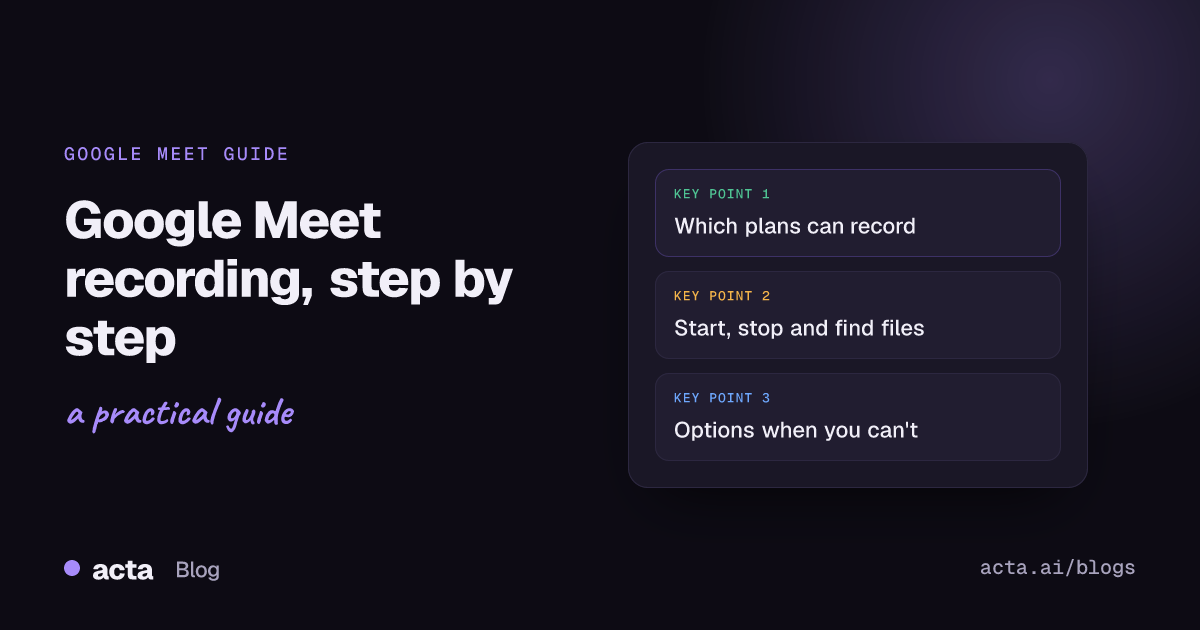
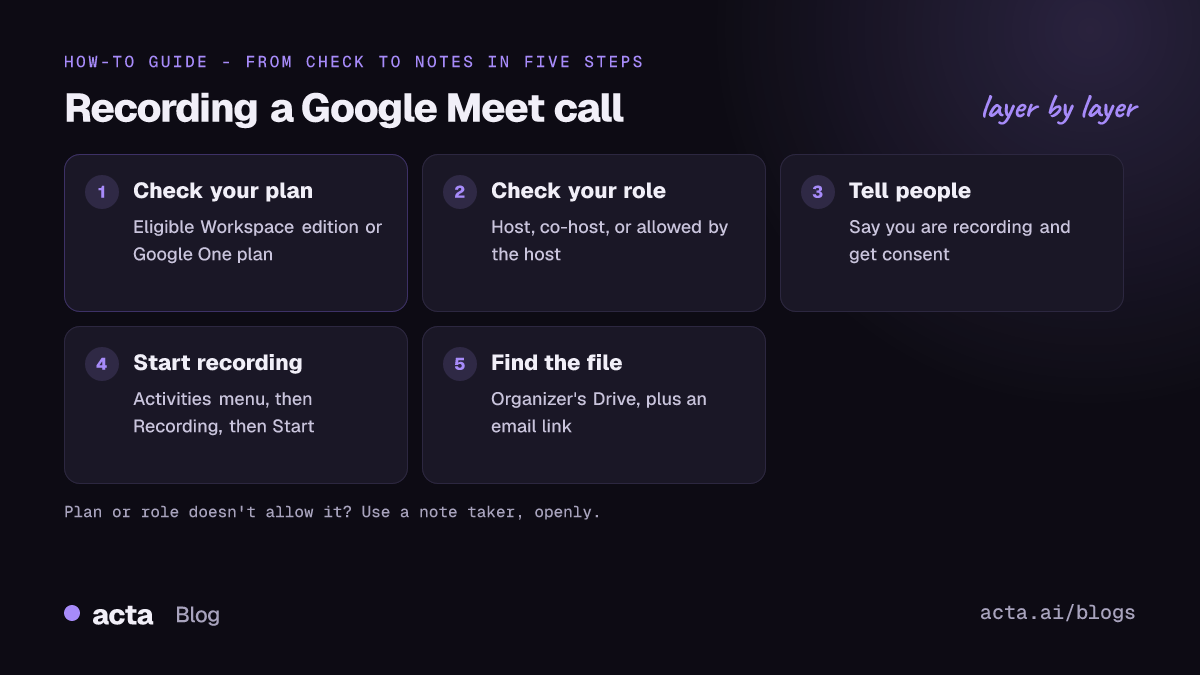
According to Google's help page Record a video meeting, recording is a paid feature. As of November 2026, it is available on:
- Google Workspace editions that include it, such as Business Standard, Business Plus, Enterprise editions and some Education and Essentials editions. Google's own lists differ slightly between pages, so check the help page or ask your admin about your exact edition.
- Google One plans with 2 TB or more of storage, for personal accounts.
Business Starter and free personal Gmail accounts are not on those lists, which is why many people don't see a Recording option at all.
Your role matters too. Hosts and co-hosts can record. Other participants can record only if the host's settings allow it, and on a Workspace account the admin must have turned recording on for the organization. If you are a guest from outside the organization, assume you can't start the built-in recording unless the host sets it up for you.
How to record a Google Meet, step by step
Google's help page describes starting a recording from a computer. The steps:
- Join or start the meeting in Google Meet on your computer.
- Tell everyone you are about to record. Say it out loud, put it in the invite, and give people a chance to object.
- Open the Activities menu (bottom right, sometimes shown as Meeting tools) and choose Recording.
- Click Start recording and confirm in the pop-up.
- Stop the recording from the same menu when you're done.
A few limits worth knowing before an important call:
- Breakout rooms are not recorded.
- Very long meetings have a maximum recording length (third-party guides cite 8 hours), so split marathon sessions.
- If you are only presenting from a separate tab or device, join the meeting normally first, then start presenting and recording.
Can you record Google Meet on a phone?
Google's help page focuses on recording from a computer, and you should not count on starting a built-in recording from the Meet mobile app. If you are on a phone, ask the host (or a co-host on a computer) to start the recording. For an in-person meeting where you are in the room, a phone recording app is the practical option; Acta's mobile apps are built for in-person meetings.
Where are Google Meet recordings saved?
Recordings go to the meeting organizer's Google Drive, not the Drive of whoever pressed Record. Google also emails a link to the recording once it has processed, usually within a few minutes.
The folder changed in 2026. Google's Workspace Updates post from July 22, 2026, Google Meet now organizes your meeting notes, transcripts and recordings in your Google Drive, explains that Meet now files recordings, transcripts and notes into a Google Meet folder in the host's My Drive, with a subfolder per meeting. The old Meet Recordings folder is moved into it and renamed Legacy Meet Recordings, and existing links keep working.
If you can't find a recording:
- Check the organizer's Drive, not yours. If you weren't the organizer, ask them to share it.
- Search Drive for the meeting name or the meeting code.
- Look in the recap email from Google.
- Check storage: recordings and transcripts need free space in the host's Drive.
Google Meet transcript vs recording: what's the difference?
A recording is a video file. A Google Meet transcript is a separate text document. Google's page Use Transcripts with Google Meet explains that you start it from Meeting tools, then Transcribe, then Start transcription, and that it is saved to the organizer's Drive as a Google Doc. When host management is on, only hosts and co-hosts can turn transcripts on.
Two things to know about transcripts:
- They support a limited set of languages, and Google notes that transcripts in languages other than English are less accurate.
- A transcript is raw text. It tells you what was said, not what was decided or who owes what.
What about Gemini and "Take notes for me"?
Google's Gemini feature "Take notes for me" writes a Google Doc of meeting notes with a summary, decisions and action items, saved to the meeting owner's Drive, and sends a recap after the call. It is available on Workspace plans that include Gemini, and Google's blog post on Take notes for me says Google AI Pro and Ultra subscribers can now use it in Meet too. Availability depends on your plan, admin settings and language, so check before you rely on it.
Gemini notes are a sensible default if your whole team lives in Google Workspace and your meetings happen in Meet. Where they fall short is anything outside a single Meet call: meetings on Zoom or Teams, in-person meetings, tracking action items across weeks, or turning a call into a specific report format. We compare built-in AI notes with a dedicated note taker on our built-in notes comparison page.
How to record Google Meet as a participant (or when your plan can't)
If you are not the host, the first and best option is to ask: the host can make you a co-host or start the recording. Our guide to recording a meeting when you're not the host covers that conversation in more detail.
If your plan doesn't include Google Meet recording, or you mainly want notes rather than a video file, a meeting note taker is the usual route. With Acta you have two ways in:
Acta's Chrome extension (no bot)
Google Meet runs in the browser, so the Acta Chrome extension can record the meeting audio from your browser without a bot joining the call. Nobody sees an extra participant, which means it is on you to tell people you're recording. Our answer page on Google Meet AI notes without a bot walks through the setup.
Acta's meeting bot
If you prefer everyone to see that notes are being taken, Acta can join your Meet calls as a bot from your calendar. The bot shows up in the participant list, which makes the recording visible to everyone.
Either way, you get a transcript with speakers, a summary, action items with owners and due dates, and a decisions log, and you can export to PDF, Word or Markdown. Acta also works for Zoom, Microsoft Teams and in-person meetings, so your notes live in one place even when your meetings don't. For a wider comparison of tools, see our roundup of the best AI note taker for Google Meet.
Do you need consent to record a Google Meet call?
Often, yes. Recording laws vary by country and, in the US, by state; some places require everyone on the call to agree. Whatever tool you use, and especially one that doesn't add a visible participant, the duty to tell people is yours.
A simple habit covers most cases:
- Mention the recording in the calendar invite.
- Say it at the start of the call and ask if anyone objects.
- Stop or don't record if someone says no.
- Share the notes with participants afterwards.
This is general information, not legal advice. For more on what to tell participants, read is it legal to record meetings with AI.
What to do with a Google Meet recording afterwards
A recording on its own is rarely what people need a week later. Nobody rewatches an hour of video to find one decision. Turn it into something usable:
- Write down decisions and action items with an owner and a due date for each.
- Share a short summary with attendees the same day.
- Set access on the Drive file so only the right people can watch it.
- Delete what you don't need once the notes are agreed.
Our guide on how to take meeting notes has a copy-paste template for exactly this step.
Frequently asked questions
Why can't I see the Record option in Google Meet?
Usually because your plan doesn't include Google Meet recording, you aren't the host or co-host, or your Workspace admin has turned recording off. Free Gmail accounts and Business Starter don't include it.
Where are Google Meet recordings saved?
In the meeting organizer's Google Drive, in the Google Meet folder (older recordings move to Legacy Meet Recordings inside it). Google also emails a link.
Do I need to tell people I'm recording a Google Meet call?
Yes, as a rule. Some places require everyone's consent, and tools outside Meet may not show anything on screen, so announce it and stop if someone objects.
Can I get a Google Meet transcript without recording video?
Yes. Transcripts are a separate feature you start from Meeting tools, and they save as a Google Doc in the organizer's Drive, on plans that include them.
Can I record Google Meet on the free plan?
Not with the built-in feature. You can use a note taker such as the Acta Chrome extension or bot to capture the audio and notes, with the consent of the people in the call.
Want notes from every Meet call without checking plans first? Try Acta free for 15 days.