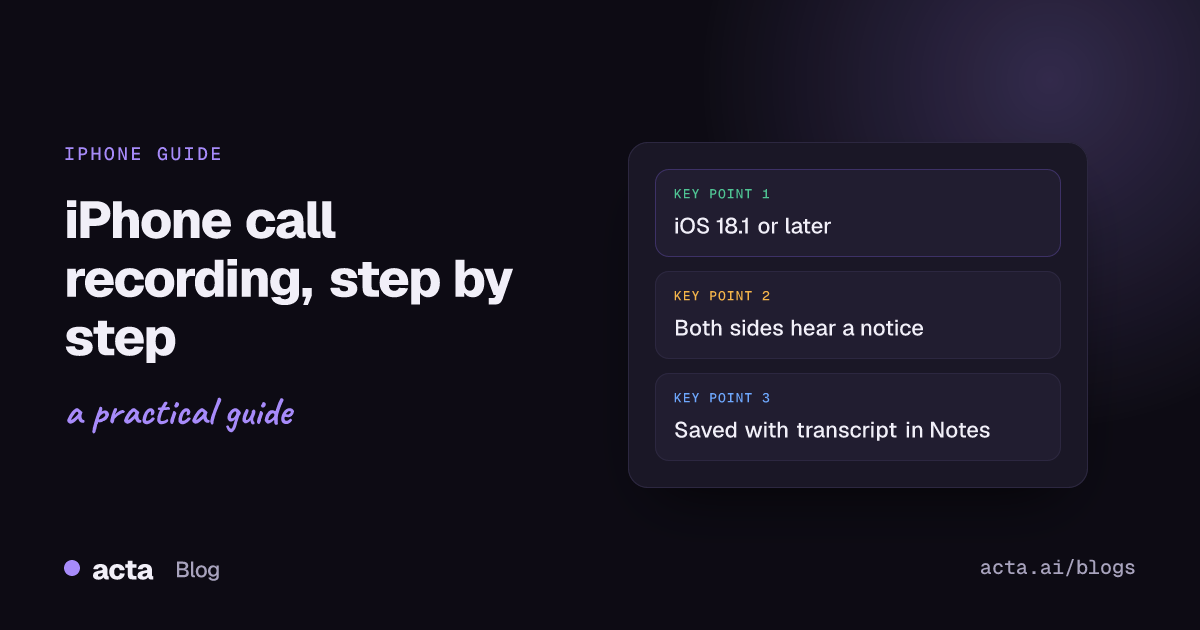
Quick answer: iPhone call recording is built in from iOS 18.1. During a phone or FaceTime audio call, tap the More button, then Call Recording. Both people hear an audio notice that the call is being recorded. The recording, and a transcript in supported languages, is saved to a Call Recordings folder in the Notes app. It isn't available in every country or region.
For years, recording a call on an iPhone meant awkward workarounds. Since iOS 18.1, Apple has its own recorder in the Phone app, with transcripts saved to Notes. This guide covers how to use it, what the other person hears, where the files go, what the feature can't do, the alternatives if it isn't available to you, and how to turn a call recording into usable notes.
A clear note before we start: Acta, the AI meeting notes app we make, does not record phone calls. If you want a summary and action items from a call, record it on your iPhone (where that's legal and available), export the audio, and upload it to Acta. Details below.
Does iPhone call recording come built in?
Yes, on recent iOS versions. Apple's support article on how to record and transcribe a call on iPhone says that starting in iOS 18.1 you can record a phone call or FaceTime audio call and find the recording and transcript later in Notes. With Apple Intelligence turned on, on supported devices, you can also view a generated summary of the call.
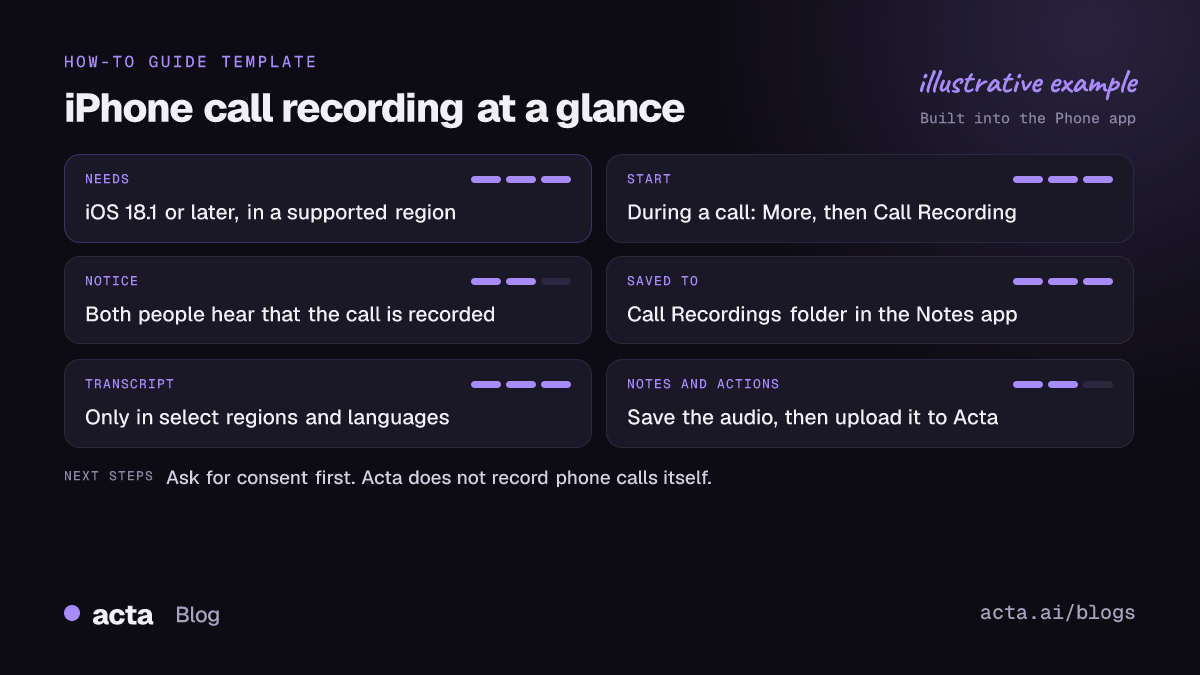
Three conditions decide whether you'll see the option:
- iOS version. You need iOS 18.1 or later.
- Country or region. Apple says call recording is available only in some countries and regions. Its guide lists places where it isn't currently offered; the list we saw at the time of writing included the European Union.
- Language. Transcripts are available only in select regions and languages. Apple points to its iOS Feature Availability page to check yours.
How to record a call on iPhone
Apple's iPhone User Guide page on recording and transcribing a call gives these steps:
- Start or answer a call in the Phone app.
- Tap the More button, then tap Call Recording.
- Both participants hear an audio notice that the call is being recorded.
- To finish, tap Stop, or simply hang up.
Apple's guide also covers FaceTime audio calls, where recording works for calls with one other person. If the screen layout looks different on your phone, check the guide for your iOS version, as Apple has moved controls between releases.
Does iPhone call recording notify the other person?
Yes. This is the part people most often ask about. Apple says both call participants hear an audio notice that the call is being recorded. There is no silent mode.
The notice is not the same as consent, though. Apple's Personal Safety guide on call recording advises making sure the other participant is willing and gives explicit consent before you record. In practice: ask first, then start recording, so the notice confirms what you've already agreed.
The same guide notes that Call Recording is on by default, and that you can remove it as an option. Removing it stops you from recording, but it doesn't stop someone else from recording a call with you.
Where are call recordings saved on iPhone?
Your iPhone automatically saves call recordings to a Call Recordings folder in the Notes app. Each recording is its own note. From there, according to Apple's guides:
- Read the transcript. Open the note and tap Transcript, where your language and region are supported. Apple says that if you don't see Transcript, your iPhone doesn't meet the requirements or didn't detect a supported language. Apple says the transcript can take a while to appear.
- Search and reuse it. The More menu offers Find in Transcript, and options to add the transcript to the note or copy it.
- Save the audio. The More menu also has an option to save the audio file to a location you choose, such as the Files app. This is the step you need if you want to use the recording anywhere else.
- Delete it. Apple's FaceTime guide notes that deleting the audio recording also deletes the transcript.
iPhone call recording not showing? What to check
If you don't see Call Recording during a call:
- Check you're on iOS 18.1 or later.
- Check Apple's country and region list. If recording isn't offered where you are, it won't appear.
- Check that the option hasn't been removed in settings (Apple's Personal Safety guide explains it can be removed).
- If you see the recording but no transcript, your language or region may not be supported for transcription, or it may still be processing.
What iPhone call recording can't do
- Record silently. Everyone on the call hears the notice.
- Work everywhere. Availability depends on country, region and language.
- Turn the call into follow-up work. You get audio and a transcript (plus a summary with Apple Intelligence on supported devices), but tracking who promised what across many calls is up to you.
Alternatives when built-in recording isn't available
Speakerphone and a second device
Put the call on speaker and record it with another device, such as a second phone or a laptop. It works on any iPhone, in any region. Use a quiet room, keep the recorder close to the speaker, and say at the start that you're recording so the agreement is captured too. Our guide on how to record a conversation has more tips for clean audio.
Third-party and carrier recording services
Before iOS 18.1, the common workaround was a service that adds a recording line to your call as a three-way call. Some apps and phone services still work this way. If you consider one, check the cost, whether your carrier supports three-way calling, where the recordings are stored, and whether the other person is told. We haven't tested these, so we don't recommend specific ones.
Online calls instead of phone calls
If the conversation is really a meeting, a video call may be easier to record and take notes on. Our hub guide on how to record a meeting covers Zoom, Teams and Google Meet.
Tips before you record a call on iPhone
- Ask first. Get a clear yes before you tap Call Recording, and say why: "so I can take accurate notes."
- Do a test call. Record a short call with a friend or colleague who agrees, then check the note, the audio and the transcript in Notes so you know what to expect.
- Find a quiet spot. Background noise makes transcripts worse, whichever tool reads the audio.
- Keep track of calls. Write down who you spoke to and the topic right after the call, so you can match it to the right recording later.
- Save the audio you need. If you plan to keep a call or get notes from it elsewhere, save the audio file from Notes soon after the call.
Is iPhone call recording legal?
It depends on the law where you and the other person are. This is general information, not legal advice.
- US federal law allows recording a call with the consent of at least one party, according to the Reporters Committee for Freedom of the Press Reporter's Recording Guide. The same guide says about 11 states primarily require the consent of all parties.
- California is one of the strict ones. In 2021 the California Supreme Court held that a party to a call can break the state's law by recording without the other party's consent, as explained in Arnold & Porter's summary of Smith v. LoanMe.
- Calls across borders or states: the safe approach is to follow the strictest rule that could apply.
The audio notice helps, but the simplest habit is to ask out loud before you start: "Mind if I record this so I can take notes?" For more, read our explainer is it illegal to record a conversation? and our guide to consent, privacy and what to tell participants when recording meetings.
How to get meeting-style notes from an iPhone call recording
Apple's transcript is useful for finding a line. If the call was a sales call, an interview or a client check-in, you probably want more: decisions, action items with owners, and a record you can search later alongside your other meetings. Here's the workflow:
- Record the call on your iPhone, with the other person's consent.
- In Notes, open the recording, tap the More menu and save the audio file.
- Upload the audio file to Acta.
To repeat: Acta does not record phone calls. It works from the file you upload. From that audio, Acta gives you a transcript with speakers, a summary, action items with owners and due dates, and a decisions log. You can choose one of 40 report templates (such as MEDDPICC for sales or a 1:1 format) or let Acta pick one from the conversation, then export to PDF, Word or Markdown. See everything on our features page.
For in-person meetings, Acta's mobile apps record directly. If some of your team use Android, send them our guide on how to record phone calls on Android.
Frequently asked questions
Which iOS version added iPhone call recording?
iOS 18.1. Apple says that from iOS 18.1 you can record a phone call or FaceTime audio call and find the recording and transcript in Notes.
Can I record phone calls on iPhone without the other person knowing?
Not with Apple's feature: both participants hear an audio notice. Recording someone secretly can also be illegal, so ask for consent first.
Where do I find my call recordings?
In the Notes app, in a folder called Call Recordings. Open a note to play the audio, read the transcript or save the audio file.
Why is there no transcript for my call?
Transcripts are only available in select regions and languages, and Apple says they can take a while to appear.
Can Acta record my iPhone calls?
No. Record the call with your iPhone, save the audio from Notes, and upload it to Acta for a transcript, summary and action items.
Want notes from your recorded calls? Try Acta free for 15 days and upload your first recording.