Automatic meeting templates are report templates that pick themselves: instead of choosing a format after each call, you tell the notetaker which kind of meeting each template is for, and it runs the right one when that kind of meeting happens. In Acta, you set this per template with "When should Acta use it?", choosing "Every meeting" or "Only matching meetings", and the description you write decides what counts as a match.
Meeting Productivity 11 min read
Automatic Meeting Templates: Run the Right Report on Every Call
How to make the right report template run on the right meeting: the two run modes, descriptions that match, side-by-side examples and a two-meeting test.
By Sarma BKP, Founder & CEO, Acta · Updated
This guide explains how the two modes differ, how to write descriptions that match the meetings you mean and skip the ones you don't, and how to test matching before it goes live. It's for anyone running three or more recurring meeting types, such as sales calls, one-on-ones and project syncs, who wants each to produce its own report without manual sorting. If you only use one template, "Every meeting" is all you need and most of this won't apply.
Key takeaways
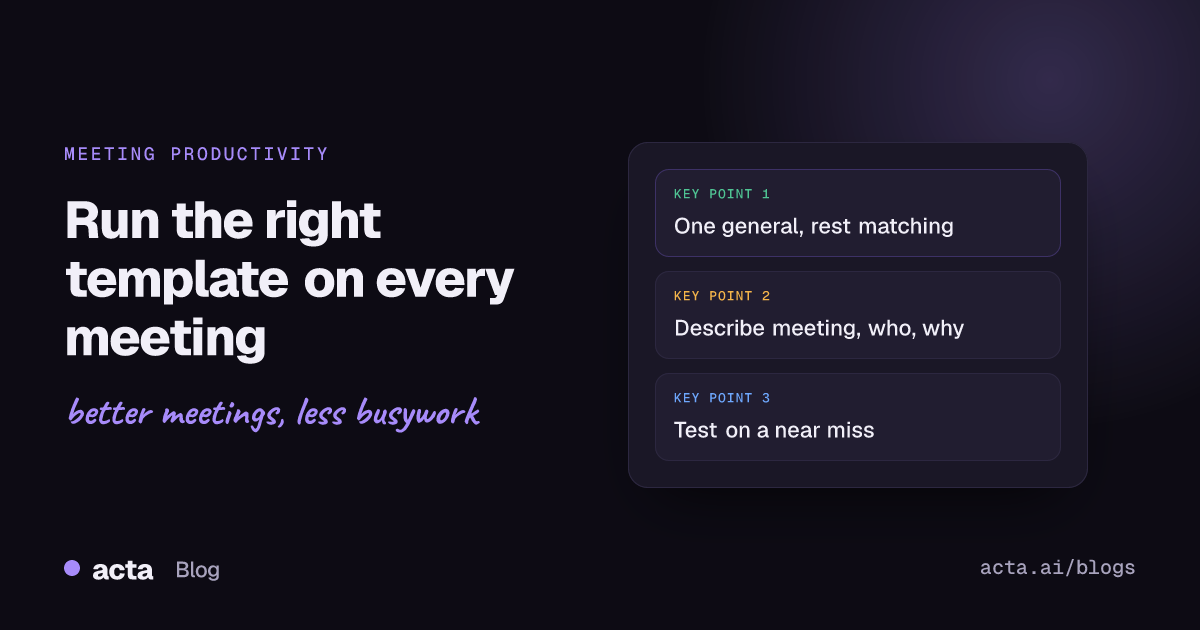
- Use "Every meeting" for at most one general template. Use "Only matching meetings" for everything specific.
- A good description names three things: the meeting type, who's in it, and what it's for. "Sales calls" is too vague; "First discovery calls with prospects to qualify budget and timeline" works.
- Write the description to exclude as well as include. "Not internal pipeline reviews" saves you a lot of irrelevant reports.
- Test on two past meetings: one that should match and one that shouldn't. If both produce a report, tighten the description.
- Overlapping descriptions mean overlapping reports. Give each meeting type one clear template.
Table of contents
- Two run modes cover every case
- Matching compares each meeting with your description
- Good descriptions name the meeting, the people and the purpose
- Weak and strong descriptions differ in a few words
- Test matching on a meeting that should not match
- Overlapping templates produce duplicate reports
- Set up automatic meeting templates in Acta
- Frequently asked questions
- Map each meeting type to one template
Two run modes cover every case
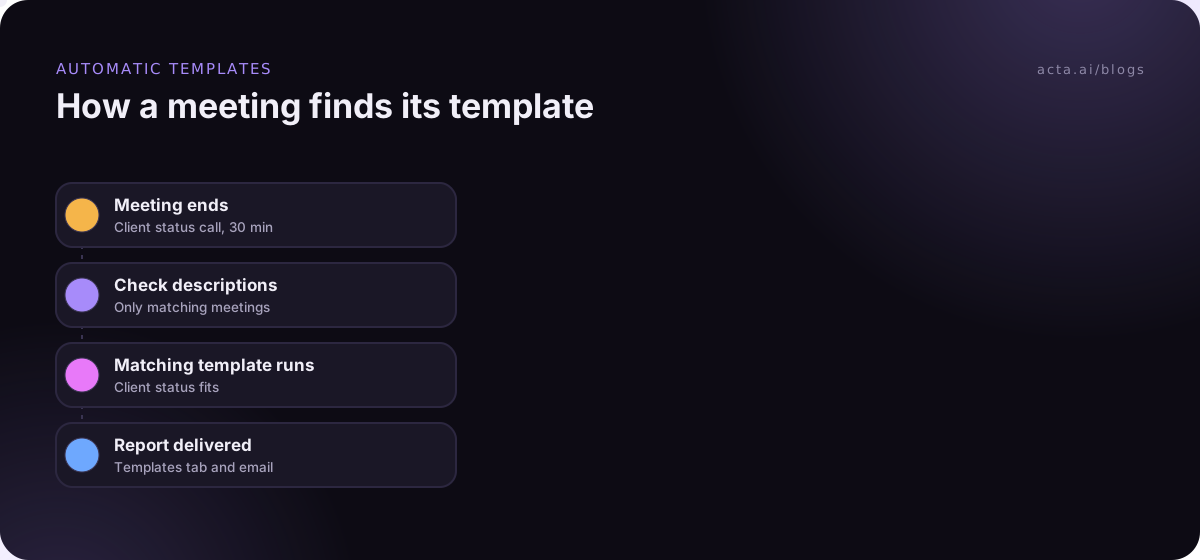
Every custom template in Acta has a setting called "When should Acta use it?" with two choices. "Every meeting" runs the template on every meeting you capture, whatever it's about. "Only matching meetings" makes Acta check each meeting against the template's description and run it only on meetings that fit.
| Mode | Good for | Risk |
|---|---|---|
| Every meeting | One general notes template: decisions, actions, open questions | Specific sections come back empty on unrelated meetings |
| Only matching meetings | Meeting-specific templates: discovery, 1:1, sprint review, client status | A vague description matches too much or too little |
The pattern I'd recommend for most people: one general template on "Every meeting" so nothing goes without notes, and two to five specific templates on "Only matching meetings". A sales rep might have a general template, a discovery template and a demo review. A team lead might have a general one, a one-on-one template and a project status template.
Resist putting specific templates on "Every meeting". A deal review that runs on your team standup will fill most sections with "Not discussed", and after a week of those, people stop opening template reports at all.
Matching compares each meeting with your description
The box labelled "What should this report do?" in the template builder does two jobs. It tells Acta what to write, and it's what Acta checks each meeting against when the template is set to "Only matching meetings". There's no separate list of keywords or calendar rules to maintain; the description is the rule.
That's convenient, because you write one thing instead of two. It also means the description deserves more care than people usually give it. A description written only as instructions for the report ("List the action items and risks") says nothing about which meetings it's for, so it will match broadly. A description that opens with the kind of meeting gives the matching something to work with.
Two related behaviours are worth knowing. If a template does run on a meeting that turns out not to be the kind it's for, the report is marked not relevant rather than filled with guesses. And whatever the mode, every report writes "Not discussed" for sections the meeting didn't cover, adds an "In short" summary, and includes key quotes and a confidence rating. The custom templates help article describes both run modes.
Good descriptions name the meeting, the people and the purpose
A pattern that works reliably is one sentence in three parts, followed by what to capture:
"For [meeting type] with [who is in it] to [what the meeting is for]: capture [the things the report should contain]. Not for [similar meetings to skip]."
Each part does work. The meeting type ("first discovery calls", "weekly one-on-ones") is the strongest signal. The people ("with prospects", "between a manager and a direct report", "with the client's marketing team") separate meetings that sound alike. The purpose ("to qualify budget and timeline", "to review progress against the sprint goal") catches meetings that aren't named consistently. The exclusion line is optional but useful whenever you have a similar meeting type you don't want caught.
Keep the language plain and concrete. Use the words people actually say in those meetings. A one-on-one template whose description mentions "career goals, feedback and workload" will match real one-on-ones better than one that says "people development sync", because those words come up in the conversation.
Weak and strong descriptions differ in a few words
Here are four weak descriptions and how to fix them. The fixes are small; the difference in matching is not.
| Weak | Strong | Why it's better |
|---|---|---|
| Sales calls | First discovery calls with new prospects to qualify pain, budget, decision process and timeline. Not demos or renewals. | Names the stage and excludes neighbours |
| 1:1 notes | Weekly one-on-ones between a manager and a direct report covering workload, blockers, feedback and career goals. | Names who is in it and the usual topics |
| Project meeting | Weekly status meetings for the website rebuild project: progress against milestones, risks, decisions needed. | Ties it to one project |
| Summarise the action items | For client kickoff calls at the start of a new engagement: goals, scope, deliverables, deadlines and who owns what. | Describes the meeting, not only the output |
The last one is the most common mistake. People write the description as an instruction for the report, because that's what the box seems to ask. The fix is to lead with the meeting and let the sections handle the instructions.
If you're designing the specific templates themselves, the guides on one-on-one meeting notes and discovery call templates have section ideas for two of the most common types.
Test matching on a meeting that should not match
The template builder has a Preview panel with "Test on a past meeting". Pick a meeting, click "Run on this meeting", and you see what Acta would write. Nothing is saved or sent, so you can run it as often as you like.
Most people test once, on a meeting the template is clearly for. That checks the sections but not the matching. Test twice:
- A clear match. Pick a meeting that's exactly the type you described. Check the sections are filled and the formats read well.
- A near miss. Pick a meeting that's similar but shouldn't get this report, such as a demo when you built a discovery template. If the output looks like a reasonable report rather than a not-relevant one, your description needs a sharper meeting type or an exclusion line.
Keep a mental list of the near misses you find. They're usually your next template. If the discovery template keeps catching demos, maybe demos deserve their own report.
Overlapping templates produce duplicate reports
Each template set to "Only matching meetings" runs on any meeting that fits its own description. So if two of your templates both describe "calls with customers", a customer call can get both reports. Sometimes that's what you want, for example a deal review plus a feature-request log from the same call. More often it's an accident.
Three ways to keep it clean:
- One owner per meeting type. Write down your meeting types and assign each to exactly one template. Where two templates overlap, add an exclusion line to one of them.
- Watch shared templates. Teammates can switch on templates shared with the team. If several people own similar templates, agree on one. Our guide to standardize meeting notes across your team covers how to manage a shared set.
- Use the general template as a safety net, not a duplicate. Keep its sections generic (decisions, actions, open questions) so it doesn't compete with specific ones.
For comparison, the meeting platforms tend to handle this per meeting rather than by matching. University IT guides for Zoom, such as this one on Zoom meeting summary templates, describe choosing a default summary template in AI Companion settings or picking one when scheduling a meeting. Google's page on Calendar and Meet settings for Take notes for me covers turning notes on automatically from the calendar event. As of November 2026 those are reasonable ways to set formats ahead of time; check the vendor pages for current options, as they change.
Set up automatic meeting templates in Acta
Custom templates, and so automatic matching for them, are on Acta's paid plans; the 15-day free trial includes the 40 built-in templates, but the custom builder shows an upgrade prompt. Each person can create up to 10 custom templates with up to 12 sections each.
- Open Templates in the dashboard sidebar, choose "My templates" and click "+ Create template" (or click Edit on a template you already have).
- Give it a "Template name" that matches the meeting type, such as "Discovery call".
- In "What should this report do?", write the description using the pattern above: meeting type, who, purpose, what to capture, what to skip.
- Set up the sections: title, what Acta should write, and the format (Paragraph, Bullets, Checklist or Table).
- Under "When should Acta use it?", choose "Only matching meetings".
- In Preview, use "Test on a past meeting" twice: once on a clear match, once on a near miss.
- Save. Repeat for each meeting type, and keep one general template on "Every meeting" if you want a safety net.
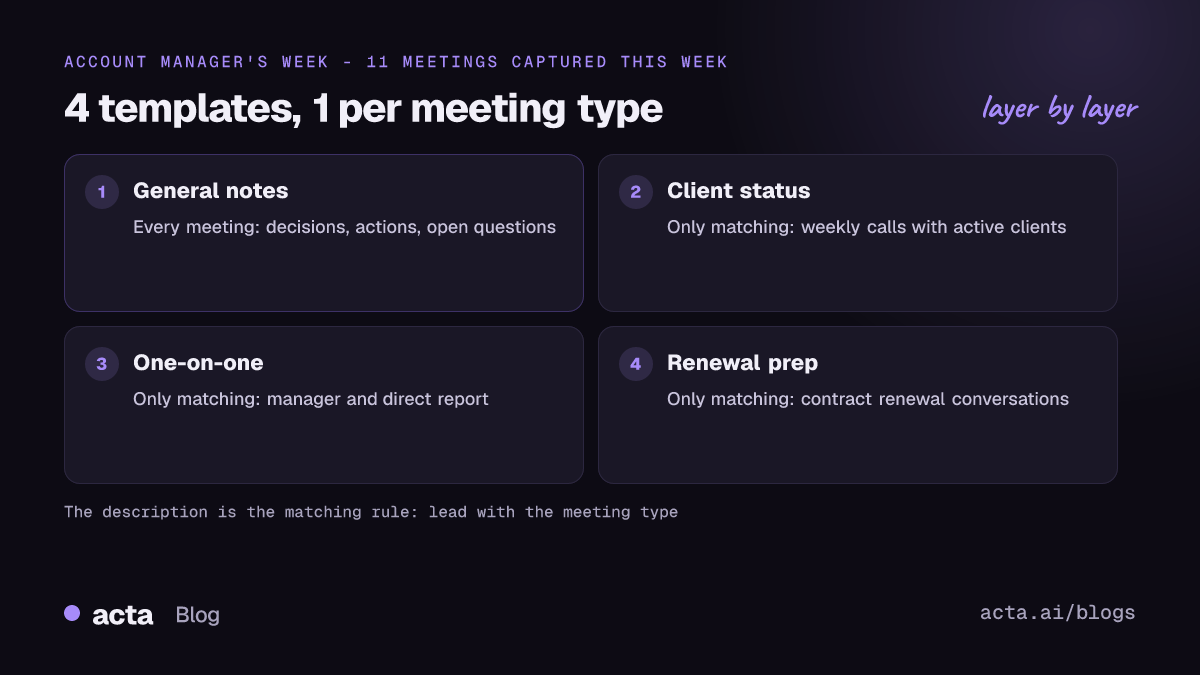
Here's an illustrative set of four templates for an account manager, with a week of results (names invented):
General notes (Every meeting): "Decisions, action items with owners and due dates, open questions." Ran on all 11 meetings.
Client status (Only matching): "For weekly status calls with an existing client on an active project: approvals, slipped deliverables, tasks, risks. Not internal meetings." Ran on 4 client calls.
One-on-one (Only matching): "For weekly one-on-ones between Maya and her manager: workload, blockers, feedback, career goals." Ran on 1 meeting.
Renewal prep (Only matching): "For calls with a client within the last months of their contract about renewal, pricing or expansion. Not weekly status calls." Ran on 1 call with Northwind.
Each report shows up in the meeting's Templates tab as "Your template" or "Team template", with Copy, Download and Push to CRM, and is emailed like Acta's other template reports. If you build a template after the fact, open an older meeting and use "Run another template". For acting on reports once they arrive, such as posting them somewhere, see build your first AI agent. The report templates guide covers the built-in side.
Frequently asked questions
How does Acta decide which template to use for a meeting?
For each template set to "Only matching meetings", Acta checks the meeting against that template's "What should this report do?" description and runs it only if the meeting fits. Templates set to "Every meeting" run on everything. There's no separate keyword list; the description is the matching rule, so write it carefully.
Can more than one template run on the same meeting?
Yes. Every template whose description fits the meeting runs, plus any on "Every meeting". That's useful when you want two views of one call, such as a deal review and a feature-request log. If it happens by accident, add an exclusion line to one of the descriptions.
What happens if a template runs on the wrong kind of meeting?
The report is marked not relevant rather than filled with guesses. Sections that weren't covered say "Not discussed". If you see not-relevant reports often for one template, its description is too broad; name the meeting type more precisely and add a line saying what it isn't for.
Should I use automatic meeting templates or pick one after each call?
Automatic is better for recurring meetings, because nobody remembers to pick a template after every call. Picking manually suits rare meetings: open the meeting and use "Run another template". Most people end up with automatic templates for their regular meetings and run the occasional one-off by hand.
Do automatic meeting templates need the meeting to be on my calendar?
Matching uses the description and the meeting itself, so the meeting needs to be captured in Acta, whether by the notetaker bot, the desktop app, the Chrome extension, the mobile apps or an uploaded recording. How it got into Acta doesn't change how the template runs.
Map each meeting type to one template
Before you set up automatic meeting templates, spend ten minutes on a list. It saves a week of cleaning up duplicate reports.
- List your meeting types: Look at last month's calendar and group meetings into four to six types.
- Assign one template each: Use a built-in where one fits; build or copy a custom one where it doesn't.
- Write descriptions that exclude: Lead with the meeting type, then add a "Not for" line for close neighbours.
- Test the near misses: Run each template on a meeting it shouldn't match and tighten as needed.
- Keep one safety net: Leave a single general template on "Every meeting".
If your meetings run in the Zoom or Teams apps and you'd rather not add a bot, the Acta desktop app captures them from your own computer; tell people they're being recorded (our recording consent guide has wording). For section design, start with the guide to building a custom meeting notes template.
Found this useful? Share it with your team.