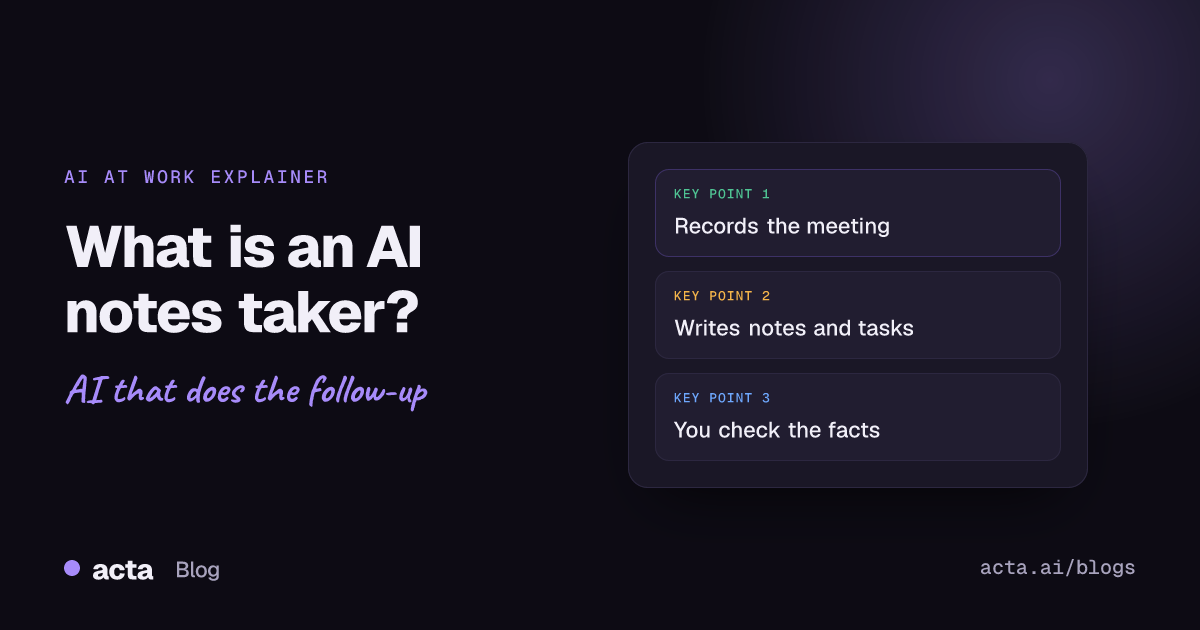
Quick answer: An AI notes taker is software that records a meeting or conversation, turns the speech into a transcript with speaker labels, and then uses a language model to write a summary, list decisions and pull out action items. It captures audio through a bot that joins the call, an app on your computer or phone, or a recording you upload.
If you have ever left a meeting with half a page of scribbles and no idea who agreed to do what, you already know the problem an AI notes taker is meant to solve. Instead of splitting your attention between listening and typing, you let software capture the conversation and draft the notes for you.
This guide explains what these tools actually do, how they work step by step, the different ways they hear a meeting, where they still get things wrong, and what to think about before you switch one on. It does not rank products; if you want a shortlist, the roundups linked near the end cover that.
What does an AI notes taker actually do?
At its simplest, an AI notes taker turns spoken words into written, organised notes. Most tools produce some mix of the following after each meeting:
- A transcript: every word, with timestamps and a label for who was speaking.
- A summary: a short version of what was discussed, usually grouped by topic.
- Action items: tasks that came up, ideally with an owner and a due date.
- Decisions: what the group agreed, so nobody has to reconstruct it later.
- Search: a way to find what was said last week or last quarter without rewatching a recording.
The better tools go one step further and help with what happens after the meeting: drafting the follow-up email, tracking whether promised tasks were done, or filling in a report template such as a sales qualification sheet or 1:1 notes.
How does an AI note taker work, step by step?
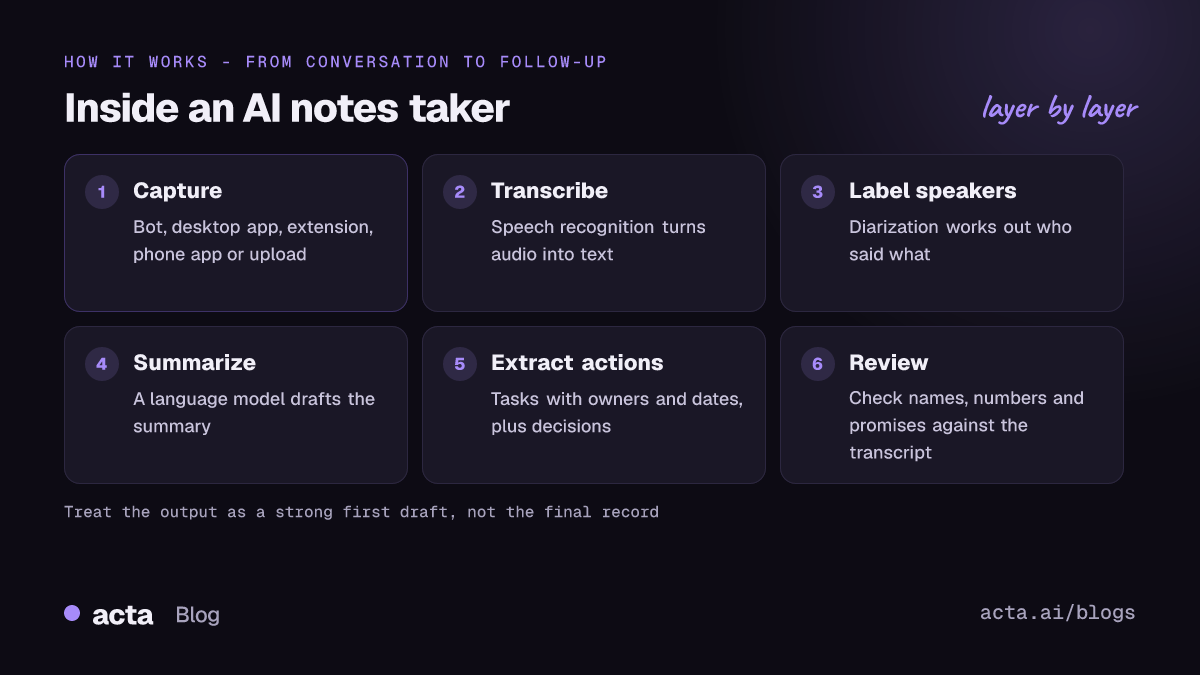
So how does an AI note taker work under the hood? The details vary by vendor, but almost every product follows the same pipeline.
1. Capture the audio
The tool needs a clean audio stream of the conversation. That can come from a bot inside the video call, from your computer's sound and microphone, from a phone on the table, or from a file you upload afterwards. The capture method matters more than most people expect, so it gets its own section below.
2. Turn speech into text
Automatic speech recognition (ASR) models convert the audio into words. Modern models are trained on very large amounts of recorded speech and do well on clear audio in common languages. They struggle more with crosstalk, heavy background noise, strong accents the model has rarely heard, and specialist vocabulary such as product names or medical terms.
3. Work out who said what
Separating speakers is called speaker diarization. Microsoft's documentation describes it plainly: the speech service reports which speaker said each part of the transcribed speech. On its own, diarization only knows that "Speaker 1" and "Speaker 2" are different voices. Meeting tools attach real names using extra clues, such as the participant list from the video call or the calendar invite.
4. Summarise the conversation
A large language model reads the transcript and writes a summary. This is where the tool decides what mattered, which is useful and also where most of the risk sits (more on that below).
5. Pull out action items and decisions
The same model, or a separate step, looks for commitments ("I'll send the revised quote by Friday") and agreements ("we're going with option B"). Good tools attach an owner and a date to each task rather than producing a vague bullet list.
6. Store, search and follow up
Finally, everything is saved so you can search it, share it, export it or push it into the tools where work happens, such as a CRM or a ticketing system.
How does an AI notes taker capture a meeting?
There are four common ways to get audio into an AI notes taker. Each has trade-offs.
A bot that joins the call
The tool connects to your calendar and sends a participant into Zoom, Google Meet or Microsoft Teams calls. Everyone can see it in the participant list, which is honest and makes consent easier to handle. The downside is that some people find a bot distracting, and some organisations block outside bots. Vendors set their own rules here; for example, Fathom's help center says it can only record a call if you are also present and leaves when the meeting ends.
A bot-free desktop app or browser extension
An app on your computer records the system sound plus your microphone, or a browser extension records a meeting running in a browser tab. Nothing extra appears in the participant list, so the meeting feels normal. You still need to tell people you are recording. Our guide to AI notetakers without a bot compares the options in this category.
A phone app for in-person meetings
For conversations around a table, in a classroom or on a site visit, a phone app records the room. Microphone placement matters a lot here: put the phone in the middle, away from laptop fans and coffee machines.
Uploading a recording
If you already have an audio or video file, many tools let you upload it and get the same transcript and summary. This is also the fallback for situations the tool cannot record directly. For a walk-through of every recording method, see how to record a meeting.
Built-in assistants are a fifth route. Google Meet, for example, has a Gemini feature that takes notes for you; Google's help page says it requires an eligible Google Workspace subscription and lets participants know notes are being taken. Built-in tools are convenient if your whole team uses one platform, but they stay inside that platform.
What is an AI notes taker good at?
Used well, an AI notes taker saves time and catches details people miss. It is strongest at:
- Being present for you. You can listen and think instead of typing.
- Remembering exact wording. When a customer states a requirement or a manager sets a deadline, the transcript has the actual words.
- Consistency. Every meeting gets the same structure, so notes from different people look alike.
- Search across time. Finding "what did we decide about pricing in March?" takes seconds instead of an afternoon.
- Turning talk into tasks. Action items with owners and dates are easier to follow up than a paragraph of prose.
Where do AI note takers get things wrong?
An AI notes taker is a draft writer, not a court reporter. Knowing its weak spots helps you use it safely.
Transcription errors
Names, numbers, acronyms and jargon are the usual casualties. "Fifteen" and "fifty" can swap, a product name becomes a common word, and two people talking at once can merge into one line. Poor audio makes every one of these worse.
Wrong speaker labels
When voices sound similar, or several people share one microphone in a meeting room, the tool may attribute a comment to the wrong person. That matters most for action items, because the owner may be wrong.
Summaries that say more than was said
Language models can produce confident statements that are not supported by the transcript, often called hallucinations. A summary might turn "we should probably look at this" into "the team agreed to do this", or fill a gap with a plausible guess. The fix is simple but important: check any decision, number or commitment against the transcript before you send it on. Tools that show you the exact transcript moment behind an answer make this much quicker.
Missing context
The AI only knows what was said out loud. Side conversations, a shared screen, a nod across the table or a decision made in a chat thread will not appear in the notes.
A practical habit: skim the summary within a day, fix anything wrong, and only then share it or push tasks into other systems.
Is it legal to use an AI notes taker? Privacy and consent
Recording a conversation needs consent where the law requires it, and the rules differ between countries and, in the US, between states. Some places require everyone's agreement; others require only one party's. The safe default is to tell everyone at the start that the meeting is being recorded and transcribed, and why. Our guide on whether it is legal to record meetings with AI covers consent and what to tell participants (it is general information, not legal advice).
Beyond consent, ask a few data questions before you pick a tool:
- Who can see each meeting's recording, transcript and summary?
- Does the vendor use your recordings or transcripts to train its AI models?
- Can you delete recordings, and can an admin control what is kept?
- Where do notes go when they are shared or exported?
How do you choose an AI notes taker?
Start from how your meetings actually happen, then work outwards:
- Where do you meet? Zoom, Teams, Meet, a browser, in person, or a mix. Make sure the tool can capture all of them.
- Bot or no bot? Decide whether a visible bot is fine with your colleagues and clients.
- What do you need afterwards? A summary may be enough for personal use. Teams usually need action items with owners, a decision record and search across meetings.
- Where should the notes end up? CRM, ticketing tool, document store, or just email.
- Privacy and access. Check data use, access control and admin settings.
- Trial it on real meetings. Run two or three tools on the same kind of meeting for a week and compare.
For a structured version of these questions, use our meeting notes software buyer's checklist. If you want product shortlists, see the top 10 AI note taker tools, our tested picks for in-person 1:1s, the guide to choosing an AI note taking app by device and situation, and the best AI note taking app for each use case.
Where does Acta fit as an AI notes taker?
Acta is an AI notes taker built for teams that need meetings to turn into follow-up work. It can capture meetings four ways: a bot that joins Zoom, Google Meet and Microsoft Teams from your calendar; a bot-free desktop app and Chrome extension; mobile apps for in-person meetings; or recordings you upload.
After each meeting you get a transcript with speakers, a summary, action items with owners and due dates, a decisions log and a follow-up email draft. OneChat answers questions across all your meetings and shows the sources, which makes checking a summary against the transcript faster. Acta does not use customer data to train AI models, and people only see meetings they have access to.
Acta is probably more than you need if you only want occasional personal voice memos transcribed. In that case a simpler app may suit you better.
Frequently asked questions
Is an AI notes taker the same as a transcription app?
Not quite. A transcription app gives you the words; an AI notes taker adds speaker labels, a summary, action items and usually search across meetings.
How accurate are AI meeting notes?
Accuracy depends heavily on audio quality, accents, crosstalk and jargon. Treat AI meeting notes as a strong first draft and check names, numbers and commitments against the transcript.
Can an AI notes taker work without joining the call as a bot?
Yes. A bot-free note taker records from a desktop app or browser extension on your own computer, so nothing appears in the participant list. You still need to tell people you are recording.
Does an AI notes taker work for in-person meetings?
Many do, through a phone app that records the room or by uploading a recording afterwards. Place the phone centrally and away from noise for the best meeting transcription.
Do I need consent to use an AI notes taker?
Often, yes. Laws differ by location, so the safe approach is to announce the recording at the start and let people object.
Want to see what an AI notes taker does with your own meetings? Start a free 15-day Acta trial.