Guides & How-tos 15 min read
Best AI Notetakers Without a Bot in 2026: 7 Bot-Free Options Compared
Which AI notetakers record without a bot joining the call? We compare seven on desktop, browser and mobile capture, meeting coverage and what you get after.
Quick answer: Acta is the best AI notetaker without a bot for most professionals in 2026, because it gives you three bot-free ways to record (a Windows and Mac desktop app that starts with Zoom or Teams, a Chrome extension for browser meetings, and phone apps), keeps a calendar bot as an option, and turns calls into decisions and tracked action items. Granola suits personal notes on a laptop; Fireflies and Otter suit teams that want bot and bot-free modes in one account.
A candidate asks who "Notetaker (Otter)" is. A client's IT policy keeps the bot in the waiting room. A board member sees an extra tile on the screen and goes quiet. The fix sounds simple: record from your own device instead of sending a bot into the call.
The trouble is that "no bot" is a feature in almost every product now, and it means very different things. We use one lens in this guide, which we call the coverage gap: the share of your real week's meetings that a tool can capture without anything joining the call. Zoom on the desktop app, Teams in a browser tab, Google Meet on a borrowed laptop, an in-person meeting, a phone call in a car. A tool with a small coverage gap captures almost all of them bot-free. A tool with a large one quietly sends you back to the bot, or to typing notes yourself.
We compared seven options on that lens and on what you get once the call ends. Bot-free does not mean secret, so we also cover what to tell people.
What is an AI notetaker without a bot?
A bot-free AI notetaker records the meeting from your side of the call. Instead of a virtual participant that joins through the meeting link, it captures audio on your computer or phone: the system audio (what you hear) plus your microphone (what you say). The recording is then transcribed and summarized like any other meeting.
There are four ways to do this. A desktop app captures audio while Zoom, Teams or another meeting app is running. A browser extension captures a meeting tab such as Google Meet. A mobile app uses the phone's microphone, which suits in-person meetings. And built-in platform AI, such as Zoom AI Companion, Gemini in Google Meet or Copilot in Teams, works inside the meeting service itself, so no third-party participant appears at all.
Why does bot-free recording matter in 2026?
Meeting bots are now common enough that some hosts and IT teams keep third-party notetakers out of their calls, and people outside your company may not know what the bot is or where its recording goes. In sales, recruiting, healthcare, finance and leadership meetings, an unexplained participant changes how candidly people talk.
Bot-free capture solves the visibility problem, but it moves the responsibility to you. Recording laws differ by place: in the United States some states require only one party's consent and others require everyone's, as the Reporters Committee for Freedom of the Press recording guide summarizes state by state. Vendors say the same thing in their own documentation: Otter's desktop app help page states that you are responsible for notifying participants and getting any required consent. A bot announces itself. With a bot-free tool, you do the announcing.
How did we evaluate bot-free notetakers?
We checked each vendor's own site, help center or documentation in October 2026 and judged every tool on five criteria that matter for this job.
1. Bot-free capture methods
How many ways can the tool record without joining the call: desktop app, browser extension, mobile app? More methods means a smaller coverage gap. A tool that only works on one operating system leaves the rest of your devices uncovered.
2. Meeting-app coverage
Which meetings does bot-free capture actually reach: Zoom and Teams desktop apps, Zoom and Teams in the browser, Google Meet, in-person conversations? Built-in AI usually covers only its own platform. Executives who move between client-hosted Teams calls and internal Meet calls feel this first.
3. Start reliability
A bot joins from your calendar on its own. A bot-free tool has to start on your device, and the most common failure is simply forgetting to press record. We looked at whether the tool starts by itself, prompts you, or waits for a click.
4. The bot as an option
Sometimes a bot is the right answer: when you cannot attend, when you want video, or when the host welcomes it. Tools that offer both modes in one account let you choose per meeting instead of running two products.
5. What you get after the call
A summary is the minimum. For people in sensitive meetings, the value is in what follows: decisions with owners, action items that someone tracks, reports in the format your role needs, and the ability to ask questions across months of meetings.
Quick comparison: which bot-free notetaker fits which need?
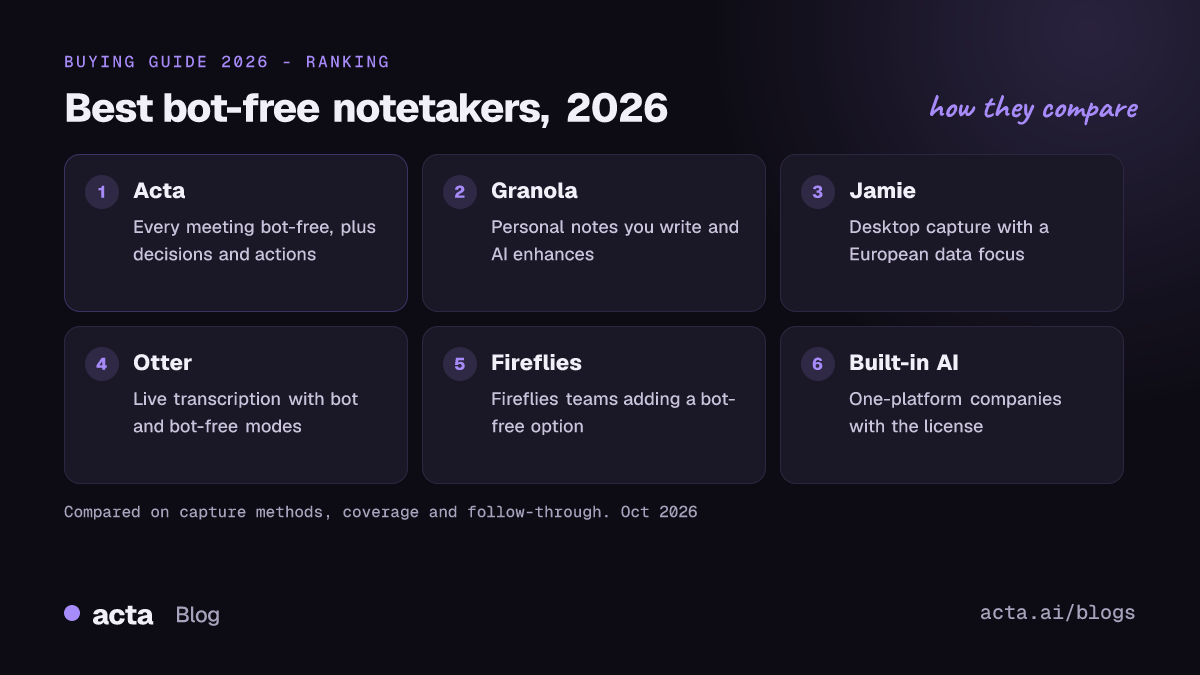
- Acta: best overall for covering every meeting bot-free and acting on the results.
- Granola: best for personal notes you write and AI enhances on a laptop.
- Jamie: best for bot-free desktop notes with a focus on European data handling.
- Otter: best for live transcription with bot and bot-free modes.
- Fireflies: best for teams already on Fireflies that need a bot-free option.
- Fathom: best for Mac users who want a free plan with bot-free capture.
- Built-in AI (Zoom, Teams, Meet): best for companies on one platform with the right license.
1. Acta: best overall for closing the coverage gap
Acta is an AI meeting assistant for Zoom, Google Meet and Microsoft Teams that records with or without a bot. It has three bot-free capture paths, which is why its coverage gap is the smallest in this guide:
- Desktop app for Windows and Mac: records the Zoom and Microsoft Teams desktop apps without a bot. It opens by itself when a meeting starts, or records automatically.
- Chrome extension: records Google Meet, Zoom and Teams in the browser without a bot, started with one click from the meeting tab.
- Mobile apps for iPhone and Android: for in-person meetings and calls away from your desk. You can also upload recordings and files.
When a bot is the better fit, the optional Notetaker joins meetings from your Google or Microsoft calendar and appears as a participant. You choose per meeting. More detail is on the Acta bot-free notetaker page.
Why it stands out
The capture is only half the job. After the call, Acta produces a transcript with speaker names (taken from the meeting and the calendar invite) and timestamps, an AI summary, decisions, and action items with owners. Then it keeps going:
- Decision log: decisions across meetings with who decided, the owner, linked action items, and the history when a later meeting changes or reverses a decision, with the quote and the moment it was said.
- Action item tracker (Outcomes): open, overdue, due this week and done, grouped by meeting or person, with one-click reminders and a scheduled daily follow-up email.
- Report templates: role-specific reports such as MEDDPICC deal reports, candidate assessments, board meeting minutes, draft SOAP notes for the clinician to check, or client reviews. Acta picks the template from the conversation and skips meetings a template is not meant for.
- Ask Acta: questions across the meetings and files you choose, with answers that cite the meeting.
Here is an illustrative decision-log entry from a bot-free Teams call recorded with the desktop app (invented example):
Decision: Delay the Northwind renewal price change to Q2
Decided by: Maria Lopez (CFO)      Owner: Dev Patel
Meeting: Northwind QBR, Teams (desktop app, no bot)
Quote: "Let's hold the new pricing until their Q2 budget opens."
Linked action items:
  - Dev Patel: send revised proposal - due Fri
  - Maria Lopez: confirm Q2 discount floor - due Mon
History: replaces "Apply new pricing at renewal" (Oct 2 pipeline review)
Because the decision log tracks reversals, the Q2 change above is linked to the earlier decision it replaced, not lost in a second set of notes. If you also use ChatGPT, Claude or Copilot, the Acta MCP connector (part of Pro) lets those assistants search your meetings, action items and decisions. Our guide to meeting assistants for ChatGPT, Claude and Copilot covers that in depth.
Watch out for
Acta transcribes after the meeting, not live, so you will not see a running transcript during the call. Bot-free browser capture uses the Chrome extension, so meetings in other browsers need the desktop app, a phone or the Notetaker. And the depth (decision log, templates, tracker) is more than someone who only wants a short summary will use.
2. Granola: best for personal notes you write yourself
Granola is an AI notepad built around bot-free capture. According to Granola's transcription docs, the desktop app for macOS and Windows uses system audio plus your microphone, with no bot in the meeting, and the homepage says it works with any meeting app, including Zoom, Google Meet and Teams. You type rough notes during the call and the AI fills them in from the transcript afterward.
What it does well
The writing experience is the draw: your own notes stay at the center. Granola transcribes in real time and, per its guide to in-person note taking, discards audio on Mac and Windows right after transcription. There is an iPhone app for in-person meetings. After the call you can chat with one note, a folder or all your meetings, apply custom templates, and share notes to tools such as Slack and Notion, as its integrations guide describes.
Watch out for
Granola does not advertise a meeting bot, so it cannot attend a meeting you miss. Because audio is not kept, there is no recording to replay. Granola notes that the iPhone app uses only the phone's microphone, so it cannot capture the remote side of a hybrid meeting the way the desktop app can. Follow-through is up to you: it focuses on notes rather than a decision log or action tracker. See our Acta vs Granola comparison.
3. Jamie: best for bot-free notes with a European data focus
Jamie is a bot-free notetaker that runs as a native app on macOS and Windows and captures system audio, so no participant is added to the call. Its own pages say it works across Zoom, Teams, Google Meet and in-person meetings, and list an iOS app for recording in-person meetings from a phone.
What it does well
Jamie is platform-agnostic by design: if sound plays on your computer, it can be captured. It watches microphone status and shows a reminder when the mic is in use, which helps with the forgot-to-record problem. Its privacy guide says audio is uploaded to a server in Frankfurt, processed, and deleted once the transcript is ready. Output includes notes, a transcript and action items.
Watch out for
Jamie's own pages are not fully consistent on whether any processing step leaves the EU (one says the final note-generation step uses external AI APIs), so read the current privacy policy if data location drives your choice. Jamie does not advertise a bot mode, and it focuses on notes rather than cross-meeting decision tracking.
4. Otter: best for live transcription with both modes
Otter's desktop app for Mac and Windows supports botless recording, so supported meetings are captured without an AI bot joining. Its help center lists meeting detection for Zoom, browsers (such as Google Meet), Microsoft Teams, Slack Huddles and others, and the app can detect when a meeting ends and stop. Otter's iOS and Android apps record in-person meetings.
What it does well
Otter is known for live transcription, which is useful if you want to glance at the transcript during the call. It offers both the Otter Notetaker bot and bot-free capture in one account, and there is a free Basic plan. The desktop app requires macOS 12.3 or later or Windows 10 or later.
Watch out for
The Notetaker bot can auto-join Zoom, Meet and Teams from your calendar, so if your goal is no bot at all, check your auto-join settings rather than assuming the desktop app replaces it. Otter's help page puts consent squarely on you when recording bot-free.
5. Fireflies: best for existing Fireflies teams that need a bot-free option
Fireflies is best known for its Notetaker bot, and its desktop app for Windows and Mac adds a bot-free mode. The Fireflies help article on bot-free recording explains that the app records your computer's audio, so no Notetaker joins and no participant appears, and that it also works for phone calls, WhatsApp, in-person conversations and more.
What it does well
You can start a recording from the Record button or let auto-detection start it. The Live Assist panel shows real-time notes and transcript during the call, and Fireflies produces a transcript and summary afterward. Teams that already run Fireflies keep one workspace for bot and bot-free meetings, and Fireflies has a free plan.
Watch out for
Bot-free recordings do not save audio or video. If you need a replayable recording, Fireflies directs you to the Notetaker bot. That is a real trade-off for anyone who reviews calls later or shares clips.
6. Fathom: best for Mac users who want a free plan
Fathom offers bot-free capture through its desktop app with several modes: transcript only, audio plus transcript, and bot-free video in a limited beta for Zoom, according to Fathom's bot-free comparison page. In bot-free mode, Fathom says it posts a recording notice in the meeting chat or shows in-app consent prompts.
What it does well
Fathom's free plan includes recordings, transcription, AI summaries and search, with your choice of bot or bot-free capture. The built-in recording notice is a thoughtful touch for the consent problem.
Watch out for
Fathom's device compatibility article says the new bot-free experience is available on Mac only, with Windows support coming soon, so Windows users still rely on the bot. Bot-free capture is started from the desktop app ("Capture Now"), so build the habit.
7. Built-in AI in Zoom, Teams and Google Meet: best for one-platform companies
Each major platform has its own AI notes, so nothing extra joins the call:
- Zoom AI Companion: meeting summary requires a licensed user on a paid Zoom Workplace plan with the feature enabled; the host starts the summary from the in-meeting controls.
- Gemini in Google Meet: "Take notes for me" needs a work or school account or an eligible Google AI plan, is off by default until an admin turns it on, and saves notes to the organizer's Google Drive.
- Copilot in Teams: per Microsoft's admin documentation, Copilot can run during a meeting without saving a transcript, but a recap after the meeting depends on transcription being on.
What it does well
No extra app or vendor, and the output lands where your company already works. If you live on one platform and already pay for the license, this is the simplest route. Our Acta vs built-in AI notes comparison goes further.
Watch out for
Built-in AI only works inside its own platform, and often only when you are the host or your admin enables it. When a client hosts on Teams and your company runs Meet, your notes end up in two systems, or not at all. That is the coverage gap at its widest.
A week of sensitive meetings: where each tool helps
Example scenario with an invented company and people. Priya Shah is COO of Halden Logistics, a 300-person freight company. Her week:
- Monday, board prep on Zoom (desktop app): every bot-free tool here can capture it. Built-in Zoom AI Companion works too if Halden licenses it and Priya hosts.
- Tuesday, a customer's Teams call in the browser: the customer's IT blocks external bots. Desktop-only tools may still capture the browser audio; Acta's Chrome extension captures the tab with one click. Teams Copilot is the customer's, not Priya's.
- Wednesday, an executive candidate interview on Google Meet: no bot is the polite choice. Priya says at the start that she is taking AI notes, then records bot-free.
- Thursday, an in-person warehouse safety review: phone apps (Acta, Otter, Granola on iPhone, Jamie on iOS) cover it; desktop-only workflows do not.
- Friday, a vendor call she cannot attend: only tools with a bot option (Acta, Otter, Fireflies, Fathom) can record without her.
By Friday afternoon, the difference is not the transcripts. With a notes-only tool, Priya has five documents. With Acta, Tuesday's pricing decision is in the decision log with an owner, Thursday's safety fixes are in the action tracker with due dates, and Wednesday's interview has a candidate assessment. When the board asks on Monday what changed with the customer, she asks Ask Acta and gets an answer that cites the meeting.
Does bot-free mean you can record without telling anyone?
No. Bot-free changes what people see on screen, not your obligations. Say it at the start: "I'm using an AI notetaker so I can focus on the conversation; let me know if you'd prefer I don't." Add a line to calendar invites for recurring meetings. Stop recording when someone asks. Our guide on whether it is legal to record meetings with AI covers consent rules and wording in more detail, and the short answer on recording Teams without a bot walks through the setup.
When is Acta not the right choice?
If you need a live transcript on screen while you talk, Acta is not the right choice, because it transcribes after the meeting; Otter or Fireflies' Live Assist fit better. If you want a minimal notepad where you type and AI tidies up, and you never need decisions tracked across meetings, Granola is lighter. And if your whole company runs on one platform and already pays for its AI license, built-in notes may be enough without adding a vendor.
How to choose a bot-free AI notetaker
- Choose Acta if your meetings span Zoom, Teams and Meet, desktop, browser and in person, and you want decisions, action items and role reports to come out the other side, with a bot available when you cannot attend.
- Choose Granola if you take your own notes on a laptop and want AI to fill in the gaps.
- Choose Jamie if you want a platform-agnostic desktop recorder and European data processing is a priority.
- Choose Otter if live transcription during the call matters most.
- Choose Fireflies if your team already uses it and needs a bot-free mode for some meetings.
- Choose Fathom if you are on a Mac and want a free plan with bot or bot-free capture.
- Choose built-in AI if you host nearly all meetings on one platform and have the license.
For a broader view of meeting software beyond bot-free capture, see our guide to the best meeting notes software in 2026, and for follow-through specifically, our comparison of AI tools for meeting decisions and action items.
Frequently asked questions
Can an AI notetaker record a Zoom or Teams meeting without joining as a participant?
Yes. Desktop apps from Acta, Granola, Jamie, Otter, Fireflies and Fathom (Mac) capture your computer's audio, so no participant is added. Acta's desktop app opens by itself when a Zoom or Teams desktop meeting starts.
How do I take AI notes in Google Meet without a bot?
Use a desktop app that captures system audio, a browser extension such as Acta's Chrome extension, or Gemini's "Take notes for me" if your Google Workspace admin has enabled it.
Do bot-free notetakers save the audio recording?
It varies. Granola discards audio after transcription on desktop, Jamie says it deletes audio after processing, and Fireflies' bot-free mode saves no audio or video. Check each tool if you need playback.
Is a bot-free notetaker less accurate than a bot?
Not inherently; both transcribe the same voices. Speaker names can differ, since a bot sees the participant list. Acta takes speaker names from the meeting and the calendar invite.
Do I still need to tell people I am using a bot-free notetaker?
Yes. Consent rules depend on where participants are, and a bot-free tool does not announce itself. Tell people at the start and offer to stop.
Want to close your coverage gap? Try Acta free for 15 days with the desktop app, Chrome extension and phone apps.
Found this useful? Share it with your team.