Good webinar notes capture three things: the handful of points you'll actually use, the questions and answers from the Q&A, and the follow-ups you owe or are owed. Use a different template for each job. Attendees need a short key-points page they can act on; hosts need a Q&A log, a debrief and a follow-up email. Below are eight copy-ready templates, each with when to use it.
Meeting Productivity 11 min read
Webinar Notes: 8 Templates for Q&A, Key Points and Follow-Ups
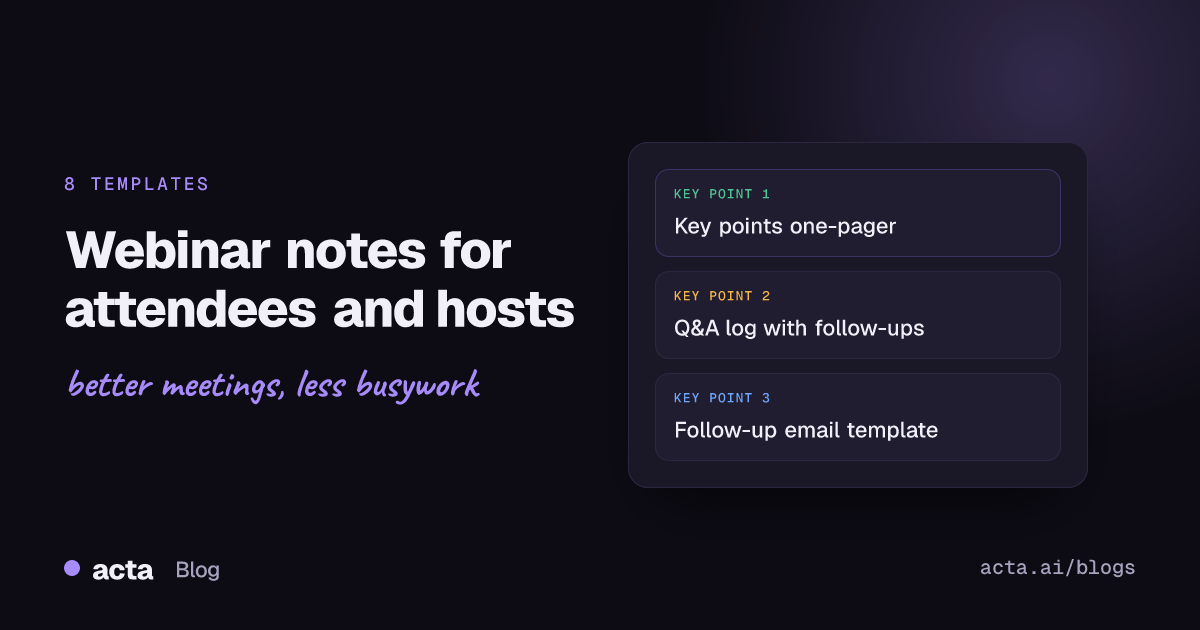
Eight copy-ready webinar notes templates for attendees and hosts, from a key points one-pager to a Q&A log and follow-up email, plus Zoom and Teams Q&A exports.
By Sarma BKP, Founder & CEO, Acta · Updated
This is for two kinds of reader. If you attend webinars for work and want something better than a page of half-sentences, start with templates 1 to 4. If you run webinars for marketing, training or customer education and need to turn the session into follow-up work, go to templates 5 to 8. Skip all of this for a casual internal demo; a two-line message in the team channel is enough.
Key takeaways
- Write no more than five key points per hour of webinar. If everything is a key point, nothing is.
- Log every audience question with three fields: who asked, the answer given, and whether it needs a follow-up.
- Zoom and Microsoft Teams can export the webinar Q&A as a CSV after the event, as of November 2026, so hosts don't need to type it out.
- Send the webinar follow-up email while the session is still fresh, with the recording link, the top three points and answers to unanswered questions.
- Record the session (with consent) and take light notes on top. You'll listen better and miss less.
Table of contents
- Webinar notes should capture three things
- Eight templates cover attendees and hosts
- Attendee templates focus on what you'll use
- Host templates turn the session into follow-up work
- Zoom and Teams can export the Q&A for you
- Recording the webinar beats typing every word
- Most webinar notes fail in the same few ways
- Where Acta fits
- Frequently asked questions
- Choose your webinar notes template before the next session
Webinar notes should capture three things
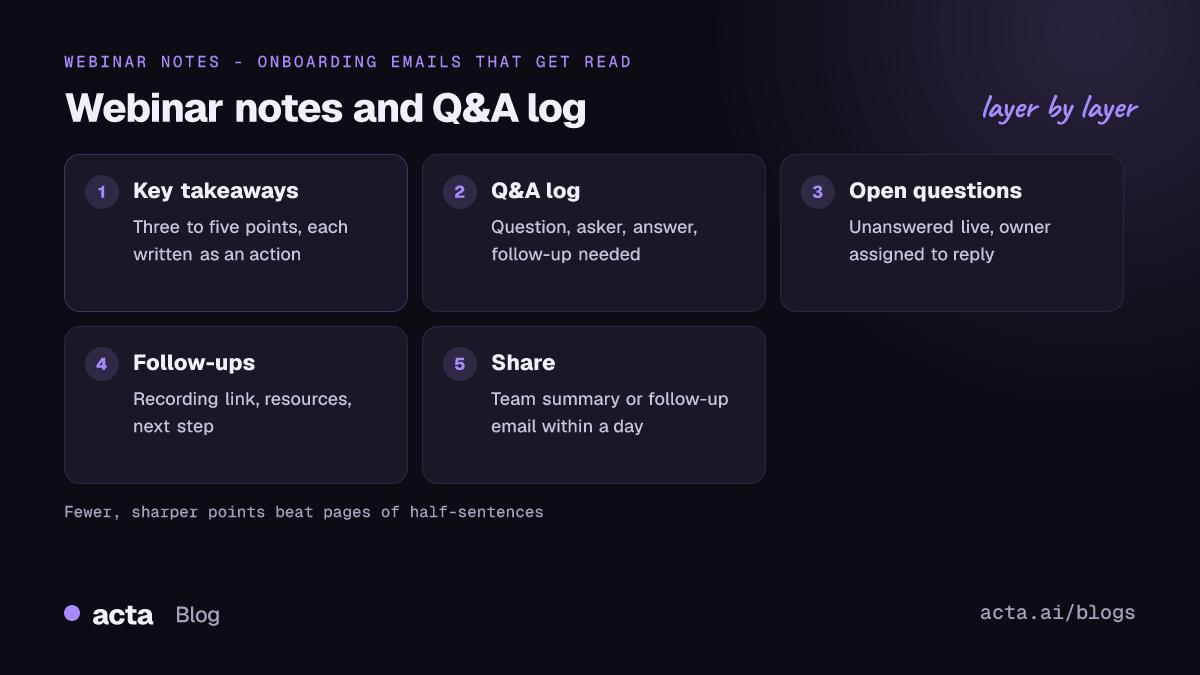
Webinar notes are the short written record you keep from an online presentation: the points worth remembering, the audience questions and answers, and what happens next. They're different from meeting notes because most of the session is one-way. Nobody needs a record of who said what in the slides; they need the few ideas and answers that change what they do.
So keep the structure tight:
- Key takeaways. Three to five points, each written as something you could act on. "Pricing pages convert better with a comparison table" beats "talked about pricing pages".
- Webinar Q&A. The questions asked and the answers given. This is often the most useful part, because the questions are the audience's real problems.
- Follow-ups. Resources promised, questions left open, people to contact, and tasks for you or your team.
If you're wondering how to take notes during a webinar without missing the next slide, here's the trick: don't take full notes live. Jot timestamps and one-word cues ("14:20 pricing table"), then fill in the detail from the recording or slides afterwards. Our comparison of Cornell, outline and AI note-taking methods explains why fewer live notes often means better recall.
Eight templates cover attendees and hosts
Pick the template that matches your role and what you need afterwards. Most people only need one or two of these.
| Template | For | Use it when |
|---|---|---|
| 1. Key points one-pager | Attendee | You want the gist in under a page |
| 2. Cornell-style webinar notes | Attendee | You're learning a skill and want to review later |
| 3. Attendee Q&A tracker | Attendee | You have questions to ask or check later |
| 4. Share-with-team summary | Attendee | Your manager or team couldn't attend |
| 5. Host Q&A log | Host | You need to answer questions you missed live |
| 6. Post-webinar debrief | Host team | You run webinars regularly and want each one better |
| 7. Webinar follow-up email | Host | You're sending the recording to registrants |
| 8. Content repurposing notes | Host or marketer | You want blog posts, clips or FAQs from the session |
Attendee templates focus on what you'll use
As an attendee, your notes have one job: make the hour worth it. That means fewer, sharper points and a clear "so what" for your own work.
Template 1: Key points one-pager
Use it for most webinars you attend for work. It fits on one screen and you can paste it into your notes app.
Webinar: [title] | Host: [company or speaker] | Date: [date]
Why I attended: [one line]
Key takeaways (max 5): 1. [point] 2. [point] 3. [point]
One thing I'll try: [action and when]
Links: [recording] [slides] [resources mentioned]
Template 2: Cornell-style webinar notes
Use it for training webinars where you're learning something you'll be tested on or need to apply step by step. The cue column helps you review a week later.
Cues and questions (left): [keyword or question per section]
Notes (right): [what was said, examples, slide numbers]
Summary (bottom): [three to four sentences in your own words, written after the session]
Template 3: Attendee Q&A tracker
Use it when you go in with questions, or when the Q&A is the reason you're attending. It stops good answers getting lost in the chat.
My question: [question] | Asked? [yes or no] | Answer: [summary] | Follow up with: [name or email]
Other people's questions worth keeping: [question - answer]
Template 4: Share-with-team summary
Use it when you attended on behalf of others. Lead with what it means for them, not what the speaker said. Our guide to sharing meeting notes with people who weren't there covers the format in more depth.
Webinar: [title, date] - recording: [link]
What it means for us: [two sentences]
Three points worth knowing: [point] / [point] / [point]
Suggested next step: [proposal, owner]
Skip unless you're curious: [sections you can ignore, with timestamps]
Here's template 4 filled in, from an illustrative vendor webinar on onboarding emails:
Webinar: Onboarding emails that get read, 18 Nov 2026 - recording link in the team drive
What it means for us: Our day-3 email is doing the work of three emails. They suggested splitting it and sending each one after a product action, not on a timer.
Three points worth knowing: Trigger emails on what users did, not on days since sign-up. / Put one action per email. / Plain-text emails from a named person were their best performers in the examples shown.
Suggested next step: Dana to draft a split version of the day-3 email for review next sprint.
Skip unless you're curious: 25:00-40:00 is a product demo.
Host templates turn the session into follow-up work
For hosts, the webinar isn't over when the session ends. The questions you didn't get to, the follow-up email and the debrief all decide whether the next one is better. These four templates cover that.
Template 5: Host Q&A log
Use it after every webinar with a Q&A. Start from the exported Q&A file (see the next section) and add the last two columns yourself.
Question | Asked by | Answered live? | Answer or owner | Add to FAQ?
[question] | [name or anonymous] | [yes or no] | [short answer, or who will reply] | [yes or no]
Template 6: Post-webinar debrief
Use it for a 20-minute team debrief within a day or two. Keep it about the next session, not blame.
Session: [title, date] | Registered and attended: [from the platform report]
What worked: [two or three items]
What didn't: [two or three items]
Top audience questions: [three themes from the Q&A log]
Change for next time: [change - owner]
Template 7: Webinar follow-up email
Use it for registrants, whether they attended or not. Keep it short; the recording does the heavy lifting. For more on writing these, see our guide to automating meeting follow-up emails.
Subject: Recording and answers: [webinar title]
Hi [first name], thanks for registering for [title]. Here's the recording: [link].
Three things to take away: [point] / [point] / [point]
We ran out of time for a few questions, so here are the answers: [question - short answer] (two or three max).
If you'd like to [next step, e.g. book a walkthrough], reply to this email. [Name]
Template 8: Content repurposing notes
Use it when the webinar should feed your blog, social posts or help docs. Mark timestamps as you go, or pull them from the recording.
Clip-worthy moments: [timestamp - what was said]
Questions that deserve a blog post: [question]
Quotes approved for use: "[quote]" - [speaker] (check before publishing)
FAQ additions: [question - answer]
Zoom and Teams can export the Q&A for you
If you host, don't retype the webinar Q&A. Both big platforms export it. As of November 2026, Zoom's help article on generating reports for registration, Q&A, polling and surveys says the Q&A report shows questions and answers from the session. You find it under Reports in the admin area, it needs the Q&A setting turned on and a paid plan, and you download it as a CSV. Zoom suggests generating it about 30 minutes after the session ends. Admins control whether webinar Q&A is available at all, per Zoom's page on enabling or disabling Q&A for webinars.
Microsoft Teams works similarly for webinars and town halls. Microsoft's Q&A in Microsoft Teams page says organisers and co-organisers can download a Q&A report as a CSV once the event ends, from the event's management page in the Teams calendar. It only covers questions from the previous 28 days, so download it soon, and the report isn't available for regular Teams meetings. Check each vendor's page for current steps, because menus and plans change.
The export gives you the raw questions. It doesn't tell you which answers were vague, which questions came up three times in different words, or which ones need a follow-up. That's what template 5 is for: paste the CSV into a sheet and add those columns.
Recording the webinar beats typing every word
The single biggest improvement to webinar notes is to stop trying to write everything down. Hosts usually record anyway. As an attendee, check whether a recording will be sent; if not, and you have permission, record it yourself. Our guide on how to record a webinar you're attending walks through the options.
If the webinar runs in your browser, a Chrome extension recorder can capture it from the tab without adding a participant; if it runs in the Zoom or Teams desktop app, a desktop recorder does the same. Then an AI tool can draft a webinar summary and pull out the questions, and you edit the result into one of the templates above. Ask the host first or check the event's terms: many webinars allow personal recordings, some don't. This isn't legal advice, but our guide on whether it's legal to record meetings with AI covers consent in more detail.
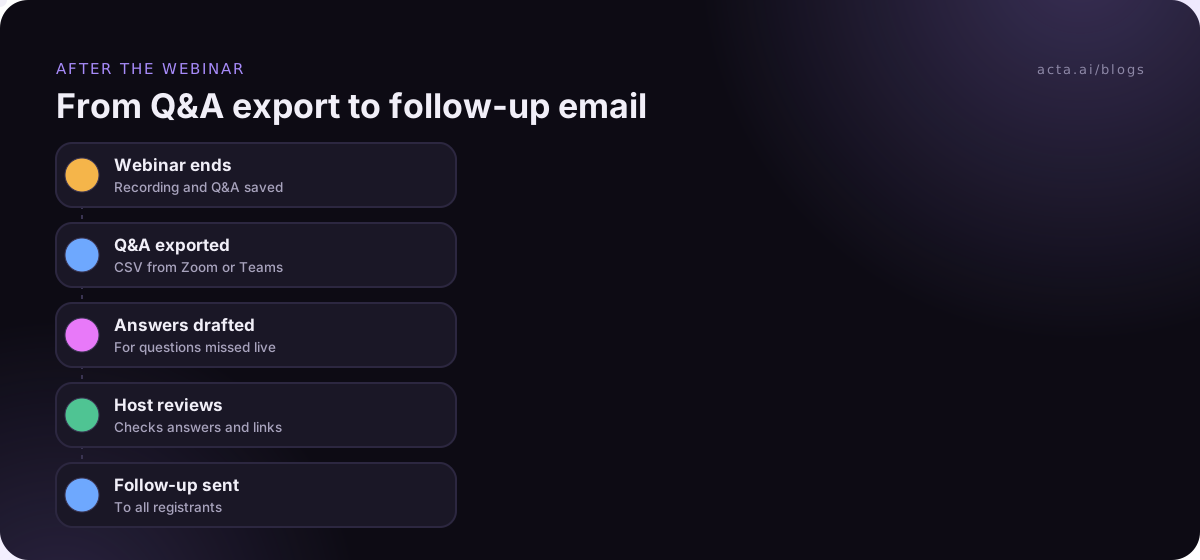
With a recording in hand, take light notes during the session: timestamps, one-word cues and your own reactions. Afterwards, fill in the template from the recording or AI summary. You'll listen better live and end up with more accurate notes.
Most webinar notes fail in the same few ways
- Transcribing the slides. The deck is usually shared afterwards. Note what the speaker said that isn't on the slides.
- Too many key points. Twelve takeaways from a 45-minute session means you didn't choose. Cut to five.
- No action. Every attendee template has a "what I'll do" line. If you can't fill it, ask whether the webinar was worth your next hour.
- Unanswered questions left unanswered. Hosts lose trust when the "we'll follow up" never comes. Use the Q&A log and answer within the week.
- Notes nobody can find. Save webinar notes in one place with the title and date in the file name.
Where Acta fits
Acta can record a webinar through its meeting bot, the desktop app or the Chrome extension, then write a transcript with speaker names, a summary and action items, plus a follow-up email draft. Its report templates can shape the notes into a fixed structure. For a webinar where a short key-points page is all you need, a notebook works just as well.
Frequently asked questions
How do I take notes during a webinar without missing anything?
Don't try to write everything live. Note timestamps and one-word cues, then fill in detail from the recording or slides afterwards. If the host doesn't share a recording, ask whether you can record it. Use a short template with key takeaways, questions and actions, and finish it the same day while you remember the context.
What should a webinar summary include?
A webinar summary should include the title and date, a link to the recording, three to five key takeaways written as actions, the most useful questions and answers, and next steps with owners. If you're sharing it with your team, open with what the webinar means for them, and note which parts of the recording they can skip.
Can I download the Q&A from a Zoom or Teams webinar?
Yes, as of November 2026. Zoom's help pages say hosts can generate a Q&A report as a CSV from the Reports area on paid plans. Microsoft says Teams webinar and town hall organisers can download a Q&A report as a CSV after the event, covering the last 28 days. Check each vendor's page, because plans change.
When should I send a webinar follow-up email?
Send it soon after the session, while attendees still remember it, ideally within a day. Include the recording link, three takeaways, answers to questions you didn't reach live, and one clear next step. Send it to everyone who registered, not just attendees, because many registrants watch the recording instead.
Is it OK to record a webinar I'm attending?
It depends on the host's terms and on local law. Many webinars send a recording to registrants anyway, so check first. If you want your own copy, ask the host or check the event page, and don't share it publicly. This is general information, not legal advice.
Choose your webinar notes template before the next session
Decide your template before the webinar starts. Picking one afterwards usually means you didn't capture what it needs.
- Know your role: attendee templates 1 to 4, host templates 5 to 8.
- Plan the recording: confirm the host sends one, or get permission to record it yourself.
- Limit the takeaways: five per hour at most, each written as something you'd do.
- Export the Q&A: hosts, download the CSV from Zoom or Teams and fill in the log.
- Send the follow-up: recording, three takeaways and open answers, within a day.
If you want webinar recordings turned into notes for you, Acta's Chrome extension and desktop app are part of the 15-day free trial on the pricing page.
Found this useful? Share it with your team.