Coding agents now run in three places
A year or two ago the split was simple: Copilot and Cursor lived in the editor, Claude Code and Codex lived in the terminal. That's no longer true. The Claude Code docs list the terminal, IDE extensions, a desktop app and the web as surfaces. Cursor ships a CLI next to its editor. GitHub has an agent mode in VS Code, a coding agent that runs on GitHub, and a Copilot CLI.
So it helps to sort by surface rather than by brand:
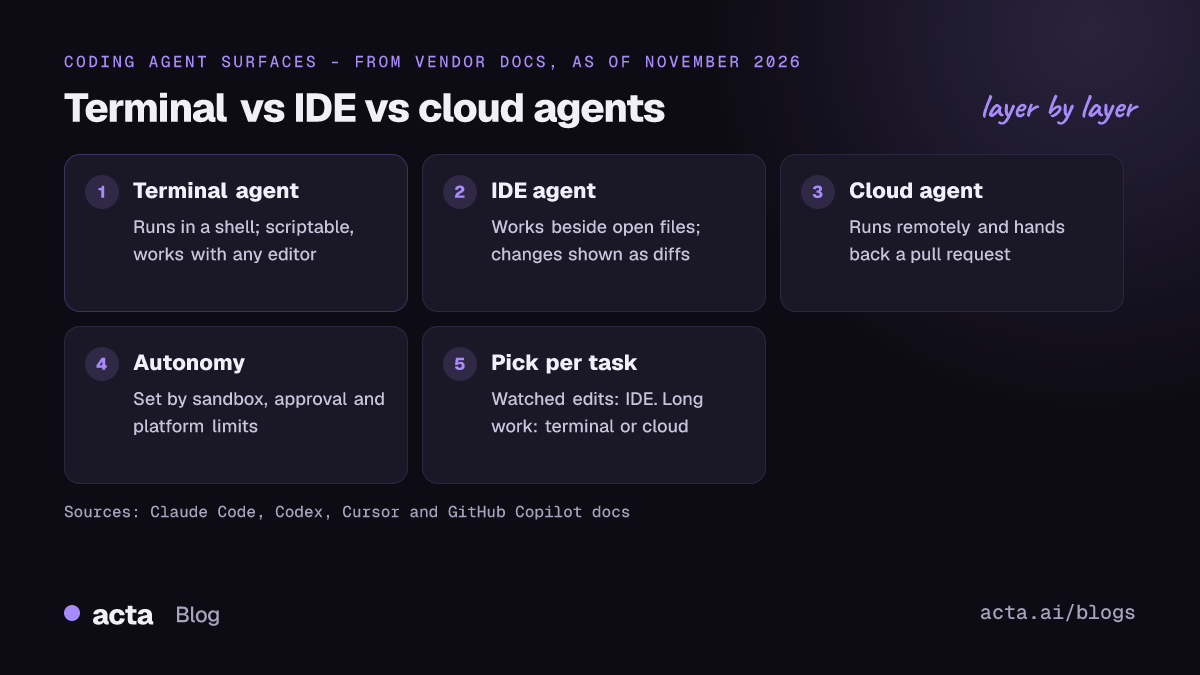
- Terminal: an agent you start in a shell, inside the repo. It reads files, runs commands and edits code through tools. You review in your own editor or with git diff.
- IDE: an agent in a side panel of your editor. It sees what you have open and proposes edits as inline diffs you accept or reject.
- Cloud: an agent that runs on someone else's machine against your repository and reports back with a branch or pull request.
The same model can sit behind all three. What changes is how often you look at its work, and where. That's the real question in CLI vs IDE coding agents.
Terminal coding agents treat the repo like a shell session
A terminal agent is a process. That sounds dull, but it's the main advantage: anything that can run a process can run the agent. You can start it over SSH on a build box, inside a container, in a CI job, or from a script that loops over twenty repositories. It doesn't care whether you use Vim, VS Code or JetBrains.
It also works the way a developer does in a terminal: grep for a symbol, open the files that match, run the test suite, read the failure, edit, run again. For tasks like "upgrade this library and fix what breaks" or "rename this field across the API, the client and the migrations", that loop is the job.
Installing the terminal versions is a single command for most of them. From the official docs and repositories (as of November 2026):
npm install -g @openai/codex
npm install -g @github/copilot
GitHub's Copilot CLI install guide lists Node.js 22 or later, npm 10 or later and an active Copilot subscription, notes that the CLI is in public preview, and has you sign in with /login on first launch. Claude Code and the Cursor CLI have their own installers; follow each vendor's install page rather than a copied one-liner. The Cursor CLI docs say the CLI offers the same modes as the editor, switchable with slash commands or a --mode flag, with Agent as the default.
The weak spot is visibility. A terminal agent can change twelve files before you look. You need the discipline to review with git diff, commit in small steps, and set permissions so it asks before risky commands.
IDE agents keep you inside the diff
IDE agents win on feedback. You select a function, describe the change, and see red and green lines in the file you're already reading. You can reject one hunk and keep the rest. For work where you're thinking alongside the agent (a tricky refactor, unfamiliar code, UI changes you need to see), that tight loop is worth a lot.
Cursor's agent has Agent, Plan and Ask modes; Plan is useful for getting a proposed approach before anything is edited, and Ask for questions about the code without changes. GitHub's agent mode in VS Code and Visual Studio runs synchronously in the editor on your machine (or a dev container): it iterates on code, runs tests and fixes its own errors while you watch.
Claude Code bridges the two. Its docs say the desktop app and IDE extensions trade some CLI-only features for visual review and tighter editor integration. Running claude from your IDE's integrated terminal turns on the editor features, and the /ide command connects a Claude Code session in an external terminal to the IDE. The JetBrains plugin needs the Claude Code CLI installed separately.
The cost of the IDE approach is that it ties the agent to a window. Long tasks block your editor or compete with what you're doing in it, and you can't easily run the same agent from a script.
Cloud coding agents hand back a pull request
Cloud agents take you out of the loop until the end. GitHub's docs are clear that the Copilot coding agent is a different feature from agent mode. You assign an issue to Copilot on GitHub.com (or from the GitHub Pull Requests view in VS Code); it works in a GitHub Actions environment, explores the repo, makes changes and opens a pull request for your review. As of November 2026 the docs list limits worth knowing: it can't work on an existing pull request it didn't create, and it can't mark its pull request ready for review, approve it or merge it.
Cursor's Cloud Agents, formerly called Background Agents, run in isolated cloud VMs with full development environments. You can start one from the desktop app, at cursor.com/agents, or by mentioning @Cursor in Slack, GitHub or Linear. From the Cursor CLI, putting & in front of a message sends it to the cloud, and you can pick it up later on the web or mobile.
Cloud coding agents fit tasks you'd write up as a ticket for a colleague: clear acceptance criteria, contained scope, tests that prove it works. They fit badly when the spec is "figure out what's wrong", because you won't be there to answer the agent's questions.

Autonomy is a setting, not a product category
People often say terminal agents are "more autonomous". In practice, autonomy is a dial on every tool, and the defaults are cautious.
Codex documents this most explicitly. Its sandboxing docs describe sandbox modes (read-only, workspace-write and danger-full-access) and an approval policy that controls when Codex must ask before it acts. In read-only mode it can inspect files but can't edit them or run commands without approval. The recommended everyday preset is:
sandbox_mode = "workspace-write"
approval_policy = "on-request"
That lets it edit inside the project and asks before stepping outside. Save danger-full-access for throwaway containers.
The cloud agents bake limits in at the platform level instead: Copilot's coding agent works on its own branch and can't merge. In the editor, you approve diffs one by one.
Whatever the tool, set the dial by blast radius, not convenience. An agent with shell access and your credentials can do anything you can. Prompt injection through a README, an issue comment or a web page is a real risk for agents that read untrusted text; see why a system prompt is not a security boundary and the risks of AI agents at work.

Context comes from the repo and your rules
A common belief is that IDE agents "know more" because they see your open tabs. They do get that signal: your selection and open files are a strong hint about intent. But all of these agents pull most of their context by searching and reading the repository through tools, and they all let you add standing instructions.
Cursor applies project, user and team rules across Agent, Ask, Plan and Debug modes. Codex reads skills from .agents/skills folders between your working directory and the repo root. Claude Code supports skills, subagents, hooks and MCP servers, packaged as plugins if you want to share them. We compare those mechanisms in agent skills vs MCP vs plugins.
The practical rule: whichever surface you choose, write down the things you keep correcting (test commands, naming conventions, folders not to touch) in the tool's rules or skills. That does more for output quality than switching from terminal to IDE or back.
External context is the other half. Through MCP, agents can read tickets, docs or meeting decisions. The trade-offs are in MCP vs function calling.
Surfaces each vendor documents as of November 2026. Plans, previews and names change often; check the linked docs before you standardise.
| Tool | Terminal | Editor | Cloud / async |
|---|
| Claude Code | CLI (main surface) | VS Code and JetBrains extensions; desktop app | Web |
| Codex | Codex CLI | IDE extension | Not covered here; see OpenAI docs |
| Cursor | Cursor CLI | Cursor editor: Agent, Plan, Ask | Cloud Agents in isolated VMs |
| GitHub Copilot | Copilot CLI (public preview) | Agent mode in VS Code and Visual Studio | Coding agent in GitHub Actions, opens a PR |
Claude Code vs Cursor
Pick Claude Code if your team works in mixed editors, wants one agent across terminal, IDE and scripts, and is comfortable reviewing with git. Pick Cursor if people want the agent built into the editor itself, like to switch between Plan and Agent modes visually, and want cloud agents launched from Slack or Linear.
Codex CLI vs Copilot
Pick Codex CLI if you want explicit, file-configurable control over sandboxing and approvals and you already use OpenAI models. Pick Copilot if your work is centred on GitHub issues and pull requests: assigning an issue and getting a PR back is the most natural cloud workflow of the four, and agent mode covers the editor.
Review is the bottleneck, so plan for it
Whatever surface writes the code, a person still reads it. The faster agents get, the more the bottleneck moves to review. Plan your workflow around that.
- Plan where you can see it. Use an IDE agent's plan or ask mode, or ask a terminal agent for a plan before edits, and check it against the ticket.
- Run long work where it won't block you. Multi-file changes go to a terminal agent in a separate worktree or to a cloud agent.
- Keep diffs small. Ask for one concern per change. A 2,000-line agent PR gets rubber-stamped, which defeats the point of review.
- Make tests the contract. Agents that can run tests fix their own mistakes; tell them the exact command.
- Write down what was decided. The why behind a change usually lives in a design review or standup, not in the ticket.
That last point is where meeting notes help. If your team captures those calls, Acta's MCP connector lets Claude Code or Cursor read the decisions and action items from them (setup guide), so the agent works from what was agreed rather than a stale ticket. The Acta desktop app captures Zoom and Teams calls without a bot; check what to tell participants first. Our ticket agent post shows the meeting-to-Jira side.
Frequently asked questions
What is the difference between terminal coding agents vs IDE agents?
A terminal coding agent runs as a process in your shell: it searches, edits and runs commands in the repo, works with any editor, and can be scripted. An IDE agent runs inside your editor, uses your open files as context and shows each change as an inline diff. Many tools, including Claude Code and Cursor, now offer both surfaces.
Is a CLI agent more autonomous than an IDE agent?
Not inherently. Autonomy is a setting. Codex, for example, combines a sandbox mode (read-only, workspace-write or danger-full-access) with an approval policy, and IDE agents let you accept or reject each diff. Terminal agents feel more autonomous because they're often used for longer tasks with fewer check-ins, not because the tool forces it.
What is the difference between Copilot agent mode vs coding agent?
GitHub's docs treat them as separate features. Agent mode runs synchronously in VS Code or Visual Studio on your machine, editing and running tests while you watch. The coding agent runs asynchronously in GitHub Actions after you assign it an issue, then opens a pull request. As of November 2026 it can't approve or merge its own pull requests.
When should I use cloud coding agents?
Use them for well-specified, contained tasks you'd hand to a teammate as a ticket: a clear goal, acceptance criteria and tests that prove it works. They're a poor fit for vague debugging, because the agent works without you and can't ask questions mid-task. Expect to spend your time on pull request review.
Can I use terminal and IDE agents together?
Yes, and many developers do. A common split is an IDE agent for focused edits you want to watch, and a terminal or cloud agent for long multi-file tasks in a separate branch or worktree. Keep standing instructions in each tool's rules or skills so both follow the same conventions.
Pick a setup for your team
You don't need one winner. Decide which surfaces your team supports and what each is for, so reviews stay predictable.
- Choose by task length: short, watched edits in the IDE; long multi-file work in the terminal; ticket-sized jobs to a cloud agent.
- Set autonomy on purpose: start with project-only writes and approval for anything outside it, and loosen only in disposable environments.
- Write the rules once: test commands, conventions and no-go folders go into the tool's rules or skills, not into every prompt.
- Cap pull request size: agree a size above which agent PRs get split before review.
- Feed decisions in: connect the sources that explain why a change is needed, such as tickets and meeting decisions, through MCP.
If design reviews and standups are where your team's decisions get made, capture them with the Acta desktop app so your coding agents can work from what was actually agreed.