You can run an LLM on CPU with no GPU at all, and in November 2026 it is a sensible choice for small models and jobs that can wait. Use llama.cpp (or a wrapper around it) with a GGUF file at Q4_K_M, pick a model in the 1B to 4B range, and expect your RAM bandwidth, not your core count, to set the speed. Chat with 8B models is possible but slow; anything bigger is a batch job.
This guide is for people with a laptop, a mini PC, a homelab box or a spare server and no graphics card worth using. It settles which models and quant levels make sense, why the same model runs twice as fast on one machine as another, and which jobs to give a CPU. If you need fast chat with 30B+ models for a team, a CPU won't get you there and you should read the GPU sections of our Ollama vs LM Studio vs llama.cpp vs vLLM comparison instead.
Key takeaways
- Token generation on CPU is limited by memory bandwidth: every new token reads the whole (dense) model from RAM once, so a 4.9 GB file on a 90 GB/s machine has a theoretical ceiling under 20 tokens per second.
- Fill every memory channel. Two sticks beat one stick of the same total size, and a server with 8 or 12 channels beats any desktop.
- Start with a 1B to 4B model at Q4_K_M; move to an 8B only if the small one fails your task.
- Long prompts are compute-bound, not bandwidth-bound, so summarising a long transcript spends most of its time reading the prompt. Measure both with llama-bench before you commit.
- Good CPU jobs: overnight summaries, tagging, extraction, private drafting, small-model agents. Bad CPU jobs: multi-user chat, long-context coding, anything with a latency budget.
Table of contents
- CPU-only inference works for small models and patient jobs
- Memory bandwidth, not core count, sets your token speed
- The best LLM for CPU is a small model at Q4_K_M
- llama.cpp on CPU takes three commands
- Tune threads, RAM and context before you buy hardware
- Long prompts are the hidden cost when you run an LLM on CPU
- Give the CPU batch jobs and keep chat short
- Meeting transcripts are a good CPU workload if you can wait
- Frequently asked questions
- Decide whether to run an LLM on CPU or buy a GPU
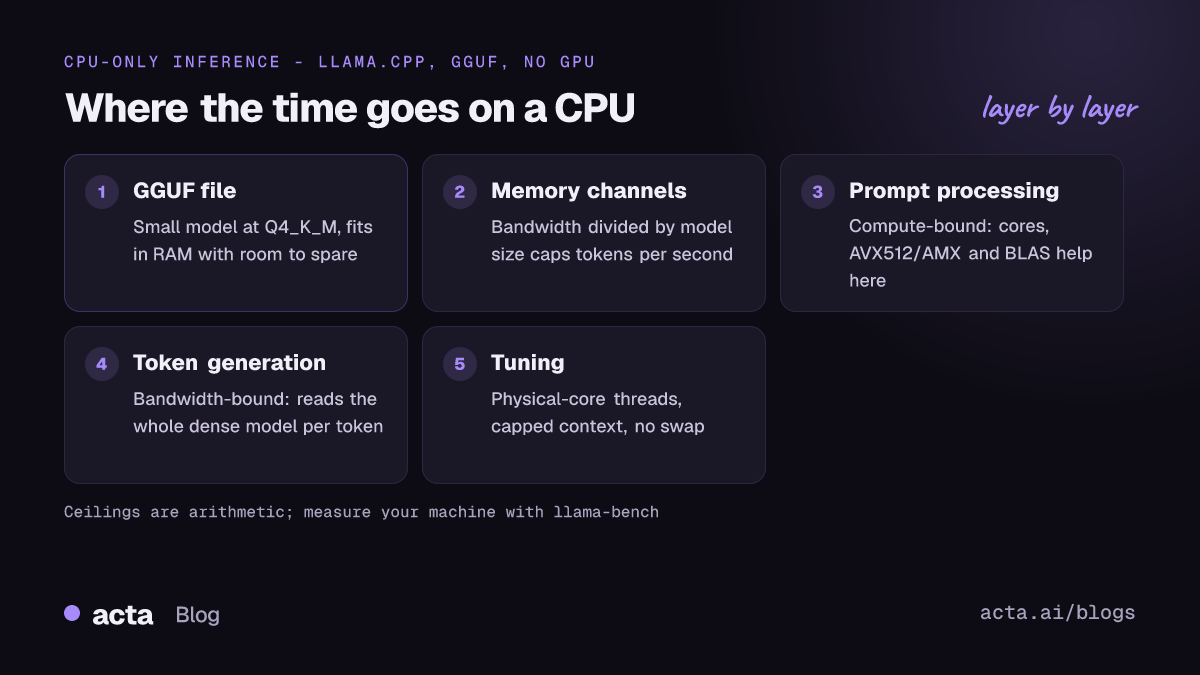
CPU-only inference works for small models and patient jobs
A CPU can do every step of LLM inference. llama.cpp was built for exactly this case: its README lists "AVX, AVX2, AVX512 and AMX support for x86 architectures", treats Apple silicon as "a first-class citizen" via ARM NEON and Accelerate, and supports "1.5-bit, 2-bit, 3-bit, 4-bit, 5-bit, 6-bit, and 8-bit integer quantization" for lower memory use (llama.cpp README, release b9222). Ollama and LM Studio also load GGUF files, so whichever front end you like, the CPU maths below is the same.
So the real question is whether it's fast enough for your job. Three things decide that: how many bytes the model weighs after quantization, how fast your RAM can move those bytes, and how long your prompts are. A 2B model answering a short question on a recent laptop feels fine. An 8B model reading a 20-page document on a four-year-old office desktop feels broken, even though both are "running".
What doesn't work well on CPU: serving many users at once, long-context work where the model has to read tens of thousands of tokens per request, and the GPU-only quant formats. AWQ, GPTQ and EXL2 files are built for GPU kernels; on a CPU you want GGUF. If you are new to the format, our GGUF quantization explainer covers the naming.
Memory bandwidth, not core count, sets your token speed
During generation, a dense model reads all of its weights from memory to produce each token. The arithmetic follows from that: the best case for tokens per second is your memory bandwidth divided by the model's size in bytes. Real numbers land well below it, but the ceiling explains almost every "why is my machine slow" thread.
Theoretical bandwidth is also simple arithmetic: transfer rate times 8 bytes per 64-bit channel times the number of channels. The table uses that, plus the Q4_K_M size of Llama 3.1 8B (4.58 GiB, about 4.9 GB) from the llama.cpp quantize documentation and a rough 1.2 GB for a 2B model at the same quant (2 billion weights times 4.89 bits divided by 8).
| Memory setup | Theoretical bandwidth (arithmetic) | Ceiling, 8B at Q4_K_M | Ceiling, 2B at Q4_K_M |
|---|---|---|---|
| DDR5-5600, one channel (one stick) | 44.8 GB/s | about 9 tokens/s | about 37 tokens/s |
| DDR4-3200, two channels | 51.2 GB/s | about 10 tokens/s | about 43 tokens/s |
| DDR5-5600, two channels | 89.6 GB/s | about 18 tokens/s | about 75 tokens/s |
| DDR5-4800, eight channels (server) | 307.2 GB/s | about 63 tokens/s | compute-limited first |
These are upper bounds from arithmetic, not benchmarks. Treat them as a way to compare machines, then measure your own. The pattern they show is the useful part: doubling channels roughly doubles the ceiling, and halving the model size roughly doubles it again. Adding cores does neither once the cores can keep up with memory.
Owners of run-LLM-on-CPU boxes in the llama.cpp "CPU Performance" discussion report the same thing. One wrote that "LLMs are bound by Memory Bandwidth not Compute", and another reported a 34B model going from 1.5 to 4 tokens per second after replacing one 64 GB stick with two 32 GB sticks (llama.cpp discussion #3167). That is one user's machine, not a benchmark, but it matches the arithmetic: the second stick opened the second channel.
Mixture-of-experts models bend this rule in your favour. They only read the active experts for each token, so a large MoE model can generate faster than its total size suggests, as long as the whole file still fits in RAM. Check a model card's "activated parameters" figure, not just the total, when you shortlist MoE models for a CPU box.
The best LLM for CPU is a small model at Q4_K_M
Pick the smallest model that passes your own test, then quantize it as far as quality allows. On a CPU, every gigabyte you save is speed you get back. Our model size explainer covers how parameters map to memory; the short version is parameters times bits per weight divided by 8, plus a little overhead.
Models to try first
As of November 2026, the Qwen3.5 small family is the obvious starting shortlist: 0.8B, 2B, 4B and 9B dense models, Apache 2.0 licensed, with base and instruction-tuned versions. The Qwen3.5-2B model card lists the apache-2.0 licence and says the model runs in non-thinking mode by default, which matters on a CPU because a "thinking" model spends many tokens before it answers. The llama.cpp quick start in the b9222 README uses ggml-org/gemma-3-1b-it-GGUF, which is a good smoke test for any machine. Llama 3.1 8B at Q4_K_M is the realistic upper end for interactive use on a dual-channel desktop.
Quant levels that make sense
The llama.cpp quantize README lists Llama 3.1 8B at 4.17 GiB for IQ4_XS, 4.58 GiB for Q4_K_M, 5.33 GiB for Q5_K_M, 6.14 GiB for Q6_K and 7.95 GiB for Q8_0. Since speed on CPU tracks size, Q8_0 generates noticeably slower than Q4_K_M on the same machine. My default: Q4_K_M for 4B and above, Q5_K_M or Q6_K for 1B to 2B models (where the small size means you can afford the extra bits and small models lose more quality to heavy quantization), and Q8_0 only when you are checking whether quantization is the cause of a quality problem.
Don't go below 4-bit to squeeze a bigger model in. Compare a 9B at 2-bit with a 4B at 4-bit on the same prompt and judge for yourself.
llama.cpp on CPU takes three commands
You can use Ollama or LM Studio if you prefer a manager (our beginner's guide to running a local LLM on a laptop walks through both). For llama.cpp cpu work I'd go to llama.cpp directly: you get the benchmark tool, every flag, and an OpenAI-compatible server. The README lists brew, nix and winget installs, Docker images and prebuilt binaries; building from source is two cmake commands from the project's build docs.
- Build or install. From a clone of the repository: cmake -B build, then cmake --build build --config Release. The build docs say BLAS "may lead to some performance improvements in prompt processing" and that "using BLAS doesn't affect the generation performance", so the plain CPU build is fine to start.
- Smoke test. Run llama-cli -hf ggml-org/gemma-3-1b-it-GGUF. It downloads the model from Hugging Face and opens a chat. If this is slow, a bigger model will be slower.
- Serve it. Run llama-server -hf ggml-org/gemma-3-1b-it-GGUF --port 8080 -t 8 -c 8192 for an OpenAI-compatible endpoint on localhost. Swap -hf for -m path/to/model.gguf when you have your own file. The server docs say -hf picks Q4_K_M by default when you don't name a quant.

Newer releases installed from the project's installer also ship a single llama command (llama cli and llama serve), so if llama-cli isn't on your path after an install, try that form.
Tune threads, RAM and context before you buy hardware
Most run-LLM-on-CPU setups leave speed on the table through three settings. Fix these before deciding the machine is too slow.
How many threads should llama.cpp use?
Start with the number of physical cores, not logical threads. In the llama.cpp discussion above, one user told the original poster, running 32 threads on a server chip, to try 16 instead because "inference does not benefit from SMT, in fact it hurts it", and the original poster saw worse results when going above 32. On laptops with performance and efficiency cores, try the performance-core count too. Don't guess: llama-bench takes a list, so llama-bench -m model.gguf -t 4,6,8,12 runs the same tests at each thread count and prints tokens per second for each. llama-server also has a separate -tb (threads for prompt processing) if you want to tune the two phases separately.
Memory: channels, swap and mmap
Populate every memory channel your board supports with matched sticks. Leave enough free RAM that the model never touches swap: once the OS pages weights to disk, generation drops off a cliff. By default llama.cpp memory-maps the model file, and a maintainer in the same discussion noted that memory-mapped models can make tools understate real memory use, so check free memory rather than the process figure.
Context length
The KV cache grows with context length and also has to be read during generation. Set -c to what your task needs (8,192 is plenty for most chat and short documents) instead of the model's maximum. The Qwen3.5-0.8B card lists a native context of 262,144 tokens; on a CPU, asking for anything close to that is a recipe for a very slow first answer.
Long prompts are the hidden cost when you run an LLM on CPU
Inference has two phases. Prompt processing reads your input in big batches and is compute-bound: that's where cores, AVX512 or AMX, and BLAS help. Token generation produces one token at a time and is bandwidth-bound. llama-bench reports them separately as pp (prompt processing, default 512 tokens) and tg (text generation, default 128 tokens), and that split is the most useful number you can collect about your machine.
Why it matters: a chat turn is mostly generation, so the bandwidth table above predicts how it feels. A "summarise this" job is mostly prompt. Give a CPU a 10,000-token transcript and it can spend far longer reading it than writing the 300-token summary. Run llama-bench -m model.gguf -p 4096 -n 256 to see your real prefill speed on a long prompt before you promise anyone a nightly summarisation job.
Ways to cut prompt cost on a CPU:
- Trim inputs. Strip greetings, signatures and boilerplate before they reach the model.
- Chunk and summarise in stages, then summarise the summaries.
- Reuse a fixed system prompt so the server can keep it cached between requests.
- Try a BLAS build (OpenBLAS, or the AMD and Intel options in the build docs) and compare pp numbers before and after.
Give the CPU batch jobs and keep chat short
A CPU-only LLM is a good worker and a poor conversationalist. Judge jobs by two questions: does someone wait on the answer, and how long is the input?
| Job | Fit for CPU-only | Why |
|---|---|---|
| Overnight summaries of documents or transcripts | Good | Nobody waits; speed only has to beat the queue |
| Tagging, classification, entity extraction | Good | Short outputs; a 1B to 4B model is often enough |
| Private drafting and rewriting for one person | Fine with a 2B to 4B model | Short prompts, one user |
| Small-model agents and tool calls | Fine if steps are few | Each step pays prompt cost again |
| Team chat server | Poor | Users share one memory bus |
| Long-context coding assistant | Poor | Huge prompts on every request |
For small-model agents specifically, read local models for AI agents; tool-calling reliability, not speed, is usually the limit there. And if your interest in CPU inference is really about phones and laptops in general, our piece on small language models on laptops and phones covers the device side.
Meeting transcripts are a good CPU workload if you can wait
Summarising meetings is one of the better fits for a CPU box: the work happens after the call, outputs are short, and a structured prompt with headings works with small models. The catch is prompt length, so chunk long calls as described above. Our guide to an open-source LLM for meeting summaries has prompts and model notes for this job.
If you'd rather not run that pipeline, Acta records calls with a desktop app or a Chrome extension without a bot joining, and writes the transcript, summary and action items after the call; it doesn't use customer data to train AI models (why). On Pro you can download transcripts and feed them to your own local model too. Whichever route you take, tell people when you're recording; our guide on recording consent covers what to say.
Frequently asked questions
Can you run an LLM without a GPU?
Yes. llama.cpp runs GGUF models entirely on the CPU using AVX, AVX2, AVX512 or AMX on x86 and NEON on Arm. To run an LLM without a GPU, pick a 1B to 4B model at Q4_K_M and make sure it fits in RAM with room to spare. Expect usable chat from small models and slow, batch-style use from 8B and larger.
What is the best LLM for CPU only?
The best LLM for CPU is the smallest one that passes your own task test. As of November 2026, Qwen3.5 at 0.8B, 2B or 4B (Apache 2.0) and Gemma 3 1B are sensible first tries, with Llama 3.1 8B as the interactive upper limit on a dual-channel desktop. Use Q4_K_M, or Q5_K_M and Q6_K for the smallest models.
Is CPU-only LLM speed limited by RAM or cores?
For generating tokens, RAM bandwidth. Each token reads the whole dense model from memory, so the ceiling is bandwidth divided by model size. A cpu only llm box with two memory channels beats the same box with one. Cores matter for prompt processing, the phase that reads your input, so long documents need both.
How much RAM do I need to run an LLM on CPU?
The model file plus the KV cache plus your operating system, with no swapping. Llama 3.1 8B at Q4_K_M is 4.58 GiB per the llama.cpp docs, so 16 GB of RAM runs it comfortably with a moderate context. A 2B model at 4-bit is around 1.2 GB by arithmetic and fits easily in 8 GB.
Should I use Ollama or llama.cpp on CPU?
Both run GGUF models on the CPU. Ollama is quicker to set up and manages downloads for you. llama.cpp gives you llama-bench, per-phase thread settings and every server flag, which is what you want when tuning a CPU box. Many people start with Ollama and move to llama.cpp once they care about measuring speed.
Decide whether to run an LLM on CPU or buy a GPU
Before you spend money, spend an hour measuring. This run-LLM-on-CPU checklist tells you whether your CPU is enough.
- Define the job: write down whether someone waits on the answer and how long a typical input is, in tokens.
- Measure the machine: run llama-bench with -p 4096 -n 256 on a 2B and an 8B model at Q4_K_M, at two or three thread counts.
- Fix the cheap things: fill memory channels, set threads to physical cores, cap context with -c, close anything that pushes the model into swap.
- Test quality, not just speed: run 10 real inputs through the smallest model that was fast enough and keep it only if the outputs pass.
- Buy only for a measured gap: if generation is fine but long prompts are too slow, or several people need the model at once, that's the point where a GPU pays for itself.
If your inputs are meeting recordings, you can capture them without a bot using Acta's desktop app and try the summaries free for 15 days.