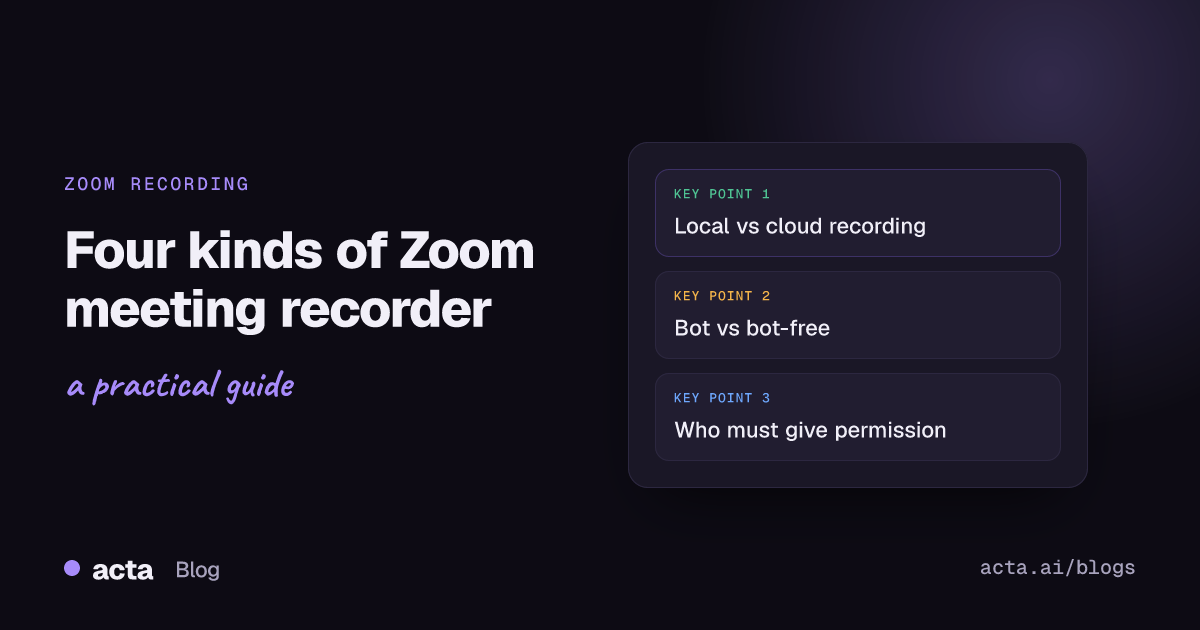
A Zoom meeting recorder captures the call in one of four ways
A Zoom meeting recorder is a tool that saves the audio, and sometimes the video, of a Zoom meeting. That sounds like one thing, but the four kinds behave very differently once you look at who can press record, where the file ends up and who in the meeting knows about it.
- Zoom local recording (Zoom calls it computer recording): the Zoom desktop app saves the meeting to your own computer.
- Zoom cloud recording: Zoom saves the meeting to your Zoom account online.
- A recorder bot: a third-party service sends a participant into the meeting that records it on the vendor's side.
- A bot-free recorder: a desktop app or browser extension on your computer records the meeting sound and your microphone, with nothing added to the call.
The first two are built into Zoom and follow Zoom's permissions. The last two are separate products, so Zoom's recording settings don't decide whether they can run, but your company's policy and the law on consent still do. A quick illustrative example: Priya, a consultant, joins a client's Zoom as a guest. She can't start a Zoom recording unless the client's host allows it, a bot she sends may be stuck in the waiting room, and a bot-free recorder on her laptop works but leaves her responsible for telling the room. Each path has a cost.
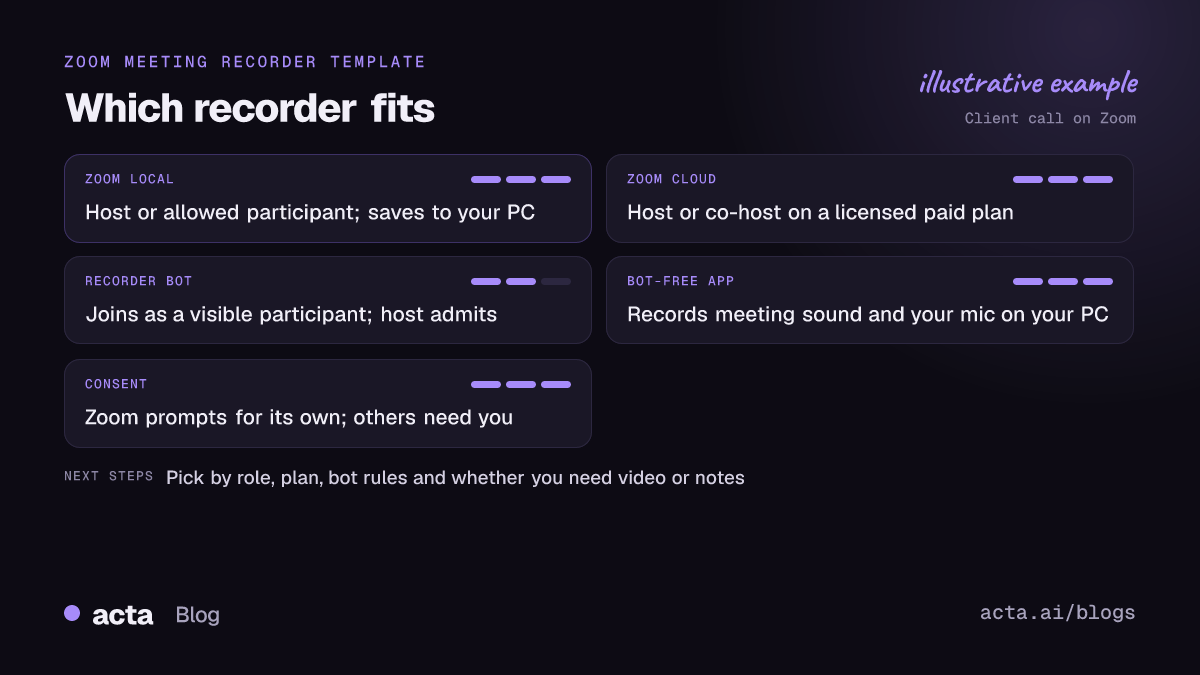
Zoom's local recording is free but needs the host's permission
As of November 2026, Zoom's help page on starting a computer recording says computer recording is available to free and paid subscribers. The host clicks Record in the meeting controls and, if a menu appears, chooses to record on this computer. Participants see a recording indicator while it runs.
Participants can record locally only with the host's say-so: the Zoom recording permission sits with the host. Zoom gives hosts three ways to allow it: let everyone record to their computer, require participants to request permission first, or grant one person permission from the participants list (More next to their name, then Allow Record). Account admins can also turn computer recording off entirely, and a setting locked at account level can't be changed lower down. If the Record button is greyed out for you, that's usually why.
A few limits matter when you choose:
- Desktop only. Zoom says computer recording isn't supported on iOS, iPad or Android.
- Files land on one machine. Zoom converts the recording after the meeting ends into an MP4 video, an M4A audio file and a chat text file, by default in a Zoom folder inside Documents. Zoom doesn't keep a copy and can't recover a lost local recording.
- No cloud extras. Features such as Zoom's audio transcript are for cloud recordings, not local ones.
- Not both at once. Zoom says hosts and co-hosts can't run cloud and computer recording at the same time.
Zoom local recording suits a host on a free account who wants a file, or a participant the host has explicitly allowed. For the click-by-click version, including mobile, see how to record a Zoom meeting. If you only need the words, the M4A audio file is the useful part: you can upload it to a transcription tool later.
Cloud recording needs a paid licence and a host or co-host
Zoom's page on starting a cloud recording says, as of November 2026, that it needs a licensed user on a Pro, Business or Enterprise account, and that only hosts and co-hosts can start it. In the desktop app the host clicks More, then Record, then Record to the cloud. Admins can switch cloud recording on or off and lock it, and Zoom notes it may be turned off on accounts with added HIPAA security.
Cloud recording's big advantage is that the file isn't tied to one laptop. Processing usually takes about twice the recording's length, Zoom says, though it can occasionally take up to 24 hours. Pausing doesn't create a new file; stopping and restarting does. Hosts can also set meetings to record to the cloud automatically, and admins can let a recording start before the host joins if automatic cloud recording and join-before-host are both on.
Transcripts are a separate switch. Zoom's audio transcription for cloud recordings lists a Pro, Business, Education or Enterprise account, with cloud recording and audio transcription both enabled, and saves the transcript as a VTT file next to the recording. Storage limits and which features sit on which plan change, so check Zoom's plan page before you rely on them. For the different ways to get text out of a recording, see transcribe a Zoom recording.
The catch is the same as local recording: it's the host's tool. If you're a guest in someone else's account, cloud recording is only available if they run it and share it with you.
Recorder bots join as a participant everyone can see
A recorder bot is a service that joins your Zoom meeting like a person would, from a link or your calendar, and records from inside the call. It shows up in the participant list under the vendor's name, so everyone can see it. Acta's bot, for example, appears as "Acta Notetaker", and if the meeting has a waiting room, someone has to let it in.
Bots have real strengths. They can attend a meeting you can't, because they don't depend on your laptop being in the call. They also see the participant list, which helps with speaker names. Acta's own help notes that its bot names speakers from the participant list, which is more exact than a recorder that has to work names out from the conversation.
The downsides are social and administrative. Some hosts remove unknown participants, some companies block meeting bots outright, and a bot in a sensitive client call can change the tone. Whether a given bot can record also depends on how the vendor gets permission inside Zoom, so check the vendor's own documentation. For the trade-offs side by side, see meeting bot vs desktop app vs Chrome extension.
Bot-free recorders capture the call from your own computer
A bot-free recorder runs on your device and records what your computer hears: the other people through the meeting sound, and you through your microphone. Nothing joins the call, so there's no extra name in the participant list and nothing for the host to admit. The trade-off is that you have to be in the meeting yourself, on that computer.
There are two common forms, and they map to how you join Zoom:
A desktop app, for the Zoom desktop app
If you join from the Zoom app on Windows or Mac, use a desktop recorder. Acta's desktop app notices a meeting in the Zoom desktop app and asks whether to record on this device; a Zoom meeting stops and saves by itself when it ends. It records the meeting's sound and your microphone, never your screen. It runs on Windows 10 (version 1903 or later) or Windows 11, and macOS 14.2 or later. On a Mac you allow the microphone and "System Audio Recording Only"; the full walk-through is in record a Zoom meeting on Mac without a bot.
A browser extension, for the Zoom web client
If you join with Join from your browser, an extension can record from the Chrome tab. Acta's extension records Google Meet, Microsoft Teams in the browser and the Zoom web client, needs Chrome 116 or newer, and starts with one click or Alt+Shift+R. It saves when you leave or the host ends the meeting. The steps are in Zoom web client notetaker.
Speaker names are the main thing you give up. Because a desktop recorder only hears audio, it marks your voice as you and names the other voices from the conversation and your calendar invite. For most internal meetings that's fine. For a ten-person call where names matter, a bot or Zoom's own cloud recording will label people more reliably.

Each recorder captures different things
Before choosing, decide what you actually need afterwards: a video to share, a searchable transcript, or notes with decisions and action items. Here's how the four compare, based on Zoom's support pages and Acta's product documentation as of November 2026:
| Recorder | Who can start it | What it captures | Where it's saved |
|---|
| Zoom local | Host, or a participant the host allows | Video (MP4), audio (M4A), chat | Your computer |
| Zoom cloud | Host or co-host, licensed user | Video, audio; transcript if enabled | Zoom cloud |
| Recorder bot | Whoever invites it; host admits it | Depends on the vendor | Vendor's service |
| Bot-free recorder | You, in the meeting | Meeting sound and your mic (Acta: never the screen) | Uploaded to the vendor |
Two practical rules come out of that table. If you need video, you need Zoom's own recording (or a bot that records video, if the vendor offers it); Acta's bot-free recorders capture sound only. And if you need notes rather than a file, the capture method matters less than what happens afterwards: a transcript with speaker names, a summary, decisions and action items with owners. Everything else is plumbing.
You can also combine them. A host with a Zoom local recording can upload the M4A file to a notes tool later; Acta takes uploaded MP3 or M4A recordings and produces the same notes as a live recording. For a wider view across Teams, Meet and in-person meetings, see how to record a meeting.
Consent works differently for each option
When you record with Zoom itself, Zoom tells people. Its page on providing consent to be recorded says participants are asked for consent when a recording starts or when they join one already running, and they can stay or leave. Phone-only participants hear an audio prompt instead. Hosts can pull a report afterwards with a Recording Consent column showing who accepted.
How much you can change that notice depends on your plan. As of November 2026, Zoom's page on customizing the recording consent disclaimer says Enterprise, API, Education and Business accounts with 100 or more licences can edit the text, while Basic, Pro, and Business accounts with fewer than 100 licences get a default disclaimer that can't be turned off or customised.
With a bot, the bot's name in the participant list is a signal, but not everyone reads the list. With a bot-free recorder, there's no signal at all unless you give one. That puts the job on you. Say it at the start ("I'm recording this for notes, is everyone OK with that?") and put it in the chat. Acta's desktop app has a Copy notice button for exactly that: it copies a recording notice you paste into the meeting chat.
Rules on recording consent vary by country and, in the US, by state; some require everyone's consent. This is general information, not legal advice. Our guide on recording consent, privacy and what to tell participants covers the main rules and gives wording you can use.
Where Acta fits
Acta covers three of the four routes: the Acta Notetaker bot, the bot-free desktop app for the Zoom app, and the Chrome extension for the Zoom web client, plus uploads of recordings you already have. Whichever you use, you get the same transcript with speaker names, summary, decisions and action items with owners. It doesn't replace Zoom's video recording; if you need the video file, keep using Zoom for that.
Frequently asked questions
Can I record a Zoom meeting if I'm not the host?
With Zoom's own recorder, only if the host allows it: hosts can let everyone record to their computer, require a request, or grant one participant permission. Cloud recording is for hosts and co-hosts only. A bot-free Zoom meeting recorder on your computer doesn't need Zoom permission, but you should still ask the host and tell everyone you're recording.
Does Zoom tell participants when a meeting is being recorded?
Yes, for Zoom's own local and cloud recordings. Zoom shows a recording indicator and asks participants for consent when recording starts or when they join a recorded meeting; phone-only participants hear an audio prompt. Third-party recorders don't trigger Zoom's prompt, so a bot-free recorder needs you to announce it yourself.
Is Zoom recording free?
Zoom's local (computer) recording is available on free and paid accounts, as of November 2026, but it only works in the Zoom desktop app and saves to your computer. Cloud recording and cloud audio transcripts need a paid Pro, Business, Education or Enterprise licence. Check Zoom's plan page for current storage limits, since plans change.
What is the difference between a recorder bot and a bot-free recorder?
A recorder bot joins the Zoom meeting as a visible participant and records from inside the call, so it can attend without you. A bot-free recorder runs on your own computer and records the meeting sound and your microphone, so nothing joins the call, but you have to be in the meeting on that device.
Choose your Zoom meeting recorder
Start from your role and what you need afterwards, then work through this list:
- Check your role: host or co-host on a paid plan, use Zoom cloud recording; host on a free plan, use local recording.
- Check permission: if you're a participant, ask the host to allow recording before you look elsewhere.
- Decide video or notes: need a video to share, stay with Zoom; need a transcript, decisions and action items, use a notes tool on top.
- Check bot rules: if bots are blocked or unwelcome, use a desktop app for the Zoom app or an extension for the web client.
- Announce it: say it out loud and post a notice in the chat, whatever recorder you use.
If a bot isn't welcome, the Acta desktop app or the Chrome extension records Zoom from your own computer, with a 15-day free trial.