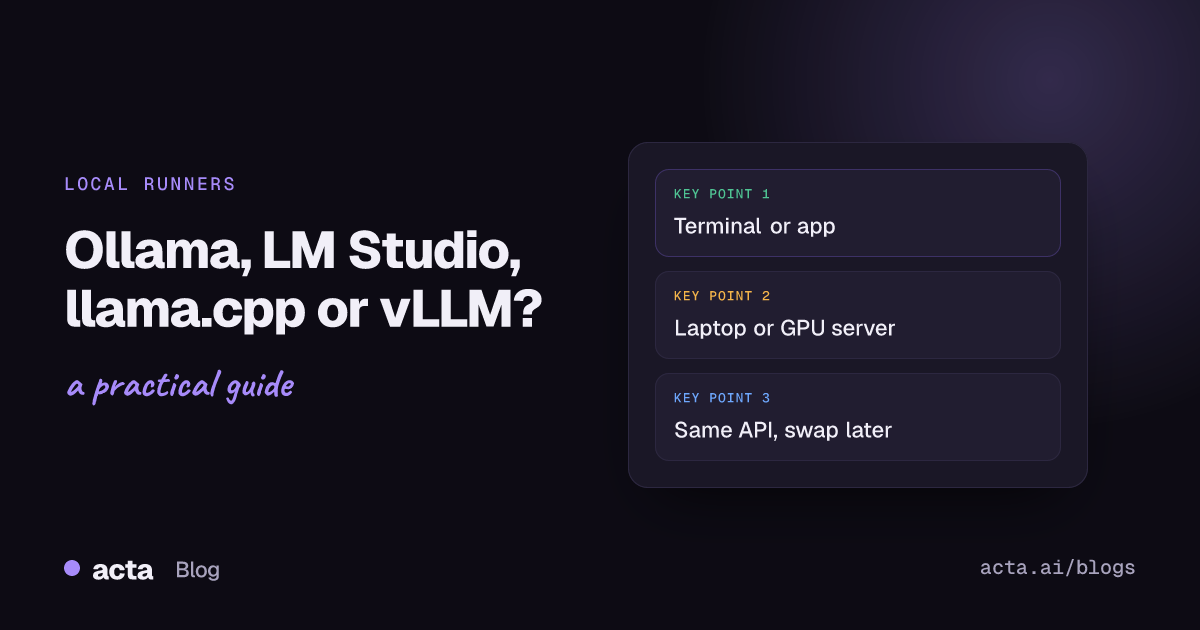
Quick answer: Ollama vs LM Studio comes down to terminal versus app: Ollama is a command-line tool with a local API for Mac, Windows and Linux, while LM Studio is a desktop app with a model browser and chat window. llama.cpp is the low-level engine for people who want full control. vLLM is a GPU server for serving many users at once, not a laptop tool.
Open any popular model on Hugging Face, click "Use this model", and you'll see a list of apps: llama.cpp, LM Studio, Jan, vLLM, Ollama and others. They all promise to run the same model. They're built for very different people, and picking the wrong one is how a Friday afternoon experiment turns into a weekend of driver errors.
Here's how I'd explain the differences to a friend, using only what each project's own docs say, as of November 2026.
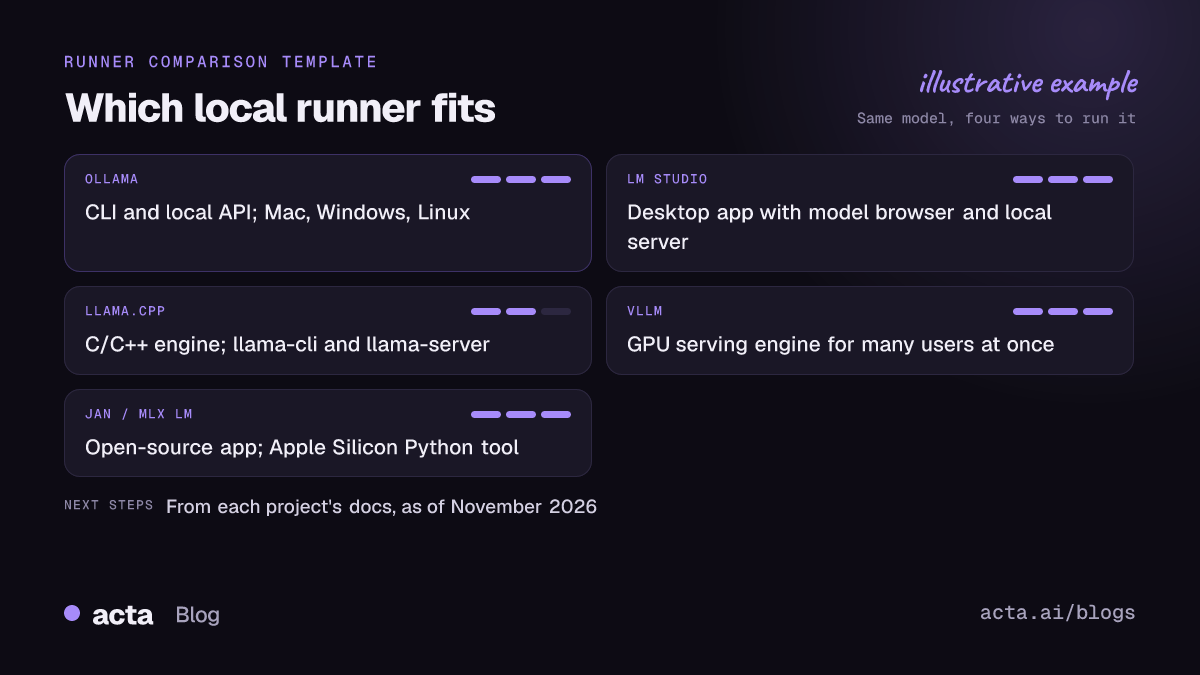
What does a local LLM runner actually do?
A model on Hugging Face is a set of files full of numbers. A runner is the program that loads those numbers into memory, feeds your text through them, and streams back the answer. Most runners also do two other jobs: they download models for you, and they expose a local API so other programs can send prompts without you typing in a chat window.
That second job matters more than people expect. Once a model sits behind an API on your own machine, a ten-line script can summarize every transcript in a folder. So when you compare runners, ask two questions: how do I talk to it, and how do my other tools talk to it?
Ollama vs LM Studio: which is easier to start with?
Ollama
Ollama runs on macOS, Windows and Linux. You install it, open a terminal and type ollama run plus a model name, and it downloads and starts the model in one step. Behind the scenes it runs a small server on your machine (port 11434) with its own REST API, and the team also added an OpenAI-compatible API so tools written for OpenAI can point at your laptop instead. Their post describes that compatibility layer as experimental, so expect occasional changes.
Who it's for: people comfortable with a terminal, developers who want to script things, and anyone who'll eventually run models on a Linux box or in Docker.
LM Studio
LM Studio is a desktop app. You search for models, download one, load it and chat, all with a mouse. It runs on Apple Silicon Macs and on Windows (x64 and ARM), per its system requirements. It also has a developer side: the LM Studio local server exposes OpenAI-style endpoints for chat completions, completions, embeddings and listing models, so you can call a loaded model from code too. There's a command-line tool, lms, for starting that server without clicking.
Who it's for: anyone who'd rather see what's happening, people comparing several models, and teams who want a local option that non-developers can actually use.
The short version
So, Ollama vs LM Studio? If you'll mostly chat and compare models, LM Studio. If you'll mostly script and automate, Ollama. Plenty of people install both; they don't fight.
Where does llama.cpp fit?
llama.cpp describes itself simply as "LLM inference in C/C++". It's the engine underneath a lot of the local AI world, and it works with models in the GGUF file format (other formats can be converted with scripts in the repo). The project supports Apple Silicon through Metal, NVIDIA GPUs through CUDA, plus Vulkan and SYCL backends, and it's MIT-licensed.
You use it through two main tools. llama-cli runs a model in your terminal. llama-server starts an OpenAI-compatible API server. Both can pull a GGUF model straight from Hugging Face with a -hf flag.
Who it's for: people who want every knob (threads, GPU layers, sampling, context size), developers embedding a model in their own app, and anyone on unusual hardware. If the friendlier apps don't support something new yet, llama.cpp often does first.
So, llama.cpp vs Ollama? Ollama is the easier front door; llama.cpp gives you more control and fewer layers between you and the model. For most people starting out, the extra control isn't worth the setup. For a developer tuning performance, it often is.
When should you use vLLM instead?
vLLM is a different animal. It's a serving engine built to answer lots of requests at once on server hardware. Its docs list support for NVIDIA, AMD and Intel GPUs, several CPU types, Google TPUs and other accelerators. The headline feature is PagedAttention, a way of managing the memory a model uses while it generates, so the server can juggle many conversations without running out of room.
You start it with vllm serve and a model name, and it exposes an OpenAI-compatible server (on port 8000 by default) with chat, completions and embeddings endpoints. The docs note that a server hosts one model at a time.
vLLM vs Ollama isn't really a fair fight because they solve different problems. Ollama is one person, one machine. vLLM is a team or a product, with a GPU server and many simultaneous users. If you're building an internal tool that fifty colleagues will hit at 9 a.m., look at vLLM. If it's just you, it's overkill.
What about Jan and MLX?
Jan is an open-source desktop app in the same spirit as LM Studio. Its docs say it's built on llama.cpp, can download models from Hugging Face or import GGUF files, keeps data in your local filesystem, and offers a local API server. If you want a GUI and care about the app itself being open source, it's worth a look.
MLX is an array framework for Apple Silicon, and MLX LM is the companion Python package for running language models from the Hugging Face Hub with it, including quantization and LoRA fine-tuning. It's aimed at people comfortable with Python. Browse Hugging Face on a Mac and you'll notice an mlx-community organization full of converted models.
Which local LLM runner should you choose?
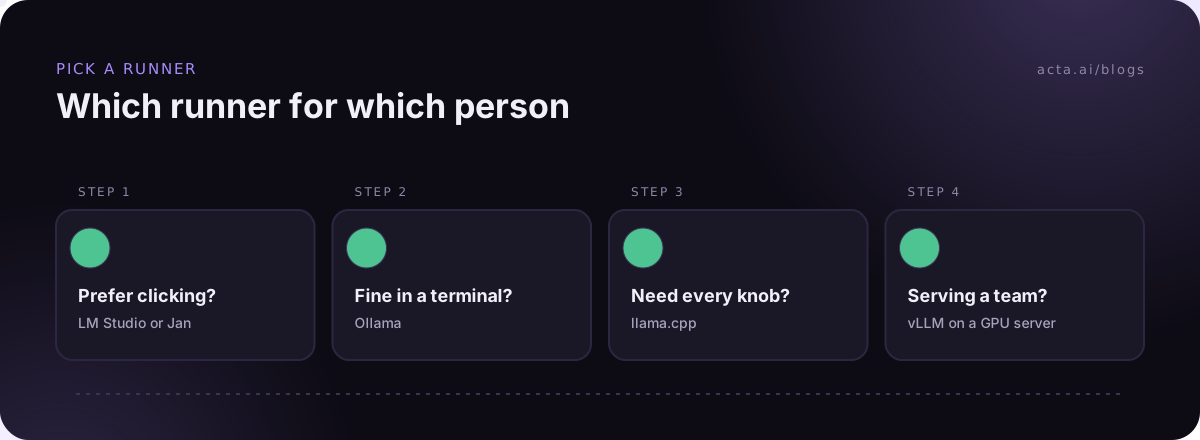
Here's the decision list I'd actually use:
- You want to try a model this afternoon and prefer clicking: LM Studio, or Jan if open source matters to you.
- You're fine in a terminal and want to script things later: Ollama.
- You need fine control, unusual hardware, or to embed a model in your own software: llama.cpp.
- You're serving a team or an app from a GPU server: vLLM.
- You're on a Mac, write Python, and want to experiment with fine-tuning: try MLX LM.
A common mistake is picking the runner based on speed claims you read online. Speed depends heavily on your hardware, the model, the quantization and the settings, so a number from someone else's machine tells you very little. Try your real task on your real computer.
The other mistake is forgetting the file format. llama.cpp needs GGUF files, and Ollama and Jan can load GGUF files from Hugging Face too. Check what a runner expects before you download 20 GB. Our GGUF quantization explainer covers how to choose a file. If you've never run a model before, start with our step-by-step guide to running a local LLM on your laptop.
Do they all speak an OpenAI-compatible API?
Mostly, yes, and that's the most useful thing about them. Ollama, LM Studio, llama-server and vLLM all document OpenAI-style endpoints. In practice that means one script can switch between them by changing a base URL. Write your summarization code once against a local Ollama, then point it at a vLLM server when the team wants to share it.
Check the details, though. Each runner supports a slightly different set of parameters, and features like tool calling or structured output vary. Test the exact request you'll send.
Using a local runner on meeting transcripts
Meeting summaries are a good real-world test, because transcripts are long and the output has to be precise. The flow looks the same whichever runner you pick:
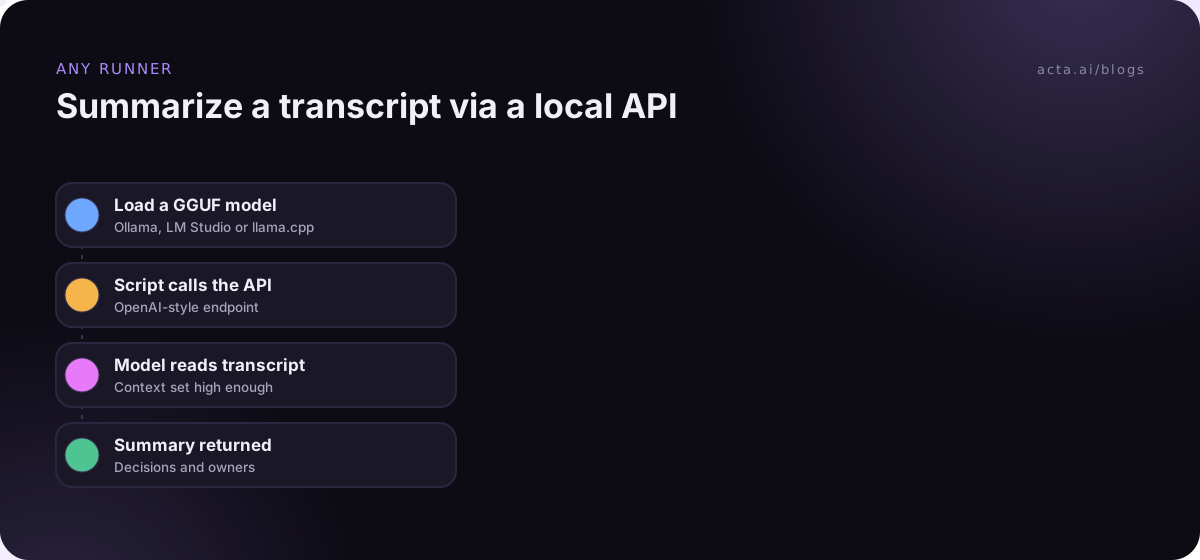
Two settings decide whether it works. The context length has to be big enough for the whole transcript, and the model has to be good at following a strict format. Our post on the best open source LLM for meeting summaries covers model choice and a test prompt, and building a summarization app with open models shows the code side.
What none of these runners do is capture the meeting. You still need recordings (and participants who know about them; see our guide to recording meetings with AI and consent), transcripts with speaker names, and somewhere for action items to go. Teams that must keep everything in-house build that themselves; our on-premises AI meeting assistant post sketches the pieces.
When you'd rather not run models yourself
If the goal is reliable notes from your calls rather than a local AI setup, Acta handles the whole pipeline as a hosted service. It records Zoom, Google Meet and Teams with a meeting bot, or bot-free through the Acta desktop app for Windows and Mac and the Chrome extension. You get transcripts with speaker names, summaries, decisions, action items with owners and follow-up email drafts, and OneChat can answer questions across meetings with sources.
Acta doesn't run Ollama or any local model, and it isn't self-hosted, so it isn't the answer if your data can never leave your hardware. It also doesn't use customer data to train AI models. For many teams, the honest comparison is an afternoon wiring a runner to a transcript folder versus turning on a tool that already does it. The features page lists what's included.
Frequently asked questions
Is Ollama or LM Studio faster?
It depends on your hardware, model file and settings more than on the app. Load the same model in both on your machine and compare with your own prompts.
Is llama.cpp vs Ollama a real choice for beginners?
Not really. Start with Ollama or LM Studio. Move to llama.cpp when you need a setting or hardware option the friendlier tools don't expose.
Can I use vLLM on a laptop?
Its docs list CPU support, including Apple silicon, but it's designed for serving many requests on server hardware. On a laptop, Ollama or LM Studio is the more sensible pick.
Which local LLM runner has an OpenAI-compatible API?
Ollama, LM Studio, llama.cpp's llama-server and vLLM all document one. Jan also offers a local API server.
Can I switch runners later?
Yes. If your code talks to an OpenAI-compatible API, switching is mostly a change of base URL and model name.
Prefer meeting notes without running a runner? Start Acta's 15-day free trial.