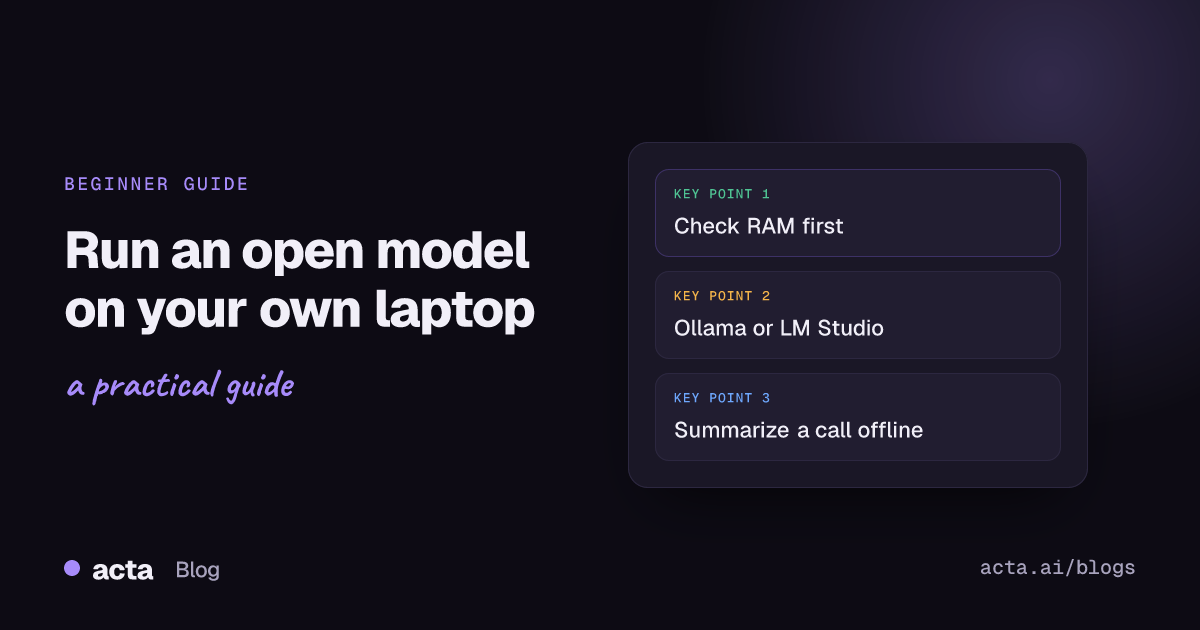
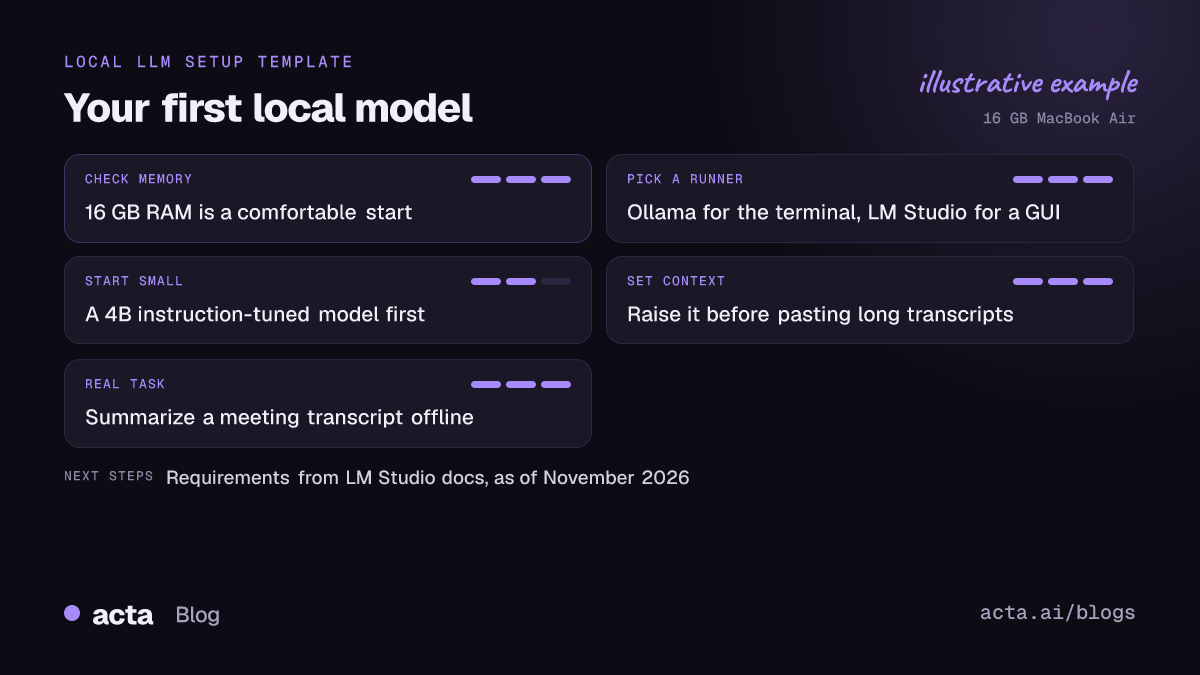
Quick answer: To run a local LLM, install Ollama (Mac, Windows or Linux) or LM Studio (Mac with Apple Silicon or Windows), download a small open model such as Gemma 3 4B, and chat with it on your own machine. A laptop with 16 GB of RAM is a comfortable start. Your prompts and files stay on the computer, but smaller models trade away some quality.
The first time I ran a model on my own laptop, the surprising part wasn't the answers. It was that I switched off the Wi-Fi halfway through and it kept going. No account, no API key, no usage meter. Just a file on disk and a program that reads it.
This guide gets you to that point in about twenty minutes, then puts the model to work on something practical: summarizing a meeting transcript without uploading it anywhere.
Why run a local LLM at all?
Three reasons come up again and again. Privacy is the big one: a contract draft, an HR note or a customer call transcript never leaves your machine. Cost is the second, since there's nothing to pay per prompt once the model is downloaded. The third is plain curiosity. Running a model yourself teaches you more about how these systems behave than a hundred chats with a hosted one.
The honest downside: the models that fit on a laptop are smaller than the ones behind big hosted assistants. They're good at summarizing, rewriting and answering questions about text you give them. They're weaker at long chains of reasoning and at facts they have to remember on their own.
Can your laptop handle it? A quick hardware check
Memory is the number that matters most. The model has to fit in RAM (or in your graphics card's memory, called VRAM), with room left over for the conversation itself.
- On a Mac: Apple menu, then About This Mac. Look for the chip (M1, M2 and so on) and the memory.
- On Windows: Settings, System, About shows installed RAM. Task Manager's Performance tab shows your GPU and its dedicated memory.
LM Studio's system requirements page is a good reality check, as of November 2026. On Mac it needs Apple Silicon (M1 to M4) and macOS 14 or newer, with 16 GB or more of RAM recommended; Intel Macs aren't supported. It says 8 GB Macs can still work if you stick to smaller models and modest context sizes. On Windows it supports x64 and ARM machines, and x64 processors need AVX2.
In practice: a 16 GB MacBook Air runs small and mid-sized models happily. An 8 GB Windows laptop with no dedicated GPU will run tiny models, slowly. If you're curious why some files are 2 GB and others 20 GB for the "same" model, our explainer on GGUF quantization covers it, and LLM model size explained covers the parameter counts.
Ollama or LM Studio: which should a beginner pick?
Both run the same kinds of open models. The difference is mostly how you like to work.
- Ollama runs on macOS, Windows and Linux. You mostly talk to it from a terminal with commands like ollama run, and it also serves a local API that other apps can call. Pick it if you're comfortable typing a command or plan to script things later.
- LM Studio is a desktop app with a model browser and a chat window. Pick it if you'd rather click than type, or if you want to compare a few models side by side.
You can't really go wrong, and you can install both. For a deeper comparison that also covers llama.cpp and vLLM, see Ollama vs LM Studio vs llama.cpp vs vLLM.
How do you run a local LLM with Ollama?
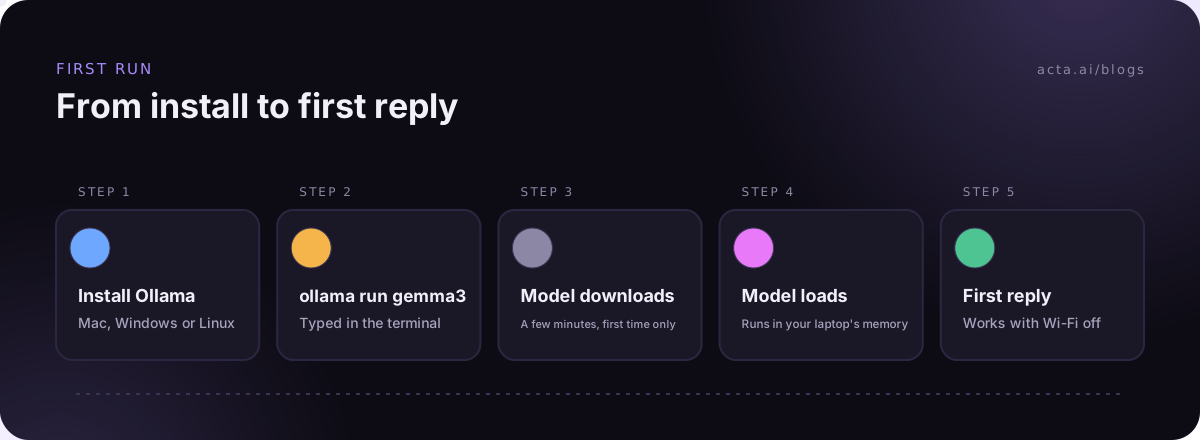
- Download the installer for your system from the official project (the Ollama GitHub page links to it). On Mac you get an app; on Windows, a setup file; on Linux, a one-line install script.
- Open Terminal (Mac) or PowerShell (Windows) and type ollama run gemma3. The first run downloads the model, which takes a few minutes. As of November 2026 that tag pulls Gemma 3's 4B version, a download of a few gigabytes.
- When you see a prompt, type a question. Try something you can check, like "Explain what a context window is in two sentences."
- Type /bye to leave. The model stays loaded in memory for a few minutes so the next run starts faster.
Want a different model? Hugging Face hosts thousands of community builds, and its guide to using Ollama with Hub models shows the pattern: ollama run hf.co/ followed by the user and repository name, plus an optional tag to pick a specific file.
How do you run a local LLM with LM Studio?
- Install LM Studio and open it.
- Go to the model search, type "gemma 3" or "qwen3", and pick a small instruction-tuned version. Start with a file of a few gigabytes; you can always try a bigger one later.
- Download it, then load it from the top bar.
- Open a chat and send your first prompt.
One setting worth finding early is the context length, which controls how much text the model can read at once. Both tools let you change it. Ollama's context length docs point out that a larger context needs more memory, so raise it only as far as your task needs.
Try a real task: summarize a meeting transcript locally
Chatting is fun for ten minutes. Here's a task with an actual payoff. Take a transcript from a recent call (a 45-minute sales call is a good size) and save it as a plain text file.
In LM Studio, paste the transcript into the chat after this prompt. In Ollama, you can pipe the file into the command, for example ollama run gemma3 "Summarize this meeting" < transcript.txt.
Summarize this meeting transcript in five sentences. Then list decisions, and action items with the owner and due date. If an owner or date isn't said, write "not stated". Use only what's in the transcript.
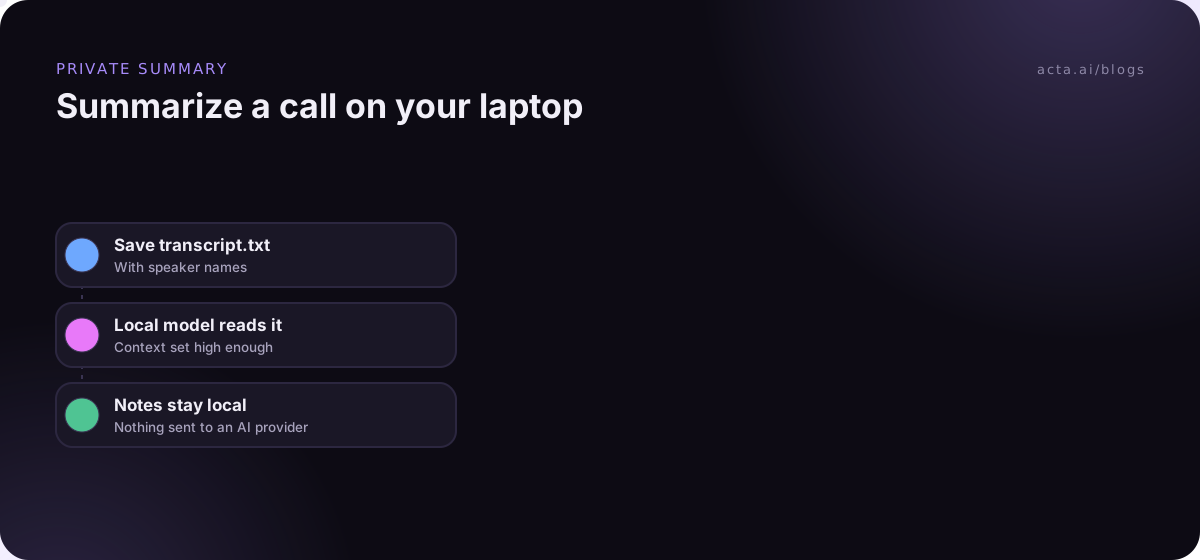
Two things usually go wrong the first time. If the summary only covers the opening minutes, the runner cut the text at its context limit; raise it. If owners come out as "Speaker 1", your transcript lacks names, and no model can fix that. Our roundup of the best open source LLM for meeting summaries has a fuller test prompt and a way to score the output.
What are the privacy benefits and limits?
The benefit is real. When the model and the file both live on your laptop, the text isn't sent to an AI provider. For sensitive drafts, that alone justifies the setup.
The limits are worth stating plainly, though:
- The download is still from the internet. Stick to official model pages and well-known publishers. Our post on AI supply chain security explains why model files deserve the same caution as any software.
- Your laptop is now the vault. Transcripts on disk are only as safe as the disk. Use full-disk encryption and a screen lock.
- Local doesn't mean consented. If you record a meeting to feed the model, people still need to know. Read our guide to recording meetings with AI and consent.
- Some apps add cloud features. Check settings for anything that syncs chats or calls an online model.
Common beginner mistakes
Downloading the biggest model first. It either won't load or it'll crawl, and you'll decide local models are useless. Start small, then size up.
Leaving the context length at its default and pasting a long document. The model quietly reads only the beginning.
Trusting confident answers about facts. Local models are best when you hand them the text to work from. Ask "summarize this", not "what's the history of this company".
And expecting it to behave like a product. A local model gives you a summary in a chat window. It doesn't file the action items, email the follow-up, or remember last month's call. If you want to wire it into something bigger, our guide to building a text generation app with open LLMs is the next step.
Where does Acta fit if you're capturing meetings?
A local model handles the summarizing. It doesn't handle getting the meeting into text in the first place, and that's the fiddly half. Acta's desktop app for Windows and Mac records calls without sending a bot into the meeting, and there's a Chrome extension and mobile apps for in-person conversations too. You get a transcript with speaker names, a summary, decisions, action items with owners and a follow-up email draft.
To be straightforward about it: Acta isn't a local model and doesn't process on your device. It's a hosted meeting assistant, and it doesn't use customer data to train AI models. Some people use both: a local model for private documents, Acta for the meetings themselves. See the full list on the features page.
Frequently asked questions
How much RAM do I need to run a local LLM?
16 GB is a comfortable starting point for small and mid-sized models. LM Studio's docs say 8 GB Macs can work with smaller models and modest context sizes. More memory lets you run bigger models and longer documents.
Can I run a local LLM on Windows without a graphics card?
Yes, on the CPU. It's slower, so stick to small models. A dedicated GPU with its own memory speeds things up a lot.
Is a local LLM on Mac better than on Windows?
Not better, just different. Apple Silicon Macs share memory between the processor and graphics, which suits models well. A Windows machine with a strong GPU can be just as quick.
Does a local model work offline?
Yes. Once the model file is downloaded, you can chat with no internet connection.
Which model should I download first?
A small instruction-tuned model such as Gemma 3 4B or Qwen3 4B. They're quick to download and good enough to learn how everything works.
Want meeting notes without managing models at all? Try Acta free for 15 days.