A meeting recorder is any tool that captures the sound of a meeting, and sometimes the video, so you can replay it, transcribe it or turn it into notes later. It works in one of five ways: the meeting platform's own record button, a bot that joins the call, a desktop app on your computer, a browser extension, or a phone or device in the room. Which one fits depends on where you meet and who's in the call.
This guide explains how each kind of meeting recorder works, what it can and can't capture, and how to pick one for the calls you actually have. It's for people choosing a setup for themselves or a small team. If you need a ranked list of products, read our comparison of the best AI meeting recorders instead; this post is about how the categories work.
Key takeaways
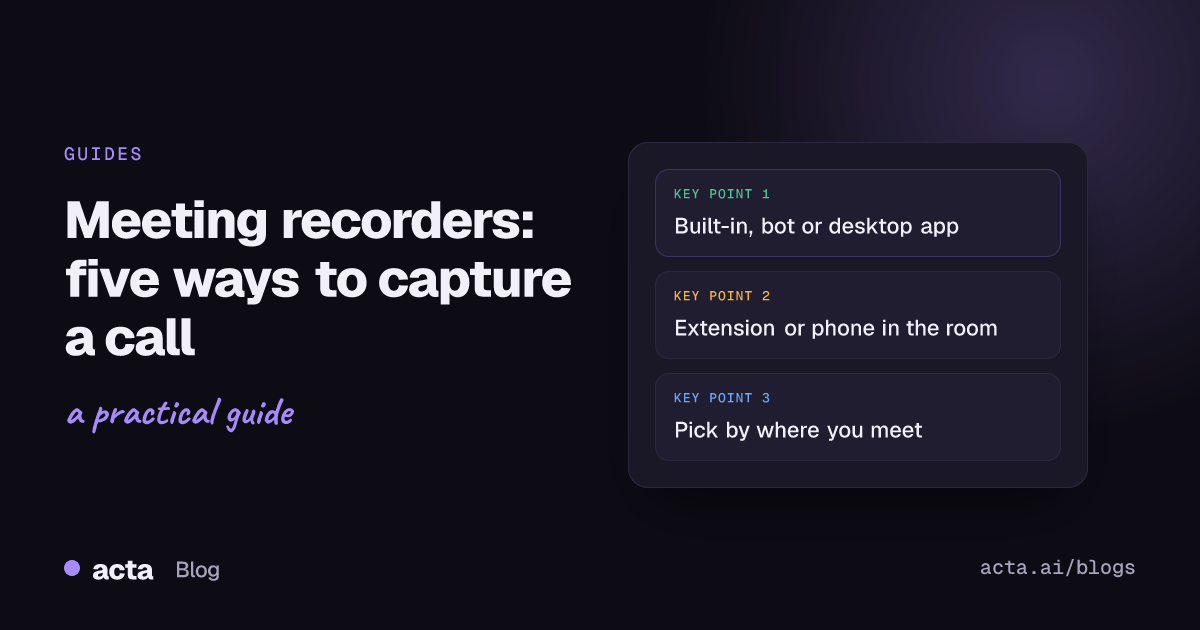
- There are five capture methods: built-in platform recording, a meeting bot, a desktop app, a browser extension, and a phone or room device.
- Built-in recording usually needs host rights, a paid licence or an admin setting, and it saves to the organizer's storage, not yours.
- Bots are the only option that can attend without you; desktop apps and extensions need you in the meeting but nobody sees a notetaker join.
- An AI meeting recorder adds a transcript with speaker names, a summary and action items on top of the audio.
- Whatever you use, tell people you're recording before the call starts, not halfway through.
Table of contents
- A meeting recorder captures audio first, notes second
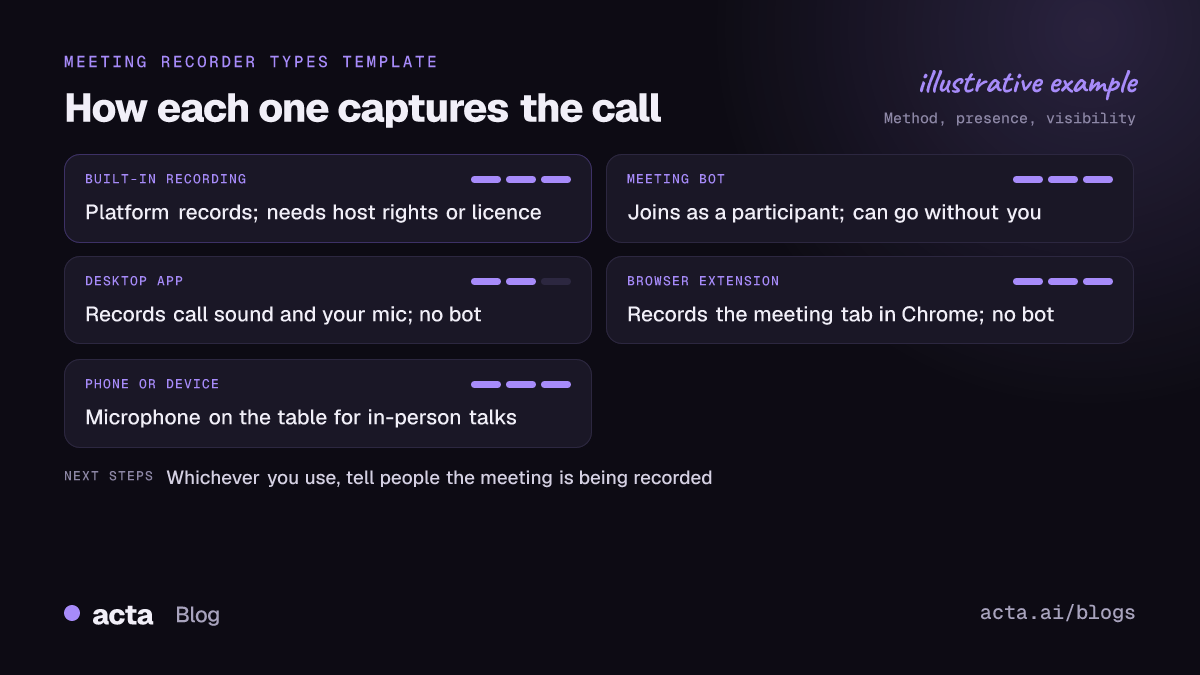
- Five ways a meeting recorder captures a call
- Built-in recording depends on licences and host rights
- AI meeting recorders turn audio into notes
- One week of calls shows why one method isn't enough
- Six mistakes that ruin recordings
- Where Acta fits
- Frequently asked questions
- Choose the right meeting recorder for your calls
A meeting recorder captures audio first, notes second
Every meeting recorder does the same first job: get a clean copy of what was said. Everything after that, the transcript, the summary, the list of who owes what, depends on that audio being complete. If the recorder only hears your microphone, half the meeting is missing. If it only hears the other side, your own commitments vanish.
So when you compare recorders, ask two plain questions before anything else:
- Whose voices does it capture? Everyone in the call, or only what comes through one device?
- Where does the file end up? Your computer, the organizer's cloud storage, or a third-party service?
The second question matters more than people expect. A Teams recording made by someone else lives in their storage. You may not be able to open it next month. A recording you made yourself is one you control, which is also why you carry the responsibility for telling people about it.
Five ways a meeting recorder captures a call
Here's how the five methods compare. The differences are mostly about who has to be present and who can see that a recording is happening.
| Method | How it captures | Visible to others? | Best for |
|---|---|---|---|
| Built-in (Zoom, Teams, Meet) | The platform records on its servers or the host's computer | Yes, a banner or notice | Hosts on paid plans |
| Meeting bot | Joins as a participant and records the call | Yes, shows in the participant list | Meetings you can't attend |
| Desktop app | Records the computer's meeting sound and your mic | No bot appears | Any calling app, client calls |
| Browser extension | Records the meeting tab in Chrome | No bot appears | Google Meet and web clients |
| Phone or room device | Microphone in the room | Only if you say so | In-person meetings |
Bots are the type most people picture when they hear "AI notetaker", and they are easy to set up: connect your calendar and they turn up. The downside is that some companies block them, and some clients simply don't like seeing one. Our post on why companies block meeting bots explains the usual reasons.
Desktop apps and extensions are the bot-free route. They record from your own machine, so there's no extra participant, but you have to be in the meeting yourself. For a side-by-side of those three, see meeting bot vs desktop app vs Chrome extension.
Built-in recording depends on licences and host rights
The record button inside Zoom, Teams or Meet is the obvious first choice. It's often not available to you, though, and the reasons are mostly administrative.
- Microsoft Teams: Microsoft's guide to recording a meeting in Teams says an IT admin has to give a recording licence to both the organizer and the person recording, and that guests can't record meetings. Recordings are stored in OneDrive or SharePoint, and everyone in the meeting is notified when recording starts.
- Google Meet: Google's help page on recording a video meeting lists the Workspace editions that include recording, and a Workspace administrator has to turn recording on for your account. Recordings go to the meeting organizer's Google Drive.
- Zoom: Zoom offers local recording, saved to your computer, and cloud recording on paid accounts. Hosts control who can record, and university help pages that document Zoom note that local recording isn't available in the phone apps. Check your account settings, since admins can lock either option.
All of this is as of November 2026 and changes often, so check your own account before relying on it. The practical point: if you're a guest in someone else's meeting, you usually can't use the built-in button at all. That's where the other methods come in. Our guide on recording when you're not the host covers the options in detail.
AI meeting recorders turn audio into notes
A plain recording is a 45-minute file nobody will rewatch. An AI meeting recorder adds the steps that make it useful: a transcript with speaker names, a summary, decisions and action items with owners. Most of the value is in those last two, and our list of resources for actionable AI insights from meetings covers how to make them usable.
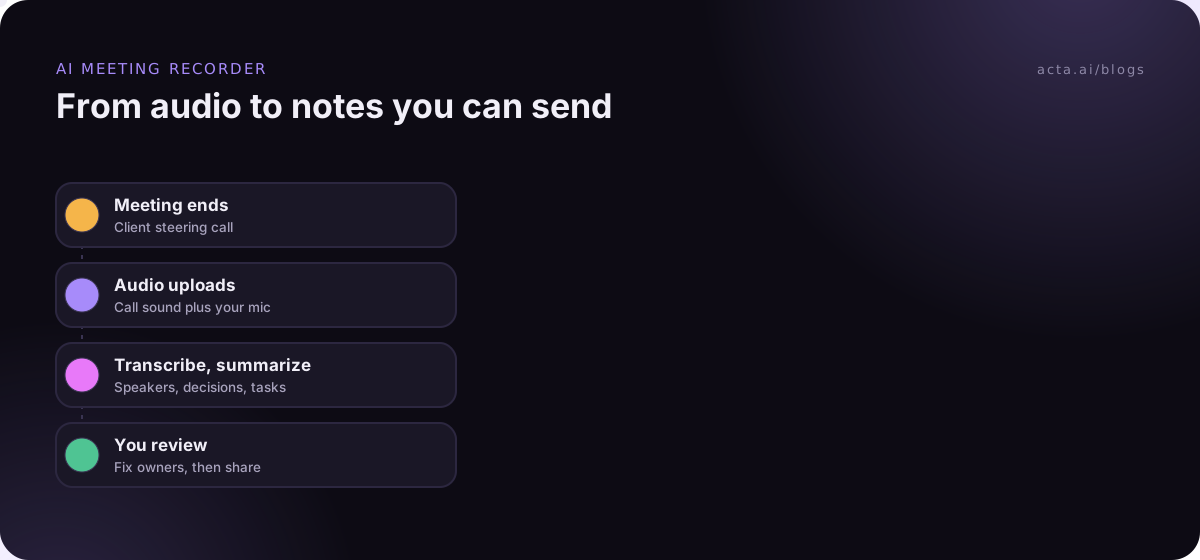
The flow looks roughly the same across tools:
- Capture: the recorder gets the audio, by bot, desktop app, extension or upload.
- Transcribe: speech becomes text, split by speaker. Bots usually get names from the participant list; recorders on your own computer have to work them out from the conversation and calendar invite.
- Summarize: the transcript becomes a short summary, decisions and action items.
- Review and share: you check the notes, fix any wrong owner, and send them on.
Audio quality decides how good step two is. A laptop microphone in an echoing room produces a transcript full of guesses. A cheap headset fixes most of that; our guide to the best microphone for meetings goes through the options.
One week of calls shows why one method isn't enough
Take a consultant, call her Priya, with a fairly normal week:
- Monday: a client steering call in the client's Teams tenant. Their IT blocks outside bots and she's a guest, so the Teams record button isn't hers to use.
- Tuesday: two internal check-ins on Google Meet with her own team.
- Wednesday: a workshop in a client's office, eight people around a table.
- Thursday: a call she can't attend, but her colleague Marco can.
- Friday: a quick WhatsApp call with a subcontractor that turns into a scoping discussion.
No single method covers all of that. Monday and Friday need a recorder on her own computer that captures the call's sound and her microphone, with a quick "we're recording for notes, OK?" at the start. Tuesday works with a bot or a browser extension. Wednesday needs a phone on the table. Thursday is the one case where a bot that joins on its own earns its place.
That's the main lesson from comparing meeting recorders: pick by the shape of your week, not by a feature list. If most of your calls are on your own company's platform and you're the host, built-in recording plus a transcription tool may be enough. If you spend your days as a guest in other people's meetings, you need something that runs on your side.
Six mistakes that ruin recordings
- Not telling people. Consent rules differ by country and state, and some require everyone's agreement. This is general information, not legal advice; our guide on recording consent and what to tell participants covers the basics.
- Capturing only one side. A voice memo app next to your laptop hears you clearly and the others faintly. Test a short call first.
- Skipping permissions. On a Mac, recorders that capture call audio need microphone access and audio recording permission in System Settings. On Windows, check that desktop apps can use the microphone.
- Music in the background. A recorder that captures your computer's sound also captures the playlist you forgot to pause.
- Trusting the notes blindly. Read the action items before you send them. A wrong owner on a task causes more trouble than a missing one.
- Keeping everything forever. Decide how long recordings stay. Our post on meeting recording retention suggests what to keep and what to delete.
Where Acta fits
Acta is an AI meeting recorder that covers several of these methods in one account: a bot for Zoom, Google Meet and Teams, a desktop app for Windows and Mac that records the meeting's sound and your microphone (never the screen), a Chrome extension for Google Meet, Teams in the browser and the Zoom web client, and mobile apps for in-person meetings. Each produces a transcript with speaker names, a summary, decisions and action items. The desktop app also has a Copy notice button so you can paste a recording notice into the meeting chat.
Frequently asked questions
What is the difference between a meeting recorder and a transcription tool?
A meeting recorder captures the audio or video of the call. A transcription tool turns audio into text. Many AI meeting recorders do both and then add summaries and action items. If you already have recordings from Zoom or Teams, a transcription tool that accepts uploads can work on those files without a new recorder.
Can I record a meeting without a bot joining?
Yes. A desktop app or browser extension records from your own computer, so no extra participant appears in the call. You need to be in the meeting yourself, and you should still tell everyone you're recording. A bot is only necessary when you want a recording of a meeting you can't attend.
Why can't I see the record button in Teams or Google Meet?
Usually because of your licence or your admin settings. Teams needs a recording licence for the organizer and the recorder, and guests can't record. Google Meet recording depends on your Workspace edition and an administrator turning it on. Ask your IT team, or use a recorder that runs on your side.
Is a meeting recorder legal to use?
Recording meetings is legal in many places when people are told, but some laws require everyone's consent and rules differ by country and state. Announce the recording at the start, put it in the invite, and let people object. For anything sensitive, check local rules or ask your legal team.
Does a meeting recorder work for in-person meetings?
Yes, with a phone app or a dedicated device placed in the middle of the table. Speaker names are harder to get right in a room, so say names when people first speak or correct them in the transcript afterwards. Keep the device close to the people who talk quietly.
Choose the right meeting recorder for your calls
Look at last week's calendar before you pick anything. The right setup follows from where your meetings happen.
- Count your platforms: list how many calls were on Zoom, Teams, Meet, phone or in person.
- Check your role: if you're often a guest, built-in recording won't be available to you.
- Decide on bots: fine for internal calls, often unwelcome on client calls.
- Test the audio: run a five-minute test call and make sure both sides are clear.
- Agree on a notice: one sentence everyone on the team uses to say the call is recorded.
To try a bot-free recorder on your own calls, download Acta's desktop app and use the 15-day free trial.