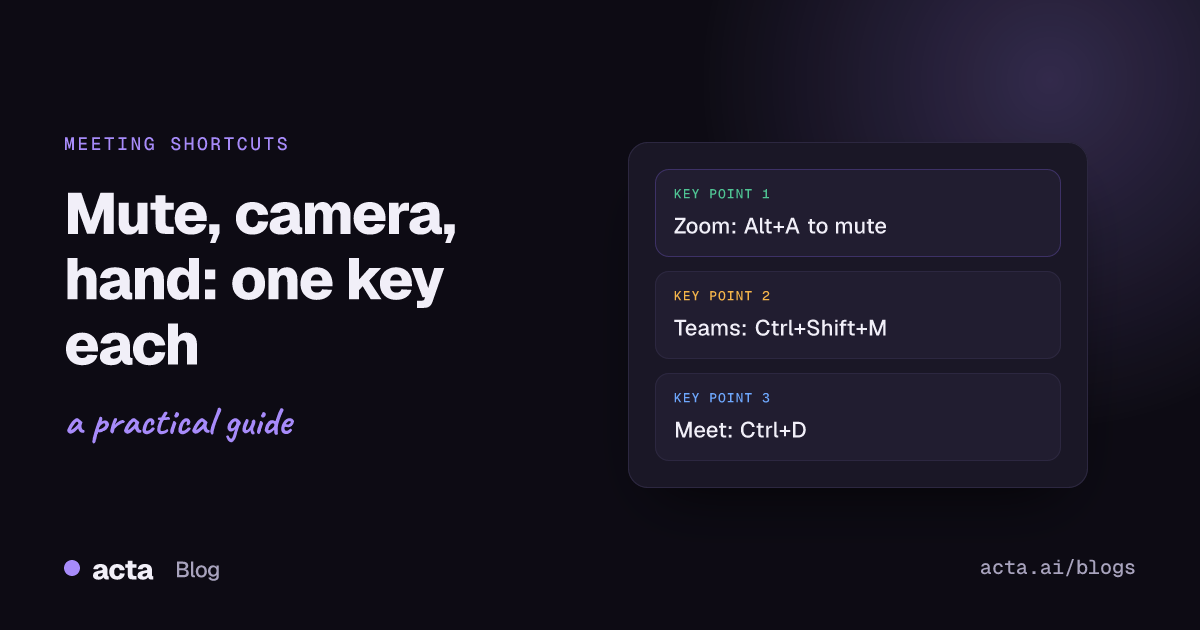
Quick answer: The keyboard shortcuts for Zoom, Teams and Meet that you'll use most are mute and camera. On Windows, mute is Alt+A in Zoom, Ctrl+Shift+M in Teams and Ctrl+D in Google Meet; camera is Ctrl+Shift+O in the Teams desktop app and Ctrl+E in Meet. On a Mac, swap in Cmd (Zoom and Teams use Cmd+Shift). To see every shortcut, press Ctrl+. in Teams or Shift+? in Meet, or open Zoom's Keyboard shortcuts settings.
I learned the mute shortcut for each platform the hard way: by fumbling for the mouse while someone asked me a direct question and my microphone icon was somewhere behind a shared spreadsheet. If you spend half your week on calls and switch between Zoom, Teams and Google Meet depending on who sent the invite, it's worth committing a handful of keys to memory. You don't need fifty. You need about six per platform, and the habit of checking the built-in list when something changes. If you're still choosing a platform, see our Zoom vs Teams vs Google Meet comparison.
Shortcuts below are the defaults as of November 2026, from each vendor's own help pages and the in-app lists. Apps update often and some keys differ by version or keyboard layout, so the last section shows how to check yours.
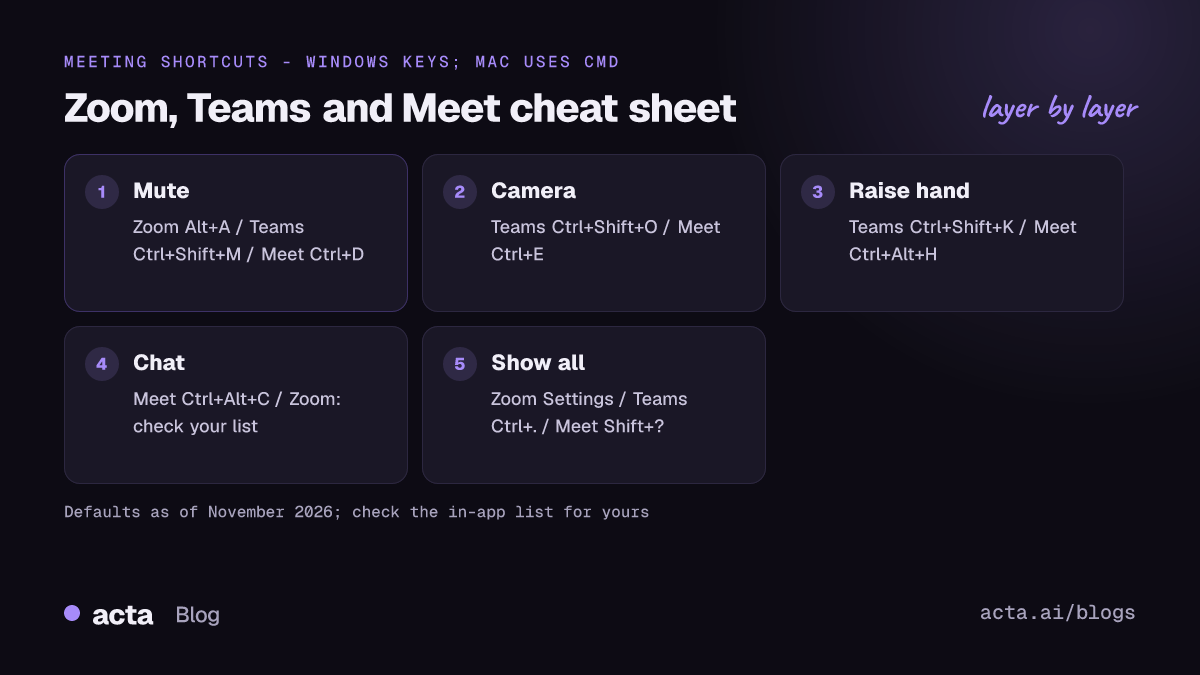
Which meeting shortcuts are worth learning first?
Before the lists, a bit of triage. In my experience, these are the only ones most people use every day:
- Mute and unmute. By far the most valuable. Everything else is a bonus.
- Camera on and off. For when the doorbell goes.
- Raise hand. In calls over eight people, it's the polite way in.
- Open chat. To drop a link without hunting for the panel.
- Share screen. Handy, though I still often use the mouse here because you need to pick a window anyway.
- Show all shortcuts. The one that saves you from needing this article next time.
Learn mute first, use it for a week, then add the next. Muting quickly matters most in a hybrid room; our hybrid meeting etiquette rules cover the rest.
Keyboard shortcuts for Zoom
Zoom's mute key is Alt+A on Windows and Cmd+Shift+A on a Mac. The full, current list lives in the Zoom app under Settings, then Keyboard shortcuts, and Zoom's help article on using hot keys and keyboard shortcuts explains how to edit them.
- Mute or unmute yourself: Alt+A (Windows), Cmd+Shift+A (Mac).
- Camera, raise hand, chat and screen share: Zoom has keys for these too, but third-party lists don't always agree on them, so check Settings, then Keyboard shortcuts in your own app before you rely on one.
- Push to talk: hold the Spacebar to unmute briefly while you're muted. It's off until you turn it on in Zoom's audio settings.
Zoom's global shortcuts
Zoom lets you tick a box next to some shortcuts so they work even when Zoom isn't the active window. That's the single most useful setting for mute: you can be in a document and still press Alt+A. The catch is that a global shortcut can take a key combination another app wanted. If a shortcut in Word or your browser suddenly stops working, check Zoom's global shortcuts first.
Keyboard shortcuts for Microsoft Teams
Teams uses Ctrl+Shift plus a letter for most meeting actions on Windows and Cmd+Shift on a Mac. Microsoft keeps the official list on its keyboard shortcuts for Microsoft Teams page, and notes it assumes a US keyboard layout.
- Mute or unmute: Ctrl+Shift+M (Windows), Cmd+Shift+M (Mac).
- Turn camera on or off: Ctrl+Shift+O (Windows), Cmd+Shift+O (Mac). Microsoft lists this one for the desktop app only, not Teams on the web.
- Raise or lower hand: Ctrl+Shift+K (Windows), Cmd+Shift+K (Mac).
- Open the share options: Ctrl+Shift+E (Windows), Cmd+Shift+E (Mac).
- End the call: Ctrl+Shift+H (Windows), Cmd+Shift+H (Mac).
- Unmute for a moment: hold Ctrl+Space (Windows) or Option+Space (Mac) while muted, then let go. Microsoft says to turn on the "Keyboard shortcut to unmute" toggle under Settings, then Privacy, first.
- Show all shortcuts: Ctrl+. (Windows), Cmd+. (Mac).
A Teams trap: Ctrl+E
In Teams, Ctrl+E jumps to the search box. In Google Meet, Ctrl+E turns your camera off. If you move between the two all day, expect to switch your camera off at least once while trying to search. I've done it in front of a client. It's survivable.
Keyboard shortcuts for Google Meet
Meet runs in the browser, so its shortcuts use Ctrl (or Cmd on a Mac) and avoid clashing with Chrome's own keys. Google lists them in its Google Meet keyboard shortcuts help page.
- Mute or unmute microphone: Ctrl+D (Windows and ChromeOS), Cmd+D (Mac).
- Turn camera on or off: Ctrl+E (Windows and ChromeOS), Cmd+E (Mac).
- Raise or lower hand: Ctrl+Alt+H (Windows and ChromeOS), Ctrl+Cmd+H (Mac).
- Open or close chat: Ctrl+Alt+C (Windows and ChromeOS), Ctrl+Cmd+C (Mac).
- Turn captions on or off: press C.
- Show all shortcuts: Shift+? during a meeting.
Non-US keyboards and Meet
Google's page on using Google Meet with a screen reader warns that on keyboard layouts other than US English, shortcuts with Ctrl+Alt may act like AltGr and not work as expected. If raise hand or chat does nothing on your German or Polish keyboard, that's why; use the on-screen buttons for those two.
How do you change or customise meeting shortcuts?
The three platforms handle this very differently:
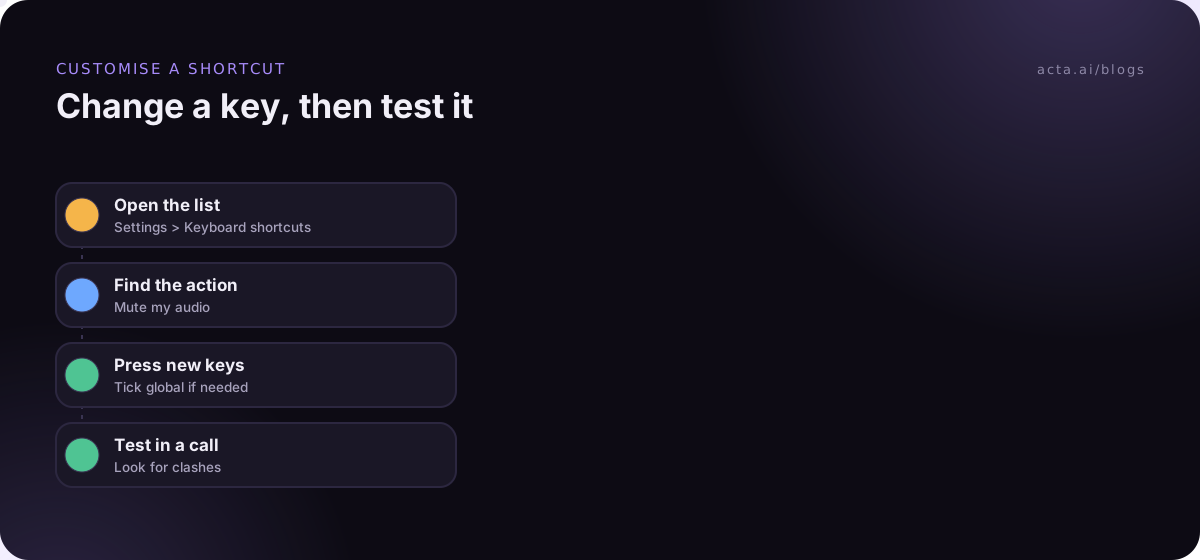
- Zoom is the most flexible. In Settings, then Keyboard shortcuts, click a shortcut and press the new keys. You can make some global, and the Restore button undoes your changes if you make a mess of it.
- Teams shows its list with Ctrl+., but I haven't found a way to remap meeting keys inside Teams itself. If a default clashes with something you rely on, a system-wide key remapping tool is the workaround.
- Google Meet has a fixed set of shortcuts. Browser extensions can add more, but treat any extension that reads your meeting tab with the same care as any other software with access to your calls.
If you use a meeting notetaker extension in Chrome, it may add its own shortcut too. Acta's Chrome extension, for example, starts recording with Alt+Shift+R, and you can change that at chrome://extensions/shortcuts like any other extension's keys. The Chrome extension help guide walks through it.
Same task, three platforms: a quick comparison
When you switch platforms several times a day, it helps to see the same action side by side (Windows keys; Mac keys are in the sections above):
- Mute: Zoom Alt+A, Teams Ctrl+Shift+M, Meet Ctrl+D.
- Camera: Teams Ctrl+Shift+O (desktop app), Meet Ctrl+E. For Zoom, check your shortcut list.
- Raise hand: Teams Ctrl+Shift+K, Meet Ctrl+Alt+H. For Zoom, check your shortcut list.
- Chat: Meet Ctrl+Alt+C. In Teams, click the chat button in the meeting bar; in Zoom, check your list.
- Full list: Zoom Settings then Keyboard shortcuts, Teams Ctrl+., Meet Shift+?.
If remembering three mute keys is too much, there's a cheaper fix: a headset with a mute switch on the cable or earcup. It cuts the microphone itself, so it works the same in every app. The only downside is that the meeting app may still show you as unmuted, so glance at the icon before you speak.
What if a meeting shortcut doesn't work?
Run through these before deciding the app is broken:
- Is the meeting window active? Most shortcuts only work when the meeting window or tab is in front. Click into it and try again, or set a Zoom shortcut to global.
- Is another app grabbing the keys? Screen recorders, clipboard managers, translation tools and other meeting apps often register global shortcuts. Close them one at a time to find the clash.
- Is your keyboard layout non-US? Ctrl+Alt combinations are the usual victims.
- Are you in the web version? Teams and Zoom in the browser can behave differently from their desktop apps, and the browser may keep some keys for itself.
- Did the app update? Open the built-in list again. Defaults do change.
Shortcuts, recording and notes
Shortcuts cover the meeting itself. Notes are a different job, and typing them during the call is where most people lose track of the conversation. Our guide on how to take meeting notes covers what's worth writing down. If you'd rather not type at all, a notetaker can record the call: a bot that joins the meeting, a desktop app that records from your computer, or a browser extension for Meet, Teams on the web and the Zoom web client. Whatever you use, tell people the call is being recorded; our guide to recording consent and what to tell participants has the details (general information, not legal advice).
Acta is one of those options. It records Zoom, Google Meet and Microsoft Teams with a bot, its desktop app or its Chrome extension, then writes the transcript, summary, decisions and action items with owners. The Alt+Shift+R shortcut above is how many people start it without leaving the keyboard.
Frequently asked questions
What is the mute shortcut in Zoom, Teams and Google Meet?
On Windows: Alt+A in Zoom, Ctrl+Shift+M in Teams, Ctrl+D in Google Meet. On a Mac: Cmd+Shift+A, Cmd+Shift+M and Cmd+D.
How do I see all keyboard shortcuts for Zoom?
Open the Zoom app, go to Settings and choose Keyboard shortcuts. The list shows every default, lets you change them, and lets you make some of them work globally.
Can I change keyboard shortcuts in Google Meet?
Not within Meet itself; its shortcuts are fixed. Press Shift+? in a meeting to see them. Some browser extensions add extra shortcuts, but check what access an extension asks for before installing it.
Why does Ctrl+E turn off my camera?
Because you're in Google Meet, where Ctrl+E toggles the camera. In Teams the same keys open search, which is why people who use both get caught out.
Is there a push-to-talk shortcut?
Yes. In Zoom, hold the Spacebar once push-to-talk is turned on in audio settings. In Teams, hold Ctrl+Space (Option+Space on a Mac) after enabling the unmute shortcut in settings.
If you'd like notes from your calls without typing, Acta has a 15-day free trial.