Record meetings with the Acta Chrome extension
The Acta Chrome extension records meetings from your browser, so no bot joins the call. It works with Google Meet, Microsoft Teams in the browser and the Zoom web client, and it can also record meetings in the Zoom and Teams desktop apps.
Set it up
- 1Add the extension to Chrome from the Acta Chrome extension page. It needs Chrome 116 or newer.
- 2A welcome page opens. Click Login and sign in to Acta. You only do this once: the extension stays logged in.
- 3Pin the Acta icon so it's always in the toolbar: puzzle-piece menu → pin.
Record a meeting
- 1Join the meeting in a Chrome tab. For Zoom, use Join from your browser.
- 2Click the Acta icon in the toolbar and press Start recording, or press Alt+Shift+R.
- 3First recording only: an Acta tab asks for your microphone, so your own voice is in the transcript. Click Allow; recording then starts by itself.
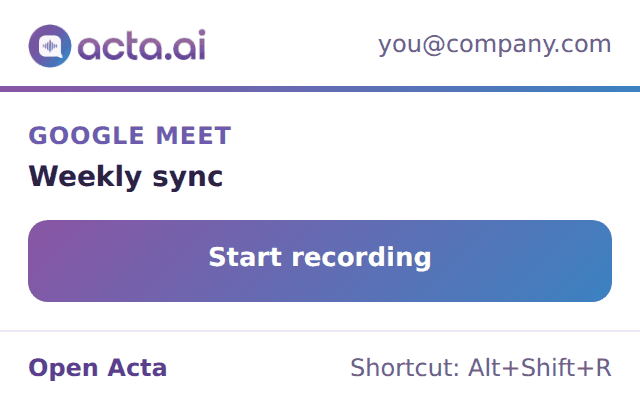
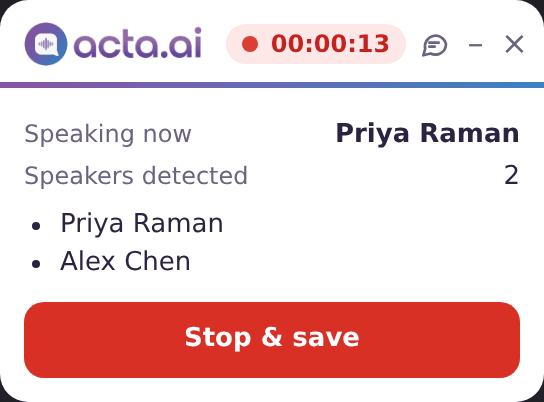
While it records, a small Acta window in the meeting shows the timer and who is speaking.
When the meeting ends
- Recording stops and saves by itself when you leave the meeting or the host ends it. You can also click Stop & save.
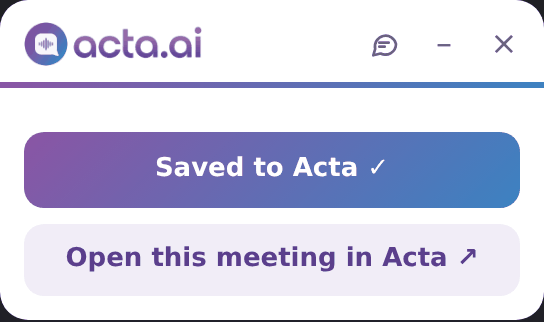
- Click Open this meeting in Acta in the window, the Meeting saved to Acta notification, or Last meeting in the popup.
- The transcript and summary appear on the meeting's page once Acta has processed it.
Meetings in the Zoom or Teams app
- 1Join the meeting in the Zoom or Teams app.
- 2Click the Acta icon on any tab that isn't a meeting and choose Record a Zoom or Teams app meeting. When you open a Zoom or Teams meeting link in Chrome, this window opens by itself.
- 3Click Start recording, choose Entire screen and switch on Also share system audio, so the other people's voices are recorded.
For meetings in the desktop apps, the Acta desktop app does this with no share step.
Good to know
- Reloading the meeting page or presenting your screen doesn't stop the recording. Closing the meeting tab stops it and saves it.
- The recording is uploaded while the meeting runs. If Acta can't be reached, it's kept in Downloads/Acta Recordings instead.
- Change the shortcut at chrome://extensions/shortcuts.
- On the free trial the window shows the days left. After the 15-day trial, Start recording is turned off until you upgrade; a recording already running is never stopped.
Troubleshooting
The Acta window doesn't appear
It only appears once you're in a meeting: a Google Meet meeting, a Teams call or meeting, or the Zoom web client. It doesn't show on other sites, the Meet home page or Teams chat.
It says the meeting sound isn't shared
If Chrome asks you to share the tab, click Share and keep "Also share tab audio" on. Without the meeting sound Acta doesn't start, and says what to change.
The recording didn't stop at the end of the meeting
Click Stop & save. If a meeting platform changes its buttons, Acta keeps recording rather than stopping by mistake.