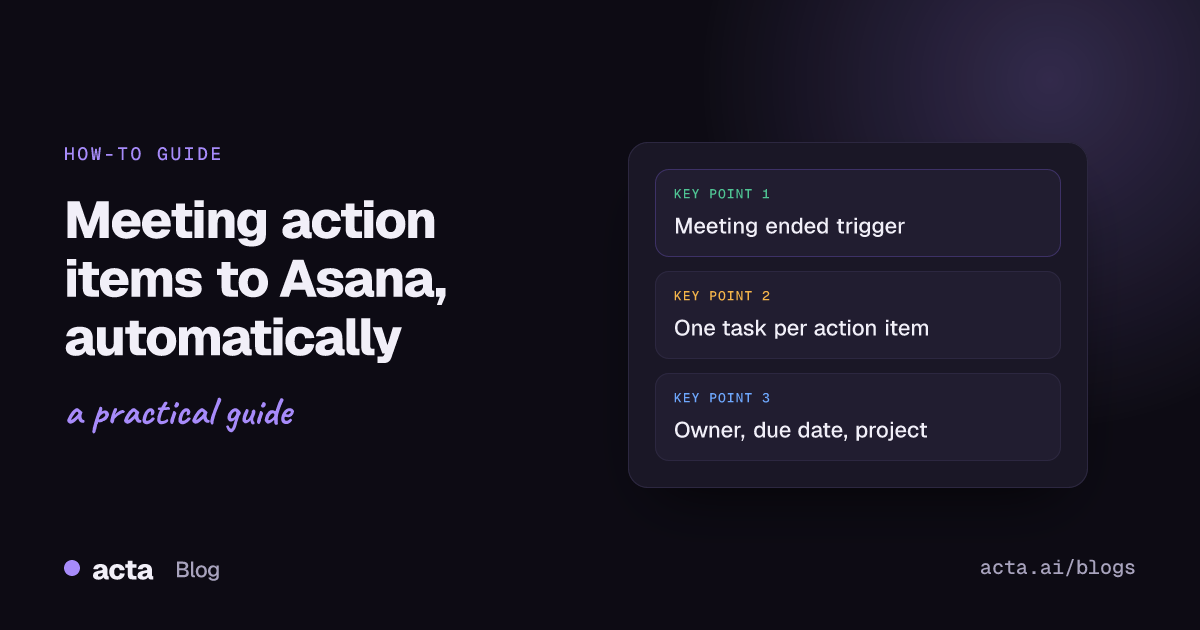
Quick answer: To send meeting action items to Asana automatically, build an agent in Acta Agent Builder: use the "Meeting ended" or "New action item" trigger, pull the meeting's action items with an Acta data step, loop over them with For each, and add an Asana "Create a task" step that fills in the name, description, assignee, due date and project. Test it, run Check setup, then turn it on.
Most teams agree on the right next steps in a meeting and then lose them on the way to the task tracker. Someone has to copy each item into Asana, find the right project, guess the due date and tag the right person. When that someone is busy, the items stay in the notes and nobody owns them.
This guide shows two ways to move meeting action items to Asana: an automated agent you build once in Acta Agent Builder (new in Acta), and a quick manual routine for teams that want to keep a person in the loop for every task. Both start from the same place: action items with owners and due dates that Acta pulls out of the conversation.
Why do meeting action items get lost before they reach Asana?
The problem is rarely the meeting. It is the handoff. Common reasons tasks never make it into Asana:
- No single owner for the copying. Everyone assumes the organiser or the note taker will add the tasks.
- Vague wording. "Look into pricing" is not a task anyone can finish. Without an owner and a date it sits in the notes.
- Delay. The longer the gap between the call and the task, the more context disappears. By Thursday, nobody remembers what "the export issue" meant.
- Wrong place. Tasks land in someone's personal list instead of the team project, so the project lead never sees them.
Asana's own guidance helps here: its help article on assigning tasks to teammates recommends that every task has an assignee, the person responsible for completing it, plus a realistic due date. An automated handoff makes that the default instead of the exception. For more on why follow-through breaks down, see why action items don't get done.
What do you need before sending meeting action items to Asana?
- Meetings in Acta. Acta can join Zoom, Google Meet and Microsoft Teams through a meeting bot from your calendar, record bot-free with the desktop app or the Chrome extension, capture in-person meetings with the mobile apps, or work from an uploaded recording. Recording people needs their consent where the law requires it; read what the law says about recording meetings with AI and what to tell participants.
- Action items with owners and due dates. Acta writes these into every meeting summary, next to the transcript with speakers and the decisions log.
- An Asana account connected in Agent Builder. Check setup will flag it if the connection is missing.
- A target project. Decide where tasks should go. One project per team is simplest; you can route by meeting title later.
How to send meeting action items to Asana automatically (step by step)
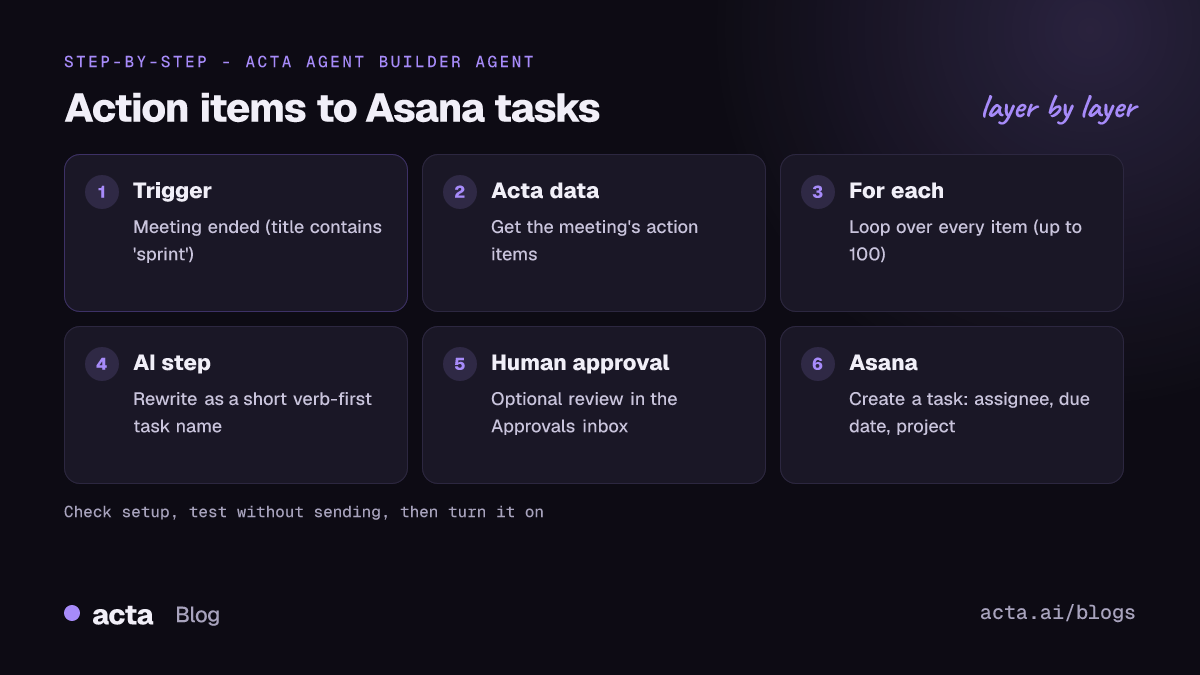
Acta Agent Builder builds an agent from one trigger plus a series of steps. You can start from scratch, from a template, or describe what you want in plain words and let the AI draft the agent, with a list of things you still need to fill in. Here is how to automatically create Asana tasks by building the agent by hand, so you can see each piece.
- Create a new agent. Open Agent Builder and choose to start from scratch, or type something like "After each team meeting, create an Asana task for every action item, assigned to its owner, in the Product project." The AI draft gives you the same steps as below plus a to-do list of missing settings.
- Pick the trigger. Choose Meeting ended, which fires when the summary is ready. Add a "title contains" filter such as "standup" or "sprint" if you only want some meetings. (An alternative trigger is covered in the next section.)
- Add an Acta data step for action items. Ask for the action items from the meeting that triggered the run. Each item comes with its text, owner and due date.
- Add a For each step. Loop over the action items so each one becomes its own task. For each handles up to 100 items per run, which covers any normal meeting.
- Optional: clean up the wording with an AI step. Inside the loop, an AI step can rewrite each item as a short task name starting with a verb and produce a description that includes the meeting title and the relevant context.
- Add the Asana "Create a task" step. Map the fields:
- Name: the action item text (or the AI step's short version).
- Description: context from the meeting, such as the meeting name and why the task exists.
- Assignee: the action item's owner.
- Due date: the action item's due date.
- Project: the Asana project you chose.
- Handle items with no owner or date. Add an If/else step before the Asana step. Items with an owner go straight through; items without one can be assigned to the meeting organiser, or held for review.
- Run Check setup. It flags missing settings and app connections, for example an Asana project that was never selected.
- Test. A test run shows what would be sent without creating anything in Asana. Use Test one step to check the Asana mapping on a single item.
- Turn it on. Each time you turn an agent on, Agent Builder saves a version you can restore later. After real runs, History shows what every step did, so you can see exactly which tasks were created.
Should you use "Meeting ended" or "New action item" as the trigger?
Both work. Pick based on how you want tasks to arrive.
Meeting ended
Fires once per meeting when the summary is ready. Good when you want all of a meeting's tasks created together, filtered by meeting title, with one approval for the whole batch.
New action item
An Acta event trigger that fires for each new action item. You can skip the For each loop, because each run handles one item. Good when you want every action item in Acta to become an Asana task, whatever the meeting.
Many teams start with Meeting ended and a title filter for one recurring meeting, then widen it once they trust the output.
How do you add an approval step before tasks are created?
Automatic task creation is useful, but some teams prefer a human to check the list first. Add a Human approval step before the Asana step:
- The run pauses and the request appears in the Approvals inbox.
- The approver can edit the text, then approve or reject.
- You can also send the approver an email with Approve and Reject buttons.
- If nobody answers before the request expires (24 hours by default, up to 7 days), nothing is sent to Asana.
With the Meeting ended trigger, place the approval before the For each loop so one person reviews the whole set of tasks from that meeting. This is a good fit for client meetings, where an action item worded by AI should be checked before it lands in a shared project.
How to create Asana tasks from meetings manually
If you only need tasks from a few meetings, or you are not ready to automate, a manual routine still beats retyping from memory:
- Open the meeting in Acta and go to its action items, each with an owner and due date.
- Check the wording against the transcript if anything is unclear.
- Export the summary to Markdown, Word or PDF if you want to attach the context to a task.
- In Asana, create the task in the right project, add the assignee and due date, and paste the context into the description. Asana's help article on creating tasks covers the options.
- Use Acta's Follow-ups view to see which items are still open across meetings, so nothing falls through between Asana and your notes.
The manual route works, but it depends on someone doing it every time. That is exactly the step that tends to slip. To track the items in Acta itself, see how to track action items across meetings.
Tips for clean Asana tasks from meeting notes
- One action, one task. If an item contains "and", split it. The AI step can do this.
- Start the name with a verb. "Send revised quote to the client" beats "Quote".
- Put the why in the description. Include the meeting name and the reason for the task, so the assignee does not need to watch the recording.
- Route by meeting. Use a Switch step on the meeting title to send product meetings to one project and customer meetings to another.
- Tell people in Slack. Add a Slack step that posts a short list of the new tasks to the team channel or messages each owner.
- One task in several projects. If a task belongs to more than one project, Asana supports this; see its guide to multi-homing tasks.
Can you also send meeting action items to Jira, a CRM or Slack?
Yes. The same agent pattern works for other destinations in Agent Builder: Jira (create an issue), HubSpot, Salesforce or Zoho (add a note to a contact matched by email), Slack messages, and Google Sheets rows. Engineering teams often send product action items to Jira and everything else to Asana from the same agent, using If/else on the meeting title. For the wider picture, see how to sync meeting action items to Jira, HubSpot and Salesforce, and for more ideas, 10 meeting automation workflows worth setting up.
Two limits worth knowing: Agent Builder has no Microsoft Teams chat action, and there is no code step yet. Asana is available through Agent Builder steps and triggers; it is not part of Acta's standard Integrations list. You can browse ready-made agents for each team on the Acta agents page.
Frequently asked questions
Can Acta send meeting action items to Asana automatically?
Yes, through Acta Agent Builder. An agent with a Meeting ended or New action item trigger can create an Asana task for each action item, with name, description, assignee, due date and project.
How do I assign action items in Asana to the right person?
Map the action item's owner from Acta to the Asana task's assignee. Add an If/else step for items with no owner so they go to the organiser or wait for review.
Can I review tasks before they are created in Asana?
Yes. Add a Human approval step. The run waits in the Approvals inbox, the approver can edit and approve or reject, and if nobody answers before it expires, nothing is created.
Can Agent Builder react to things that happen in Asana?
Yes. Asana triggers include new task, task completed, assigned to me and due soon, so you could, for example, post a Slack message when a meeting task is completed.
Will testing the agent create real Asana tasks?
No. Test runs show what would be sent without sending it, and Test one step lets you check a single step on its own.
Want to try it on your own meetings? See Acta's plans and start the free 15-day trial.