Record an in-person meeting in your browser
In personWeb appUpdated Oct 25, 2026
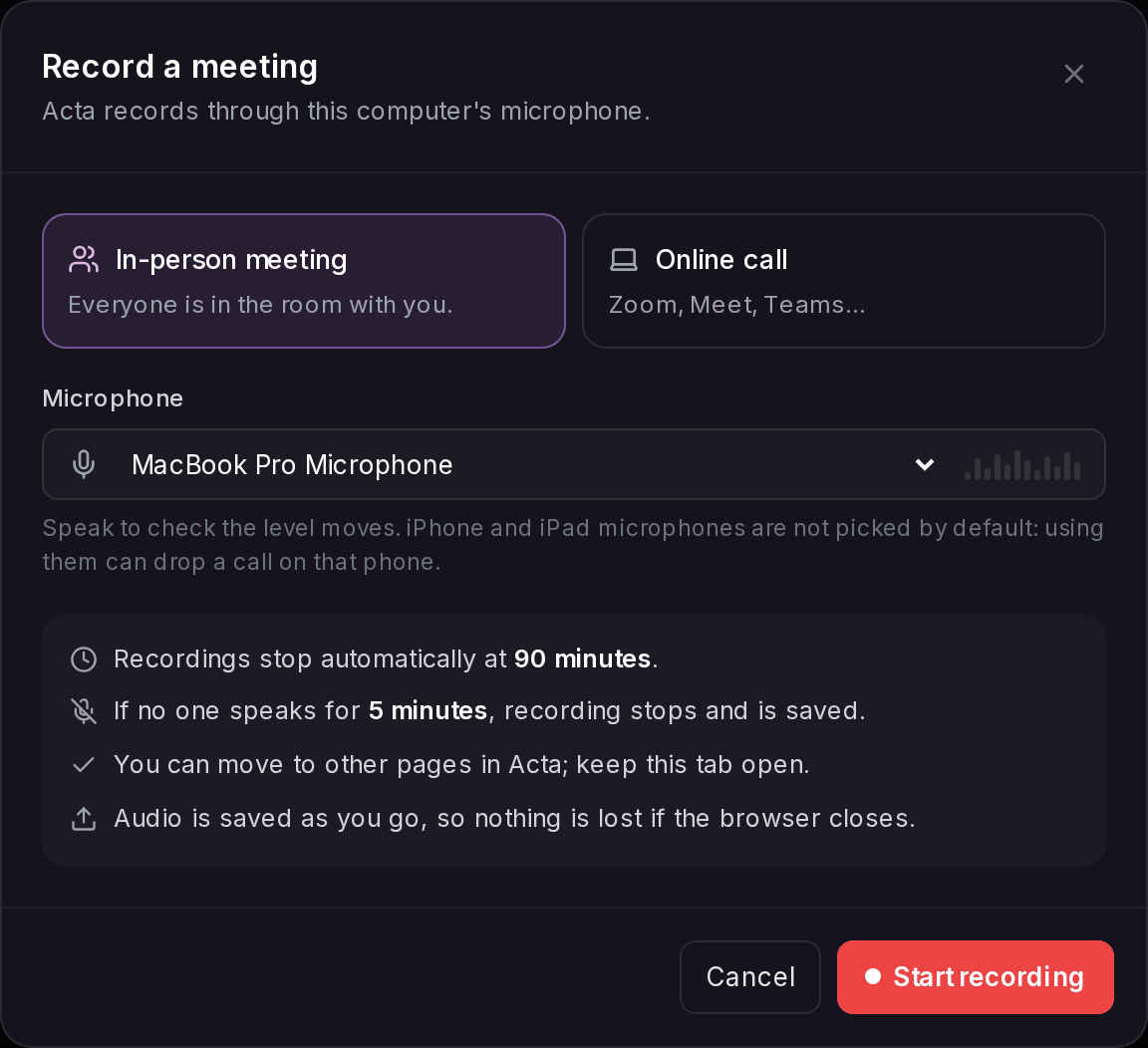
Record audio records a meeting through your computer's microphone, straight from Acta in your browser. It's made for in-person meetings, where everyone is in the room with you.
Record a meeting
- 1In Acta, go to My meetings and click Record audio.
- 2Choose In-person meeting.
- 3Pick the Microphone and speak: the level bars should move.
- 4Click Start recording.
- 5When the meeting is over, click Stop recording. Acta writes the transcript and notes.
Limits
- Recordings stop automatically at 90 minutes.
- If no one speaks for 5 minutes, recording stops and is saved.
- You can move to other pages in Acta while it records; keep the tab open.
- Audio is saved as you go, so nothing is lost if the browser closes.
For online calls, use something else
This recorder hears only your microphone, so with headphones on the other people aren't recorded. For Zoom, Meet or Teams, send the notetaker or use the Chrome extension. If you choose Online call, Acta offers these, and Record my microphone anyway.
Good to know
- iPhone and iPad microphones aren't picked by default: recording through them can drop a call on that phone.
Troubleshooting
It says "Microphone access is blocked"
Allow the microphone for Acta in your browser's site settings, then try again.
It says "No microphone found"
Connect a microphone and try again.
The recording stopped by itself
It stops at 90 minutes, or after 5 minutes with no one speaking. What was recorded is saved.
Related
Still stuck? The Acta team can help. support@acta.aiContact us