Send the Acta notetaker to a meeting
ZoomGoogle MeetMicrosoft TeamsWeb appUpdated Oct 25, 2026
The notetaker is Acta joining your call as a participant. It records the meeting and writes the notes, so it works even when you aren't in the meeting yourself. You can send it to one call, or let it join every meeting on your calendar.
Send it to a call now
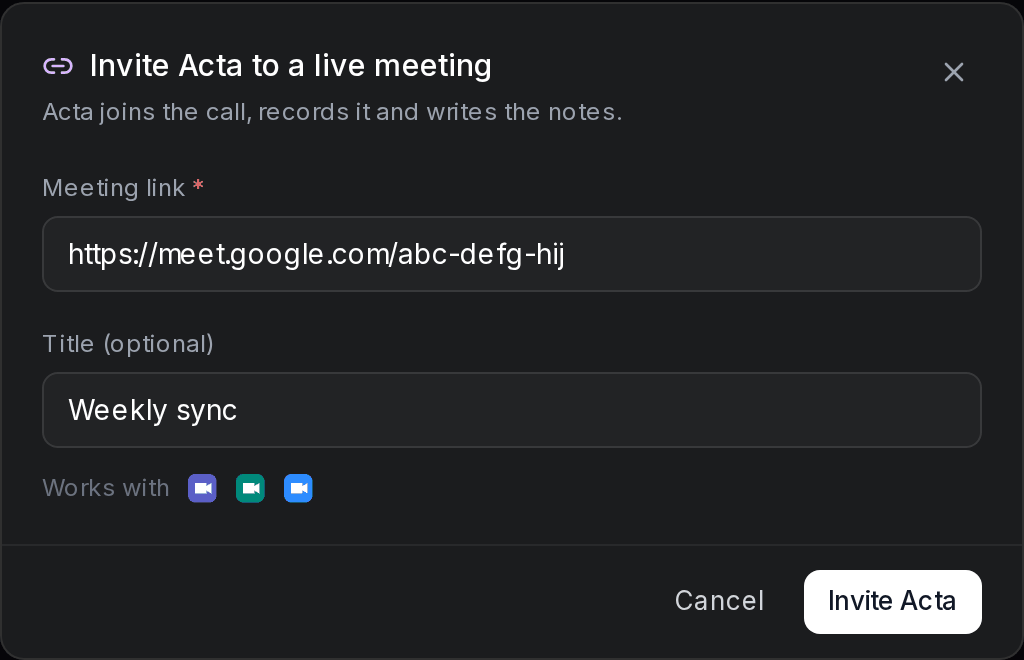
- 1In Acta, go to My meetings and click Invite to live meeting.
- 2Paste the meeting's link in Meeting link. Google Meet, Zoom and Microsoft Teams links work.
- 3Optionally give it a Title, for example "Weekly sync".
- 4Click Invite Acta. Acta joins the call, records it and writes the notes.
Paste the link only
For Zoom, paste the meeting link itself, not the "Meeting ID" and "Passcode" text from the invite.
Let it join your calendar meetings
- 1Open Settings → Meetings.
- 2Turn on Auto-join scheduled meetings. Acta joins the meetings on your Google or Microsoft calendar and records them for you.
- 3The calendar it reads is shown under the switch, e.g. Calendar: you@company.com.
Turning it off
Turning auto-join off cancels all your upcoming scheduled calls. Acta asks you to confirm first.
Good to know
- The notetaker shows up in the meeting as a participant. If you don't want a bot in the call, use the Chrome extension or the desktop app instead.
- If the meeting has a waiting room or lobby, let Acta in when it asks to join.
- After the meeting, open it from My meetings. The transcript is usually ready a few minutes after the call ends.
Troubleshooting
The Auto-join switch is greyed out
Auto-join needs your calendar, so it's available when you sign in to Acta with Google or Microsoft.
It says "Invalid URL"
Use a Microsoft Teams, Google Meet or Zoom meeting link, with nothing else in the box.
It says not to include the Meeting ID or Passcode
Remove the "Meeting ID: …" and "Passcode: …" text and paste just the Zoom link.
Related
Still stuck? The Acta team can help. support@acta.aiContact us