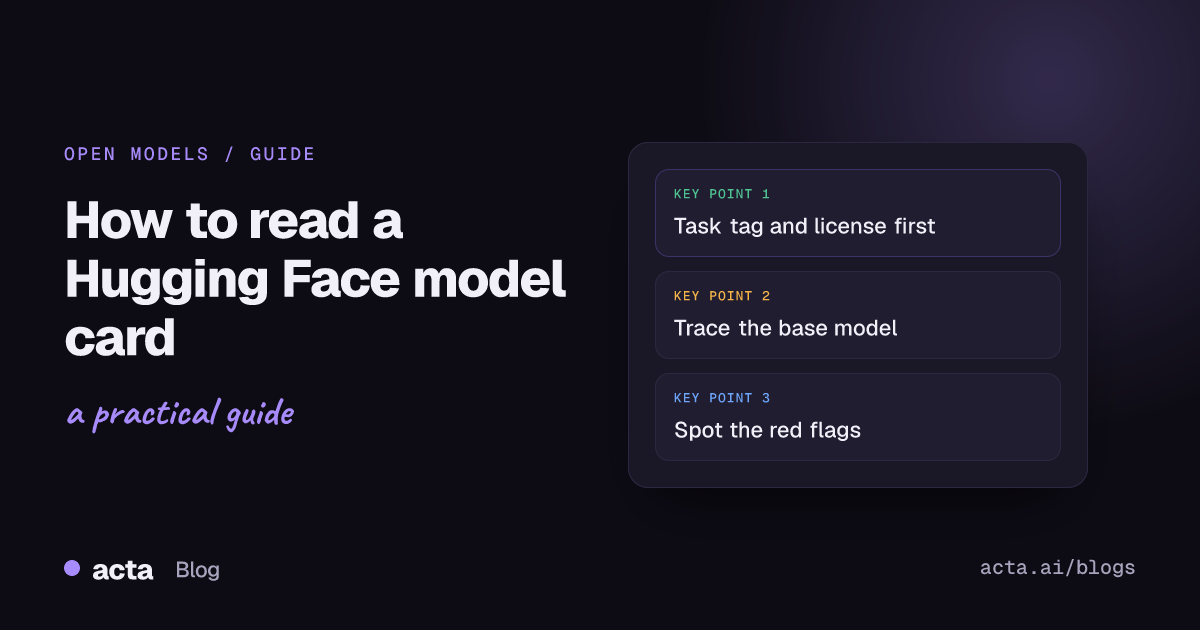
Quick answer: A Hugging Face model card is the README on a model's page: a metadata block (task tag, license, base model, languages) plus written sections on intended use, training data, evaluation and limitations. To read one, check the task tag and license first, then the base model and files, then the limitations. Downloads and likes tell you about popularity, not fitness for your job.
The first time you open a model page on Hugging Face it looks like a wall of badges, numbers and file names. Most of it you can ignore. A few parts tell you nearly everything: what the model is for, if you're allowed to use it, where it came from, and what the author admits it's bad at. Below I walk through a page from top to bottom using a made-up but typical example, so you know where to look next time.
What is a Hugging Face model card?
According to the Hub documentation on model cards, a card is a Markdown file, the repository's README.md, with a block of metadata at the top. That metadata drives the badges and filters you see on the page. The written part below it is whatever the author chose to tell you.
That second point matters. There's no review process for the prose. A careful lab will write pages of evaluation detail; a weekend uploader might write two lines. Both get the same page layout, so the layout tells you nothing about quality. The content does.
Our example: a typical model page
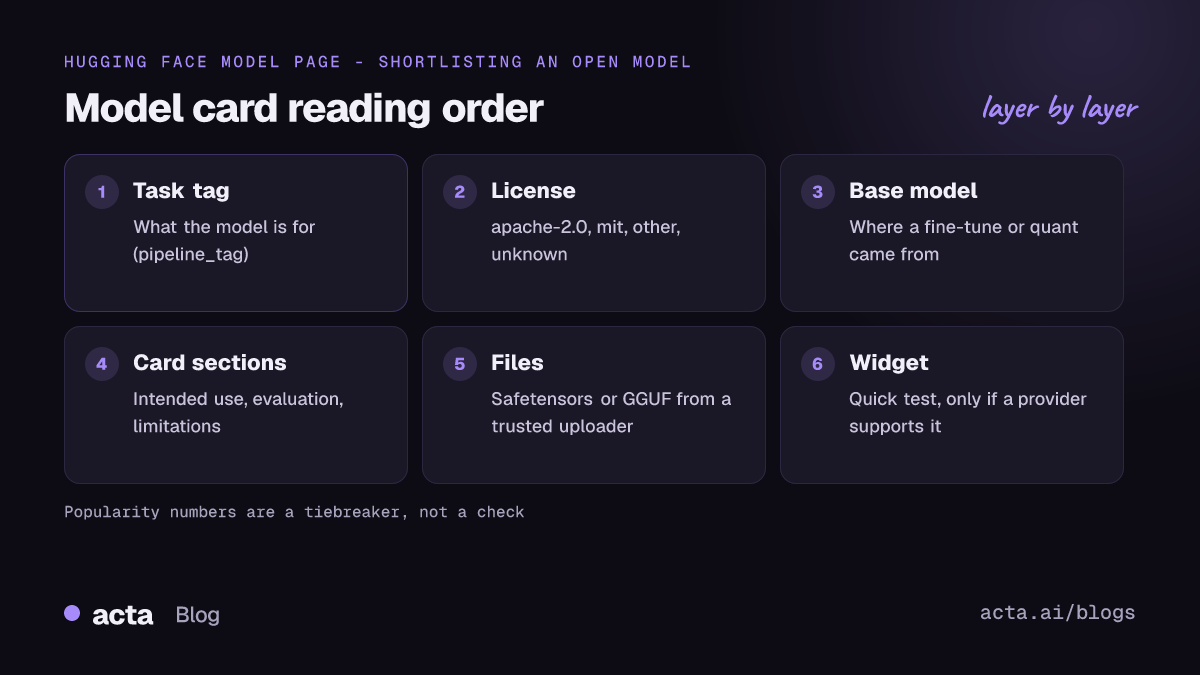
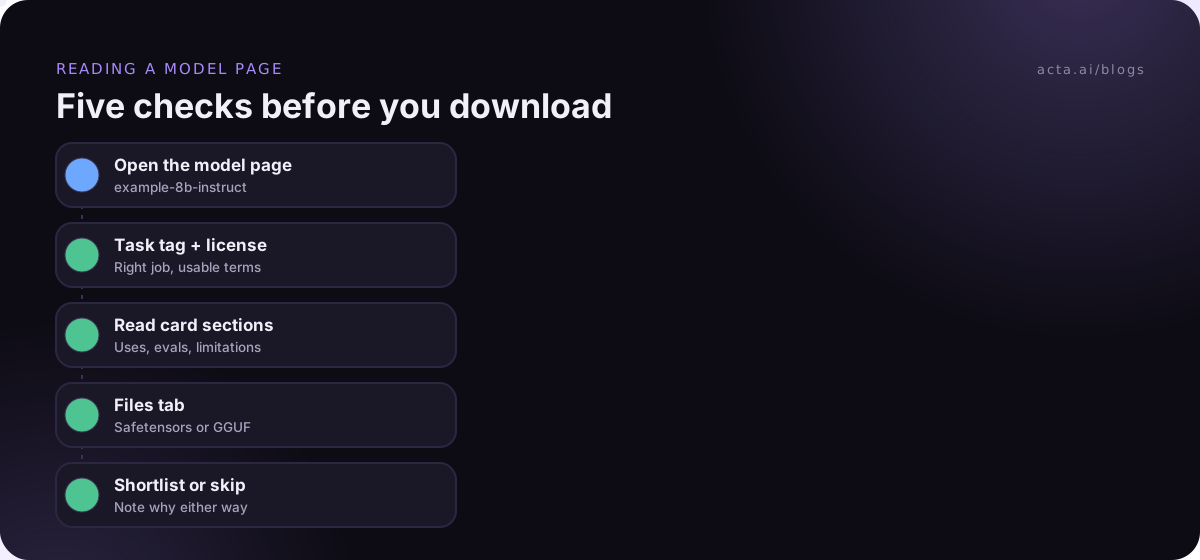
Picture a page for something called example-org/example-8b-instruct. Across the top you see a few tags: Text Generation, Transformers, Safetensors, English, a license badge. On the right there's a download count, a heart with a like count, and maybe a box to try the model. Below that is the card itself, and above it a row of tabs including "Files and versions" and "Community". Here's how I'd read it, in order.
How do you read the tags on a Hugging Face model card?
The task tag
The first tag is usually the task, such as Text Generation, Summarization or Automatic Speech Recognition. The docs call this the pipeline_tag. It says what kind of job the model is meant for, and it's what the task filter on the Hub uses. For models built with the Transformers library, the Hub can infer it from the model's config, and authors can override it.
If the task tag doesn't match what you need, close the tab. A speech model won't summarise your notes no matter how popular it is.
Library and format tags
Tags like Transformers, GGUF or Safetensors tell you how the weights are packaged and which tools load them. If you plan to use a desktop app such as LM Studio or Ollama, you'll want GGUF. If a developer will run it in Python, Transformers plus Safetensors is the usual pairing. Our comparison of Ollama, LM Studio, llama.cpp and vLLM explains which tool wants which format.
Language tags
These list the languages the author says the model handles. Treat them as a claim to test, especially for anything other than English.
Where is the license and what does it mean?
The license badge comes from the metadata, and the Hub lets you filter models by it. The Hub's license list includes common identifiers such as apache-2.0 and mit, plus families like openrail. There's also "other", which means the author attached a custom license as a file in the repo, and "unknown".
The model license is the one thing on the page I'd never skim. My rule of thumb for business use:
- apache-2.0 or mit: usually the simplest. Still read the file.
- other: open the LICENSE file and read it properly. Many well-known model families use custom licenses with acceptable use terms or conditions for commercial use.
- unknown or missing: skip it for anything that matters. You can't build on something you can't confirm you're allowed to use.
Also check whether the page is gated. The gated models docs explain that authors can require you to log in and request access, sometimes accepting extra terms, before you can download anything. That's normal for big-name models; just read what you're agreeing to.
What does base_model tell you?
Lots of models are derived from others: fine-tunes, adapters, merges and quantized copies. The card metadata can name a base_model, and the Hub uses it to connect the model to its relatives. The docs also mention a relation field, so a quantized copy can say it's "quantized" from the original.
Why care? Because the base model's license and limitations usually still apply, and because the original publisher is often more trustworthy than a re-uploader. If example-8b-instruct lists a base model, click through and read that card too. If a model claims to be a fine-tune of something famous but names no base model, be suspicious.
Which sections of the card should you actually read?
Good cards follow roughly the same outline. You don't need every section. These are the ones I read:
- Model description. Who made it, what it is, what it's derived from, and the parameter count. If size is new to you, our post on what LLM model size means explains how parameters relate to memory and speed.
- Intended uses and out-of-scope uses. If your use is in the out-of-scope list, stop there.
- Training data. Even a vague description tells you something. Silence tells you more.
- Evaluation. Look for which benchmarks, run how, compared with what. A single bold number with no method is marketing.
- Bias, risks and limitations. The most honest section on a good card, and often missing on a bad one.
- How to use. Code snippets and, for chat models, the prompt format. Getting the format wrong is the most common reason a model seems worse than people say.
A card that skips evaluation and limitations entirely isn't proof of a bad model. It does mean you're doing the author's homework, so budget time to test it yourself. The guide to evaluating LLMs with LightEval is a decent starting point.
Downloads, likes and trending: what do they mean?
These numbers are the easiest thing on the page to read and the easiest to over-read. A download count can't tell a person trying the model apart from a build script pulling it every night. Likes are people bookmarking the page. Trending reflects recent attention, so new releases and controversial uploads float up fast.
Use them as a tiebreaker between models that already pass your checks, never as the check itself. A trending model with no license, no card and a two-week-old account behind it is still a model with no license and no card. If you want a concrete example of why, our post on uncensored LLM risks covers a corner of the Hub where download counts are high and documentation is thin.
How do you pick a GGUF or quantized variant?
Open the "Files and versions" tab. For a big model you might see one set of Safetensors shards. For a GGUF repo you'll see many files with suffixes like Q2_K or Q8_0, each a different quantization level of the same model.
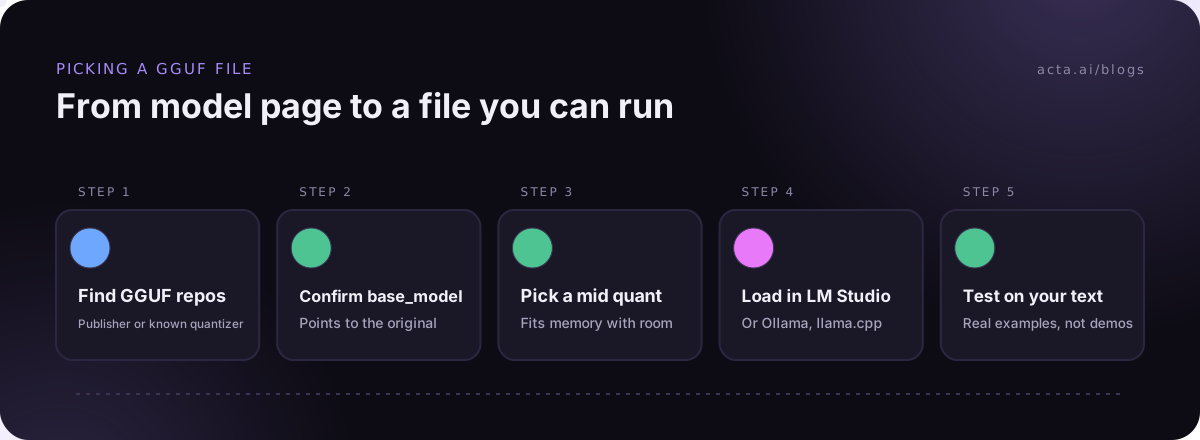
The Hub has built-in GGUF support: click a GGUF file and a viewer shows its metadata and tensor details without downloading it, and the docs list what each quantization type means. In practice, lower numbers mean smaller files and lower quality. Start in the middle and only go lower if the model doesn't fit in memory. Our explainer on GGUF quantization goes through the tradeoffs.
Two habits that save trouble:
- Prefer GGUF repos from the original publisher or a well-known quantizer, and check that their base_model points to the model you expect.
- Avoid loading raw pickle (.bin or .pt) files from accounts you don't know. Safetensors and GGUF are the safer formats.
What does "Inference Available" or the try-it box mean?
Some model pages have a box where you can type a prompt and see a response. The Inference Providers docs explain that this widget runs through Hugging Face's network of inference providers, and it only appears when at least one provider supports the model's task. When none does, you may see an option to ask for provider support instead.
So a missing widget doesn't mean the model is broken, and a working one doesn't mean the model suits your data. It's a quick way to see the output style before you download several gigabytes. Don't paste anything confidential into it.
Red flags on a model page
- No license, or "other" with no license file.
- An empty or one-line card.
- A claimed fine-tune with no base_model and no training detail.
- Only pickle weights, from an account with no other history.
- Benchmark claims with no method, or numbers that beat famous models by a suspicious margin.
- Community tab full of unanswered "this doesn't load" or "license?" threads.
One or two of these might be fine for a hobby test. For anything near company data, any one is a reason to look elsewhere.
Using a model card when your goal is meeting notes
Say the reason you're on Hugging Face is that you want summaries of your team's calls. You'd filter for text generation or summarization, check licenses, shortlist two or three instruct models, then test them on a few real transcripts. Our guide to building a summarization app with open models walks through that.
Then you'd find the model is the easy part. You still need a transcript with speaker names, prompts that don't invent decisions, somewhere to keep the results, and permissions. If you'd rather skip running models yourself, Acta's features cover that end to end: it joins Zoom, Google Meet or Microsoft Teams, or works bot-free through the desktop app and Chrome extension, and produces a transcript with speaker names, a summary, decisions, and action items with owners. OneChat answers questions across your meetings with sources, and Acta does not use customer data to train AI models.
Frequently asked questions
Is a Hugging Face model card checked by Hugging Face?
No editorial review applies to the written card. The author writes it. The Hub does scan uploaded files for malware and unsafe pickle imports, but the claims in the card are the author's own.
What's the difference between a model card and a model page?
The page is everything you see at the model's URL: tags, files, widget, community tab. The card is the README part, metadata plus written sections. Most of the useful information on the page comes from the card.
Can I use a model commercially if it's on Hugging Face?
Only if its license allows it. Being public on the Hub doesn't grant commercial rights. Check the license badge, open the license file for anything marked "other", and check the base model's license too.
Which GGUF file should I download?
Pick a mid-level quantization that fits in your machine's memory with room to spare, from a trusted uploader whose base_model matches the original. Drop a level only if it won't load or runs too slowly.
Why does a popular model have no inference widget?
The widget needs at least one inference provider that supports the model's task. Plenty of good models don't have one, so its absence says nothing about quality.
If you'd rather get meeting summaries and action items without reading a single model card, start a 15-day free trial of Acta.