MLX vs llama.cpp is a choice between Apple's own machine learning framework, built around the Mac's unified memory, and a portable C/C++ inference engine that runs the same GGUF file on a Mac, a Windows PC or a Linux server. If you only use Apple Silicon and like Python, MLX is the more natural fit. If you need one model file across machines, the widest choice of quantized builds, or CPU and GPU splitting, pick llama.cpp.
Most people never choose directly. LM Studio ships both engines on the Mac, and Ollama now runs supported models on MLX by default on Apple Silicon while keeping its llama.cpp-based path for the rest. So this guide covers what each project is, how their model formats differ, which apps sit on top, how memory works on a Mac, and how to test speed on your own machine instead of trusting someone else's chart. If you're on Windows or Linux with an NVIDIA card, this isn't your decision: use llama.cpp or a server engine.
Key takeaways
- MLX is Apple's MIT-licensed array framework for Apple Silicon; mlx-lm is the package that runs and fine-tunes LLMs on it. llama.cpp is an MIT-licensed C/C++ engine on top of ggml, with Metal on by default on macOS.
- Formats differ: llama.cpp reads single-file GGUF models; mlx-lm reads Hugging Face-style folders of safetensors weights, often from the mlx-community organization. Neither engine reads the other's quantized files.
- LM Studio bundles its MLX engine from version 0.3.4 on Mac; Ollama's v0.40.0 release made MLX the default on Apple Silicon for architectures the MLX runtime supports.
- Speed claims online conflict, often by model size and context length. Run llama-bench and mlx_lm.benchmark on the model and context you actually use.
- On a Mac, unified memory means both engines can use most of your RAM for the model, but macOS limits how much can be wired for the GPU; mlx-lm documents how to raise it.
Table of contents
- MLX and llama.cpp solve different problems
- MLX vs GGUF: the model formats are not interchangeable
- LM Studio and Ollama decide for most Mac users
- Unified memory works the same for both, with one setting to know
- Benchmark speed yourself, because published numbers disagree
- MLX vs llama.cpp: which one to pick
- Frequently asked questions
- Decide in ten minutes
MLX and llama.cpp solve different problems
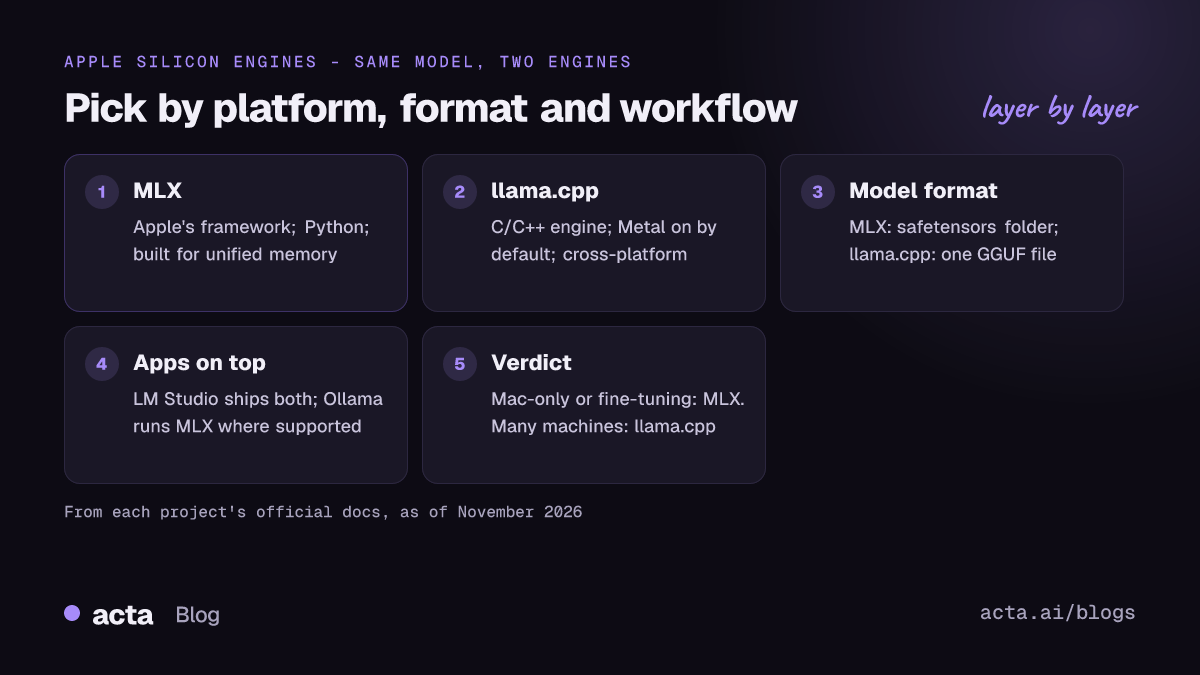
MLX is, in its own words, "an array framework for machine learning on Apple silicon, brought to you by Apple machine learning research." Think of it as Apple's answer to NumPy and PyTorch, designed around one hardware fact: on Apple Silicon the CPU and GPU share memory. The MLX README says arrays live in shared memory, so operations can run on either device without copying data. It is MIT-licensed, installs with pip install mlx, and has since added a CUDA backend and a CPU-only package for Linux, though the Mac remains its home.
LLMs on MLX come from a separate package, mlx-lm. It installs with pip install mlx-lm and gives you mlx_lm.generate, mlx_lm.chat, an OpenAI-style HTTP server, conversion and quantization tools, and LoRA and full fine-tuning, including on quantized models. That last point matters: MLX is a training framework too, not only an inference engine.
llama.cpp describes itself as "LLM inference in C/C++", with the goal of minimal setup and strong performance "on a wide range of hardware - locally and in the cloud." It is built on the ggml library and is MIT-licensed. Its build guide lists backends for Metal, CUDA, HIP, Vulkan, SYCL and others; on macOS, Metal is enabled by default, so llama.cpp on a Mac uses the GPU without extra setup. It's an inference engine: it runs and serves models, it doesn't train them.
So the comparison isn't quite like for like. MLX is a framework with an LLM toolkit on top; llama.cpp is a focused inference engine with a model format of its own. Both are serious, actively developed projects, and model vendors treat them as equals: Qwen's own README tells Mac users to look for model repositories ending in GGUF for llama.cpp and ending in MLX for mlx-lm.
MLX vs GGUF: the model formats are not interchangeable
This is the practical difference you'll hit first. llama.cpp runs GGUF: one file per model, with the weights, tokenizer and metadata packed together, in a wide range of quantization types. Model publishers upload ready-made GGUF repositories, such as the ggml-org Qwen3.8-27B GGUF build, and you pick a file. If the quant names confuse you, our guide to GGUF quantization explains Q4_K_M, Q5 and Q8.
mlx-lm runs Hugging Face-style model folders: safetensors weight files with a config and tokenizer. It can load many original model repositories directly, and its README points to the mlx-community organization on Hugging Face for pre-quantized versions. To make your own, convert and quantize in one step:
mlx_lm.convert --model mistralai/Mistral-7B-Instruct-v0.3 -q
Options include --q-bits, --q-group-size and --q-mode (affine, mxfp4, nvfp4 or mxfp8). Add --upload-repo to publish the result to Hugging Face.
Neither engine runs the other's quantized files, so a "4-bit" GGUF and a "4-bit" MLX model are different artifacts made by different schemes. They will be close in size but not identical in quality. When you compare engines, compare outputs as well as speed. When a new model drops, check both formats exist for it before you build a workflow around one.
LM Studio and Ollama decide for most Mac users
If you use a desktop app rather than a terminal, the engine choice is mostly made for you.
LM Studio MLX engine
LM Studio's open-source mlx-engine is built on mlx-lm, mlx-vlm for vision models and Outlines for structured output, all MIT or Apache 2.0. Its README says it comes bundled with LM Studio 0.3.4 and newer on Mac, and needs macOS 14 or later. LM Studio also runs GGUF models through llama.cpp, so on a Mac you can download the same model in either format and switch between them in one app. That makes LM Studio the easiest place to run your own MLX vs GGUF comparison.
Ollama MLX on Apple Silicon
Ollama's v0.40.0 release notes say that on Apple Silicon devices, "model architectures supported by the MLX runtime will automatically run on MLX." Models whose architectures MLX doesn't support keep running on Ollama's llama.cpp-based engine. Ollama can import either Safetensors folders or GGUF files through a Modelfile. In practice, an Ollama user on a recent Mac may already be on MLX without knowing it.
For a wider look at these apps, including when vLLM makes more sense, read our Ollama vs LM Studio vs llama.cpp vs vLLM comparison. If you're just getting started, the beginner's guide to running a local LLM on a laptop covers installation.
Unified memory works the same for both, with one setting to know
On a Mac there's no separate VRAM, so both engines can place model weights and the KV cache in the same pool your apps use. That's why a 64 GB MacBook Pro can hold models that need two consumer GPUs on a PC. llama.cpp gets there through Metal; MLX was designed for it from the start.
The limit is macOS itself. Your system and apps need memory, and the OS caps how much can be wired for the GPU. The mlx-lm documentation says that for models large relative to RAM, it tries to wire the model and cache memory (on macOS 15 or later), and if you see its warning that a model will be slow, you can raise the limit:
sudo sysctl iogpu.wired_limit_mb=N
Set N larger than the model size in megabytes and smaller than total memory, per the mlx-lm docs.
Both engines also let you shrink the KV cache for long inputs. In llama.cpp, set -ctk q8_0 -ctv q8_0; in mlx-lm, use --kv-bits, plus --max-kv-size for a rotating fixed-size cache and --prefill-step-size to cut peak memory while a long prompt is read. To size a model before you download it, use the formulas in our guide to local LLM VRAM requirements.
Benchmark speed yourself, because published numbers disagree
If you searched "MLX vs llama cpp" hoping for a single speed answer, you've probably seen it go both ways. Some write-ups report MLX well ahead on smaller models; others find llama.cpp faster on a particular large model, or MLX losing its lead as context grows. A 2025 arXiv study benchmarks MLX, MLC-LLM, Ollama, llama.cpp and PyTorch MPS on Apple Silicon, which is a more controlled starting point than blog posts. But results move with every release of both projects, with the model architecture, with quantization and with context length.

So test the case you care about. Both projects ship a benchmark tool:
llama-bench -hf ggml-org/Qwen3.8-27B-GGUF -p 4096 -n 256 -d 0,16384
mlx_lm.benchmark --model <mlx repo> -p 4096 -g 256
In llama-bench, -p sets prompt tokens, -n generated tokens and -d the context depth already filled, which shows how speed changes deep into a long document. In mlx_lm.benchmark, -p and -g set prompt and generation tokens. Keep the comparison fair: same model, closest matching bit width, nothing else heavy running, and power settings the same. Then look at both numbers that matter. Prompt processing decides how long you wait before a 20-page document starts producing output; generation speed decides how fast the answer streams.
MLX vs llama.cpp: which one to pick
Here's the MLX vs llama cpp decision in one table, then the reasoning.
| If you... | Pick | Why |
|---|---|---|
| Only use a Mac and work in Python | MLX (mlx-lm) | Native API, built around unified memory |
| Want to fine-tune on your Mac | MLX (mlx-lm) | LoRA and full fine-tuning, including quantized models |
| Run the same model on Mac, Windows and Linux | llama.cpp | One GGUF file works across backends |
| Need a CPU and GPU split or many quant choices | llama.cpp | -ngl layer offload, wide GGUF quant range |
| Use Ollama or LM Studio | Let the app choose | Both run MLX on Apple Silicon where supported |
| Serve a team from one machine | Neither alone | mlx_lm.server isn't for production; see server engines |
Pick MLX if your work stays on Apple Silicon, you want a Python API, or you want to fine-tune small models on a Mac. Its tight fit with unified memory and its training tools are things llama.cpp doesn't try to offer.
Pick llama.cpp if you move between machines, deploy to non-Apple hardware, or want one file you can hand to a colleague on Windows. Its llama.cpp Metal backend is on by default, publishers routinely upload GGUF builds of new models, and it handles partial GPU offload when a model doesn't fit.
Pick neither directly if you just want a chat window or a local API: Ollama and LM Studio already route Mac models to MLX where they can. And if several people will hit the model at once, note that the mlx-lm docs say its server only implements basic security checks and isn't recommended for production; that's a job for a server engine on proper hardware.
A lot of Mac users set up a local model to turn calls into notes. If that's your project, the guide to choosing a local LLM for transcripts shows how to test models on your own meetings. If you'd rather skip the setup, Acta's desktop app for Mac and Windows captures Zoom and Teams calls without a bot and writes the summary and action items; Acta doesn't use customer data to train AI models.
Frequently asked questions
Is MLX faster than llama.cpp on a Mac?
Sometimes. Published comparisons disagree, and the gap depends on model architecture, size, quantization, context length and the release of each project you test. The fair answer is to run llama-bench and mlx_lm.benchmark on your own model at the context length you use, and compare output quality too, because 4-bit GGUF and 4-bit MLX files use different schemes.
Can llama.cpp run MLX models, or MLX run GGUF?
Not as a drop-in. llama.cpp runs GGUF files; mlx-lm runs Hugging Face-style safetensors folders, including pre-quantized ones from mlx-community. If a model only exists in one format, you can convert the original weights with each project's tools, for example mlx_lm.convert with -q for MLX. Check both formats exist before you commit.
Does Ollama use MLX on Apple Silicon?
Yes, for supported models. Ollama's v0.40.0 release notes say that on Apple Silicon, model architectures supported by the MLX runtime automatically run on MLX. Other architectures keep using Ollama's llama.cpp-based engine. The release notes describe this change for Apple Silicon devices only. A model the MLX runtime doesn't support yet still runs; it just takes the other path.
Does llama.cpp use the GPU on a Mac?
Yes. According to llama.cpp's build guide, Metal is enabled by default on macOS, so the computation runs on the GPU. You can force CPU-only inference with --n-gpu-layers 0. Because Apple Silicon uses unified memory, llama.cpp's Metal backend uses the same memory pool as the rest of the system; there is no separate VRAM to fill.
Decide in ten minutes
You don't need a week of research. Run this list once and you'll settle MLX vs llama cpp for your own Mac.
- Check your app first: if you use Ollama or LM Studio, update it and see which engine your model loads on before changing anything.
- Confirm both formats exist: search for a GGUF and an MLX build of the exact model and size you want.
- Size the model: make sure weights plus KV cache fit with several gigabytes left for macOS.
- Run both benchmarks: llama-bench and mlx_lm.benchmark at your real prompt length, same bit width.
- Read the outputs: give both engines the same three prompts and keep the one whose answers you'd actually use.
And if the local model was only ever meant to produce meeting notes, try Acta's desktop app on your next call and compare.