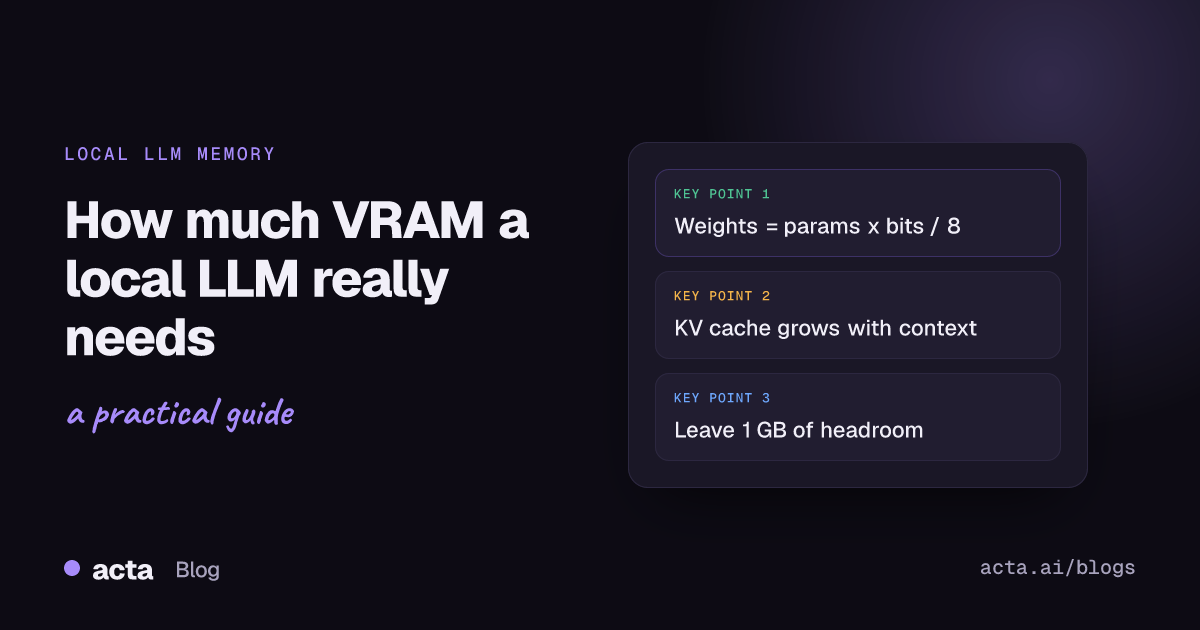
Local LLM VRAM requirements come down to three numbers you can work out before downloading anything: the weights (parameters x bits per weight / 8), the KV cache (which grows with every token of context), and a gigabyte or so of runtime headroom. An 8B model at 4-bit needs roughly 4.5 GB for weights, but a 32K-token context adds about 4 GiB more. Context, not parameter count, is what usually breaks a "this should fit" plan.
This guide gives you the formula, two estimate tables built from it, and the flags in llama.cpp, Ollama and MLX that change the answer. It's for people choosing a GPU or a Mac, or trying to work out why a model that loads fine slows to a crawl on long inputs. It won't tell you tokens per second: speed depends on memory bandwidth, runtime and model, and any single number would mislead you.
Key takeaways
- Weights in GB = parameters in billions x bits / 8. A 27B model is about 54 GB at 16-bit, 27 GB at 8-bit and 13.5 GB at 4-bit before overhead; real 4-bit files run roughly 10 to 13 percent above that.
- KV cache = 2 x layers x KV heads x head size x context x bytes. For Llama 3.1 8B that's 128 KiB per token at 16-bit, so 32K tokens cost 4 GiB and 128K cost 16 GiB.
- Mixture-of-experts models need memory for all their parameters, not just the active ones: Gemma 4 26B A4B is listed at 14.4 GB at 4-bit even though only about 4B parameters run per token.
- On a Mac, unified memory is shared with the OS, so plan to use well under the total; on a PC, anything that spills out of VRAM into system RAM runs much slower.
- Quantizing the KV cache to 8-bit roughly halves its size, which is often the cheapest way to fit a longer context.
Table of contents
- Local LLM VRAM requirements have three parts
- Model weights scale with parameters and bits
- KV cache memory grows with every token of context
- Worked examples turn the formula into a buying decision
- Apple unified memory for LLM work has a ceiling below the label
- GPU offloading lets a model run, slowly
- Runtime flags change the memory bill
- Frequently asked questions
- Size your setup before you buy
Local LLM VRAM requirements have three parts
Every local model you run holds three things in memory. The first is the weights: the model's parameters, stored at whatever precision the file uses. The second is the KV cache: the keys and values the model keeps for every token it has read so far, so it doesn't recompute them on each new token. The third is runtime overhead: compute buffers plus whatever your driver and desktop already occupy.
Most "how much VRAM do I need" answers only count the first part, which is why people buy a 12 GB card for a model whose file is 9 GB and then hit out-of-memory errors at the first long prompt. Weights are fixed once you pick a file. The KV cache is set by the context length you allocate, and some runtimes allocate the full context up front whether you use it or not.
Write the budget as one line and keep it next to you when you shop: total = weights + KV cache + headroom. For headroom, llama.cpp's own auto-fit feature leaves a default margin of 1024 MiB per device, which is a sensible figure to copy. If the machine also drives your displays, leave more.
Model weights scale with parameters and bits
The arithmetic is simple. A parameter stored at 16 bits takes 2 bytes, at 8 bits 1 byte, at 4 bits half a byte. Multiply by the parameter count and you have the weights. The table below is that formula applied to common sizes; treat every cell as an estimate, not a measurement.
| Parameters | 16-bit (GB) | 8-bit (GB) | 4-bit (GB) |
|---|---|---|---|
| 3B | 6 | 3 | 1.5 |
| 8B | 16 | 8 | 4 |
| 14B | 28 | 14 | 7 |
| 27B | 54 | 27 | 13.5 |
| 32B | 64 | 32 | 16 |
| 70B | 140 | 70 | 35 |
Estimates from params x bits / 8, weights only. Add the KV cache and about 1 GB of headroom.
Real files are a little bigger. Quantized formats store scaling factors alongside the weights, and some tensors (often embeddings and the output layer) stay at higher precision. You can see the gap in an official source: the Gemma 4 model card lists its 31B model at about 17.5 GB at 4-bit, against 15.5 GB from the bare formula, and the 26B A4B at 14.4 GB against 13 GB. Pad your estimate by 10 to 15 percent, or just read the file size on the download page. If you're unsure which 4-bit variant to download, our guide to GGUF quantization types explains the trade-offs between Q4_K_M, Q5 and Q8.
One trap catches a lot of people: mixture-of-experts (MoE) models. A name like "26B A4B" or "35B-A3B" means about 4B or 3B parameters are active per token, which makes generation cheaper. It does not shrink memory. All the experts must be loaded, which is exactly what the Gemma card's 14.4 GB figure for a model with roughly 4B active parameters shows. Size MoE models by total parameters.
KV cache memory grows with every token of context
The KV cache formula looks intimidating but uses numbers printed in every model's config file:
KV cache bytes = 2 x layers x KV heads x head dimension x context tokens x bytes per value
The 2 covers keys and values. Take Llama 3.1 8B: Meta's published configuration lists 32 layers, 32 attention heads with 8 KV heads, and a model dimension of 4096, so the head dimension is 4096 / 32 = 128. At 16-bit (2 bytes) that's 2 x 32 x 8 x 128 x 2 = 131,072 bytes, or 128 KiB per token. Llama 3.1 70B has 80 layers and 8 KV heads with the same head size, which works out to 320 KiB per token.
| Context (tokens) | 8B, 16-bit cache | 8B, 8-bit cache | 70B, 16-bit cache |
|---|---|---|---|
| 8,192 | 1 GiB | about 0.5 GiB | 2.5 GiB |
| 32,768 | 4 GiB | about 2 GiB | 10 GiB |
| 131,072 | 16 GiB | about 8 GiB | 40 GiB |
Estimates from the formula above using Meta's published Llama 3.1 configs; 8-bit column uses Ollama's "about half of f16" guidance.
Look at the bottom row. At its full 128K window, the 8B model's cache is four times the size of its 4-bit weights. That's the main reason context length, not parameter count, ends up deciding what fits. Serving several users at once multiplies it: each parallel request carries its own cache.
Two caveats. First, newer architectures change the multiplier. Models with grouped-query attention (fewer KV heads than attention heads) are already cheaper, and some recent models mix in linear-attention layers that don't keep a growing cache at all. The Qwen3.8-27B model card, for example, describes Gated DeltaNet blocks alternating with gated attention blocks, so the plain formula overstates its cache. Second, don't hand-compute every model. Sebastian Raschka's LLM memory calculator works as a VRAM calculator for weights plus KV cache from per-model architecture data; use the formula to sanity-check it.
Worked examples turn the formula into a buying decision
Here's how local LLM VRAM requirements play out for three common setups. All figures are estimates from the formulas above, rounded.

An 8B model on a 12 GB GPU
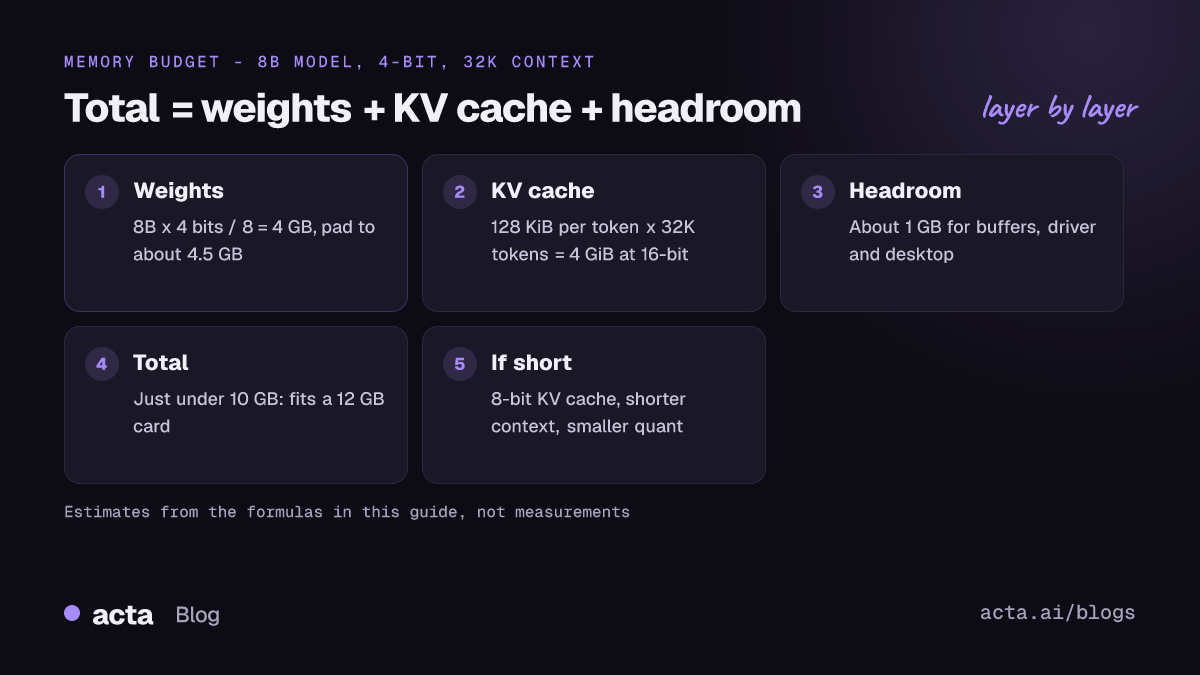
Weights at 4-bit: about 4 GB, padded to 4.5 GB. A 32K context at 16-bit adds 4 GiB (about 4.3 GB). Headroom: 1 GB. Total: just under 10 GB. It fits a 12 GB card with a little room to spare. On an 8 GB card it doesn't, so either drop to an 8K context (1 GiB cache) or switch the cache to 8-bit and stay around 16K.
A 27B to 32B model on a 24 GB GPU
Weights at 4-bit: 13.5 to 16 GB, padded to roughly 15 to 18 GB. That leaves 5 to 8 GB for cache and headroom. Exact cache size depends on the model's layers and KV heads, so look them up, but on most current dense models in this range you'll get a usable working context (tens of thousands of tokens with an 8-bit cache), not the full advertised window. If you need 128K tokens, you need more memory or a smaller model.
A 70B model
Weights at 4-bit: 35 GB, padded to about 39 GB. A 32K context at 16-bit adds 10 GiB. Total: around 50 GB before headroom. A single 24 GB or 32 GB consumer card won't hold it; two 24 GB cards hold the weights but leave little for cache. A Mac with 64 GB or more of unified memory can run it, with the caveats in the next section. For most people asking "how much VRAM do I need" for a 70B model, the honest answer is: more than a gaming PC has, which is when renting or using an API starts to make sense (we compare those routes in open source LLM vs API for business).
Apple unified memory for LLM work has a ceiling below the label
On Apple Silicon there is no separate VRAM. The CPU and GPU share one pool, which is why a 64 GB MacBook Pro can load models no consumer graphics card can. Apple's MLX framework is built around this: its documentation notes that arrays live in shared memory, so operations can run on CPU or GPU without copying data between them.
The catch is that macOS doesn't hand the GPU the whole pool. The system, your browser and every open app need their share, and the operating system caps how much memory can be wired for the GPU. The mlx-lm documentation says that when a model is large relative to RAM it tries to wire the model and cache memory (this needs macOS 15 or later), and that if the model fits in RAM you can often speed it up by raising the limit:
sudo sysctl iogpu.wired_limit_mb=N
Per the mlx-lm docs, N should be larger than the model's size in megabytes but smaller than the machine's memory size.
Practical sizing, derived from the arithmetic above: a 16 GB Mac is comfortable with 8B-class models at 4-bit and modest context; 32 to 48 GB opens up the 27B to 32B range; 64 GB and up is where 70B at 4-bit becomes realistic. Leave several gigabytes for macOS in every case. If you're new to running models on a laptop, start with our beginner's guide to running a local LLM on Mac and Windows, and if you're choosing between Apple's own stack and llama.cpp, see MLX vs llama.cpp on Apple Silicon.
GPU offloading lets a model run, slowly
When a model doesn't fit in VRAM, llama.cpp-based runtimes can split it: some layers on the GPU, the rest in system RAM on the CPU. llama.cpp controls this with -ngl (also --n-gpu-layers), which takes an exact layer count, "auto" or "all"; the default is auto. Its --fit option, on by default, adjusts unset arguments such as context size so the model fits in device memory.
Ollama does the split for you and tells you what it did. Run ollama ps and read the PROCESSOR column: "100% GPU" means everything is in VRAM, "100% CPU" means it's all in system memory, and something like "48%/52% CPU/GPU" means a split. Ollama's own docs recommend avoiding CPU offload for best performance.
Offloading is fine for trying a model or for occasional batch jobs. For daily use it's a trap: the layers on the CPU read their weights from system RAM, which has far less bandwidth than VRAM, and every generated token has to pass through them. If you see a split in ollama ps, the fix is usually a smaller quant, a shorter context or an 8-bit KV cache, in whatever order your task can tolerate.

Runtime flags change the memory bill
The same model can need very different memory depending on two settings: the context you allocate and the precision of the KV cache. These are the official knobs in the three runtimes most people use, as of November 2026.
Ollama
Ollama picks a default context from your VRAM: 4K tokens under 24 GiB, 32K from 24 to 48 GiB, and 256K at 48 GiB or more. That keeps memory low but silently limits long inputs on smaller cards. To change it and shrink the cache, start the server with environment variables:
OLLAMA_CONTEXT_LENGTH=32768 OLLAMA_KV_CACHE_TYPE=q8_0 ollama serve
Ollama's FAQ says q8_0 uses about half the memory of the default f16 with a very small loss in precision, and q4_0 about a quarter with a loss that may be more noticeable at long contexts. The setting is global across models. Flash attention, which cuts memory as context grows, is used automatically where the backend supports it; OLLAMA_FLASH_ATTENTION=1 forces it on.
llama.cpp
Set the context with -c and the cache types with -ctk and -ctv (default f16):
llama-server -hf ggml-org/Qwen3.8-27B-GGUF -c 32768 -ctk q8_0 -ctv q8_0
MLX
mlx-lm's server accepts --kv-bits to quantize the cache and --prefill-step-size to lower peak memory while a long prompt is read (the default step is 2048 tokens):
mlx_lm.server --model <repo> --kv-bits 4 --prefill-step-size 512
Start with an 8-bit cache before you reach for 4-bit. Ollama's docs note that models with a high GQA count can lose more precision from cache quantization, so test on your own inputs. Our comparison of Ollama, LM Studio, llama.cpp and vLLM covers which runner suits which job.
Plenty of people size a GPU because they want private meeting notes from a local model. If that's your goal, you can do it yourself with the numbers above, and our sibling guide on choosing a local LLM for transcripts shows how to test models. If you'd rather not run the hardware, Acta's desktop app captures Zoom and Teams calls from your own computer without a bot and writes the summary, decisions and action items; Acta doesn't use customer data to train AI models.
Frequently asked questions
How much VRAM do I need for a 7B or 8B model?
At 4-bit, plan on about 4.5 GB for weights plus the KV cache for your context. With an 8K context that's roughly 6 to 7 GB in total, so an 8 GB card works. At 32K context you need about 10 GB, which points to a 12 GB card or an 8-bit KV cache. These are estimates from the formula, so check your runtime's log.
How do I calculate KV cache memory?
Multiply 2 x layers x KV heads x head dimension x context tokens x bytes per value. Find layers and KV heads in the model's config file; head dimension is usually the model dimension divided by attention heads. For Llama 3.1 8B at 16-bit that's 128 KiB per token, so a 32K context costs 4 GiB. Hybrid attention models need less.
Is 16 GB of unified memory enough for a local LLM?
For 8B-class models at 4-bit with moderate context, yes. macOS, your browser and other apps share that 16 GB, so models in the 14B range get tight once you add a long context. For 27B to 32B models, look at 32 GB or more. The weights formula plus a few gigabytes for the system gives you the real limit.
Does GPU offloading to system RAM work?
It works, in the sense that the model runs. llama.cpp and Ollama both split layers between GPU and CPU automatically when VRAM runs out. Generation slows down sharply because CPU-side layers read weights from slower system memory on every token. Use it to try a model; for daily work, pick a smaller quant or shorter context so ollama ps shows 100% GPU.
Do mixture-of-experts models need less VRAM?
No. MoE models run fewer parameters per token, which helps speed, but all experts must sit in memory. Size them by total parameters. Google's Gemma 4 model card makes the point: the 26B A4B model, with about 4B active parameters, is listed at 14.4 GB at 4-bit, close to what a dense 26B model needs.
Size your setup before you buy
Run this check for the model you actually want, with the context your real inputs need, before spending money on hardware.
- Pick the file: choose the model and quant, and note the download size; pad formula estimates by 10 to 15 percent.
- Measure your context: decide how many tokens your longest real input needs, then compute the KV cache from the config or a calculator.
- Add headroom: keep at least 1 GB per GPU free, and several gigabytes on a Mac for macOS and your apps.
- Try 8-bit cache first: if you're short, quantize the KV cache before dropping to a smaller model.
- Verify after loading: check ollama ps or your runtime log for any CPU split and for the context actually allocated.
If the end goal is meeting notes rather than a hobby rig, try Acta's desktop app on your next call and compare the result with what your local model produces.