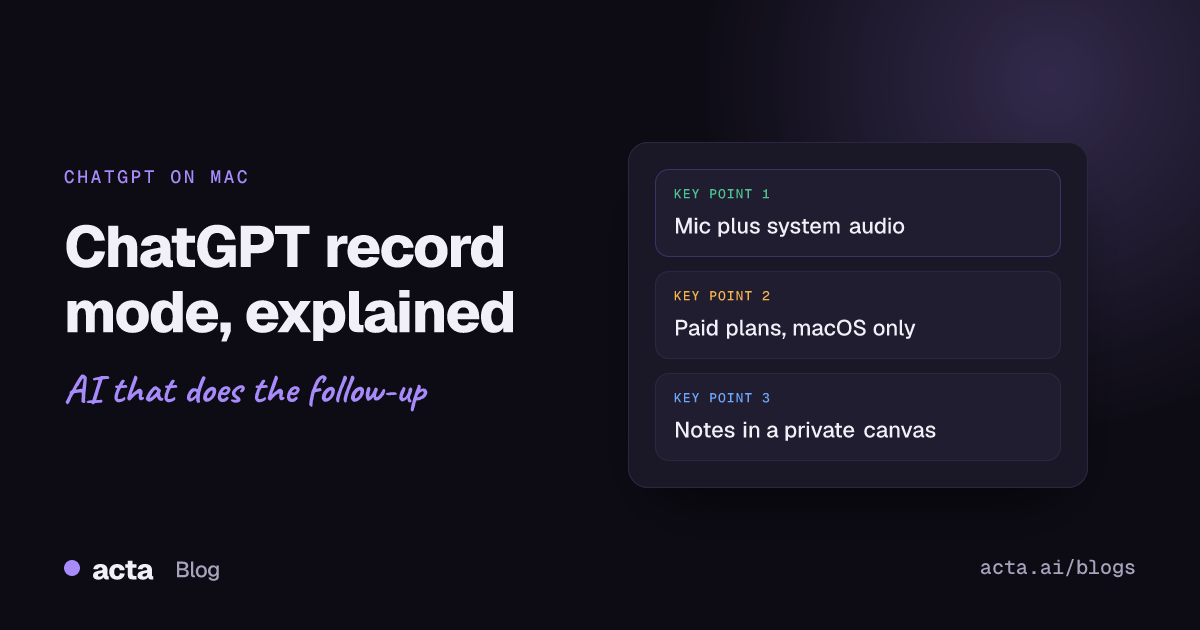
ChatGPT record mode is a feature in the ChatGPT desktop app for Mac that records your microphone and your computer's audio, transcribes the conversation and turns it into notes saved as a private canvas in your chat history. As of November 2026, OpenAI lists it for Plus, Pro, Business, Enterprise and Edu workspaces, on macOS only. It works well for your own meetings and voice notes; it isn't built for team-wide meeting records.
AI at Work 10 min read
ChatGPT Record Mode: What It Does and When a Notetaker Fits Better
What ChatGPT record mode captures on a Mac, which plans include it, how the audio and transcripts are handled, and when a dedicated AI notetaker fits better.
By Sarma BKP, Founder & CEO, Acta · Updated
This guide explains what record mode captures, who can use it, how the data is handled and where it stops. Then it compares record mode with a dedicated AI notetaker, because that's the real question most people have: "do I still need one if I pay for ChatGPT?" If you're on Windows, record mode isn't available to you as of November 2026, so the comparison section is the useful part.
Key takeaways
- Record mode runs only in the ChatGPT macOS desktop app, for Plus, Pro, Business, Enterprise and Edu workspaces; Free accounts and Windows don't have it as of November 2026.
- It captures your microphone and system audio, so it works with any calling app on your Mac, but you must be at the Mac and press record (calendar auto-join is for Google Meet links only).
- OpenAI says the audio is deleted after transcription and isn't used for training; transcripts and canvases may be used for training if "Improve the model for everyone" is on, so turn it off for work meetings.
- Enterprise and Edu workspaces have it off by default until a workspace owner enables it.
- Choose a dedicated notetaker when you need notes shared across a team, meetings you can't attend, report templates or CRM and Jira updates.
Table of contents
- ChatGPT record mode turns audio on your Mac into notes
- Record mode is limited to paid plans on macOS
- Using record mode takes four steps
- Record mode keeps the audio briefly and the transcript longer
- A worked example shows a record mode session
- Record mode's limits show up in team meetings
- ChatGPT record mode and a dedicated notetaker do different jobs
- Frequently asked questions
- Choose between record mode and a notetaker
ChatGPT record mode turns audio on your Mac into notes
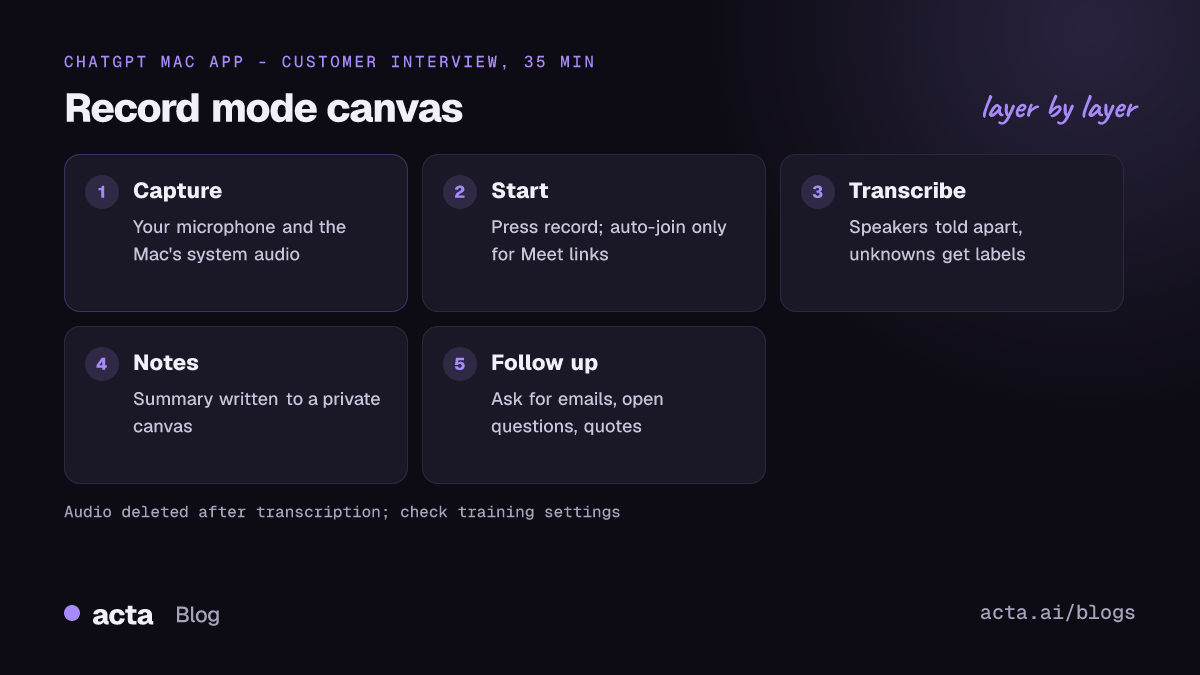
Record mode (OpenAI's help center now calls it ChatGPT Record) is a way to capture a conversation and hand it to ChatGPT without copying and pasting a transcript. According to OpenAI's help article, it transcribes and summarizes audio such as meetings, brainstorms or voice notes. It can tell different speakers apart, labelling the ones it can't identify with generic names, and OpenAI says it works best in English, with accuracy varying in other languages.
Because it listens to your Mac's microphone and system audio, it doesn't care which calling app you use. Zoom, Teams, Meet in a browser, a WhatsApp call, a sales demo played from a video file: if your Mac can hear it, record mode can capture it. When the session ends, ChatGPT writes the notes into a canvas, a document-style panel saved in your chat history, and you can keep the conversation going: "rewrite this as a follow-up email," "list the open questions," "what did Marco say about the timeline?"
There's one more feature worth knowing. With "reference record history" enabled, ChatGPT can draw on notes and transcripts from past recordings in new conversations. That makes record mode a little more than a one-off transcriber; you can ask about last week's brainstorm without finding the chat it lives in.
Record mode is limited to paid plans on macOS
As of November 2026, OpenAI's help center says Record is available for Plus, Enterprise, Edu, Business and Pro workspaces, and only in the macOS desktop app. It doesn't list the Free plan, the web app, Windows or mobile. Plans change, so check the vendor's page before you buy a subscription for this feature alone.
A short history helps when you read older articles. OpenAI first released record mode for business and education workspaces in June 2025, and MacRumors reported in July 2025 that it was rolling out to Plus subscribers on the Mac app. Launch coverage described a 120-minute limit per session; some current language versions of OpenAI's help article list a cap of four hours. If long workshops matter to you, check the current figure on the help page rather than trusting either number.
For companies, there's an admin step. OpenAI says Record is disabled by default for Enterprise and Edu workspaces and a workspace owner has to turn it on. If your colleagues on personal Plus plans have it and you don't on the company workspace, that's usually why.
Using record mode takes four steps
The flow is short. Here it is as of November 2026:
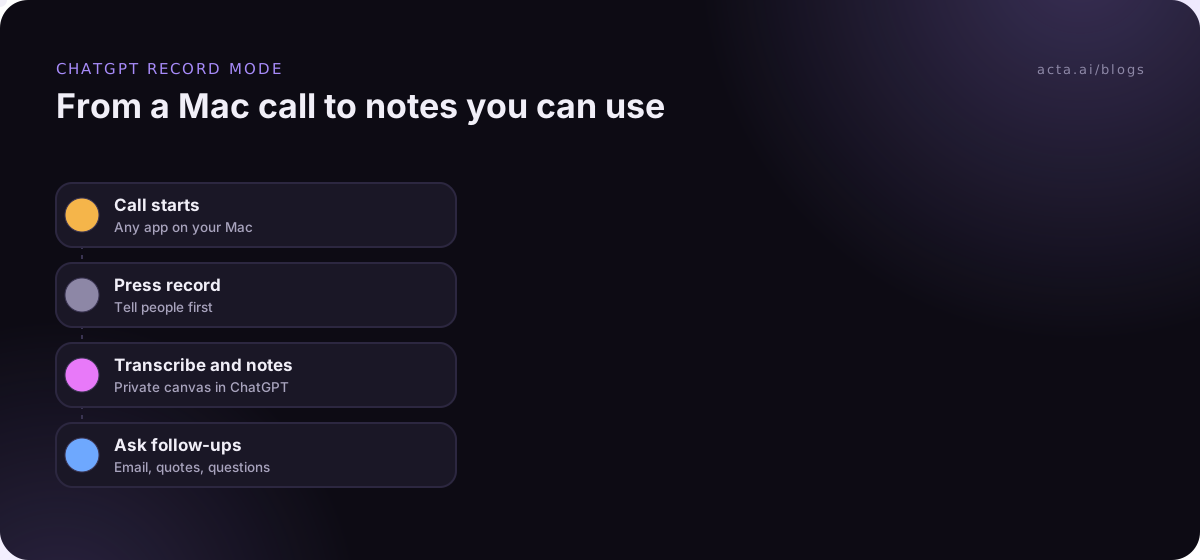
- Open the ChatGPT app on your Mac and sign in with an eligible plan. Give it microphone and system audio permission when macOS asks.
- Start a recording from the record button before or during the call. For Zoom, Teams, Webex and other links, you start it by hand. OpenAI says calendar auto-join works only with Google Meet links.
- Tell the others you're recording. OpenAI's recording screen reminds you to ask first, and its help article says you're responsible for following the laws where you and the people you record are.
- Stop the recording when the call ends. ChatGPT transcribes the audio and writes notes into a private canvas you can edit, question and copy.
On step 3: consent rules differ by country and by state, and some require everyone's agreement. Our guide to recording meetings with AI and what to tell participants covers the basics. It's general information, not legal advice.
Record mode keeps the audio briefly and the transcript longer
OpenAI's help article draws a line between the audio and the text. The audio is deleted after transcription and isn't used for training. The transcripts and canvases are different: they may be used to train models if the "Improve the model for everyone" setting is on. You can turn that off in your data controls, and on business workspaces OpenAI's data handling for those plans applies instead.
My advice for anyone using it at work: turn off "Improve the model for everyone" before your first recording, check what your company's AI policy says about meeting content, and don't record calls with clients under NDA on a personal plan. None of that is unique to ChatGPT; it applies to any tool that stores meeting transcripts. Our piece on meeting data privacy inside AI tools has a fuller checklist.
A worked example shows a record mode session
An illustrative example. Priya is a product manager on a MacBook Air with ChatGPT Plus. She has a 35-minute customer interview on Zoom with a user named Dana. She opens ChatGPT, tells Dana she'd like to record for her own notes, and starts the recording before Dana begins.
When the call ends, the canvas looks something like this (made up, not real output):
Customer interview: reporting workflow
Context: Dana runs weekly reports for a five-person operations team and exports data to spreadsheets every Monday.
Pain points: Exports break when column names change. Charts have to be rebuilt by hand. Sharing with her manager means emailing files.
Quotes: "Monday morning is just copy and paste."
Follow-ups: Send Dana the beta sign-up link. Ask engineering whether scheduled exports are on the roadmap.
Then Priya asks ChatGPT, "Write a two-line thank-you email to Dana with the beta link placeholder," and "Which of these pain points came up in last week's interview with Marco?" The second question uses record history, which only works if she enabled it. What she can't do easily is share the canvas with her design and engineering colleagues as a team record, tag the interview in a research repository or have it feed a CRM. She'll copy and paste for that.
Record mode's limits show up in team meetings
ChatGPT record mode is a personal tool. It's very good for one person who wants notes from their own conversations on their own Mac. The limits appear once a team wants to rely on it:
- You have to be there, on a Mac. It records what your Mac hears. Meetings you can't attend, or ones you join from a Windows laptop or your phone, aren't covered.
- Notes live in your chat history. Colleagues don't automatically see them. There's no shared library of meetings for the team.
- Speaker names aren't guaranteed. OpenAI says unidentified speakers get generic labels. In a six-person call, "Speaker 3 agreed to send the contract" is hard to act on. Our explainer on speaker diarization covers why this is hard from mixed audio.
- Manual start for most platforms. Auto-join from the calendar is for Google Meet links only, so forgetting to press record means no notes.
- No direct push to work systems. Action items stay in the canvas until you move them to Jira, a CRM or your task list.
- Session caps. There's a per-session limit, and long workshops may need more than one recording.
ChatGPT record mode and a dedicated notetaker do different jobs
The fairest way to compare them is by job, not by summary quality. Both write decent summaries from a clear recording. The difference is everything around the summary.
| Question | ChatGPT record mode | Dedicated AI notetaker |
|---|---|---|
| Where does it run? | ChatGPT Mac app only | Usually Windows and Mac, browser, mobile; varies by tool |
| Meetings you can't attend? | No, you must be recording | Often yes, through a meeting bot |
| Who sees the notes? | You, in your chat history | Shared with the team or workspace |
| Structured reports? | Whatever you prompt for | Templates for sales calls, interviews, stand-ups |
| Push to CRM or Jira? | Copy and paste | Usually built-in integrations |
| Extra cost | Included in eligible ChatGPT plans | A separate subscription |
Use record mode when you're a Mac user with a paid ChatGPT plan, the meetings are yours, and you mostly want a private summary and a chat to work with it. Use a dedicated notetaker when the notes need to belong to the team, when meetings happen without you, or when they should land in your CRM, Jira or Notion without retyping. Many people end up with both: ChatGPT for thinking, a notetaker for the record. You can join them too; Acta's MCP connector for ChatGPT and Claude lets you ask ChatGPT about meetings Acta recorded. For more options, see our list of AI meeting assistants that work with ChatGPT, Claude and Copilot.
Where Acta fits
Acta records Zoom, Google Meet and Microsoft Teams with a meeting bot, or without one through the desktop app for Windows and Mac or the Chrome extension. It writes transcripts with speaker names, summaries, decisions and action items with owners, has 40 report templates, and connects to Salesforce, HubSpot, Jira and Notion. Acta doesn't use customer data to train AI models.
Frequently asked questions
Is ChatGPT record mode free?
No. As of November 2026, OpenAI lists record mode for Plus, Pro, Business, Enterprise and Edu workspaces, not the Free plan. It's included in those plans rather than sold separately. OpenAI changes what each plan includes, so check the vendor's page for current availability and prices before you subscribe.
Does ChatGPT record mode work on Windows?
Not as of November 2026. OpenAI's help center says Record is available only in the ChatGPT macOS desktop app. An older version of the page mentioned Windows support coming, but no Windows release is listed now. On Windows, you'll need a separate notetaker or recorder that runs there.
Can ChatGPT record mode join Zoom or Teams meetings?
It doesn't join as a participant. It records the audio your Mac plays and your microphone, so it captures Zoom or Teams calls you're in once you press record. OpenAI says calendar auto-join works only with Google Meet links; for Zoom, Teams and Webex you start it by hand.
Does OpenAI train on my recordings?
OpenAI says the audio is deleted after transcription and not used for training. Transcripts and canvases may be used for training if "Improve the model for everyone" is turned on. Turn that setting off in your data controls, and check your company's AI policy before recording work meetings.
What is the difference between ChatGPT record mode and an AI notetaker?
Record mode is personal: it runs on your Mac, needs you in the call and keeps notes in your chat history. An AI notetaker is usually built for teams: it can attend without you, shares notes across a workspace, uses templates and sends action items to tools like Jira or a CRM.
Choose between record mode and a notetaker
Answer these honestly and the choice usually makes itself.
- Check your device: if you're on Windows or switch between devices, record mode won't cover you.
- Count meetings you miss: if you often need notes from calls you can't join, you need a tool that can attend.
- Decide who owns the notes: personal notes suit record mode; team records need a shared workspace.
- Map where notes go next: if action items belong in Jira or a CRM, pick a tool that sends them there.
- Set your data controls: whichever you use, turn off model training on work content and tell people you're recording.
If you need team meeting records on Windows or Mac, try Acta's desktop app with a 15-day free trial.
Found this useful? Share it with your team.