Guides & How-tos 15 min read
Best AI Meeting Assistants for ChatGPT, Claude and Copilot in 2026
Which meeting tools let ChatGPT, Claude, Gemini and Copilot read your meetings, action items and decisions, and which let them make changes safely? A 2026 buying guide.
Quick answer: Acta is the best overall pick if you want ChatGPT, Claude, Gemini or Copilot to answer questions about your meetings, because its remote MCP connector reads action items and decisions, not just transcripts, and every change an assistant makes is opt-in, shown in Acta and undoable. Read AI suits Claude-first teams, Granola suits individual note takers, and Fireflies or Otter suit teams already recording there.
A lot of people now start their working day in a general AI assistant. They draft in ChatGPT, think in Claude, or search in Copilot. What those assistants usually do not know is what was said in last Tuesday's pricing call. The fix in 2026 is a connector: your meeting tool exposes your meetings to the assistant, and you ask in plain language.
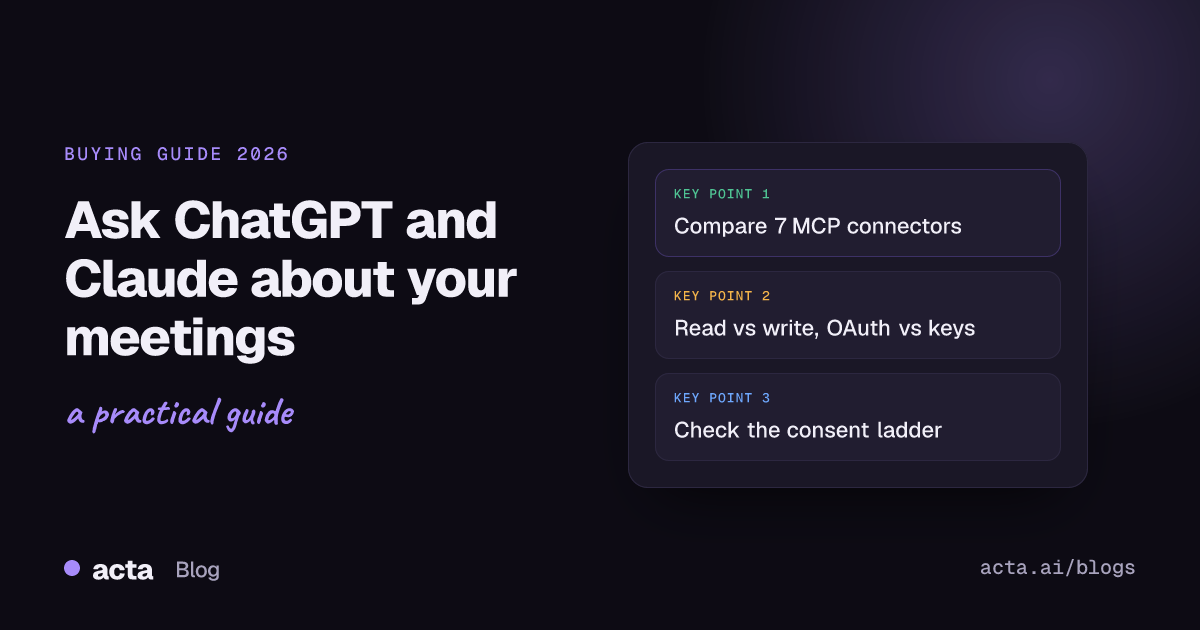
Most meeting tools now ship one, so the useful question is no longer "does it connect?" but "how far up the ladder does it go?" We call this the consent ladder. Rung one: the assistant can find and read meetings and transcripts. Rung two: it can read the follow-through, meaning the action items and decisions that came out of those meetings. Rung three: it can change something, such as closing an action item, and you approved that specific kind of change beforehand, can see who made it, and can undo it.
This guide ranks seven meeting assistants by how well they climb that ladder for someone who already lives in ChatGPT, Claude, Gemini or Copilot. We also cover the built-in options in Microsoft Teams and Google Meet, which work differently. Every competitor claim below comes from the vendor's own documentation, checked in October 2026.
What is an MCP connector for meeting notes?
The Model Context Protocol (MCP) is an open standard for connecting AI applications to outside data and tools. A meeting tool runs an MCP server; your assistant (ChatGPT, Claude and many others) acts as the client. The server offers tools such as "search meetings" or "get transcript", and the assistant decides when to call them while answering you.
A remote MCP server lives at a URL. You paste that URL into your assistant's connector settings, or pick the vendor from a directory, and sign in. Some vendors also publish local servers that you run on your own computer with an API key. Both work, but they differ a lot in setup effort and in how access is controlled.
If you want the short version of how this looks for Acta, see how to ask ChatGPT or Claude about your meetings.
Why does this matter in 2026?
Two things changed. First, connectors became normal: ChatGPT, Claude, Gemini and Copilot all let users add outside data sources, and meeting vendors raced to be listed. Second, connectors started to write as well as read. A connector that can mark work done or change a decision's status is useful, and it is also a new place where mistakes can happen without anyone noticing.
That is why the consent ladder matters more than the logo list. Reading a transcript is low risk. Changing a shared record on your behalf needs clear consent, a visible trail and an undo. We cover the security side in depth in AI agents and MCP security: when a chatbot can take action.
How we evaluated each tool
We scored each tool on five criteria that matter when the assistant, not the meeting app, is where you ask questions.
1. Assistant reach
Which assistants can connect, and how? A remote server that any MCP-capable assistant can use reaches further than a single app integration. A local server that needs Node.js or Docker is fine for developers and a blocker for everyone else.
2. Depth of what the assistant can read
Meetings and transcripts are the floor. The more useful question is whether the assistant can read structured follow-through: action items with owners, and decisions. That is what lets you ask "what is still open from the vendor reviews?" instead of re-reading five transcripts.
3. The consent ladder for changes
Can the assistant change anything, and if so, which changes, with what consent? We looked for write actions that are off by default, granted one by one, recorded with who made them, and reversible.
4. Sign-in model
OAuth means you sign in with your account and approve access; nothing secret is copied around. API keys are long-lived secrets you paste into a config file. OAuth is easier for non-developers and easier to revoke cleanly.
5. Data boundaries and answers you can check
Does the assistant see only meetings you can already see? Can it delete or share anything? Can you disconnect it in one step? And do answers point back to the source meeting so you can check the quote?
Quick comparison
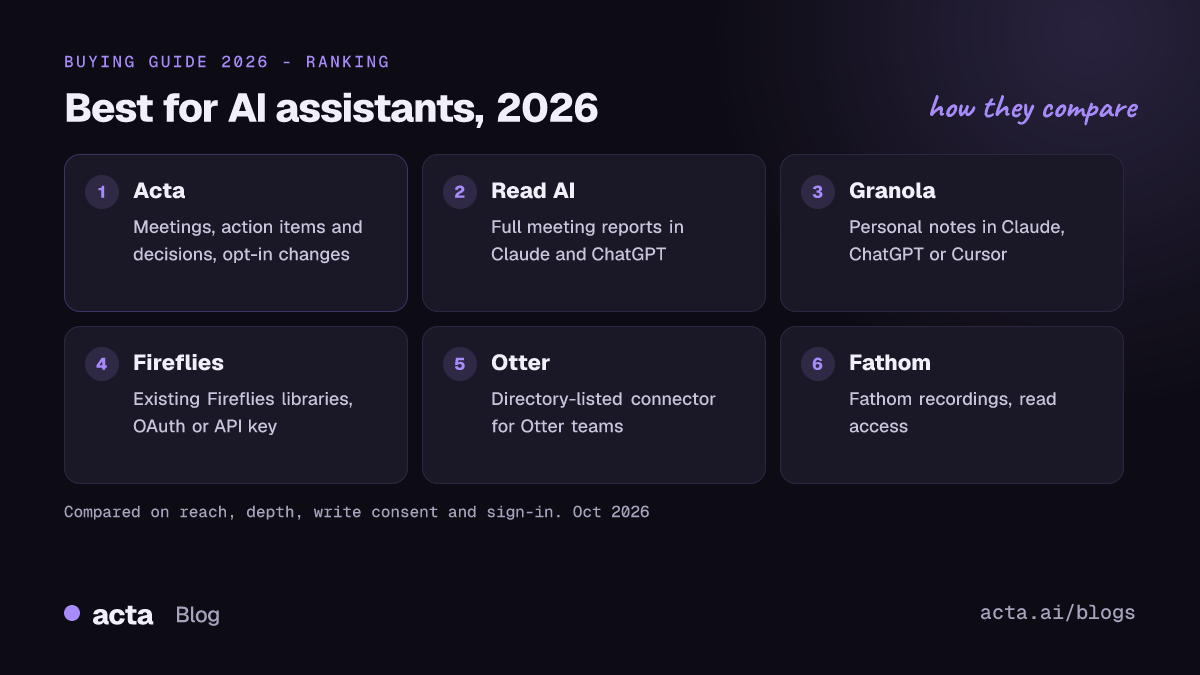
- Acta: best overall for asking about meetings, action items and decisions from any MCP-capable assistant, with opt-in, undoable changes.
- Read AI: best for Claude and ChatGPT users who want full meeting reports through a simple OAuth connector.
- Granola: best for individuals who take notes in Granola and query them from Claude, ChatGPT or Cursor.
- Fireflies: best for teams already recording in Fireflies who want ChatGPT or Claude access.
- Otter: best for Otter teams who want a directory-listed connector in Claude and ChatGPT.
- Fathom: best for Fathom users who want their recordings in Claude or ChatGPT.
- tl;dv: best for tl;dv customers who want a hosted, read-only connector.
1. Acta: best overall for asking any assistant about meetings, action items and decisions
Acta is an AI meeting assistant for Zoom, Google Meet and Microsoft Teams that records with or without a bot and turns meetings into transcripts with speaker names, summaries, action items and a decision log. Its remote MCP connector lets ChatGPT, Claude, Gemini, Microsoft Copilot, GitHub Copilot, Cursor, Mistral Le Chat, Perplexity and other assistants that support remote MCP connectors search your Acta meetings.
Why it stands out
Acta climbs all three rungs of the consent ladder, and each rung is explicit.
- Setup without keys. Copy the connector URL from Settings -> AI assistants, add it to your assistant, sign in to Acta and choose Allow. It is OAuth; there are no API keys to manage.
- Reads the follow-through, not just the words. Assistants can search meetings, read a meeting and its transcript, and list action items and decisions. Answers link back to the meeting in Acta, so you can check the source.
- Changes are opt-in, one by one. Marking action items done, commenting on action items and setting a decision's status are each off unless you allow them. Every change shows in Acta with who made it, and can be undone.
- Clear limits. Assistants only see meetings you can see, cannot delete or share anything, and can be disconnected at any time.
Here is what that looks like in practice (an illustrative example; names and content are invented):
You (in Claude): What did we decide about the EU price change,
and what is still open?

Claude (using Acta):
Decision: Move EU customers to annual billing from Q1.
  Decided by Dana Ruiz in "Pricing review" (Oct 6). Owner: Sam Lee.
  History: reversed the Sep 22 decision to keep monthly billing.
Open action items:
  - Sam Lee: update EU price page (due Oct 17, overdue)
  - Priya Shah: draft customer email (due Oct 20)
Sources: Pricing review, Oct 6 [link to Acta]; Pricing sync, Sep 22 [link]

You: Mark Priya's email as done.
Claude: Done. The change is logged in Acta under your name and can be undone.
The answer is useful because the underlying data is structured. Acta's decision log records who decided, the owner, linked action items and the history when a later meeting changes a decision. Its action item tracker keeps owners and due dates across all meetings. The assistant is reading a record, not guessing from a transcript. For more on that record, see our guide to the best AI tools for meeting decisions and action items.
Acta also records without a bot through its desktop app and Chrome extension, which matters if guests dislike notetakers joining calls. Our guide to bot-free AI notetakers covers that in detail.
Watch out for
Transcription happens after the meeting, not live, so the assistant cannot answer questions about a call that is still running. The MCP connector is part of Pro (free for the first 15 days), so it is not on a permanent free plan. Your assistant also has to support remote MCP connectors, and the write actions are deliberately narrow: three kinds of changes, nothing more.
2. Read AI: best for Claude and ChatGPT users who want full meeting reports
Read AI documents a remote MCP server at api.read.ai/mcp that uses OAuth 2.1 with your Read AI sign-in. Its integrations page lists a Claude connector, and Read AI says the server works in Claude Desktop, web and Claude Code, with a ChatGPT connector for paid ChatGPT users.
What it does well
Setup is simple and key-free. The two documented tools are focused: list meetings with date filtering, and get a meeting by ID, which returns summaries, action items, topics and the transcript. That gives an assistant a lot of context per meeting. Short-lived tokens (Read AI documents a 10-minute access token with rotating refresh tokens) are a sensible security default.
Watch out for
Read AI labels the server an open beta. With two tools, the assistant browses meeting by meeting rather than querying action items or decisions as their own records. The current flow requires a browser login and does not yet support static API keys, which matters if you want server-to-server automation.
3. Granola: best for individuals who take notes in Granola
Granola's MCP documentation describes a hosted server at mcp.granola.ai/mcp. You connect it from Claude's connector settings, from ChatGPT's apps, or from Claude Code and other clients that support Streamable HTTP. Granola's announcement also names Cursor.
What it does well
It is one of the clearest docs pages in this group: one URL, browser OAuth, explicit plan limits. Assistants can search past meetings and pull notes, action items and transcripts. For a person who already writes in Granola, it turns months of notes into something Claude or ChatGPT can reason over.
Watch out for
MCP queries cover only notes you own, not notes in shared folders, so it is a personal tool more than a team memory. On the free Basic plan, MCP reaches 30 days of meeting history; full history and transcript access come with Business and Enterprise. Granola does not document write actions. See Acta vs Granola for a side-by-side.
4. Fireflies: best for teams already recording in Fireflies
Fireflies runs an official MCP server at api.fireflies.ai/mcp. Its help guide walks through adding it to ChatGPT as a custom connector with OAuth and to Claude as a custom connector, and its developer docs cover configuration for other MCP clients. The launch post frames it as connecting your AI tools directly to meeting data.
What it does well
If your team already has a large Fireflies library, this is the shortest path to querying it from ChatGPT or Claude. OAuth is supported, and Fireflies also documents an API key route for Claude Desktop, which developers sometimes prefer for scripting.
Watch out for
Fireflies' guide notes that its own retention policy covers its core services, and that data you pull into ChatGPT or Claude falls under those platforms' terms. Its ChatGPT instructions were written for Plus, Team and Enterprise plans. Review the current tool list before you connect, so you know exactly which tools read and which can change data.
5. Otter: best for Otter teams who want a directory-listed connector
Otter describes its MCP server as making your meetings available to the AI tools you already use. It has an integration page for Claude and announced that meeting data is accessible in ChatGPT through its app.
What it does well
Connecting is a directory search and an OAuth sign-in, with no URL to copy. Otter says assistants can search across transcripts from any time period and look for patterns across many meetings. Otter also works the other way round, pulling context from other tools into Otter, which helps teams that want Otter as the hub.
Watch out for
Otter's materials focus on search and transcript access; we did not find documented write actions or a separate record of decisions for the assistant to query. Check which Otter plans include the connector before rolling it out to a team. Compare details in Acta vs Otter.
6. Fathom: best for Fathom users who want recordings in Claude or ChatGPT
Fathom's help center explains how to connect Fathom to Claude through a connector and to ChatGPT through the Fathom app (you type @Fathom in a chat). Its developer docs list the server at api.fathom.ai/mcp and a Claude Code setup.
What it does well
The data boundary is stated plainly: the integration can only reach meetings you already have permission to view in Fathom, and it does not open new categories of data. For a Fathom user, that is a reassuring default.
Watch out for
In Claude teams and organizations, an owner must enable the connector before members see it. The Claude Code route uses the mcp-remote bridge, which needs Node.js. Fathom's public docs say little about which tools are exposed or whether any can change data, so test before you rely on it for follow-through.
7. tl;dv: best for tl;dv customers who want a hosted, read-only connector
tl;dv maintains an official MCP server repository and says the server is hosted by tl;dv: you add it from the connector directory in Claude or ChatGPT and authorize it with OAuth, without installing anything or creating an API key.
What it does well
tl;dv's own MCP guide describes the connector as read-only: it cannot delete recordings, change transcripts or share calls, and it inherits what your tl;dv account can already open. For cautious teams, that is a clean, simple boundary.
Watch out for
Read-only also means rung three of the ladder is out of reach: the assistant can tell you what is open but cannot close it. Earlier versions of the server ran locally with an API key and required a Business plan, so older setup guides online may not match the current hosted version. Check plan availability on tl;dv's site.
What about Copilot in Teams and Gemini in Meet?
Both suites have meeting AI built in, but it is not the same as a connector. Copilot in Microsoft Teams meetings answers questions about a meeting from its transcript and chat, and recaps key points and action items. Microsoft notes that you need transcription on to ask Copilot about the meeting afterwards, and its catch-up guide says Copilot does not work in meetings hosted outside the participant's organization. It requires Microsoft licensing beyond a basic Teams seat.
In Google Meet, "Take notes for me" uses Gemini to write notes into a Google Doc, with a summary and action items, and needs an eligible Workspace edition or Google AI plan. Ask Gemini in Meet is a separate, private way to ask questions during a call.
These are good choices when every meeting happens on one platform. They are weaker when your meetings span Zoom, Teams and Meet, or when you want to ask from a different assistant than the one your suite provides. See Acta vs built-in meeting AI.
A week of asking your assistant about meetings (example)
This is an invented example to show the differences in practice. Priya runs operations at Northwind Labs, a 60-person software company. She lives in Claude. Her meetings are split: customers on Zoom, the leadership team on Teams, a partner on Google Meet.
- Monday: She asks Claude, "Summarize last week's vendor reviews." Any connector in this guide can do this if the meetings were recorded by that tool. Native Copilot or Gemini only see their own platform's meetings.
- Tuesday: "Which action items from the vendor reviews are overdue, and who owns them?" Tools that expose action items with owners and due dates answer directly. Transcript-only connectors make Claude infer them from text, which works for one meeting and gets shaky across ten.
- Wednesday: "Did we ever reverse the decision to drop the second data vendor?" This needs a decision record with history. With Acta, the decision log shows the original decision, the later change and the quote. Without one, Claude has to search transcripts and hope.
- Thursday: Priya finishes a task and says, "Mark the security questionnaire item done." With a read-only connector she switches apps and does it by hand. With Acta, she allowed that one action in advance, so Claude closes it, Acta shows Priya made the change, and she can undo it.
- Friday: Her CFO asks for the source of a figure. Answers that link to the meeting let Priya send the exact moment rather than a paraphrase.
The pattern: rung one is common, rung two separates tools that store structured follow-through from those that store only text, and rung three is rare and worth doing carefully.
When is Acta not the right choice?
If every meeting your team holds is an internal Microsoft Teams call and you already pay for Copilot licensing, built-in Copilot may cover what you need without another tool. If you need answers during a live meeting, Acta is the wrong fit, because it transcribes after the meeting ends. And if you have years of history in Fireflies, Otter or another recorder and only want read access from ChatGPT, that tool's own connector is the cheaper move than switching.
How to choose
- Choose Acta if you want any MCP-capable assistant to read meetings, action items and decisions, and to make a few opt-in, undoable changes, across Zoom, Meet and Teams.
- Choose Read AI if you work mainly in Claude or ChatGPT and want full meeting reports through a simple OAuth connector.
- Choose Granola if you take your own notes and want to query them from Claude, ChatGPT or Cursor.
- Choose Fireflies if your team already records there and you want both OAuth and API key options.
- Choose Otter if your team is on Otter and wants a directory-listed connector with no URL to copy.
- Choose Fathom or tl;dv if you already use them and read access from your assistant is enough.
- Choose Copilot in Teams or Gemini in Meet if all your meetings run on one suite and you are happy asking that suite's assistant.
Frequently asked questions
What is an MCP server in a meeting tool?
It is a service that lets AI assistants call the meeting tool's functions, such as searching meetings or reading a transcript, using the Model Context Protocol. You connect it once in your assistant, sign in, and then ask questions in plain language.
Is OAuth safer than an API key for meeting connectors?
For most people, yes. OAuth lets you sign in and approve access without copying a long-lived secret into a config file, and you can revoke it from your account. API keys are useful for developers but are easier to leak and harder to scope.
Can ChatGPT or Claude change my meeting data through a connector?
Only if the meeting tool exposes write actions and you allow them. Several connectors are read-only. Acta offers three optional changes (mark action items done, comment on action items, set a decision's status), each off until you allow it, logged with who made it, and undoable.
Do I need a paid plan to use these connectors?
It depends on both sides. Many assistants require a paid plan for custom connectors, and meeting tools often limit MCP to certain tiers. Acta's connector is part of Pro, which is free for the first 15 days.
Can one connector cover Zoom, Teams and Google Meet?
Yes, if the meeting tool records all three. Acta records Zoom, Google Meet and Microsoft Teams, so one connector covers them. Built-in Copilot and Gemini each focus on their own platform. Our guide to the best meeting notes software in 2026 covers recording options in more depth.
Want to ask your own assistant about your meetings? Try Acta free for 15 days and connect it from Settings -> AI assistants.
Found this useful? Share it with your team.